S31-KS/S31B-KS – LTE CAT-1 Temperature & Humidity Sensor User Manual
S31-KS/S31B-KS – LTE CAT-1 Temperature & Humidity Sensor User Manual
1. Introduction
1.1 What is Temperature & Humidity Sensor
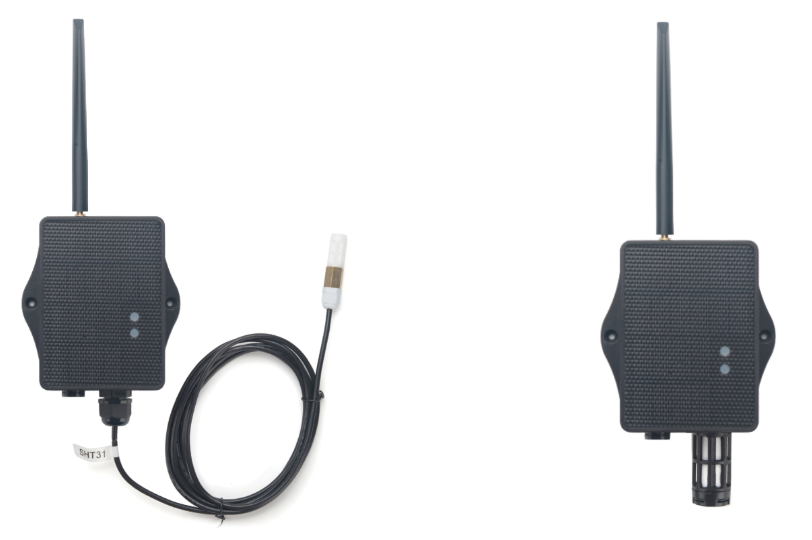
The Dragino S31-KS and S31B-KS are LTE CAT-1 Temperature and Humidity Sensor for Internet of Things solution. It is used to measure the surrounding environment temperature and relative air humidity precisely, and then upload to IoT server via LTE CAT-1 network.
The temperature & humidity sensor used in S31x-KS is SHT31, which is fully calibrated, linearized, and temperature compensated digital output from Sensirion, it provides a strong reliability and long-term stability. The SHT31 is fixed in a waterproof anti-condensation casing for long term use.
S31x-KS supports different uplink methods include MQTT, MQTTs, TCP, UDP for different application requirement. and Support Uplinks to various IoT Servers.
S31x-KS is powered by 3000mAh Li-ion battery, It is designed for long term use up to several years. (Real-world battery life depends on the use environment, update period and uplink method. Please check related Power Analyze report).
*make sure you have LTE CAT-1 coverage locally.
1.2 Features
- CAT-1 Bands: B1/B2/B3/B4/B5/B7/B8/B20/B28/B34/B27/B28/B38/B39/B40/B41/B66
- Ultra-low power consumption
- External 3 meters SHT31 probe (For S31-KS)
- Measure range -40°C ~ 80°C
- Temperature & Humidity alarm
- Multiply Sampling and one uplink
- Uplink via MQTT, MQTTs, TCP or UDP
- Support Bluetooth v5.1 remote configure and update firmware
- Uplink on periodically
- Downlink to change configure
- Charging Pad + 1000mAh Li-ion Battery (S31x-KN)
- Solar panel + 3000mAh Li-ion Battery (S31x-KS)
- Nano SIM card slot for CAT-1 SIM
1.3 Specification
Common DC Characteristics:
- Supply Voltage: 2.6v ~ 3.6v
- Operating Temperature: -40 ~ 85°C
Temperature Sensor:
- Range: -40 to + 80°C
- Accuracy: ±0.2 @ 0-90 °C
- Resolution: 0.1°C
- Long Term Shift: <0.03 °C/yr
**Humidity Sensor: **
- Range: 0 ~ 99.9% RH
- Accuracy: ± 2%RH ( 0 ~ 100%RH)
- Resolution: 0.01% RH
- Long Term Shift: <0.25 %RH/yr
CAT-1 Spec:
CAT-1 Module: EG800-NGFF
Support Bands:
EU:
For European, Asia, Austrial, LTE-FDD: B1/3/5/7/8/20/28
- B1 @FDD: 2100MHz
- B3 @FDD: 1800MHz
- B5 @FDD: 850MHz
- B7 @FDD: 2600MHz
- B8 @FDD: 900MHz
- B20 @FDD: 800MHz
- B28 @FDD: 700MHz
LA:
For Latin America, LTE-FDD: B2/3/4/5/7/8/28/66
- B2 @FDD: 1900MHz
- B3 @FDD: 1800MHz
- B4 @FDD: 1700/2100MHz
- B5 @FDD: 850MHz
- B7 @FDD: 2600MHz
- B8 @FDD: 900MHz
- B28 @FDD: 700MHz
- B66 @FDD: 1700/2100MHz
**NA: **
For North America, LTE-FDD: B2/4/5/12/13/66
- B2 @FDD: 1900MHz
- B4 @FDD: 1700/2100MHz
- B5 @FDD: 850MHz
- B12 @H-FDD: 720MHz
- B13 @H-FDD: 740MHz
- B66 @FDD: 1700/2100MHz
Battery:
- Li-ion Battery
- Capacity: 3000mAh & 1000mAh
- Self Discharge: <1% / Year @ 25°C
- Max continuously current: 130mA
- Max boost current: 2A, 1 second
Power Consumption:
- STOP Mode: 14uA @ 3.3v
- Max transmit power: 350mA@3.3v
1.4 Applications
- Smart Buildings & Home Automation
- Logistics and Supply Chain Management
- Smart Metering
- Smart Agriculture
- Smart Cities
- Smart Factory
1.5 Sleep mode and working mode
**Deep Sleep Mode: **Sensor doesn't have any CAT-1 activate. This mode is used for storage and shipping to save battery life.
Working Mode: In this mode, Sensor will work as CAT-1 Sensor to Join CAT-1 network and send out sensor data to server. Between each sampling/tx/rx periodically, sensor will be in IDLE mode), in IDLE mode, sensor has the same power consumption as Deep Sleep mode.
1.6 Button & LEDs
| Behavior on ACT | Function | Action |
|---|---|---|
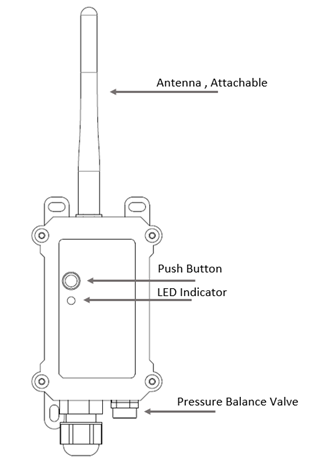
 1~3s 1~3s | Send an uplink | If sensor has already attached to CAT-1 network, sensor will send an uplink packet, blue led will blink once. Meanwhile, BLE module will be active and user can connect via BLE to configure device. |
| >3s | Active Device | Green led will fast blink 5 times, device will enter OTA mode for 3 seconds. And then start to attach CAT-1 network. Green led will solidly turn on for 5 seconds after joined in network. Once sensor is active, BLE module will be active and user can connect via BLE to configure device, no matter if device attach CAT-1 network or not. |
 x5 x5 | Deactivate Device | Red led will solid on for 5 seconds. Means device is in Deep Sleep Mode. |
Note: When the device is executing a program, the buttons may become invalid. It is best to press the buttons after the device has completed the program execution.
1.7 BLE connection
S31x-KS support BLE remote configure and firmware update.
BLE can be used to configure the parameter of sensor or see the console output from sensor. BLE will be only activate on below case:
- Press button to send an uplink
- Press button to active device.
- Device Power on or reset.
If there is no activity connection on BLE in 60 seconds, sensor will shut down BLE module to enter low power mode.
1.8 Pin Definitions , Switch & SIM Direction
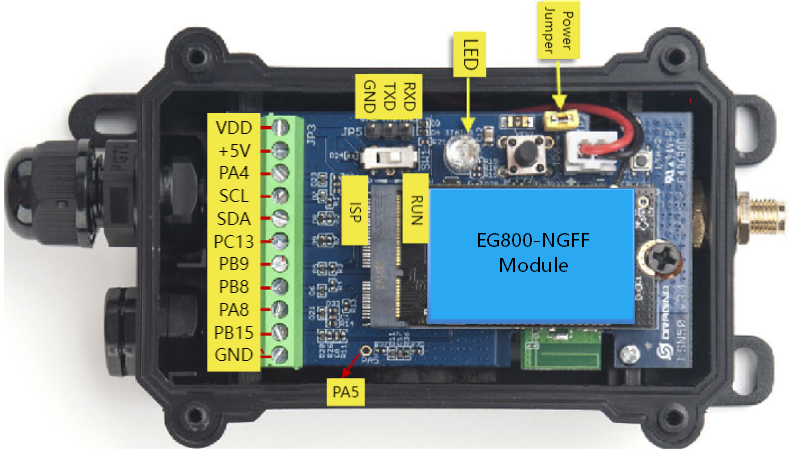
1.8.1 Jumper JP2
Power on Device when put this jumper.
Power off device when take out this jumper
1.8.2 BOOT MODE / SW1
1) ISP: upgrade mode, device won't have any signal in this mode. but ready for upgrade firmware. LED won't work. Firmware won't run.
2) Flash: work mode, device starts to work and send out console output for further debug
1.8.3 Reset Button
Press to reboot the device.
1.8.4 SIM Card Direction
See this link. How to insert SIM Card.
1.9 Hardware Variant
| Model | Photo | Probe Info |
|---|---|---|
| S31-KS&S31-KN | 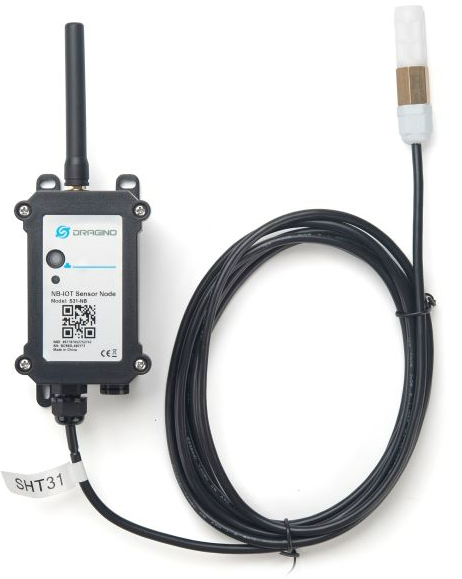 | 1 x SHT31 Probe Cable Length : 3 meters |
| S31B-KS&S31-KN | 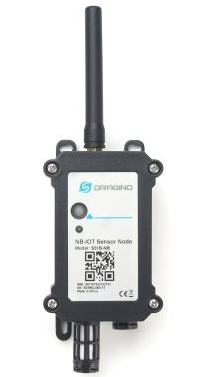 | 1 x SHT31 Probe Installed in device. |
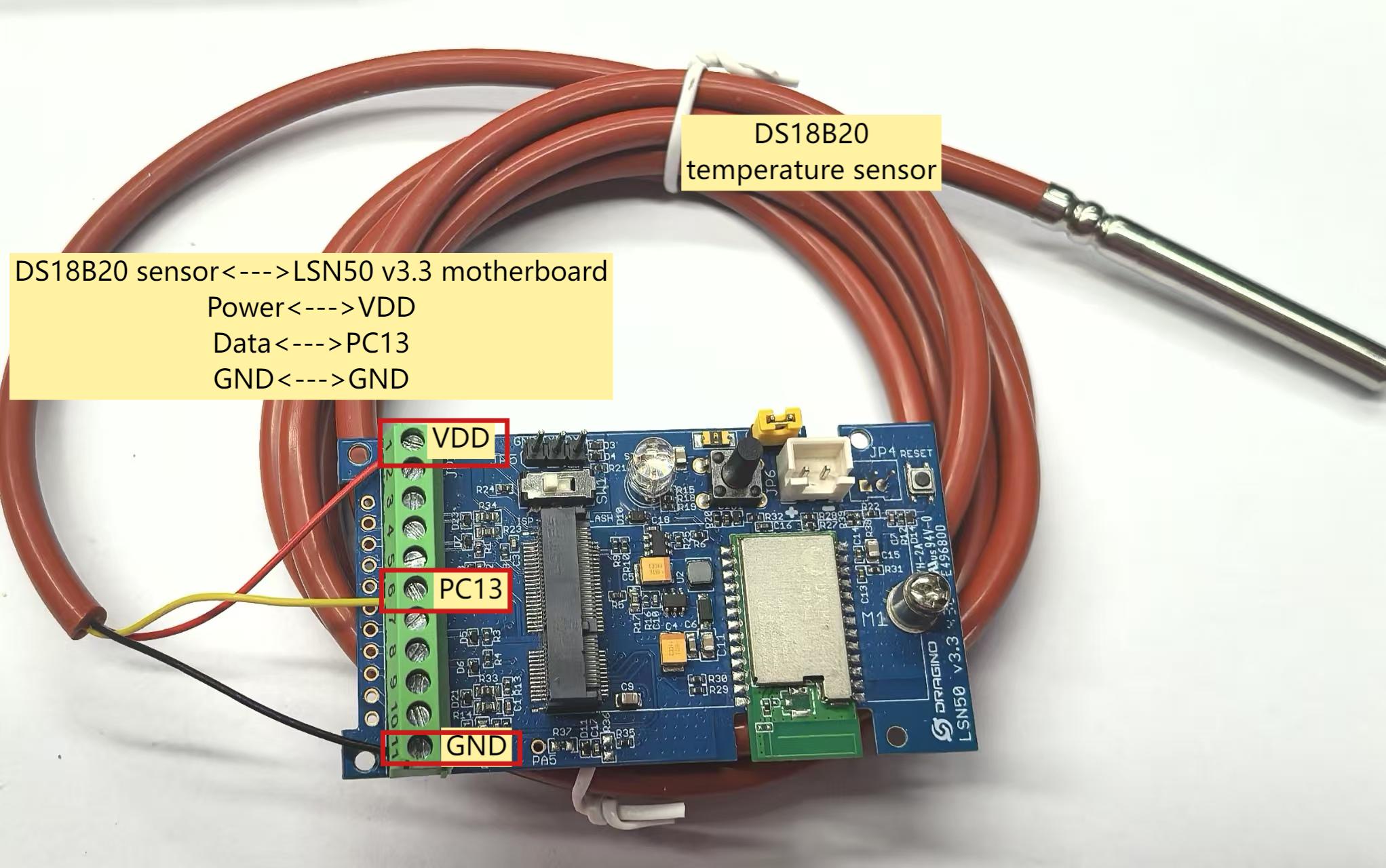
1.10 Wiring of DS18B20 temperature sensor
The S31x-KS supports connection to the external temperature sensor DS18B20. The wiring method is as follows:
2. Use S31x-KS to communicate with IoT Server
2.1 Send data to IoT server via LTE CAT-1 network
The S31x-KS is equipped with a LTE CAT-1 module, the pre-loaded firmware in S31x-KS will get environment data from sensors and send the value to local LTE CAT-1 network via the LTE CAT-1 module. The LTE CAT-1 network will forward this value to IoT server via the protocol defined by S31x-KS.
Below shows the network structure:
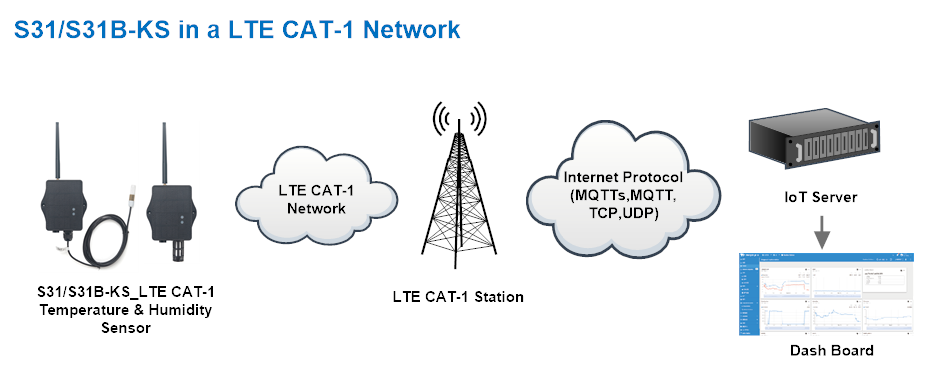
There are two version: -GE and -1T version of S31x-KS.
GE Version: This version doesn't include SIM card or point to any IoT server. User needs to use AT Commands to configure below two steps to set S31x-KS send data to IoT server.
-
Install LTE CAT-1 SIM card and configure APN. See instruction of Attach Network.
-
Set up sensor to point to IoT Server. See instruction of Configure to Connect Different Servers.
Below shows result of different server as a glance.
| Servers | Dash Board | Comments |
|---|---|---|
| Node-Red | 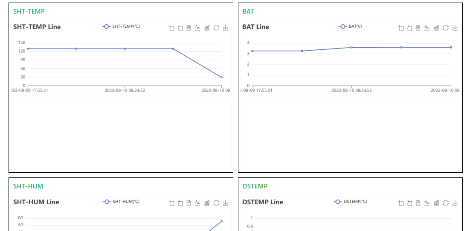 | |
| DataCake | 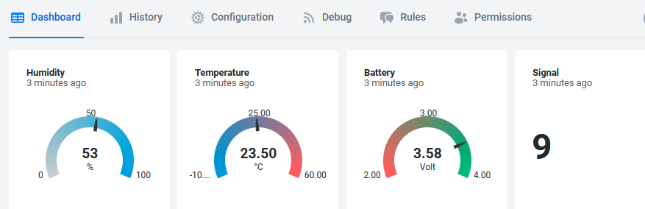 | |
| Tago.IO | ||
| General UDP | Raw Payload. Need Developer to design Dash Board | |
| General MQTT | Raw Payload. Need Developer to design Dash Board | |
| ThingSpeak | 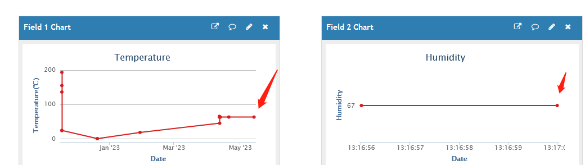 | |
| ThingsBoard | 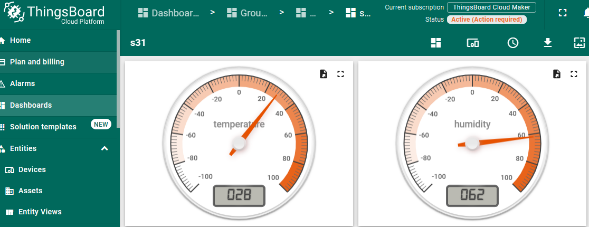 |
1T Version: This version has 1NCE SIM card pre-installed and configure to send value to ThingsEye. User Just need to select the sensor type in ThingsEyeand Activate S31x-KS and user will be able to see data in ThingsEye. See here for ThingsEye Config Instruction.
2.2 Payload Types
To meet different server requirement, S31x-KS supports different payload type.
Includes:
-
General JSON format payload. (Type=5)
-
HEX format Payload. (Type=0)
-
ThingSpeak Format. (Type=1)
-
ThingsBoard Format. (Type=3)
User can specify the payload type when choose the connection protocol. Example:
AT+PRO=2,0 // Use UDP Connection & hex Payload
AT+PRO=2,5 // Use UDP Connection & Json Payload
AT+PRO=3,0 // Use MQTT Connection & hex Payload
AT+PRO=3,5 // Use MQTT Connection & Json Payload
AT+PRO=4,0 // Use TCP Connection & hex Payload
AT+PRO=4,5 // Use TCP Connection & Json Payload
2.2.1 General Json Format(Type=5)
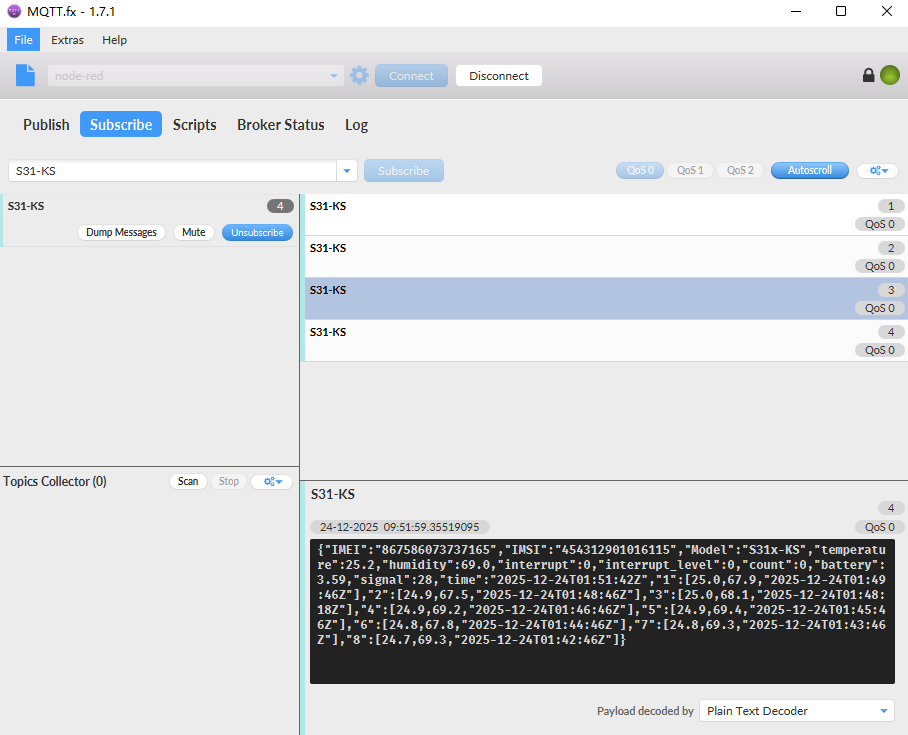
This is the General Json Format. As below:
{"IMEI":"867586073737165","IMSI":"454312901016115","Model":"S31x-KS","temperature":24.3,"humidity":70.4,"interrupt":0,"interrupt_level":0,"count":0,"battery":0.02,"signal":30,"time":"2025-12-24T01:28:13Z","1":[24.3,70.3,"2025-12-24T01:26:27Z"],"2":[24.3,68.1,"2025-12-24T01:25:27Z"],"3":[24.3,68.2,"2025-12-24T01:24:27Z"],"4":[24.2,68.2,"2025-12-24T01:23:27Z"],"5":[24.3,68.0,"2025-12-24T01:22:27Z"],"6":[24.2,68.3,"2025-12-24T01:21:27Z"],"7":[24.3,68.5,"2025-12-24T01:20:27Z"],"8":[24.3,68.9,"2025-12-24T01:19:27Z"]}
Notice, from above payload:
-
Temperature, Humidity, Interrupt, Interrupt_level, Count, Battery, Signal are the value at uplink time.
-
Json entry 1 ~ 8 are the last 1 ~ 8 sampling data as specify by **AT+CLOCKLOG=1,65535,15,8 ** Command. Each entry includes (from left to right): Temperature, Humidity, Sampling time.
Example:
2.2.2 HEX format Payload(Type=0)
This is the HEX Format. As below:
f867586073737165f4543129010161154a640e221d01Ffff00000000000000000000fa02c1694b464100f902b4694b460600f902b6694b45ca00f802a6694b458e00f802b5694b455200f702b5694b451600f702a4694b44da00f702b2694b449e00f702b8694b4462

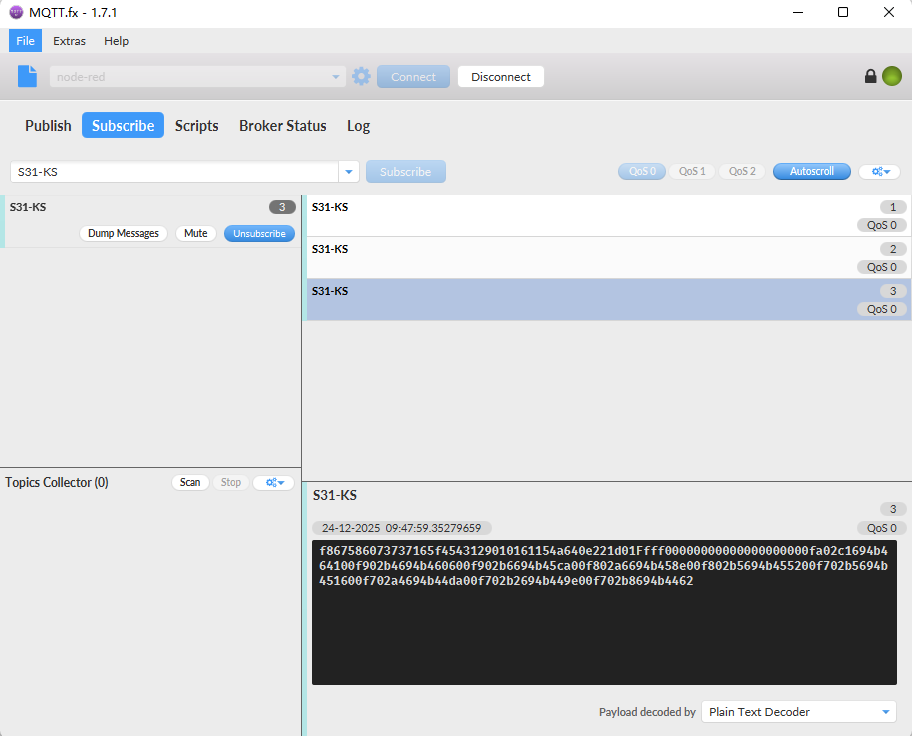
**Device ID(f+IMEI): **f867586073737165 = 867586073737165
**SIM Card ID(f+IMSI): **f454312901016115 = 454312901016115
Version:
These bytes include the hardware and software version.
Higher byte: Specify Sensor Model: 0x4a for S31B-KS & S31-KS
Lower byte: Specify the software version: 0x64=100, means firmware version 1.0.0
BAT (Battery Info):
Ex1: 0x0e22 = 3618mV
Signal Strength:
CAT-1 Network signal Strength.
Ex1: 0x1d = 29
0 -113dBm or less
1 -111dBm
2...30 -109dBm... -53dBm
31 -51dBm or greater
99 Not known or not detectable
DS18B20_Temperature:
Example: 0x00de(H)= 222(D) =22.2 ℃
Note: If the DS18B20 sensor is not connected, the hex payload is 0xFFFF and Serial port print: -409.5 ℃.
PA4_level:
Level of PA4 pin. (0: Low level 1: High level)
Interrupt:
This data field shows if this packet is generated by interrupt or not.
Example:
If byte[0]&0x01=0x00 : Normal uplink packet.
If byte[0]&0x01=0x01 : Interrupt Uplink Packet.
Interrupt_level:
This byte shows whether the interrupt is triggered by a high or low level.
Ex1: 0x00 Interrupt triggered by falling edge (low level)
**Ex2: **0x01 Interrupt triggered by rising edge (high level)
Count:
When using count mode, PB15 will accumulate counts each time it is triggered.
**Example: **0x00000064(H)= 100(D), So the count value is 100.
Use the AT+CFGMOD command to set the working mode to count mode.
Use AT+EXT to set the count value.
**Temperature: **
If payload is: 00faH: (00fa & 8000 == 0), temp = 00faH /10 = 25.0 degree
If payload is: FF3FH : (FF3F & 8000 == 1) , temp = (FF3FH - 65536)/10 = -19.3 degrees.
(FF3F & 8000: Judge whether the highest bit is 1, when the highest bit is 1, it is negative)
**Humidity: **
Read:02c1(H)=705(D) Value: 705 / 10=70.5, So 70.5%
TimeStamp
Unit TimeStamp Example: 694b4641(H) = 1766540865(D)
Put the decimal value into this link(https://www.epochconverter.com/) to get the time.
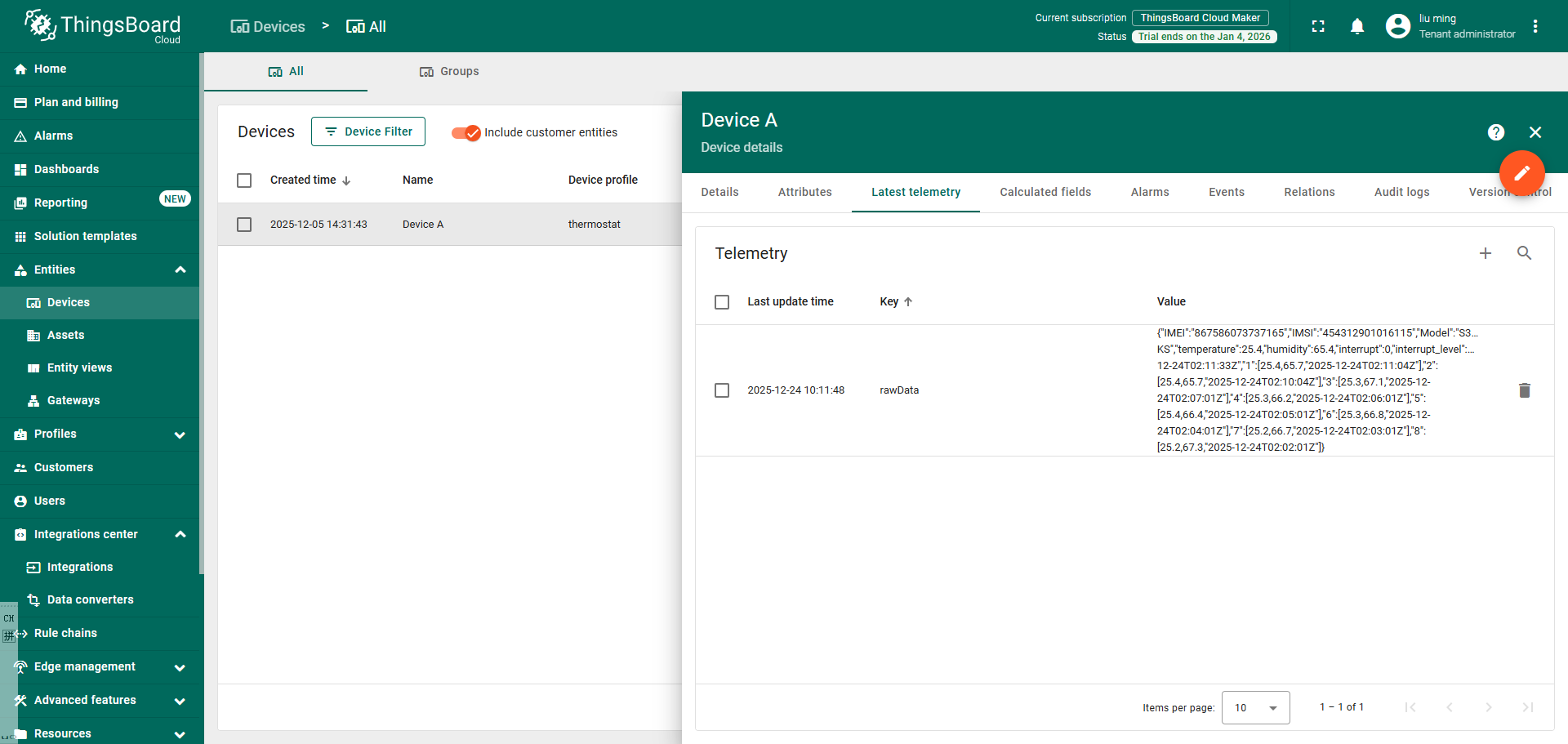
2.2.3 ThingsBoard Payload(Type=3)
Type3 payload special design for ThingsBoard, it will also configure other default server to ThingsBoard.
{ "topic": "S31-KS", "payload": { "IMEI": "867586073737165", "IMSI": "454312901016115", "Model": "S31x-KS", "temperature": 25.4, "humidity": 65.4, "interrupt": 0, "interrupt_level": 0, "count": 0, "battery": 3.55, "signal": 29, "time": "2025-12-24T02:11:33Z", "1": [25.4,65.7,"2025-12-24T02:11:04Z"], "2": [25.4,65.7,"2025-12-24T02:10:04Z"], "3": [25.3,67.1,"2025-12-24T02:07:01Z"], "4": [25.3,66.2,"2025-12-24T02:06:01Z"], "5": [25.4,66.4,"2025-12-24T02:05:01Z"], "6": [25.3,66.8,"2025-12-24T02:04:01Z"], "7": [25.2,66.7,"2025-12-24T02:03:01Z"], "8": [25.2,67.3,"2025-12-24T02:02:01Z"] } }
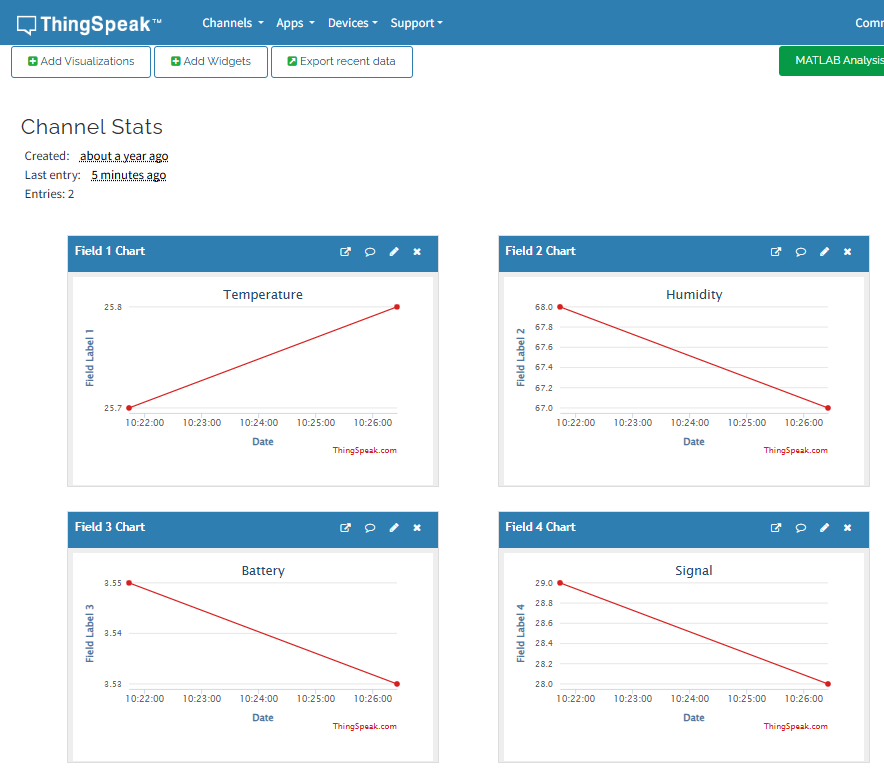
2.2.4 ThingSpeak Payload(Type=1)
This payload meets ThingSpeak platform requirement. It includes only four fields. Form 1~6 are:
Temperature, Humidity, Battery&Signal. This payload type only valid for ThingsSpeak Platform.
As below:
**field1=Tem & field2=Hum & field3=BatV & field4=Singal **
3. Configure S31x-KS
3.1 Configure Methods
S31x-KS supports below configure method:
-
AT Command via Bluetooth Connection (Recommended): BLE Configure Instruction.
-
AT Command via UART Connection : See UART Connection.
3.2 Serial Access Password
After the Bluetooth or UART connection is successful, use the Serial Access Password to enter the AT command window.
The label on the box of the node will print the initial password: AT+PIN=xxxxxx, and directly use the six-digit password to access the AT instruction window.
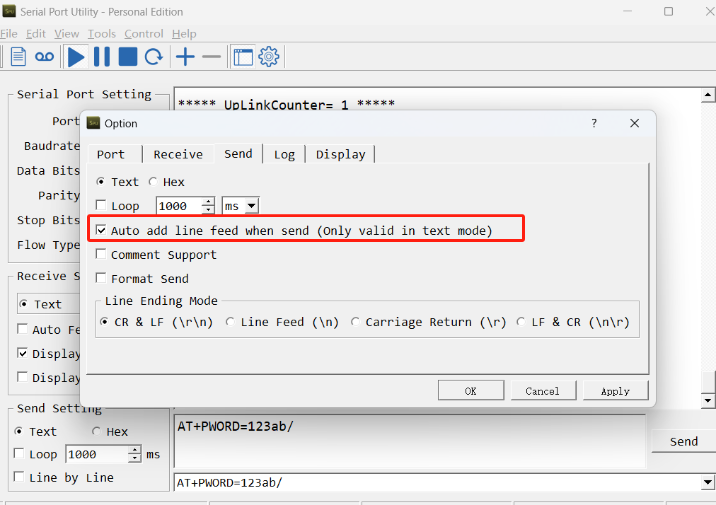
If you need to change the password, use AT+PWORD=xxxxxx (6 characters), -CB nodes only support lowercase letters.
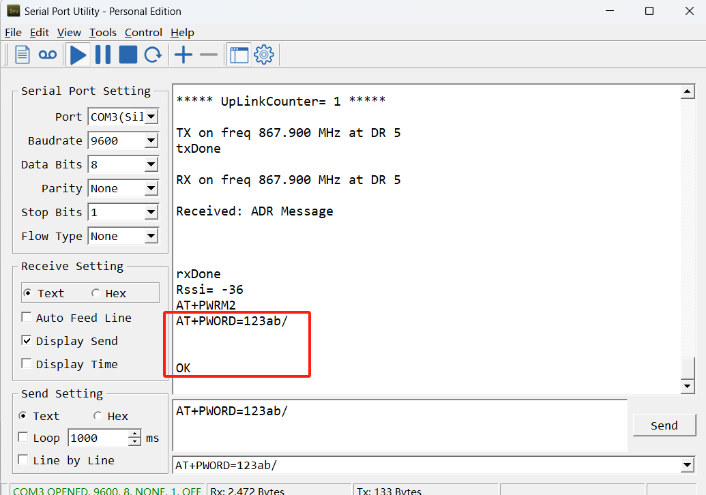
Note: After entering the command, you need to add a line break, and you can also set automatic line breaks in the Bluetooth tool or UART connection tool.
3.3 AT Commands Set
AT+<CMD>? : Help on <CMD>
AT+<CMD> : Run <CMD>
AT+<CMD>=<value> : Set the value
AT+<CMD>=? : Get the value
AT+MODEL : Get module information
AT+CFGMOD : Working mode selection
AT+DEUI : Get or set the Device ID
AT+CFG : Print all settings
AT+SERVADDR: Get or Set the Server address
AT+TDC : Get or set the application data transmission interval in s
AT+INTMOD : Get or Set the trigger interrupt mode (0:input,1:falling or rising,2:falling,3:rising)
AT+APN : Get or set the APN
AT+5VT : Get or Set extend the time of 5V power
AT+PRO : Get or Set usage agreement (1:COAP,2:UDP,3:MQTT,4:TCP)
AT+RXDL : Get or Set the receiving time
AT+EXT : Get or Set Count value
AT+SHTEMP:Get or Set alarm of shtemp
AT+SHHUM:Get or Set alarm of shthum
AT+GETSENSORVALUE : Returns the current sensor measurement
AT+DNSCFG : Get or Set DNS Server
AT+CSQTIME : Get or Set the time to join the network
AT+GDNS : Get or Set the DNS
AT+SLEEP : Get or Set the sleep mode
AT+IPTYPE : Set the IPv4 or IPv6
AT+QSW : Power on and power off BG95 module
AT+CLOCKLOG: Get or set SHT record time
AT+QBAND: Get or set Frequency Band
AT+DOWNTE: Get or set the conversion between the standard version and 1T version downlinks
MQTT Management
AT+CLIENT : Get or Set the MQTT clientID
AT+UNAME : Get or Set the MQTT Username
AT+PWD : Get or Set the MQTT password
AT+PUBTOPIC: Get or set MQTT publishing topic
AT+SUBTOPIC: Get or set MQTT subscription topic
AT+MQOS : Set the QoS level of MQTT
AT+TLSMOD : Get or Set the TLS mode
Information
AT+FDR1 : Reset parameters to factory default values except for passwords
AT+FDR : Reset Parameters to Factory Default
AT+PWORD : Get or set the System password
AT+LDATA : Get the last upload data
AT+CDP : Read or Clear cached data
AT+PDTA: Print the sector data from start page to stop page
AT+PLDTA: Print the last few sets of data
AT+CLRDTA: Clear the storage, record position back to 1st
AT+GETLOG : Print serial port logs
ATZ : Trig a reset of the MCU
3.4 Test Uplink and Change Update Interval
By default, Sensor will send uplinks every 2 hours.
User can use below commands to change the uplink interval.
AT Command: AT+TDC
Example: AT+TDC=7200 // Set Update Interval to 7200 seconds
Downlink Commands: 0x01
Format: Command Code (0x01) followed by 3 bytes.
Example: 12 hours= 43200 seconds 43200(D)=0xA8C0(H)
Downlink Payload: `01 00 A8 C0` // AT+TDC=43200, Set Update Interval to 12 hours.
Note: User can also push the button for more than 1 second to activate an uplink.
3.5 Set the receiving time
Feature: Extend the receiving time
AT Command: AT+RXDL
Example: AT+RXDL=1000 // Set the receiving time delay to 1000ms
Downlink Commands: 0x03
Format: Command Code (0x03) followed by 3 bytes.
Example: Downlink Payload: 03 00 03 E8// AT+RXDL=1000
3.6 Reset
Feature: Trig a reset of the MCU.
AT Command: ATZ
Downlink Commands: 0x04FF
3.7 +5V
Feature: Set extend the time of 5V power.
AT Command: AT+5VT
Example: AT+5VT=2000 // Set extend the time of 5V power to 2000 ms
Downlink Commands: 0x05
Format: Command Code (0x05) followed by 3 bytes.
Example: Downlink Payload: 05 00 07 D0// AT+5VT=2000
3.8 Trigger an uplink by external interrupt
S31x-CB has an external trigger interrupt function. Users can use the PB15 pin to trigger the upload of data packets.
AT command:
-
**AT+INTMOD ** // Set the trigger interrupt mode
-
**AT+INTMOD=0 ** // Disable Interrupt
-
**AT+INTMOD=1 ** // Trigger by rising and falling edge
-
**AT+INTMOD=2 ** // Trigger by falling edge
-
**AT+INTMOD=3 ** // Trigger by rising edge
Downlink Commands: 0x06
Format: Command Code (0x06) followed by 3 bytes.
Example1: Downlink Payload: 06 00 00 01// AT+INTMOD=1
Example2: Downlink Payload: 06 00 00 03// AT+INTMOD=3
3.9 Set the QoS level
This command is used to set the QoS level of MQTT.
AT command:
- **AT+MQOS=xx **// 0~2
Downlink command: 0x07
Format: Command Code (0x07) followed by 1 byte.
Ex1: Downlink payload: 0x0700 // AT+MQOS=0
Ex2: Downlink payload: 0x0701 // AT+MQOS=1
3.10 Clock logging
Sometimes when we deploy lots of end nodes in field. We want all sensors sample data at the same time, and upload these data together for analyze. In such case, we can use clock loging feature.
We can use this command to set the start time of data recording and the time interval to meet the requirements of the specific collection time of data.
AT command: AT+CLOCKLOG=a,b,c,d
a: 0: Disable Clock logging. ** 1: **Enable Clock Logging
**b: **Specify First sampling start second: range **(0 ~ 3599, 65535) ** // **Note: **If parameter b is set to 65535, the log period starts after the node accesses the network and sends packets.
**c: **Specify the sampling interval: range (0 ~ 255 minutes)
**d: **How many entries should be uplink on every TDC (max 32)
Note: To disable clock recording, set the following parameters: AT+CLOCKLOG=1,65535,0,0
Example:
AT+CLOCKLOG=1,65535,1,5
After the node sends the first packet, data is recorded to the memory at intervals of 1 minute. For each TDC uplink, the uplink load will include: battery information + the last 5 memory records (payload + timestamp).
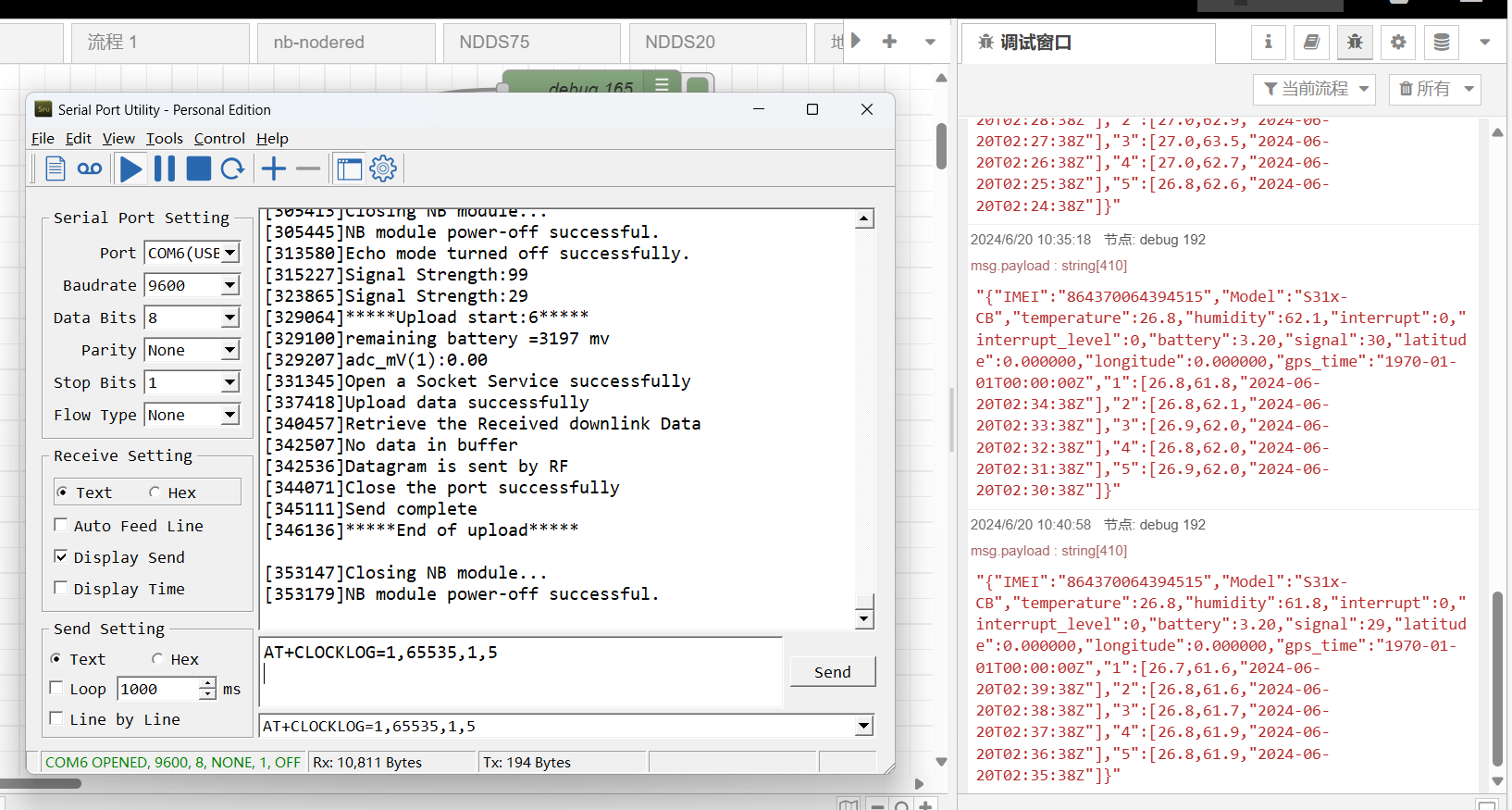
Note: Users need to synchronize the server time before configuring this command. If the server time is not synchronized before this command is configured, the command takes effect only after the node is reset.
Downlink command: 0x08
Format: Command Code (0x08) followed by 5 bytes.
- Example 1: Downlink Payload:** 08 01 FFFF 0F 08** // Set SHT record time: AT+CLOCKLOG=1,65535,15,8
- Example 2: Downlink Payload:** 08 01 04B0 0F 08** // Set SHT record time: AT+CLOCKLOG=1,1200,15,8
Note: When entering the downlink payload, there must be no Spaces between bytes.
Unix TimeStamp
S31x-KS uses Unix TimeStamp format based on

User can get this time from link: https://www.epochconverter.com/ :
Below is the converter example
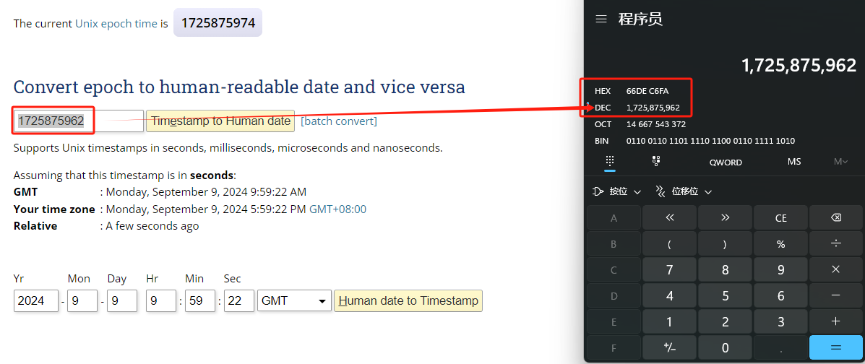
So, 1725875962 means that the current time is Monday, September 9, 2024 at 9:59 AM.
Poll sensor value
User can poll sensor value based on timestamps from the server. Below is the downlink command.
| 1 byte | 4 bytes | 4 bytes |
|---|---|---|
| 31 | Timestamp start | Timestamp end |
Timestamp start and Timestamp end use Unix TimeStamp format as mentioned above. Devices will reply with all data log during this time period.
For example, downlink command 31 694B 53AC 694B 558C
Is to check 2025/12/24 02:45:00 to 2025/12/24 02:53:00's data
Datalog Uplink payload
The Datalog poll reply uplink will use below payload format.
Retrieval data payload:
| Size(bytes) | 2 | 2 | 4 |
|---|---|---|---|
| value | Hum | Temp | Timestamp |
**Function Description: **This feature is only used when the clock logging feature is turned on. one uplink packet can send 64 groups of stored data totaling 512 bytes.
Example(For MQTT.fx):
If user sends below downlink command:
Where : Start time: 694B53AC = time 25/12/24 02:45:00
Stop time: 694B558C = time 25/12/24 02:53:00
S31x-KS will uplink this payload.
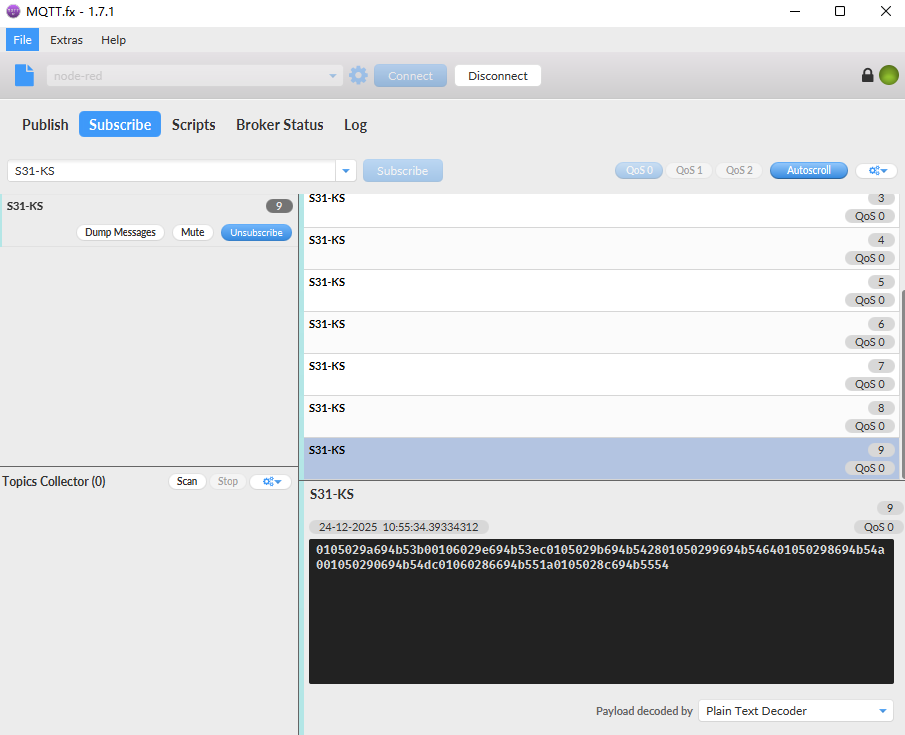
0105029a694b53b0 0106029e694b53ec 0105029b694b5428 01050299694b5464 01050298694b54a0 01050290694b54dc 01060286694b551a 0105028c694b5554
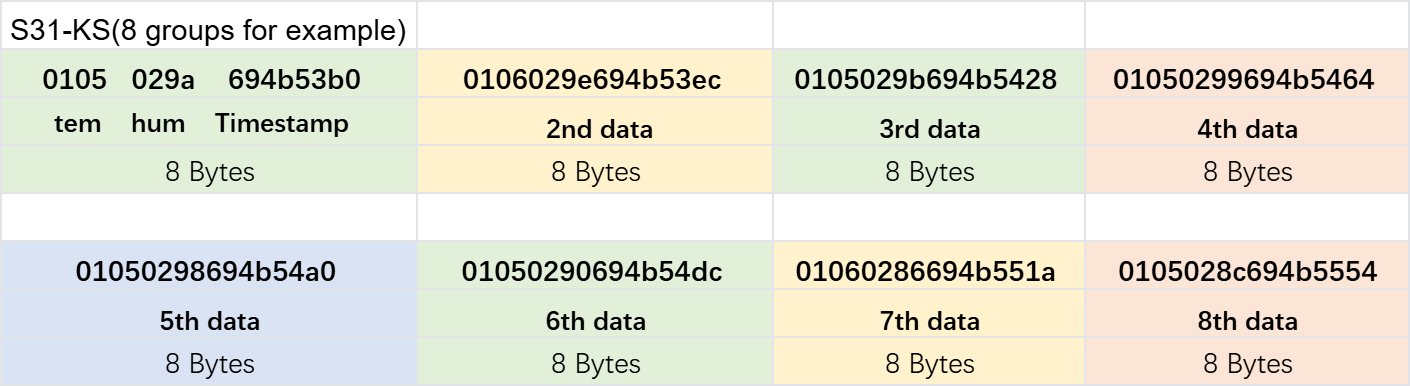
Temp=0x0105/10=26.1℃
Hum=0x029a/10=66.6%rh
Unix time is 0x694b53b0 =1766544304s = 25/12/24 02:45:00
3.11 Set the TLS mode
Refer to this link (MQTT Connection to send data to Tago.io)to use the TLS mode.
AT Command: AT+TLSMOD
**Example 1: ** AT+TLSMOD=0,0 // Disable TLS Mode.
Example 2: AT+TLSMOD=1,0 // No authentication
                 AT+TLSMOD=1,1   // Perform server authentication

                 AT+TLSMOD=1,2   // Perform server and client authentication if requested by the remote server
Downlink command: 0x09
Format: Command Code (0x09) followed by 2 bytes.
Example1: Downlink Payload: 09 00 00// AT+TLSMOD=0,0
Example2: Downlink Payload: 09 01 02// AT+TLSMOD=1,2
3.12 Set the search network time
Feature: Get or Set the time to join the network(unit: minutes).
AT Command: AT+CSQTIME
Example: AT+CSQTIME=10 // Set the search time to 10 minutes.
Downlink command: 0x13
Format: Command Code (0x13) followed by 1 byte.
Example: Downlink Payload: 13 0A// AT+CSQTIME=10
3.13 Humidity and Temperature alarm function
On each sampling define by AT+CLOCKLOG=1,65535,15,8 ( default 15 minutes), when the value exceed the range, it will trigger an Alarm and immediately sends a uplink.
AT Command:
AT+ SHTEMP=min,max
SHTTEMP must be -40 to 125.
Example: AT+ SHTEMP=20,30 // Alarm when temperature lower than 20 or higher than 30
AT+ SHHUM=min,max
Example: AT+ SHHUM=50,80 // Alarm when humidity lower than 50 or higher than 80.
Downlink Commands: 0x0A
Format: Command Code (0x0A) followed by 4 bytes.
The first and second bytes following the function code are the minimum and maximum value of SHTEMP, and the third and fourth bytes are the minimum and maximum value of SHHUM.
- Example 1: Downlink Payload:** 0A 14 1E 32 50** // AT+ SHTEMP=20,30 & AT+ SHHUM=50,80
- Example 2: Downlink Payload:** 0A 00 00 00 00 ** // disable temperature and humidity alarm.
For negative payload temperature, calculate it as follows: 65536+ temperature = FFaa, the value is aa.
- Example: -40℃: 65536+(-40)=65496(D)=FFD8(H), Therefore, select a numerical representation of D8 as -40 ℃ for the downlink payload.
Notice:
- To disable Alarm, user can set min and max to same value , such as AT+SHTEMP=0,0 and AT+SHHUM=50,50
- If user only want to send only min or max, user can set the alarm to a value that device won't reach. For example:
AT+SHTEMP=-40,0(Alarm above 0 degrees Celsius).
3.14 Set the IPv4 or IPv6
This command is used to set IP version.
AT command:
- **AT+IPTYPE=1 **// IPv4
- **AT+IPTYPE=2 **// IPv6
3.15 Factory data reset
Two different restore factory Settings configurations.
AT command:
- **AT+FDR **// Reset Parameters to Factory Default.
- **AT+FDR1 **// Reset parameters to factory default values except for passwords.
3.16 Power on / power off EG800 module
This command is used to power on and power off EG800 module.
- AT command: AT+QSW
The module is powered on after the command is sent for the first time, and powered off after the command is sent again.
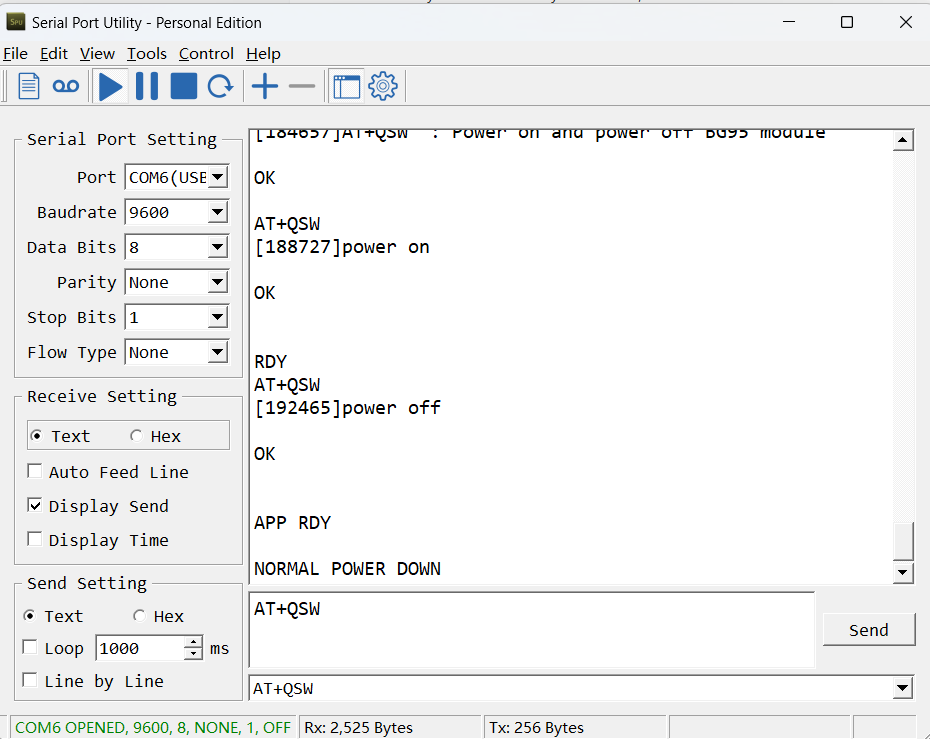
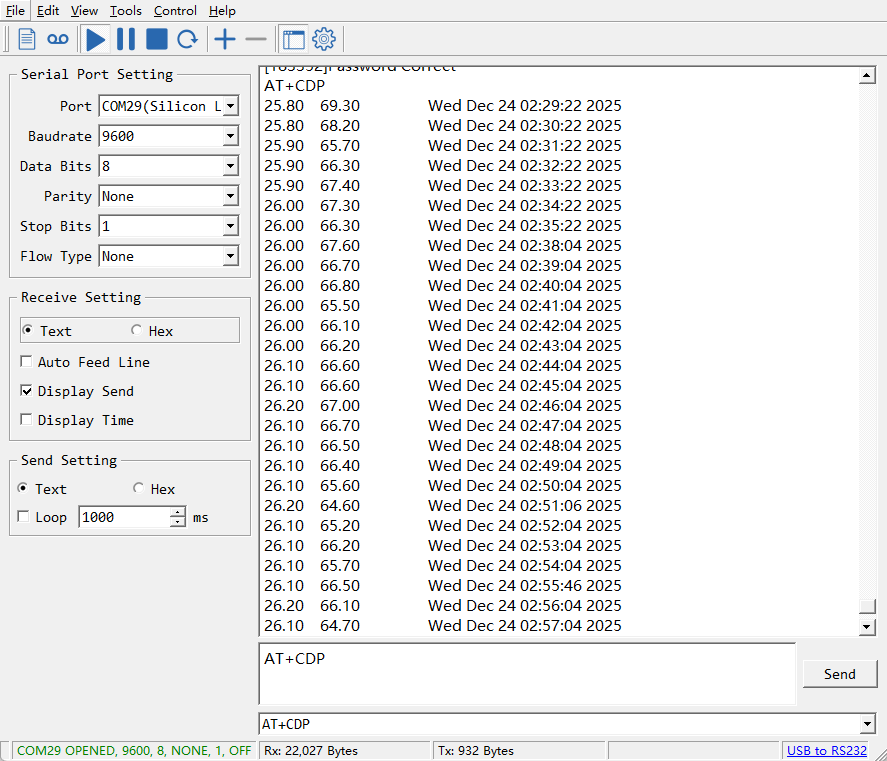
3.17 Example Query saved historical records
- AT command: AT+CDP
This command can be used to search the saved history, recording up to 32 groups of data, each group of historical data contains a maximum of 100 bytes.
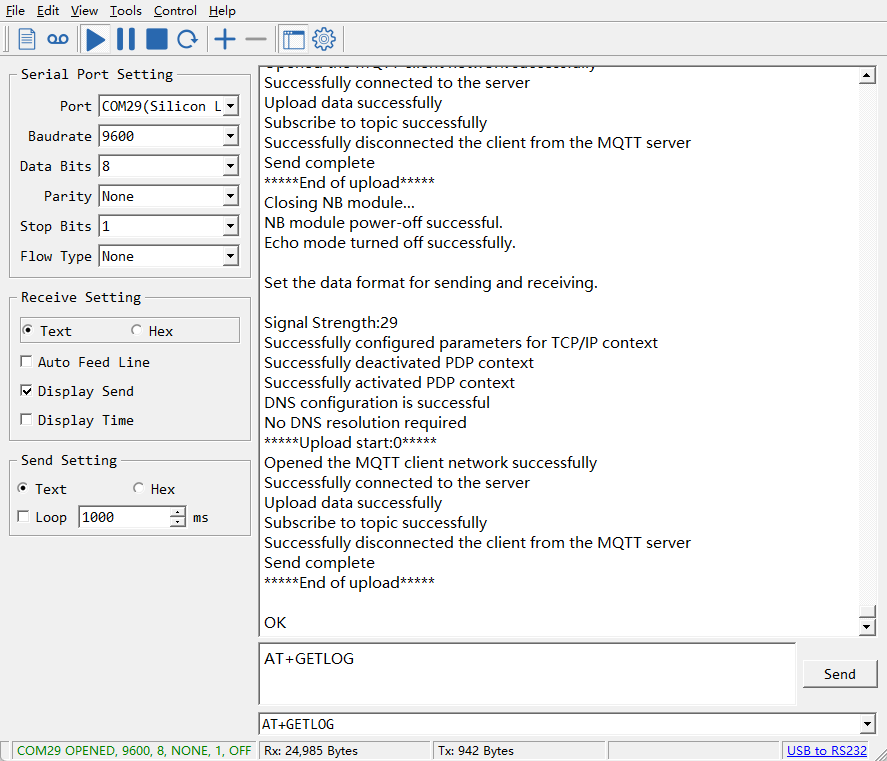
3.18 Uplink log query
- AT command: AT+GETLOG
This command can be used to query upstream logs of data packets.
3.19 Print last few data entries
Feature: Print the last few data entries
AT command: AT+PLDTA
| Command Example | Response |
|---|---|
| AT+PLDTA=5 Print last 5 entries | Stop Tx events when read sensor data 1 25/12/24 02:32:22 temp=25.9 hum=66.3 2 25/12/24 02:33:22 temp=25.9 hum=67.4 3 25/12/24 02:34:22 temp=26.0 hum=67.3 4 25/12/24 02:35:22 temp=26.0 hum=66.3 5 25/12/24 02:38:04 temp=26.0 hum=67.6 Start Tx events OK |
**Downlink Command: **
No downlink commands for feature
3.20 Print data entries base on page
Feature: Print the sector data from start page to stop page.
AT command: AT+PDTA
| Command Example | Response |
|---|---|
| AT+PDTA=1,1 Print page 1 to 1 | Stop Tx events when read sensor data 8028B80 25/12/24 01:07:27 temp=24.1 hum=73.0 8028B88 25/12/24 01:08:27 temp=24.0 hum=72.2 8028B90 25/12/24 01:09:27 temp=24.0 hum=71.2 8028B98 25/12/24 01:10:27 temp=24.1 hum=73.5 8028BA0 25/12/24 01:11:27 temp=24.1 hum=72.8 8028BA8 25/12/24 01:12:27 temp=24.1 hum=72.3 8028BB0 25/12/24 01:13:27 temp=24.2 hum=72.3 8028BB8 25/12/24 01:14:27 temp=24.1 hum=70.8 8028BC0 25/12/24 01:15:27 temp=24.2 hum=70.0 8028BC8 25/12/24 01:16:27 temp=24.2 hum=69.6 8028BD0 25/12/24 01:17:27 temp=24.2 hum=69.4 8028BD8 25/12/24 01:18:27 temp=24.2 hum=69.1 8028BE0 25/12/24 01:19:27 temp=24.3 hum=68.9 8028BE8 25/12/24 01:20:27 temp=24.3 hum=68.5 8028BF0 25/12/24 01:21:27 temp=24.2 hum=68.3 8028BF8 25/12/24 01:22:27 temp=24.3 hum=68.0 Start Tx events OK |
**Downlink Command: **
No downlink commands for feature
3.21 Clear Flash Record
Feature: Clear flash storage for data log feature.
AT command: AT+CLRDTA
| Command Example | Function | Response |
|---|---|---|
| AT+CLRDTA | Clear date record | Stop Tx events,Please wait for the erase to complete Clear all stored sensor data... Start Tx events OK |
Downlink Command: 0x32
- Example: 0x32 00 // Same as AT+CLRDTA
3.22 Working mode selection
Feature: Set interrupt mode or count mode (PB15 pin).
AT command: AT+CFGMOD
| Command Example | Function |
|---|---|
| AT+CFGMOD=1 | Interrupt mode (default mode) |
| AT+CFGMOD=2 | count mode |
Downlink Command: 0x02
- Downlink command: 02 01 // Equal to AT+CFGMOD=1
- Downlink command: 02 02 // Equal to AT+CFGMOD=2
3.23 Set Count value
Feature: Set the count value of PB15.
AT command: AT+EXT
| Command Example | Function | Response |
|---|---|---|
| AT+EXT=? | Show current count value. | 0 (default) OK |
| AT+EXT=100 | Set the count value to 100. | OK |
Downlink Command: 0x0B
Format: Command Code (0x0B) followed by 4 bytes.
- Downlink command: 0B 00 00 00 00 // Set the count value to 0
- Downlink command: 0B 00 00 00 64 // Set the count value to 100
3.24 Set the downlink debugging mode
Feature: Enable or disable downlink debugging mode. (Since TE platform update, the platform version selection is no longer needed; only downlink debugging can be toggled.)
AT command: AT+DOWNTE
| Command Example | Function/Parameters | Response/Explanation |
|---|---|---|
| AT+DOWNTE=? | Get current Settings | 0,0 (default) OK |
| AT+DOWNTE=0,a | a: Enable/Disable downlink debugging | 0: Disable downlink debugging mode. 1: Enable downlink debugging mode (users can view original downlink messages). |
(Note: The first parameter is fixed to 0 and only the second parameter is configurable.)
Example:
- AT+DOWNTE=0,1 → Enable downlink debugging mode.
- AT+DOWNTE=0,0 → Disable downlink debugging mode.
**Downlink Command: **
No downlink commands for feature
3.25 Domain name resolution settings
Feature: Set static DNS resolution IP address.
AT command: AT+BKDNS
| Command Example | Function/Parameters | Response/Explanation |
|---|---|---|
| AT+BKDNS=? | Get current Settings | 1,0,NULL (default) OK |
AT+BKDNS=a,b,c | a: Enable/Disable static DNS resolution. | 0: Disable static DNS resolution 1: Enable static DNS resolution. The ip address will be saved after the domain name is resolved, if the next domain name resolution fails, the last saved ip address will be used. |
| b: Meaningless. | Set to 0. | |
| c: Set the IP address manually. | The format is the same as AT+SERVADDR. If domain name resolution fails, this ip address will be used directly, if domain name resolution succeeds, parameter c will be updated to the successfully resolved IP address. |
Example:
- AT+BKDNS=0,0,NULL //Disable static DNS resolution.
- AT+BKDNS=1,0,NULL // Enable static DNS resolution.
- AT+BKDNS=1,0,3.69.98.183,1883 //Enable static DNS resolution, if domain name resolution succeeds, the node uses the ip address successfully resolved and saves it to parameter c. If the domain name resolution fails, use the manually set ip address: 3.69.98.183 for communication.
**Downlink Command: **
No downlink commands for feature.
4. Battery & Power Consumption
The S31x-KS uses a 3000mAh lithium battery and a solar panel. For battery information and details on how to replace the battery, see the following links:
AI Calculation Battery Life Instructions
Please refer to the following instructions to ask the AI to let the AI intelligence help the user to calculate the battery life.
Ex1:
To be updated
The S31x-KS uses a 3000mAh Li-Ion battery, please refer to the following instructions to ask the AI to let the AI intelligence help users calculate the battery life.
2.KS version of AI questioning techniques:
To be updated
Here are the currents and durations for different transmission protocols for KS devices:
To be updated
Example: Every 120 minutes to collect once, transmit once, 15 minutes timed collection once How many years can the battery be used in different transmission modes?
AI will automatically help the user to calculate the average power consumption and battery life of the device for each packet sent, as shown below:
To be updated
5. Firmware update
User can change device firmware to:
-
Update with new features.
-
Fix bugs.
Firmware and changelog can be downloaded from : Firmware download link
Methods to Update Firmware:
-
(Recommended way) OTA firmware update via BLE: Instruction.
-
Update through UART TTL interface : Instruction.
6. FAQ
6.1 How can I access the EG800-NGFF AT Commands?
User can access to EG800-NGFF directly and send AT Commands.
To be updated
6.2 General Manual for -KS models
Users can follow the instructions in this link to see how to configure to connect to different servers.
6.3 Why is there no LED response when I press the button on the solar panel model?
If the LED does not light up when you press the button, it may be because the battery has entered protection mode.
Solution: To reactivate the battery, simply expose the solar panel to direct sunlight. For more details, please refer to: Battery Protection State (Apply to Solar Panel + Li-ion battery)
7. Order Info
Part Number: S31-KS-XX / S31B-KS-XX
XX:
-
GE: General version ( Exclude SIM card)
-
1T: with 1NCE* 10 years 500MB SIM card and Pre-configure to ThingsEye server
8. Packing Info
Package Includes:
-
S31-KS or S31-KS Temperature & Humidity Sensor x 1
-
External antenna x 1
Dimension and weight:
-
Device Size: 13.0 x 5 x 4.5 cm
-
Device Weight: 150g
-
Package Size / pcs : 14.0 x 8x 5 cm
-
Weight / pcs : 180g
9. Support
-
Support is provided Monday to Friday, from 09:00 to 18:00 GMT+8. Due to different timezones we cannot offer live support. However, your questions will be answered as soon as possible in the before-mentioned schedule.
-
Provide as much information as possible regarding your enquiry (product models, accurately describe your problem and steps to replicate it etc) and send a mail to Support@dragino.cc.
0
Created by Mengting Qiu on 2025/12/24 09:02