PG1302 – LoRaWAN Concentrator User Manual
PG1302 – LoRaWAN Concentrator User Manual
1. Introduction
1.1 What is PG1302 LoRaWAN Concentrator?
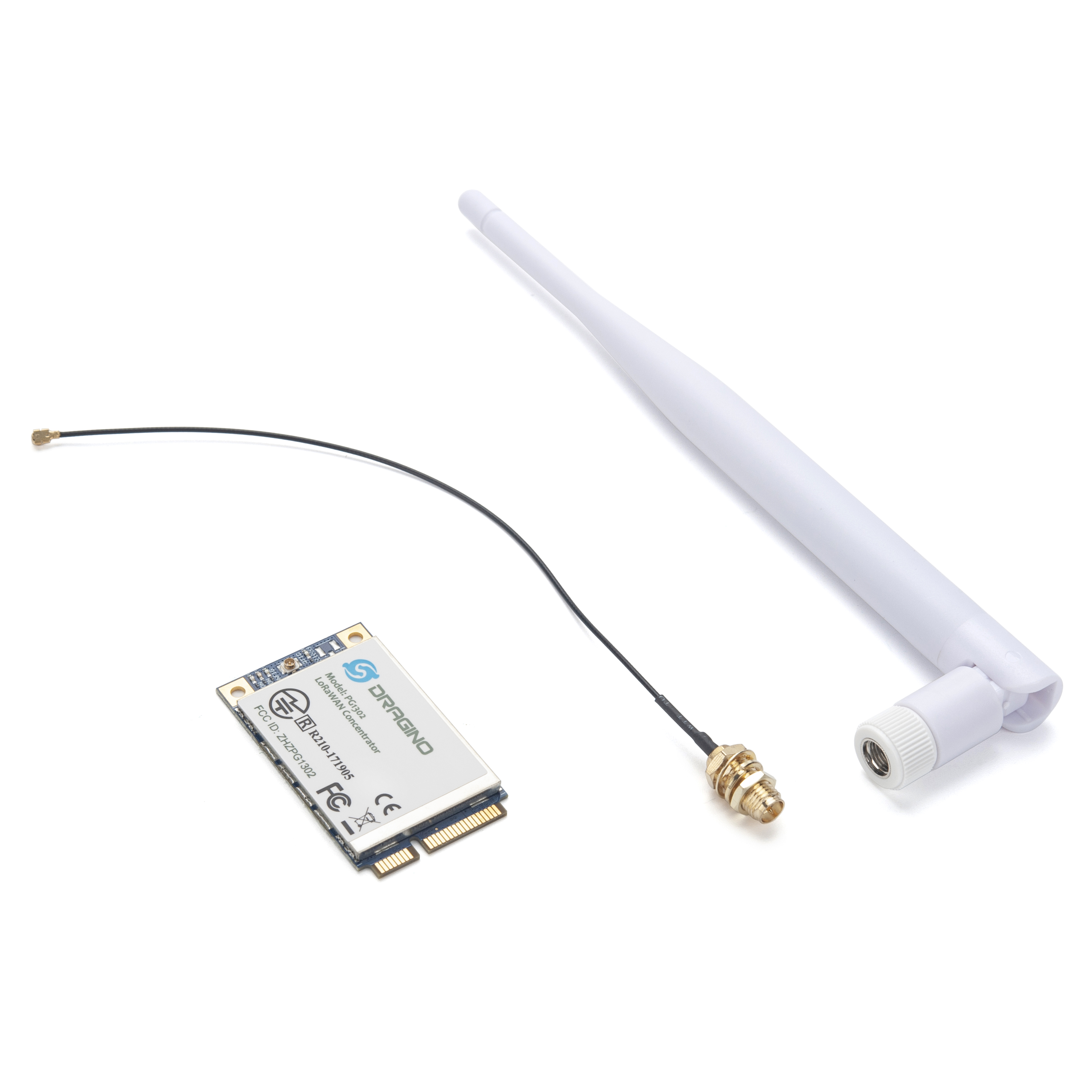
The PG1302 is a multi-channel high-performance transmitter/receiver designed to simultaneously receive several LoRa packets using random spreading factors on random channels. Its goal is to enable robust connection between a central wireless data concentrator and a massive amount of wireless end-points spread over a very wide range of distances.
The PG1302 is designed to use with Raspberry Pi to build smart metering fixed networks and Internet of Things applications with up to 5000 nodes per km2 in a moderately interfered environment.
PG1302 is fully compatible with RPi3/4 or Tinker Board, users can use the pre-build OS from Dragino to set up and easy to use the module by Web UI. Or install the raw LoRaWAN driver in the existing OS.
1.2 Features
- Base on Semtech SX1302 solution
- Support Raspberry Pi 3B/3B+/4/4B/5/5B, TinkerBoard2/2S, Orange Pi Pc/PC PLUS.
- Up to -140dBm sensitivity
- Support 3.3v and 5v.
- Mini-PCIe Interface
- Converter board to support Raspberry Pi
1.3 General Interfaces for PG1302
- SPI interface for LoRa
- Power Input: 5v, 1A
- 1 x I-PEX for LoRa
- Working Temperature: -40 ℃ ~ 80℃
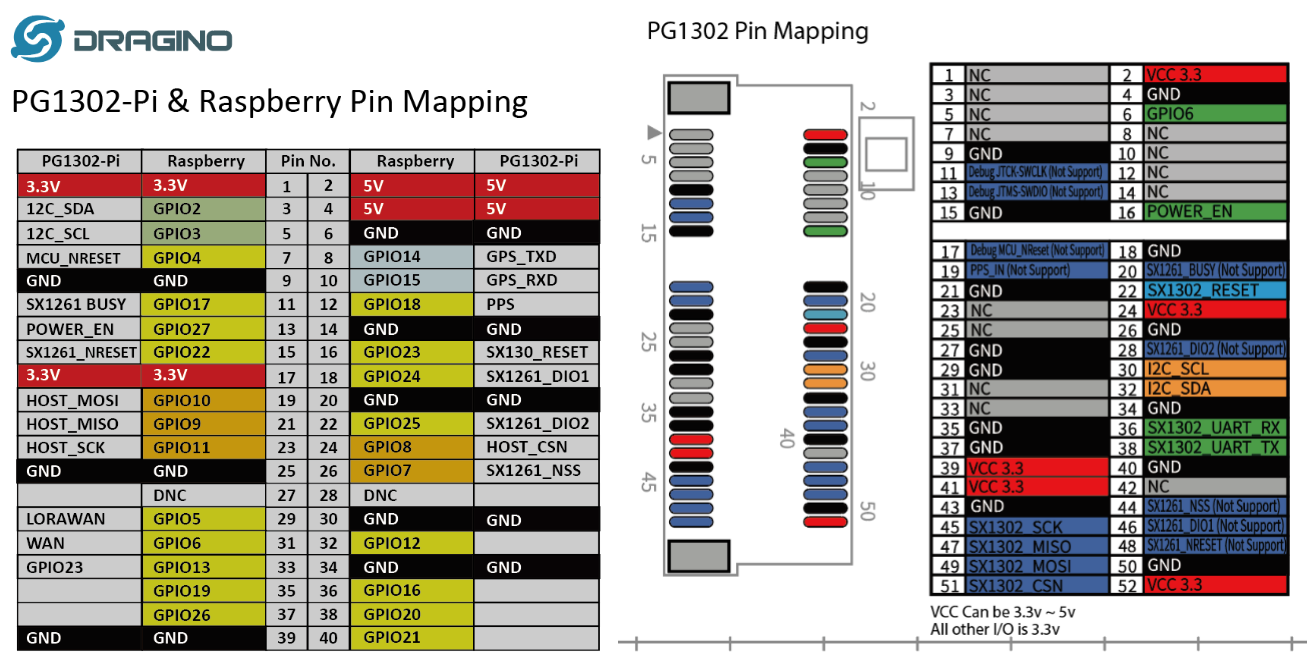
1.4 Pin Mapping
1.5 LEDs
TX: Blink when transmit a packet RX: Blink when receiving a packet Config: Always ON
1.6 Power Consumption
<300mA @ 3.3v.
Detail Test Report see this link
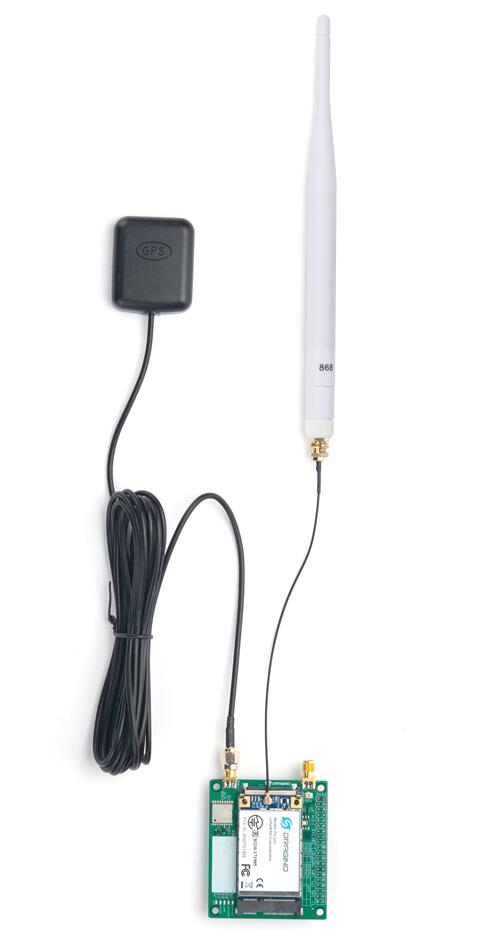
1.7 Antenna Installation
Left: GPS antenna
Right: LoRa Antenna
1.8 Applications
- Smart Buildings & Home Automation
- Logistics and Supply Chain Management
- Smart Metering
- Smart Agriculture
- Smart Cities
- Smart Factory
2. Example: Set up as LoRaWAN gateway
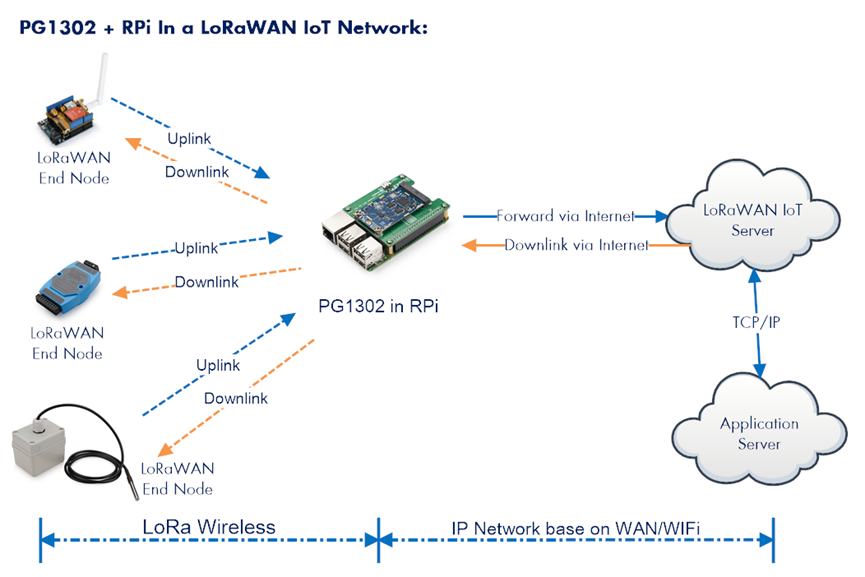
2.1 System structure
This example is an example to show how to set up the PG1302 + RPi as a LoRaWAN gateway to use with TheThingsNetwork(TTN) LoRaWAN server. Set up method for other server are similar.
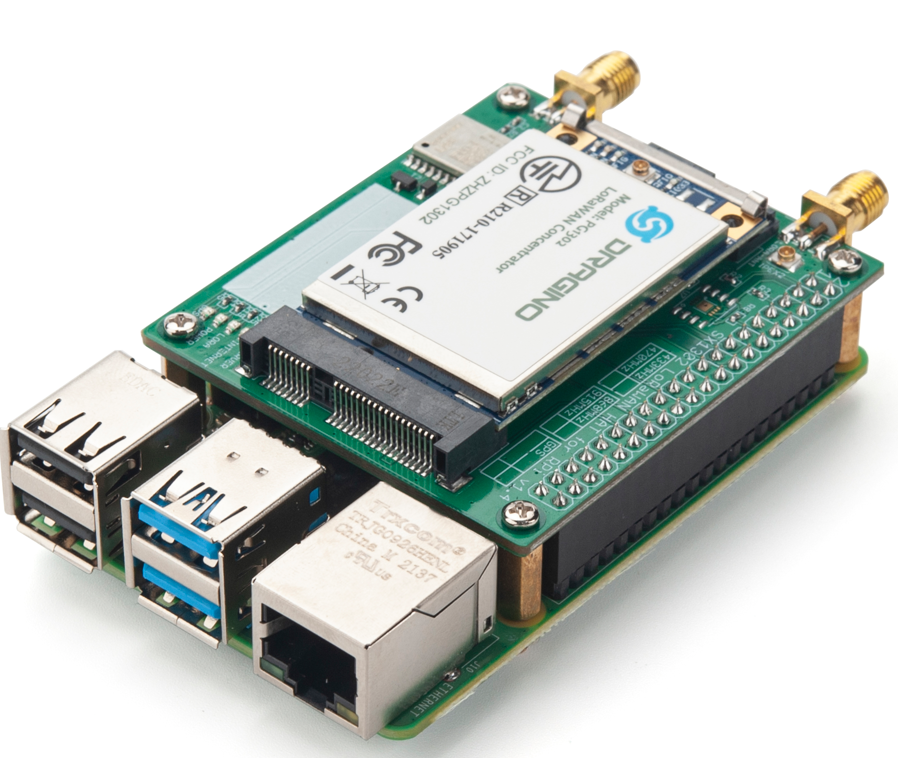
2.2 Hardware Installation
Important Notice: Please power the RPI with 5V,3A cable.
3. Install the software.
Raspberry Pi 3B/3B+/4B/5B
- Flash SD card with Dragino pre-build image which supports Web UI.
- Install Dragino-FWD in existing RPi OS.
**TinkerBoard2/2S, **
- Install Dragino-FWD in the existing OS.
Orange Pi PC/PC PLUS.
- Install Dragino-FWD in the existing OS.
4. Flash with pre-build image
4.1 Download the dragino image for RPI
Download PG1302_for_Rpi4_64_with_webui from: https://www.dropbox.com/sh/f6nbldh1qbspya5/AACgL6pDkwdBQO1BQqq_Nubwa?dl=0
4.2 Flash the image to an SD card
Flash the image to the SD card:
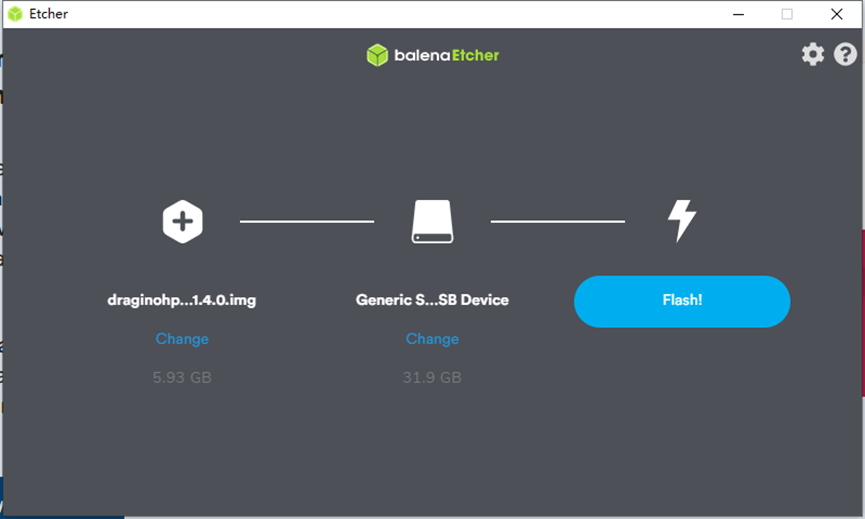
**Note: Download the flash tool following this link:**https://www.balena.io/etcher/
4.3 Access the Linux console
Connect the RPI Ethernet port to your router, RPi will obtain an IP address from your router. In the router's management portal, you should be able to find what IP address the router has assigned to the RPI. You can use this IP to connect the WEB UI or SSH access of RPI. Make sure your PC and the RPI is in the same network, then use a SSH tool (such as putty) to access it. Below are screenshots
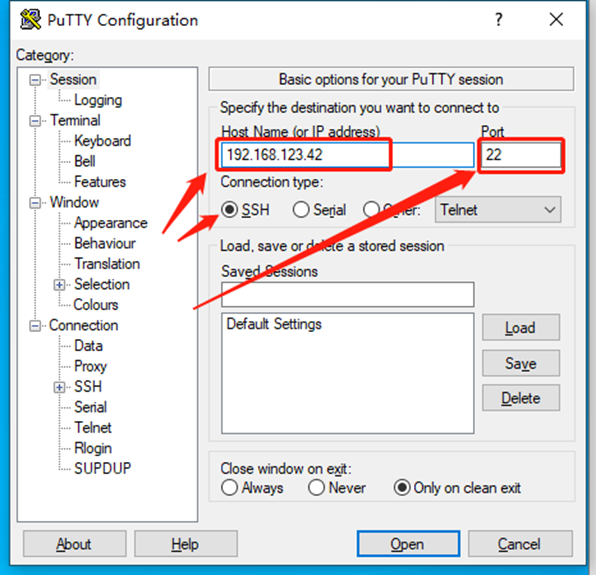
The account details for Web Login are:
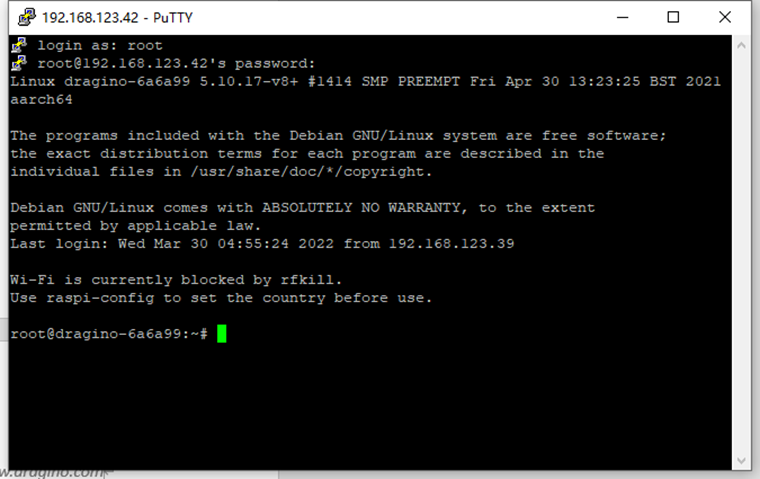
** User Name: root Password: dragino Backup account Pi/dragino**
After logging in, you will be in the Linux console and type the command here.
4.4 Access the WebUI of RPi4
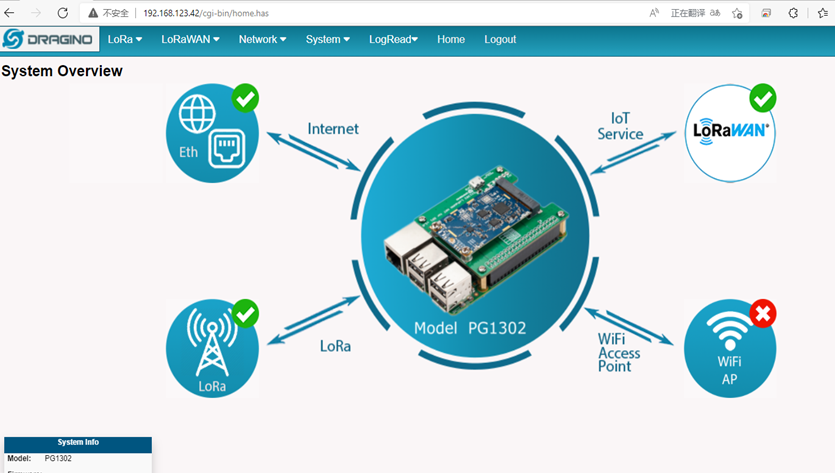
4.4.1 Home page
Open a browser on the PC and type the RPI ip address **http://IP_ADDRESS ** (If the IP is assigned by the uplink router) You will see the login interface of RPI as shown below. The account details for Web Login are:
** User Name: root Password: dragino**
4.4.2 LoRa Page
This page shows the LoRa Radio Settings. There are a set of default frequency band according to LoRaWAN protocol, and user can customize the band* as well.
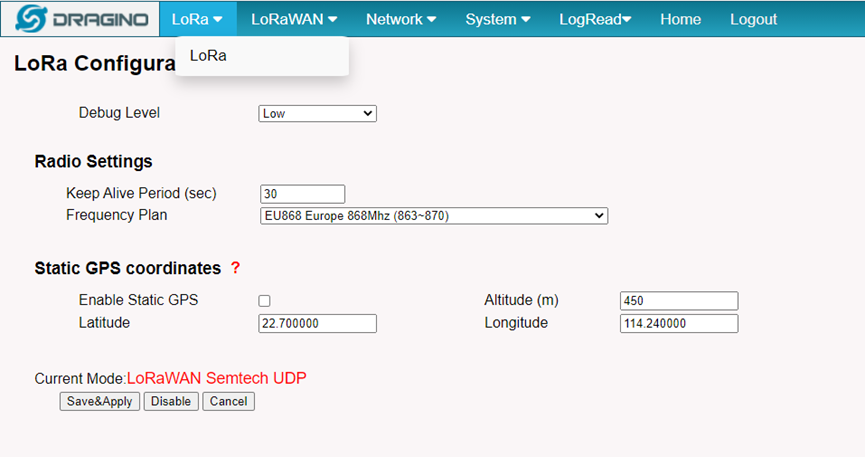
Different PG1302 hardware version can support different frequency range:
- **868: valid frequency: 863Mhz ~ 870Mhz. for bands:
EU868、RU864、IN865、KZ865 - **915: valid frequency: 902Mhz ~ 928Mhz. for bands:
US915、AU915、AS923、KR920
After user choose the frequency plan, he can see the actually frequency in used by checking the page LogRead --> LoRa Log Note *: See this instruction for how to customize frequency band
4.4.3 LoRaWAN Page
4.4.3.1 Semtech UDP
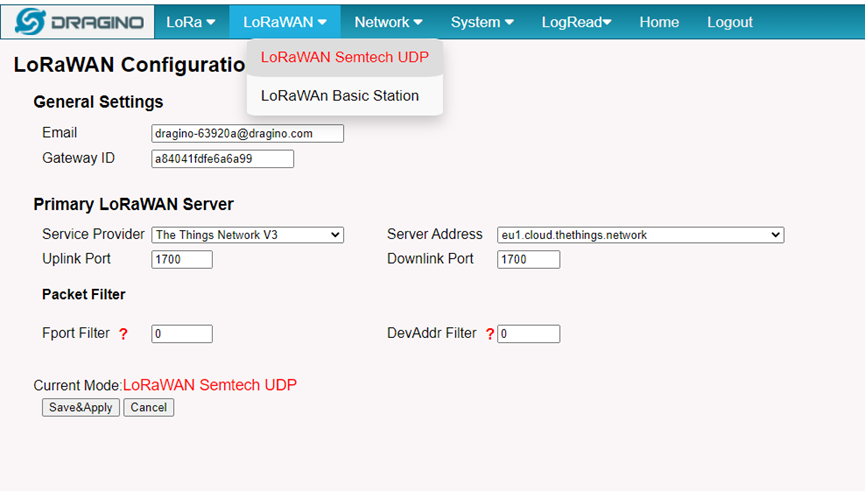
Note *: See this instruction for how to configure TTN.
4.4.3.2 Basic Station
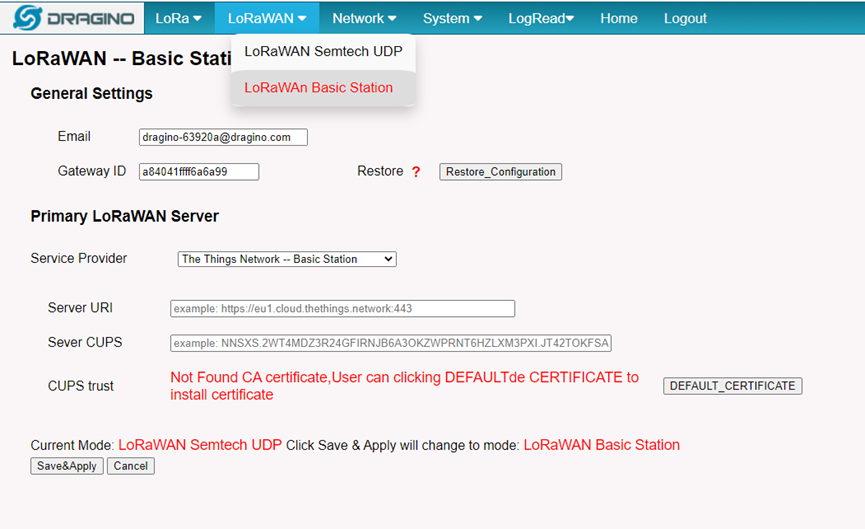
Note *: See this instruction for how to configure AWS-loT-Core.
4.4.4 LogRead
4.4.4.1 LoRa Log
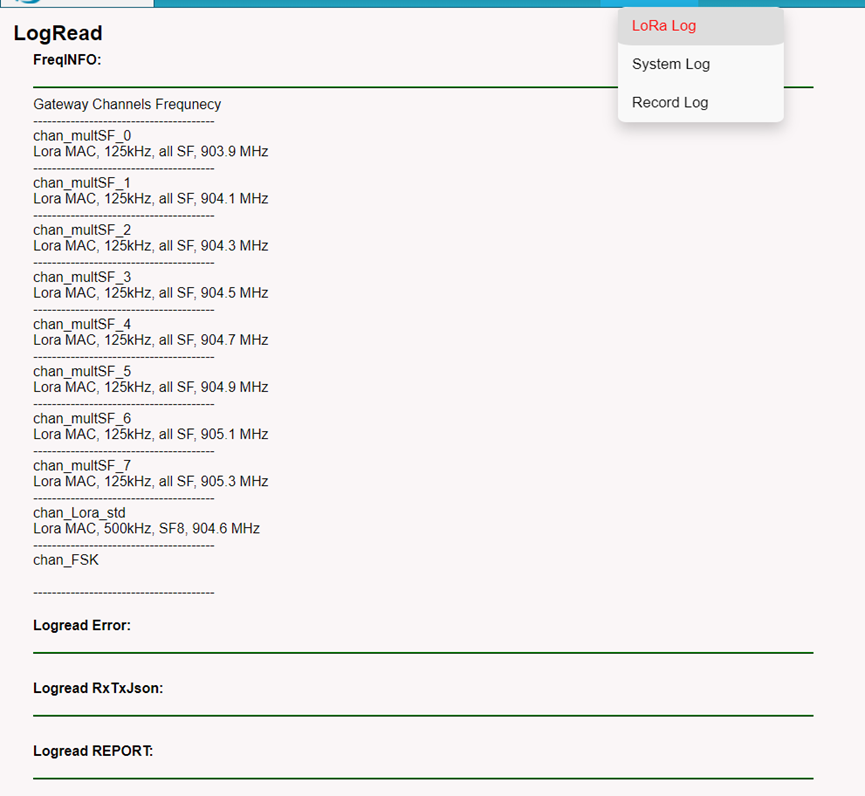
Show the frequency for LoRa Radio and traffics.
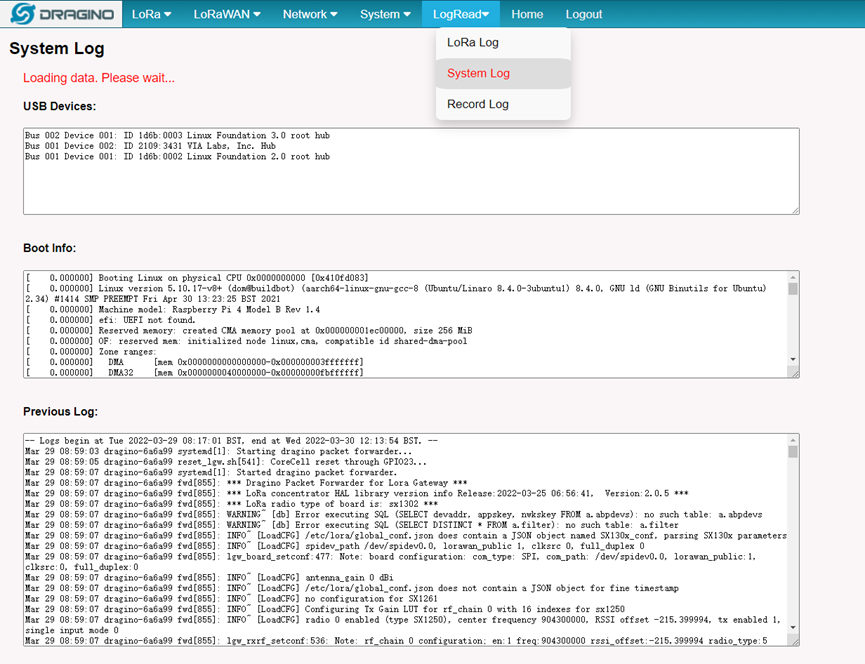
4.4.4.2 System Log
Show system log.
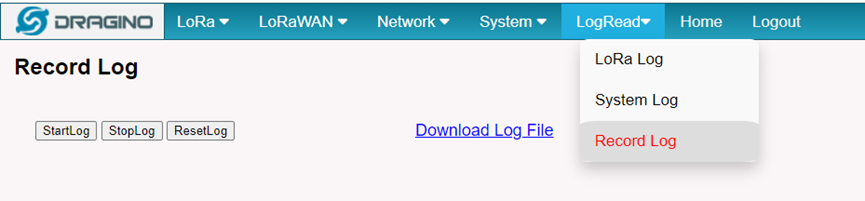
4.4.4.3 Record Log
Record the system log.
5. Install stand-alone LoRa Packet Forwarder
5.1 Choose the right installation package for your OS
draginofwd-32bit (RPI, Orange PI) Download URL: https://www.dragino.com/downloads/downloads/LoRa_Gateway/PG1302/software/draginofwd-32bit.deb
Linux Command: wget https://www.dragino.com/downloads/downloads/LoRa_Gateway/PG1302/software/draginofwd-32bit.deb && dpkg -i draginofwd-32bit.deb
**dragino-64bit (RPI, Orange PI) Download URL: **https://www.dragino.com/downloads/downloads/LoRa_Gateway/PG1302/software/draginofwd-64bit.deb
**Linux Command: **wget https://www.dragino.com/downloads/downloads/LoRa_Gateway/PG1302/software/draginofwd-64bit.deb && dpkg -i draginofwd-64bit.deb
**dragino-tiker-32bit (Tinker Board) Download URL: **https://www.dragino.com/downloads/downloads/LoRa_Gateway/PG1302/software/draginofwd-tinker-32bit.deb
**Linux Command: **wget https://www.dragino.com/downloads/downloads/LoRa_Gateway/PG1302/software/draginofwd-tinker-32bit.deb && dpkg -i draginofwd-tinker-32bit.deb
Install details:

RPI in this example is RPI model 4B with fresh Raspbian OS install.
** pi@raspberrypi:~$ cat /etc/os-release PRETTY_NAME="Raspbian GNU/Linux 8 (jessie)" NAME="Raspbian GNU/Linux" VERSION_ID="8" VERSION="8 (jessie)" ID=raspbian ID_LIKE=debian HOME_URL="http://www.raspbian.org/" SUPPORT_URL="http://www.raspbian.org/RaspbianForums" BUG_REPORT_URL="http://www.raspbian.org/RaspbianBugs"**
5.2 Select the mode of connection to the server
The Dragino LoRa Packet Forware supports the Semtech UDP and Basic Station mode.
The User can choose one of the methods as the connection mode.
1. Semtech UDP Mode --> 5.2.1 2. Basic Station Mode --> 5.2.2
5.2.1 Semtech UDP Mode
a). Get a gateway EUI from the device ETH MAC.
In RPI, run the below command to get a Gateway ID
** ifconfig eth0**
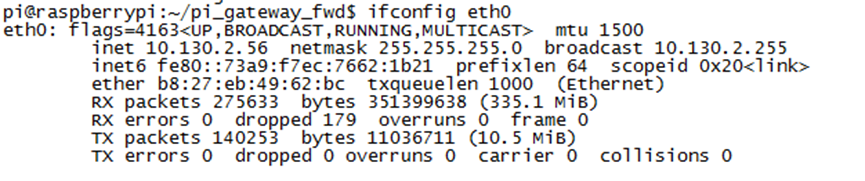
We got the ether (eth0 MAC) address is b8:27:eb:49:62:bc). Add ffff at the end and remove “:” to get the gateway ID: b827ebxxxxbcffff. Input this to TTN v3. Make sure to select legacy packet forwarder.
b). Input this Gateway EUI to the TTN-Stack
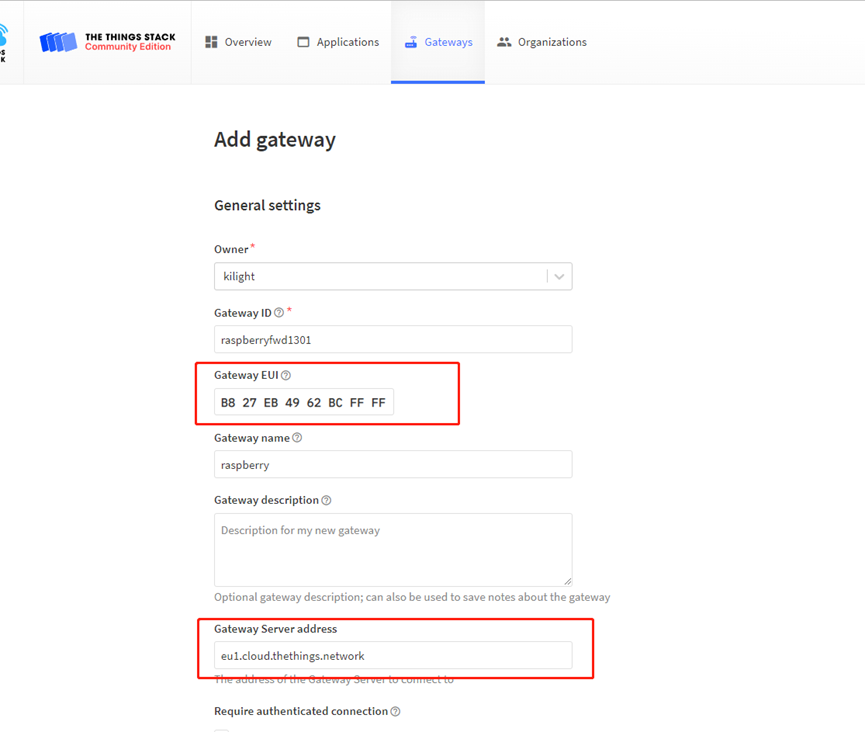
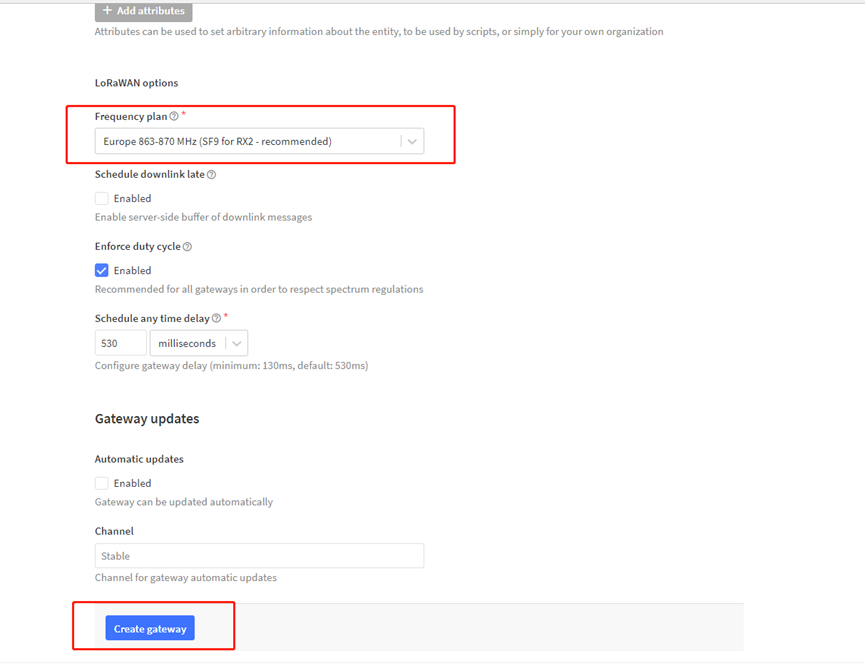
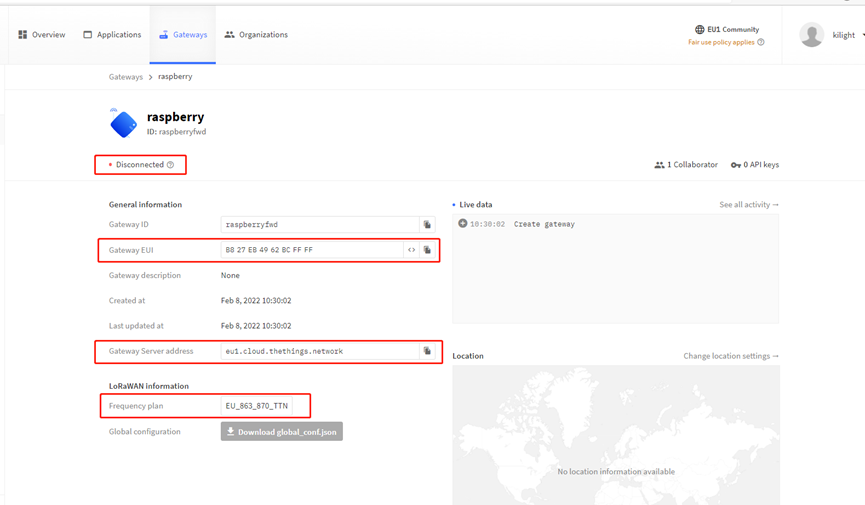
c). After Register, the status should show not connected as below:
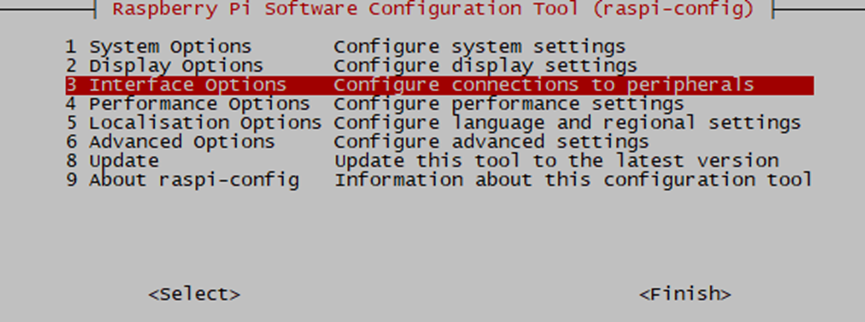
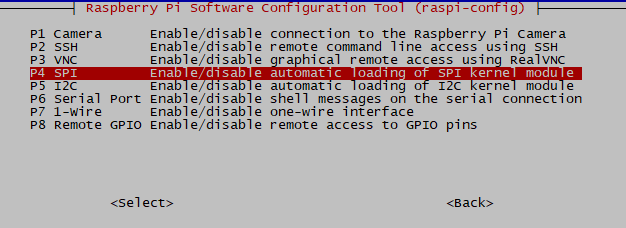
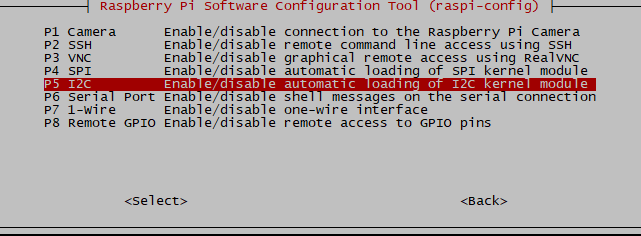
d). Enable SPI and I2C on your device the below example is using Raspberry 4B.
Run sudo raspi-config to open the config window
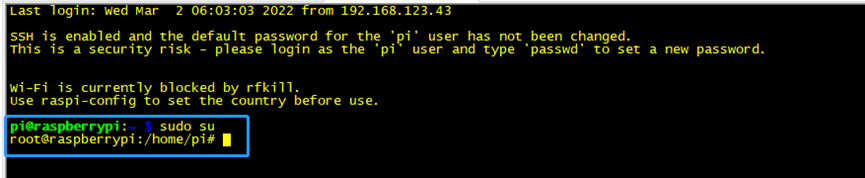
e). Access the root account:
f). Modify the configuration of FWD
After installation, user can find the configuration file in** /etc/lora/ **Replace the gateway ID we got above to the gateway_ID in file local_conf.json.
The default LoRaWAN server points to localhost, user need to put the correct server address to the server_address field in file local_conf.json, like below.
the User can find the lora configuration directory in /etc/lora/ there are the cfg-302 directory and the global_conf.json, and local_conf.json files.
/etc/lora/ ├── cfg-302 ---> global configuration file ├── devskey ---> Database ├── global_conf.json ---> Frequency plan for current applications └── local_conf.json ---> Local fwd configuration
At default, the users need to change two configurations file: global_conf.json and local_conf.json.
1.) Configure gateway EUI and server address, port for fwd
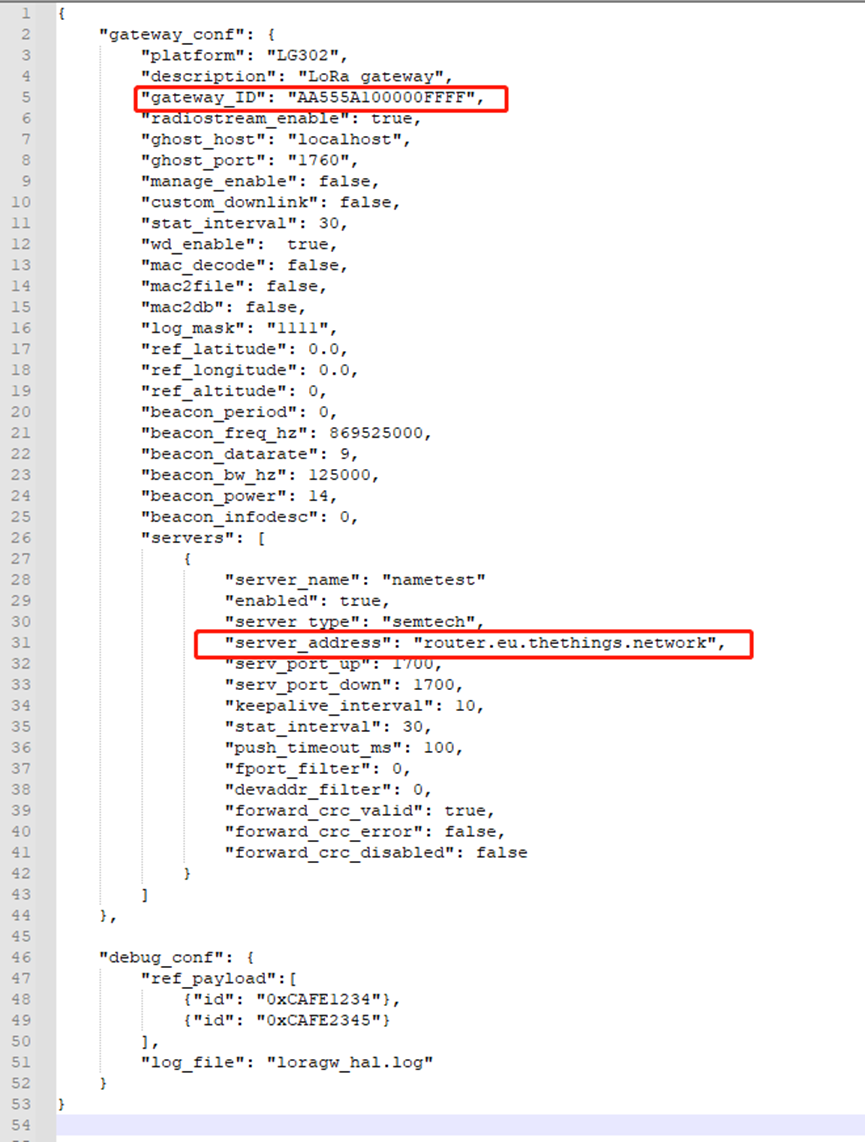
Note: Users can find the TTN v3 server address from Server Addresses | The Things Stack for LoRaWAN (thethingsindustries.com)
2). Override the global_conf.json file by selecting the appropriate frequency plan for your region in cfg-302
the default frequency band is US915 in the global_conf.json file.
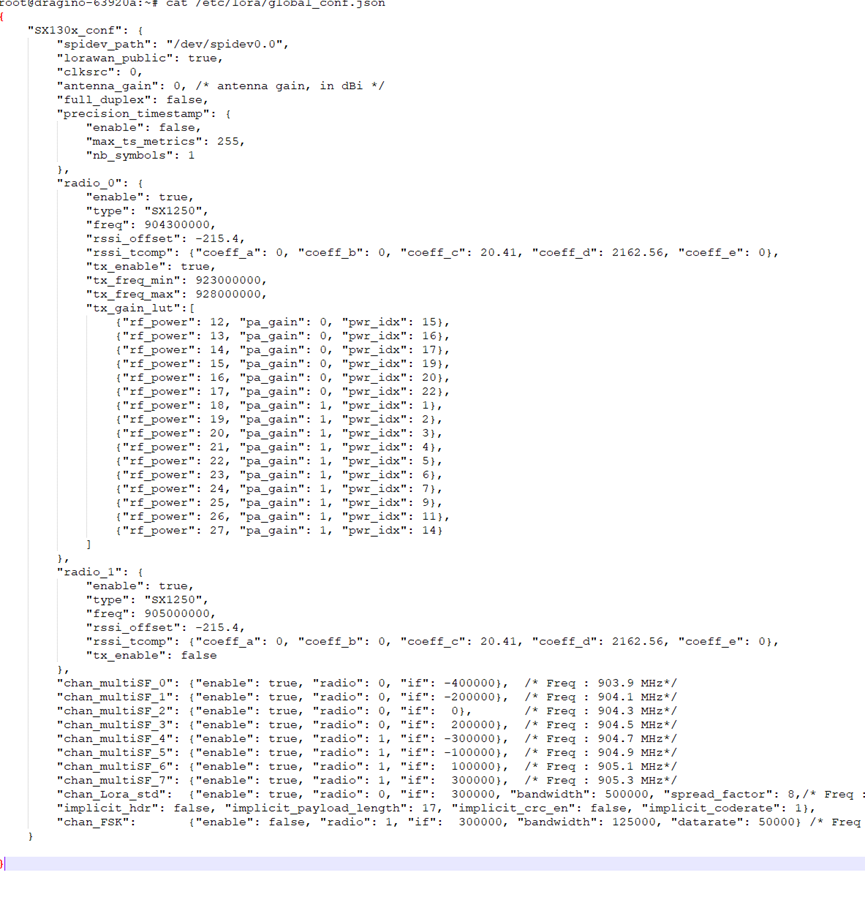
If the user wants to change to other frequency bands, the User can copy the file from** /etc/lora/cfg-302 and put it into /etc/lora/global_conf.json. *eg: cp /etc/lora/cfg-302/EU-global_conf.json /etc/lora/global_conf.json ***
Selecting the appropriate frequency plan for your region in cfg-302.

Override the global_conf.json cp /etc/lora/cfg-302/EU-global_conf.json /etc/lora/global_conf.json

g). Running the Fwd Server
Run the below command to restart the dragino_fwd:
sudo systemctl start draginofwd
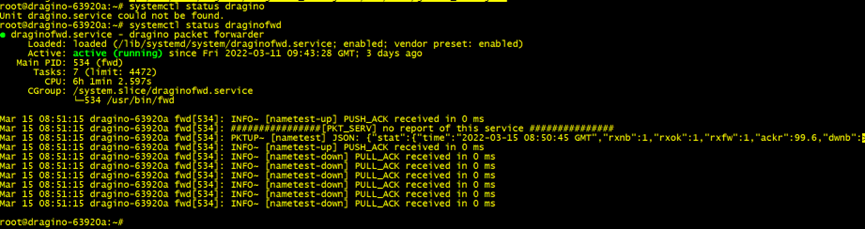
debug check the ruing status of fwd:
sudo systemctl status draginofwd
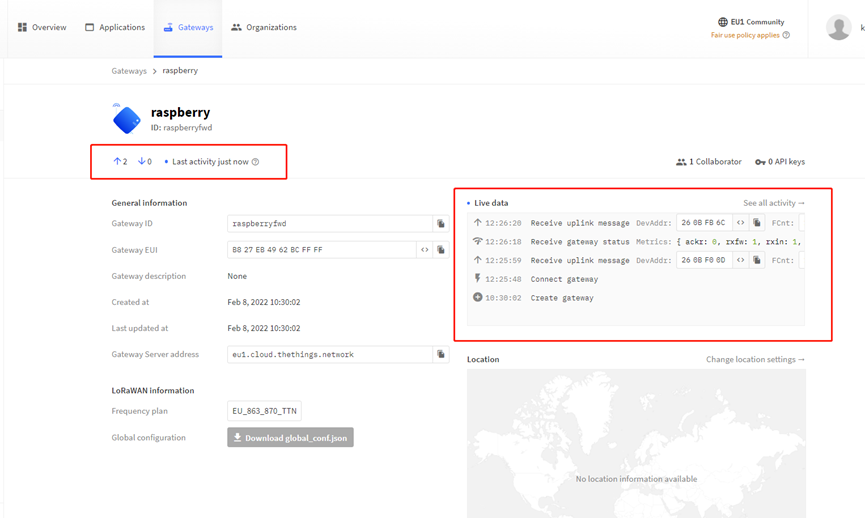
Wait for a few minutes, the gateway will be online/active on the TTN-Stack.
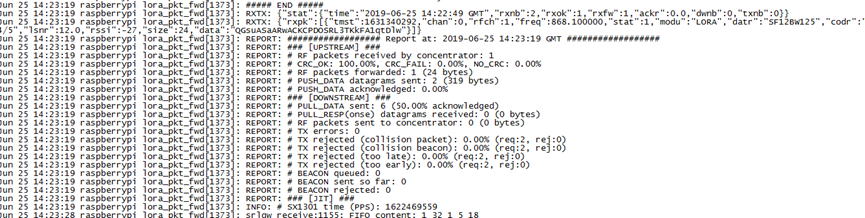
Get the draginofwd real-time running log:
** sudo journalctl -u draginofwd -f**
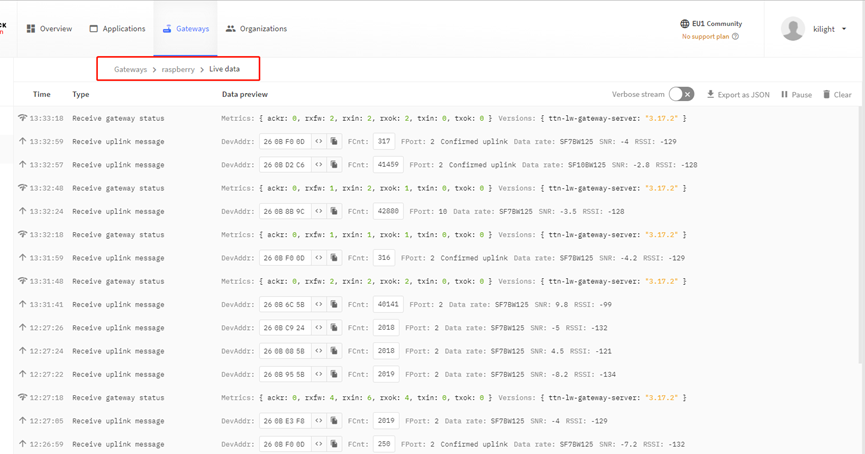
If there are LoRaWAN nodes transmitting nearby, we can see the traffic in TTN v3 –> Gateway --> Live data
h). Commands to handle service
- Stop dragino_fwd service: sudo systemctl stop draginofwd
- Disable dragino_fwd auto run after boot: sudo systemctl disable draginofwd
- Start dragino_fwd : sudo systemctl start draginofwd
- Auto run dragino_fwd after boot: sudo systemctl enable draginofwd
- Show status of dragino_fwd: sudo systemctl status draginofwd
5.2.2 Basic Station Mode.
The following example is connecting to TTNv3 via basic station:
Server Addresses | The Things Stack for Basic Station (thethingsindustries.com)
a). Get a gateway EUI from the device ETH MAC.
In RPI, run the below command to get a Gateway EUI
** ifconfig eth0**
We got the ether (eth0 MAC) address is b8:27:eb:49:62:bc). Add ffff at the end and remove “:” to get the gateway ID: b827ebxxxxbcffff. Input this to TTN v3. Make sure to select legacy packet forwarder.
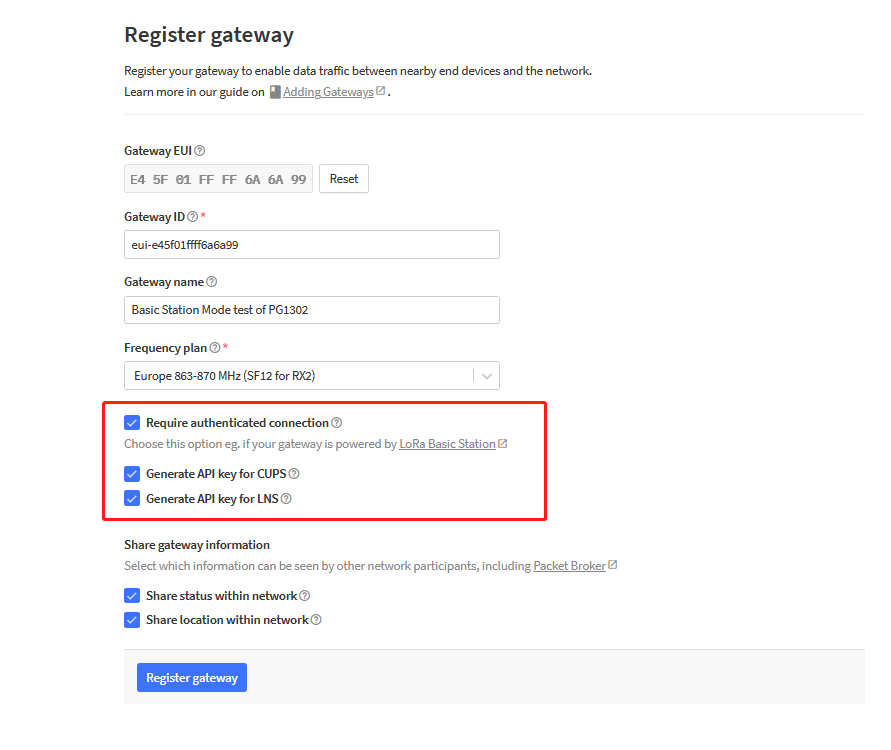
b). Register the gateway with the Basic Station Mode on the TTN-Stack
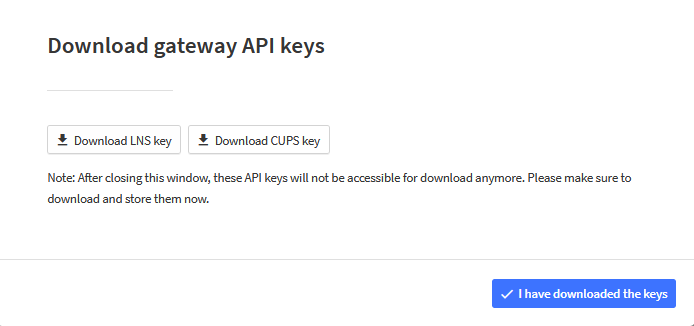
c). Download the gateway API keys, and then upload them to the gateway.
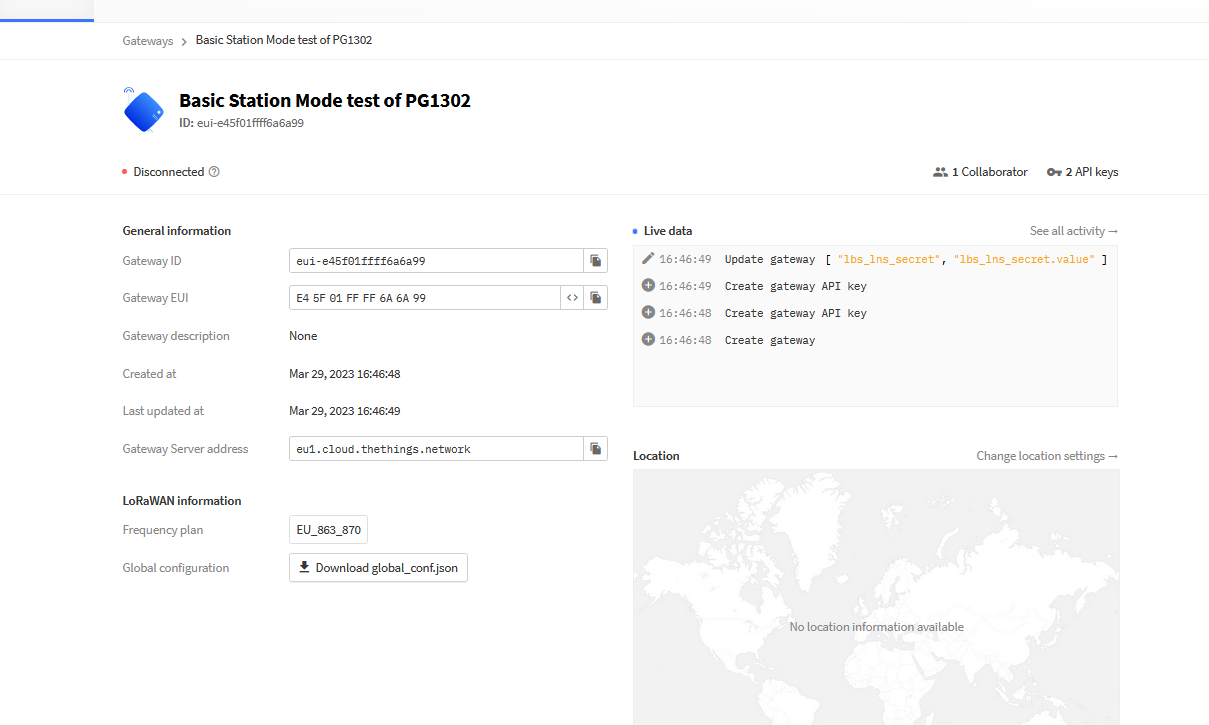
d). The status Shows disconnect.
e.) Uploda API keys into the gateway
The user can find the Basic Station configuration directory in /etc/station/: directory tree:
/etc/station/ └── station.conf ---> station configuration file
and then upload the downloaded keys to this directory(/etc/station/)
eg:
/etc/station/. ├── cups.key ├── cups.trust ├── cups.uri ├── lns.key └── station.conf
lns.key and cups.key are generated by the preceding steps Download cups.trust
wget dragino.com/downloads/downloads/LoRa_Gateway/LPS8/Firmware/customized_script/cups.trust
Manually create and edit the cups.uri file
touch cups.uri
nano cups.uri
Then enter the URI address of the server, for example: https://eu1.cloud.thethings.network:443
f). Configure Gateway EUI
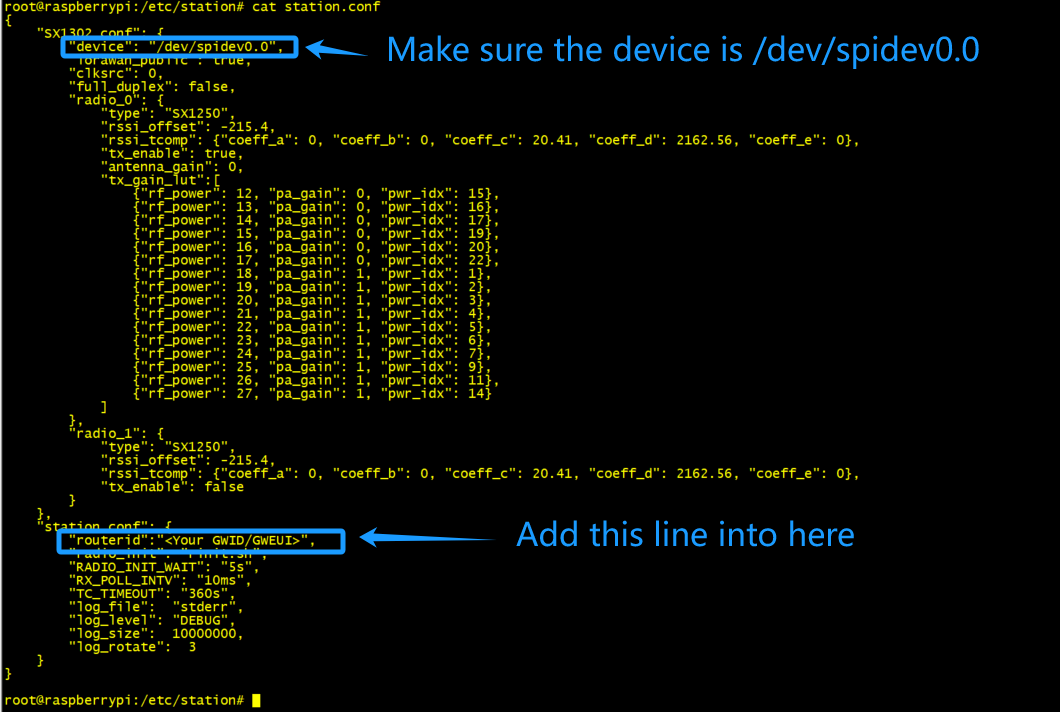
**g). **Start the station service
After configuring the GWEUI and uploading the certificate, you can start the station service via the below command:
ln -sf /usr/bin/station_sx1302 /usr/bin/station
systemctl start draginostation
systemctl start draginostation -- start draginostation service
systemctl stop draginostation -- Stop draginostation service
systemctl enable draginostation -- enable boot auto start draginostation service
systemctl disable draginostation -- disable boot auto start draginostation service
Tree Directory:
/etc/station/
├── cups-bak.done ├── cups-bak.key ├── cups-bak.trust ├── cups-bak.uri ├── cups.key ├── cups.trust ├── cups.uri ├── lns.key ├── station.conf ├── tc-bak.crt ├── tc-bak.done ├── tc-bak.key ├── tc-bak.trust ├── tc-bak.uri ├── tc.crt ├── tc.key ├── tc.trust └── tc.uri
h). Check station running log
tail -f /var/log/station.log

6. Add GPS support in PG1302
The PG1302 supports GPS:
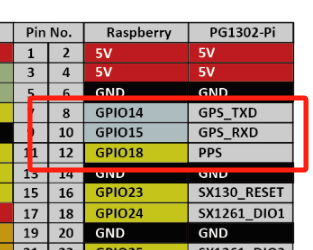
-
The users can find the GPS device in Raspberry: /dev/ttyS0 or /dev/ttyAMA0

-
Check the GPS output: cat /dev/ttyS0
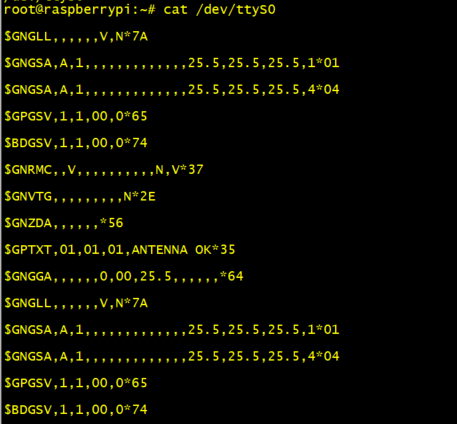
-
Add the GPS to the Semtech UDP package forwarder configuration.
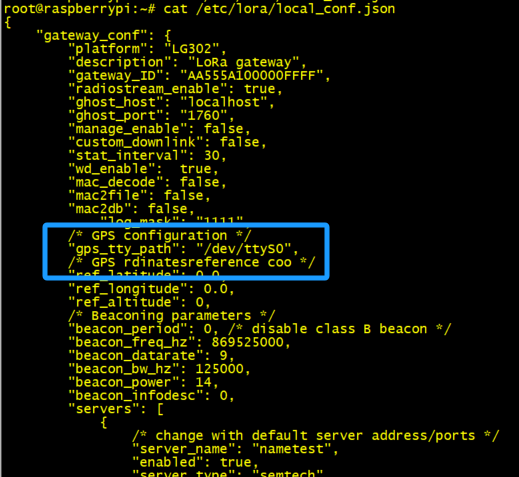
-
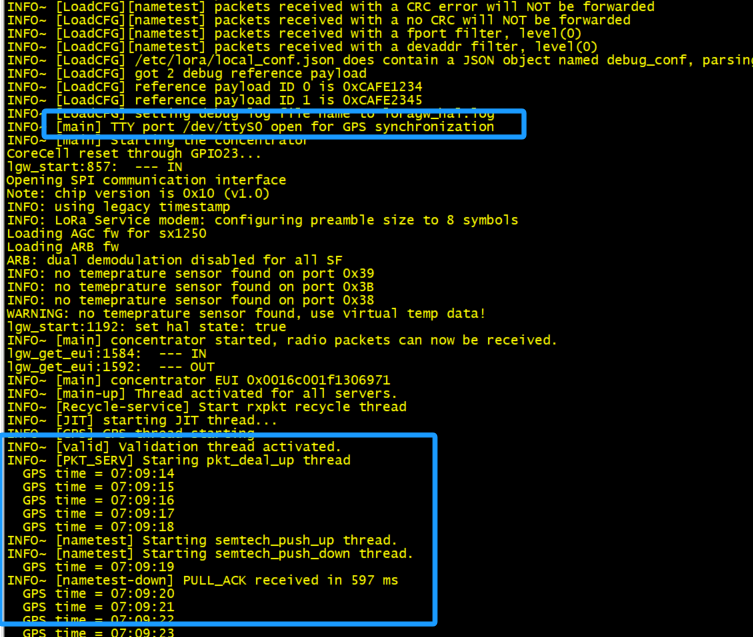
Test GPS function 1.) Stop IoT service: systemctl stop draginofwd 2.) Run the fwd command and check the output
** 3.) Trouble Shooting:**
If you get many WARNING outputs, which should be the GPS location is invalid, you need to adjust the GPS location, it is recommended to put it outdoors

The user can check the PG1302 board GPS LED status to check the location,
GPS location is valid ---\> GPS LED will light up
GPS location is invalid ---\> GPS LED will light down

7. Trouble Shooting
7.1 Failed to start the concentrator how to debug
When the problem "failed to start the concentrator" occurs, the user needs to check whether the I2C and SPI are enabled,
Users can enter the following command to check whether I2C is detected, and the detection of "60" is correct.
i2cdetect -y 1
Note: This method has been removed because the i2c had been removed on the latest PG1302.
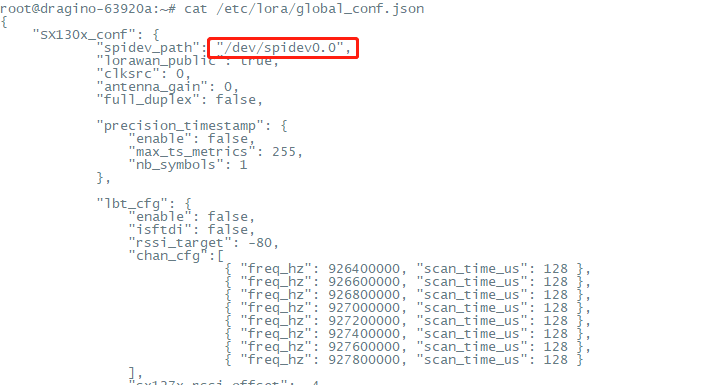
Check whether the SPI path of the configuration file is correct,
**cat /etc/lora/global_conf.json **
8. Order Info
Part Number: PG1302-XX Or Part Number: **PG1302-PI-XX **(Include RPi converter board for RPI 3/4)
** XX:**
- 868 (For Bands: EU868,IN865)
- 915 (For Bands:
US915、AU915、AS923、KR920 - 470 (For Band: CN470)
9. Packing Info
PG1302 Package Includes:
- PG1302 x 1
- LoRa Antenna x 1
PG1302-PI Package Includes:
- PG1302 x 1
- LoRa Antenna x 1
- RPi3/4 converter PCB
- Screws to hole converter PCB on RPI.
**PG1302-PI Dimension and weight: **
- Device Size: 18 x 8 x 4 cm
- Weight: 150g
10. Support
If you are experiencing issues and can't solve, you can send mail to support@dragino.com.
With your question as detail as possible. We will reply and help you in the shortest.
0