LHT52
1. Introduction
1.1 What is LHT52 Temperature & Humidity Sensor
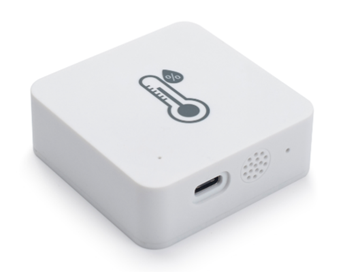
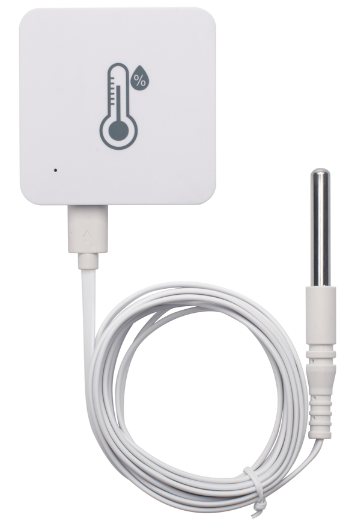
The Dragino LHT52 Temperature & Humidity sensor is a Long Range LoRaWAN Sensor. It includes a built-in Temperature & Humidity sensor and has a USB Type-C sensor connector to connect to external sensors such as external Temperature Sensor.
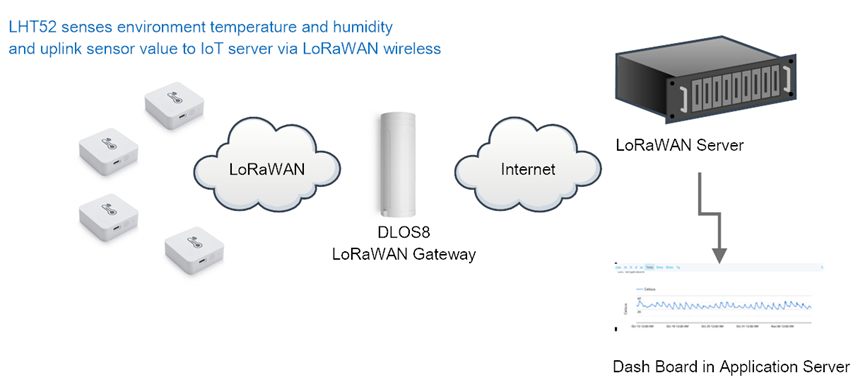
LHT52 senses environment temperature and humidity and send these values via long-range wireless LoRaWAN protocol. It targets professional wireless sensor network applications such as food service, smart metering, smart cities, building automation, and so on.
LHT52 supports** 2 x AAA batteries **and works for a long time up to several years. Use can replace the batteries easily after they are finished.
LHT52 is fully compatible with LoRaWAN v1.0.3 protocol, it can work with standard LoRaWAN gateway.
LHT52 supports** Datalog feature** to make sure users won't miss sensor data. It records sensor value for every uplink. These values can be retrieved by LoRaWAN server via downlink command.
LHT52 supports** temperature alarm feature**. It can uplink alarm in a short interval while temperature exceeds preset limits.
*Battery life depends how often to send data, please see battery analyzer.
1.2 Features
- Wall Attachable.
- LoRaWAN v1.0.3 Class A protocol.
- Built-in Temperature & Humidity sensor
- Optional External Probe
- Frequency Bands:
CN470、EU433、KR920、US915、EU868、AS923、AU915 - AT Commands to change parameters
- Remote configure parameters via LoRaWAN Downlink
- Firmware upgradable via program port
- Support 2 x AAA LR03 batteries.
- Datalog feature
- IP Rating: IP52
1.3 Specification
Built-in Temperature Sensor:
- Resolution: 0.01 °C
- Accuracy Tolerance: Typ ±0.3 °C
- Long Term Drift: < 0.02 °C/yr
- Operating Range: -10 ~ 50 °C or -40 ~ 60 °C (depends on battery type, see FAQ)
Built-in Humidity Sensor:
- Resolution: 0.1 %RH
- Accuracy Tolerance: Typ ±3 %RH
- Long Term Drift: < 0.25 RH/yr
- Operating Range: 0 ~ 99.0 %RH(no Dew)
1.4 Power Consumption
LHT52 (without external sensor): Idle: 5uA, Transmit: max 110mA
LHT52 + External Temperature Probe (AS-01): Idle: 6uA, Transmit: max 110mA.
1.5 Storage & Operation Temperature
-10 ~ 50 °C or -40 ~ 60 °C (depends on battery type, see FAQ)
1.6 Applications
- Smart Buildings & Home Automation
- Logistics and Supply Chain Management
- Smart Metering
- Smart Agriculture
- Smart Cities
- Smart Factory
2. Operation Mode
2.1 How it work?
Each LHT52 is shipped with a worldwide unique set of LoRaWAN OTAA keys. To use LHT52 in a LoRaWAN network, user needs to input the OTAA keys in LoRaWAN network server. After this, if LHT52 is under this LoRaWAN network coverage, LHT52 can join the LoRaWAN network and start to transmit sensor data. The default period for each uplink is** 20 minutes**.
2.2 How to Activate LHT52?
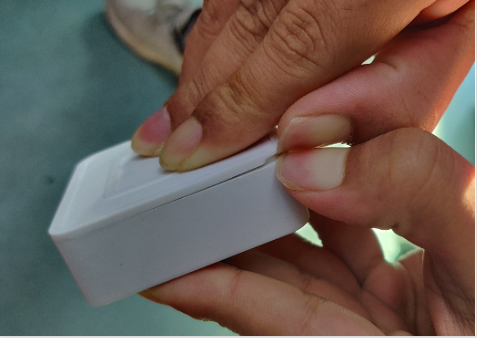
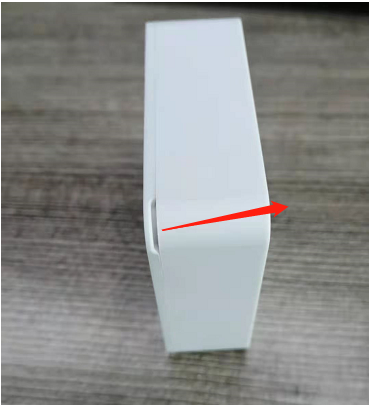
** 1. Open enclosure from below position.**
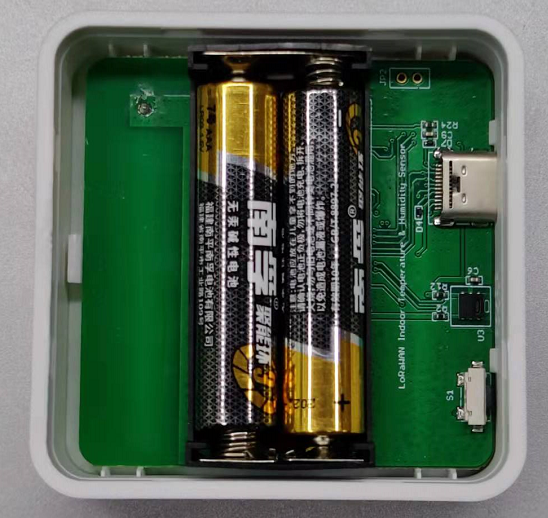
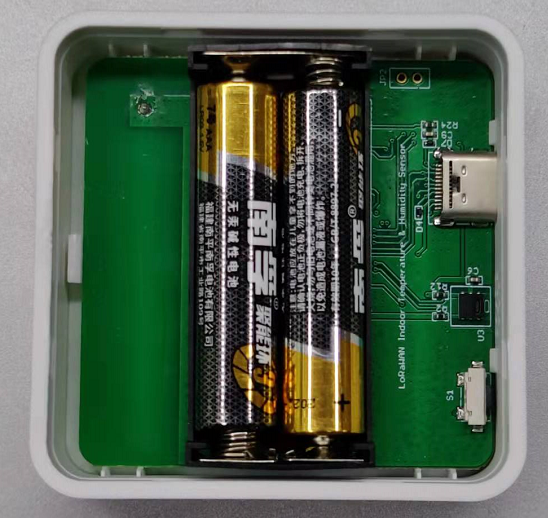
** 2. Insert 2 x AAA LR03 batteries.**
** 3. Press the reset button to activate device.**
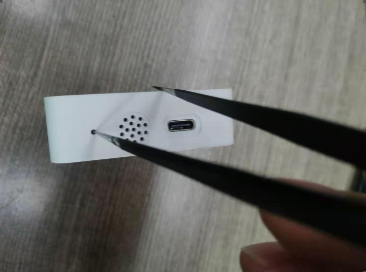
User can check LED Status to know the working state of LHT52.
2.3 Example to join LoRaWAN network
This section shows an example for how to join the TheThingsNetwork LoRaWAN IoT server. Usages with other LoRaWAN IoT servers are of similar procedure.
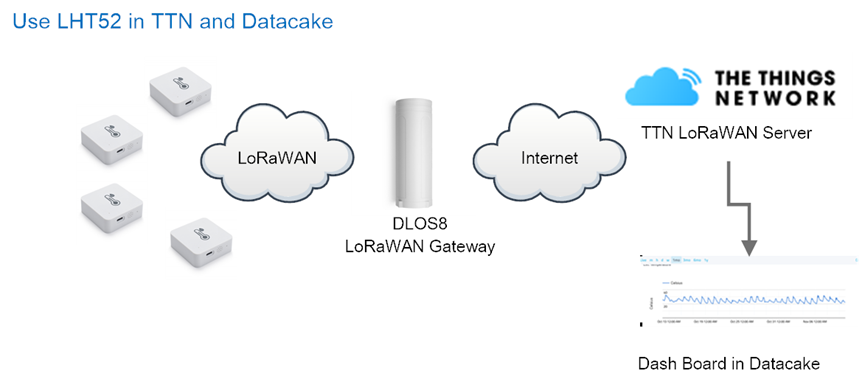
Assume the DLOS8 is already set to connect to TTN V3 network . We need to add the LHT52 device in TTN V3 portal.
Step 1: Create a device in TTN V3 with the OTAA keys from LHT52.
Each LHT52 is shipped with a sticker with the default DEV EUI as below:
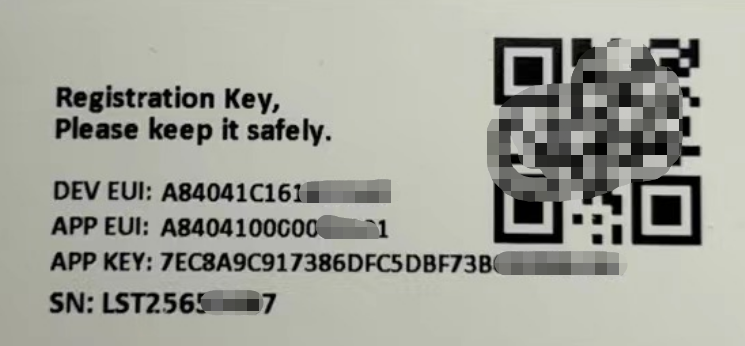
You can enter this key in the LoRaWAN Server portal. Below is TTN screen shot:
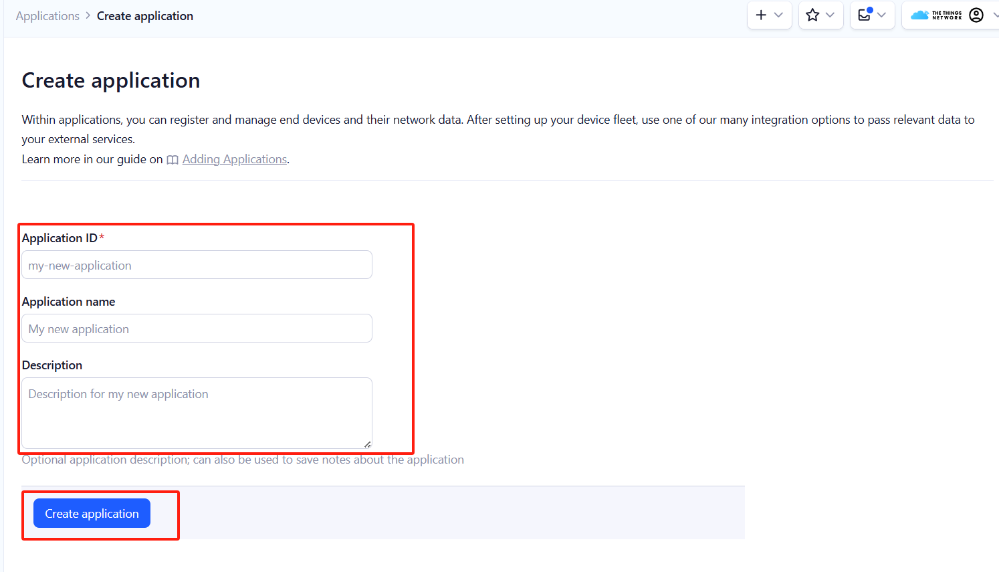
Create the application.
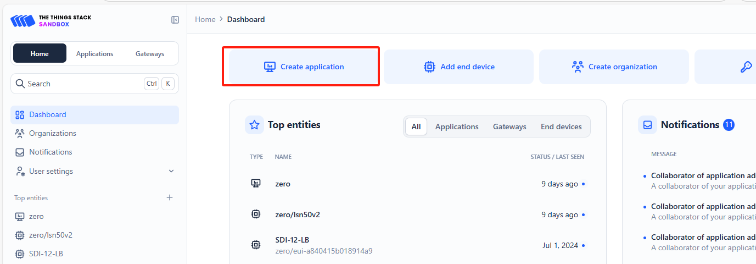
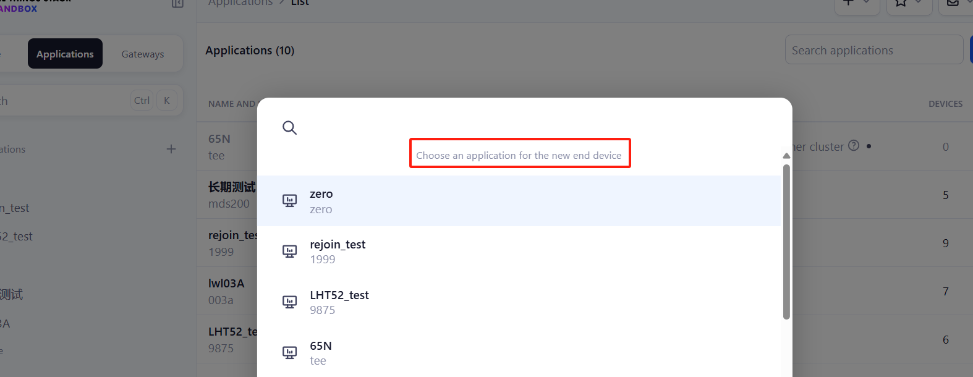
Add devices to the created Application.

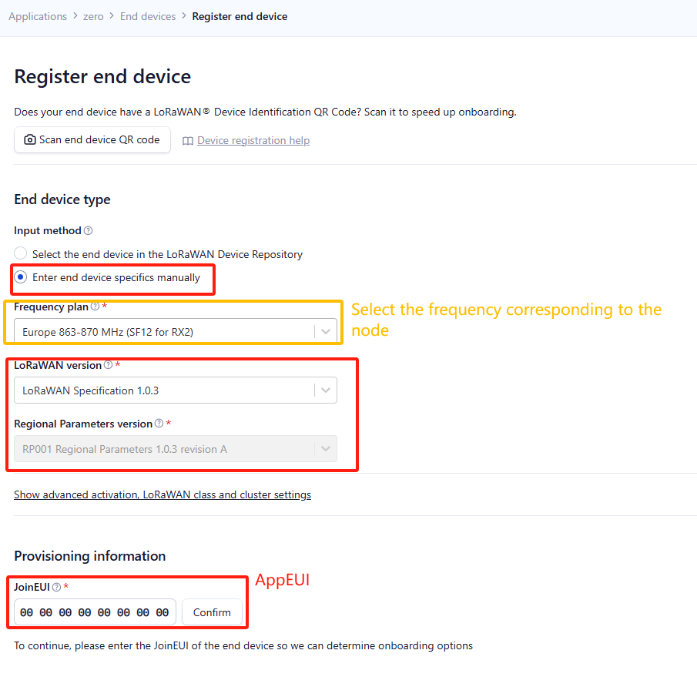
Enter end device specifics manually.
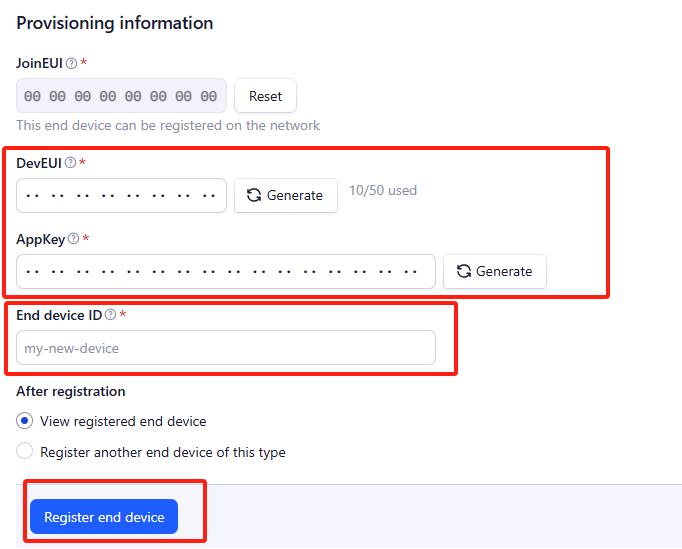
Add DevEUI and AppKey. Customize a platform ID for the device.
Step 2: Add decoder.
In TTN, user can add a custom payload so it shows friendly reading.
Click this link to get the decoder: https://github.com/dragino/dragino-end-node-decoder/tree/main/LHT52
Below is TTN screen shot:
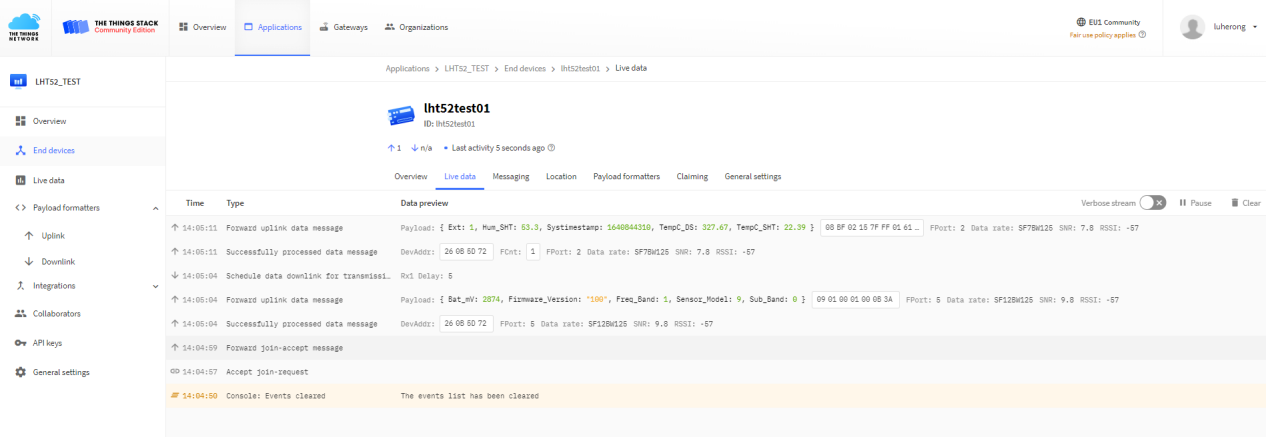
Step 3: Use ACT button to activate LHT52 and it will auto join to the TTN V3 network. After join success, it will start to upload sensor data to TTN V3 and user can see in the panel.
2.4 Uplink Payload
Uplink payloads include two types: Valid Sensor Value and other status / control command.
- Valid Sensor Value: Use FPORT=2
- Other control command: Use FPORT other than 2.
2.4.1 Uplink FPORT=5, Device Status
Uplink the device configures with FPORT=5. Once LHT52 Joined the network, it will uplink this message to the server. After first uplink, LHT52 will uplink Device Status every 12 hours.
| **Size(bytes) ** | 1 | 2 | 1 | 1 | 2 |
|---|---|---|---|---|---|
| Value | Sensor Model | Firmware Version | Frequency Band | Sub-band | BAT |
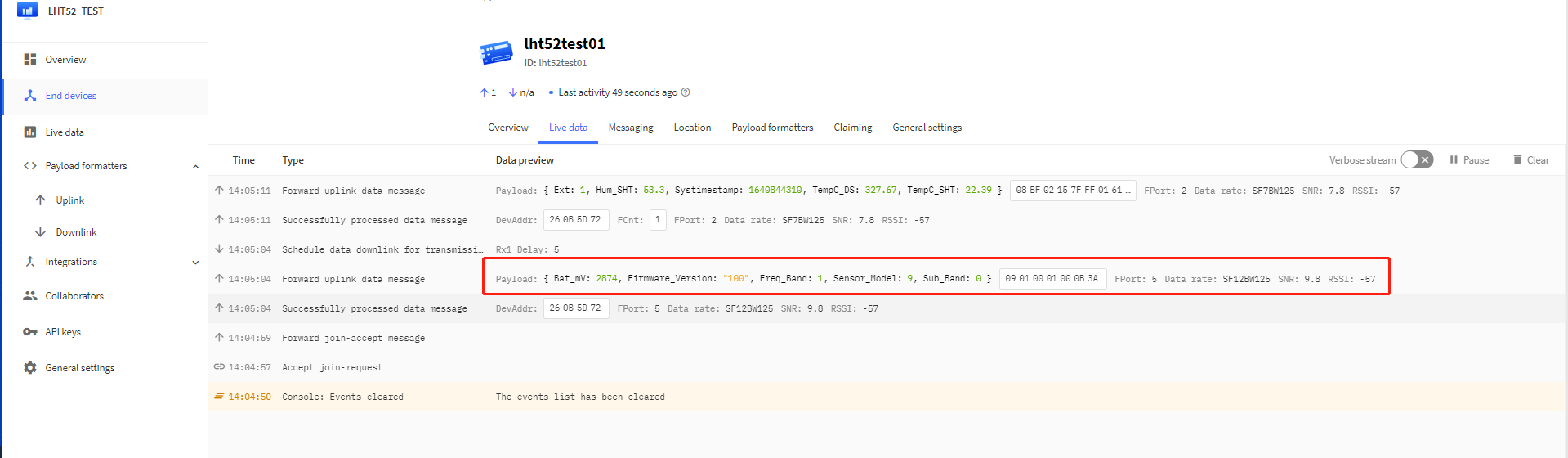
Example Payload (FPort=5): 
Sensor Model: For LHT52, this value is 0x09.
Firmware Version: 0x0100, Means: v1.0.0 version.
Frequency Band:
*0x01: EU868
*0x02: US915
*0x03: IN865
*0x04: AU915
*0x05: KZ865
*0x06: RU864
*0x07: AS923
*0x08: AS923-1
*0x09: AS923-2
*0x0a: AS923-3
Sub-Band: value 0x00 ~ 0x08(only for: CN470、AU915、US915
BAT: shows the battery voltage for LHT52.
Ex1: 0x0B3A = 2874mV
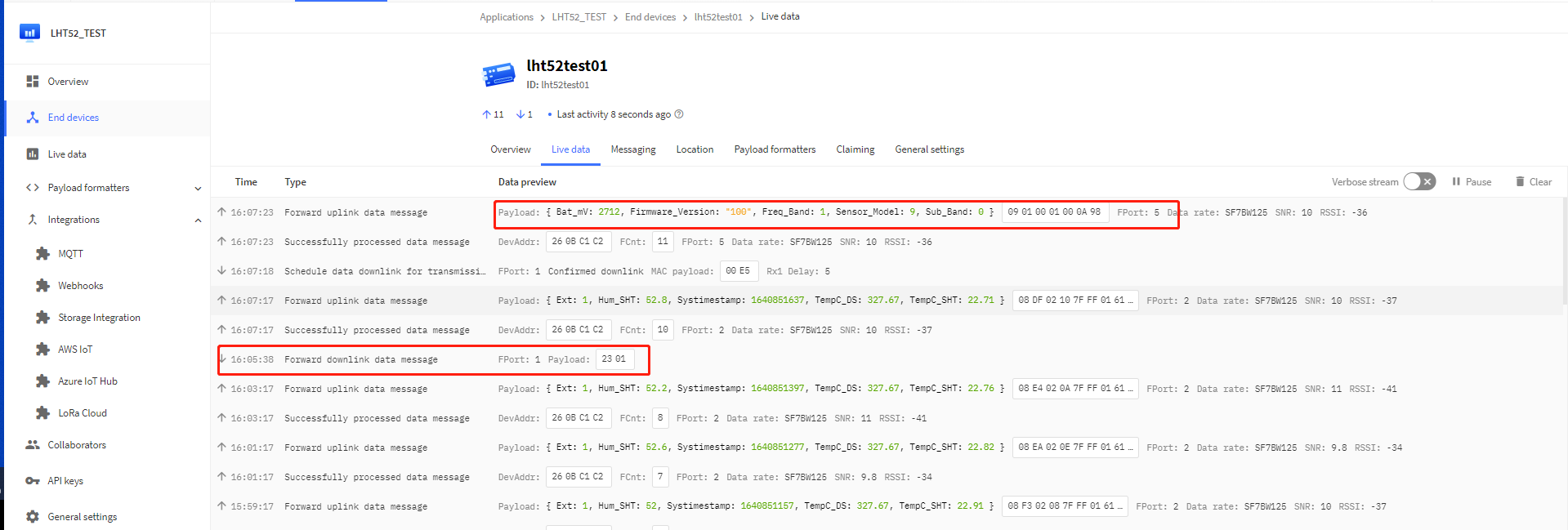
Use can also get the Device Status uplink through the downlink command:
**Downlink: **0x2301
2.4.2 Uplink FPORT=2, Real time sensor value
LHT52 will send this uplink after Device Status uplink once join LoRaWAN network successfully. And it will periodically send this uplink. Default interval is 20 minutes and can be changed.
Uplink uses FPORT=2 and every 20 minutes send one uplink by default.
| Size(bytes) | 2 | 2 | 2 | 1 | 4 |
|---|---|---|---|---|---|
| Value | Temperature | Humidity | External Temperature | Ext # | Unix TimeStamp |
Temperature:
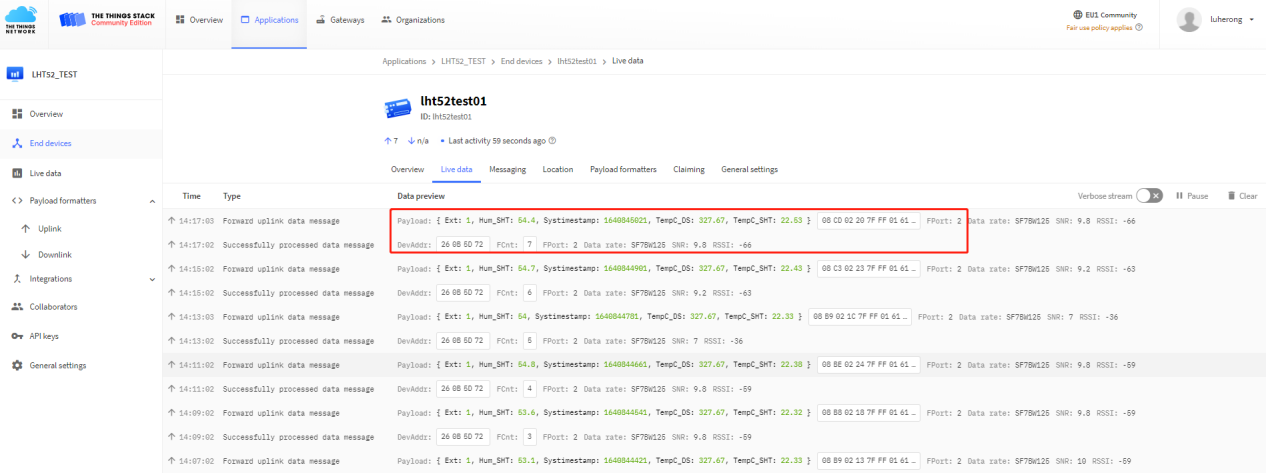
Example Payload (FPort=2): 08 CD 02 20 7F FF 01 61 CD 4E DD
Temperature & External Temperature:
- Example1: 0x08CD/100=22.53℃
- Example2: (0xF5C6-65536)/100=-26.18℃
If payload is: F5C6 : (F5C6 & 8000 == 1) , temp = (F5C6 - 65536)/100 =-26.18℃
(F5C6 & 8000:Judge whether the highest bit is 1, when the highest bit is 1, it is negative)
Humidity:
- Humidity: 0x0220/10=54.4%
Extension #
Bytes for External Sensor:
| EXT # Value | External Sensor Probe |
|---|---|
| 0x01 | Sensor AS-01, Temperature |
2.4.3 Uplink FPORT=3, Datalog sensor value
| Size(bytes) | 2 | 2 | 2 | 1 | 4 |
|---|---|---|---|---|---|
| Value | External Temperature | Humidity | Temperature | Ext # | Unix TimeStamp |
Temperature:
LHT52 stores sensor value and user can retrieve these history value via downlink command. The Datalog sensor value are sent via FPORT=3.
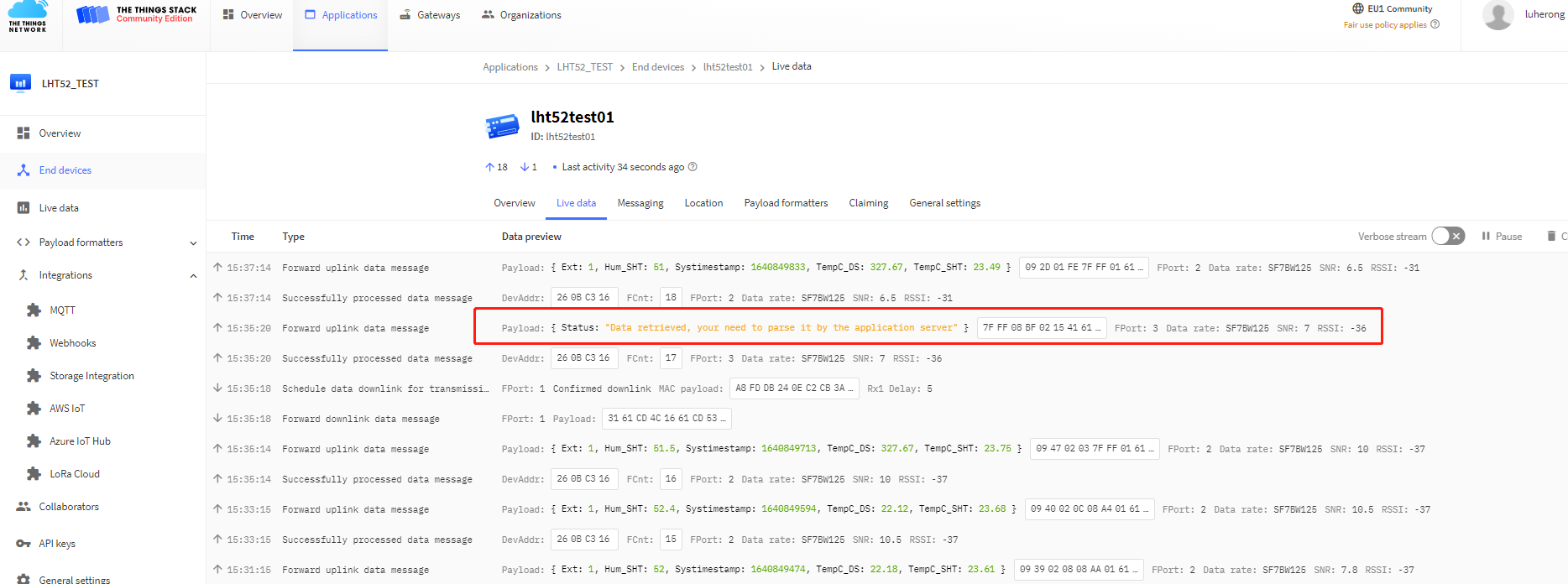
- Each data entry is 11 bytes, to save airtime and battery, LHT52 will send max bytes according to the current DR and Frequency bands.
For example, in US915 band, the max payload for different DR is:
- DR0: max is 11 bytes so one entry of data
- DR1: max is 53 bytes so devices will upload 4 entries of data (total 44 bytes)
- DR2: total payload includes 11 entries of data
- DR3: total payload includes 22 entries of data.
Notice: LHT52 will save 178 set of history data, If device doesn't have any data in the polling time. Device will uplink 11 bytes of 0.
See more info about the Datalog feature.
2.4.4 Uplink FPORT=4, DS18B20 ID
User can get external DS18B20 ID through the downlink command.
Downlink: 0x2302
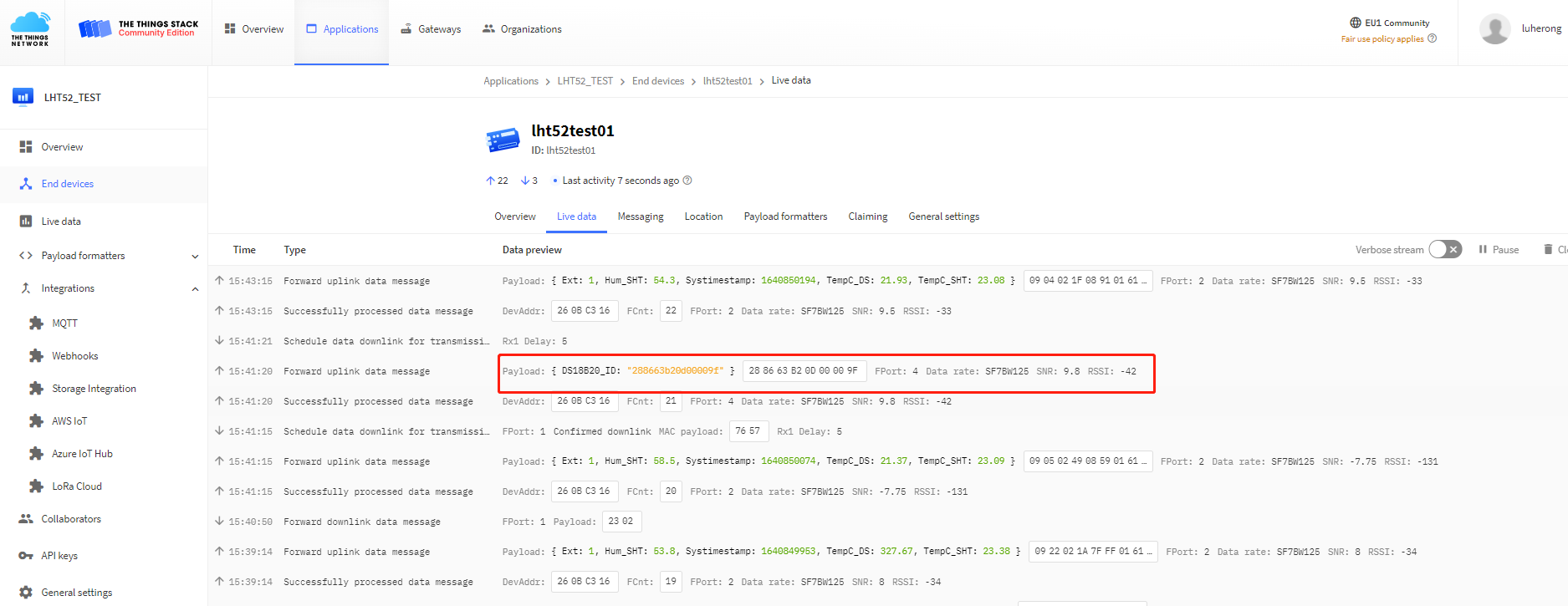
Example Payload (FPort=4): 28 86 63 B2 00 00 00 9F
The External DS18B20 ID is 0x28 86 63 B2 00 00 00 9F
2.4.5 Decoder in TTN V3
In LoRaWAN protocol, the uplink payload is HEX format, user need to add a payload formatter/decoder in LoRaWAN Server to get human friendly string.
In TTN , add formatter as below:
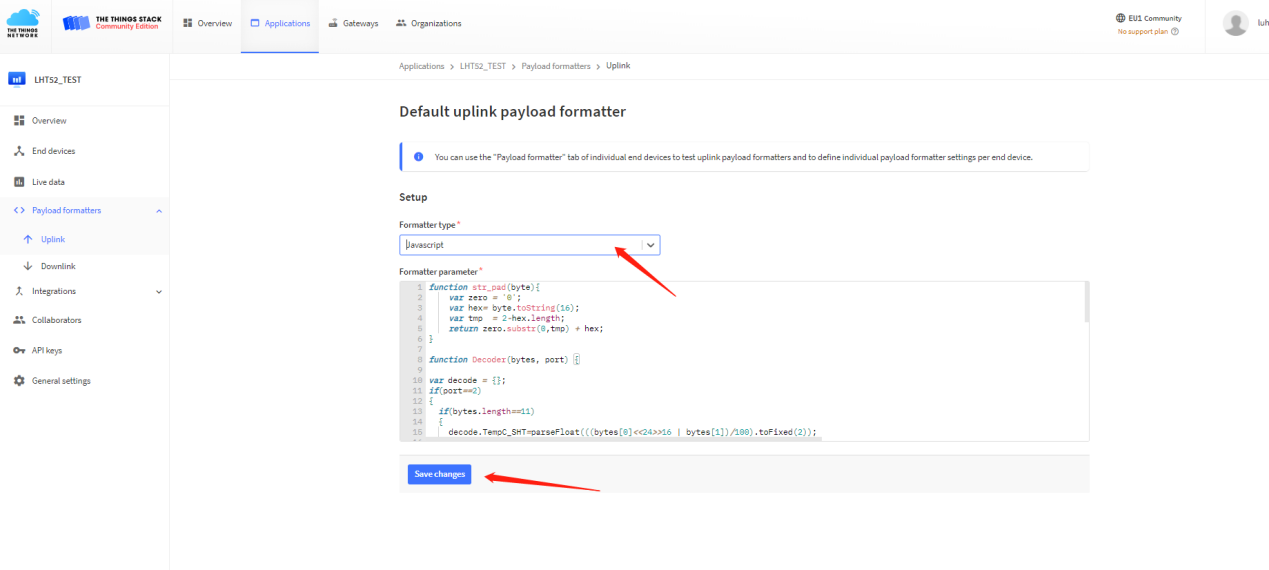
Please check the decoder from this link: https://github.com/dragino/dragino-end-node-decoder
2.5 Show data on Datacake
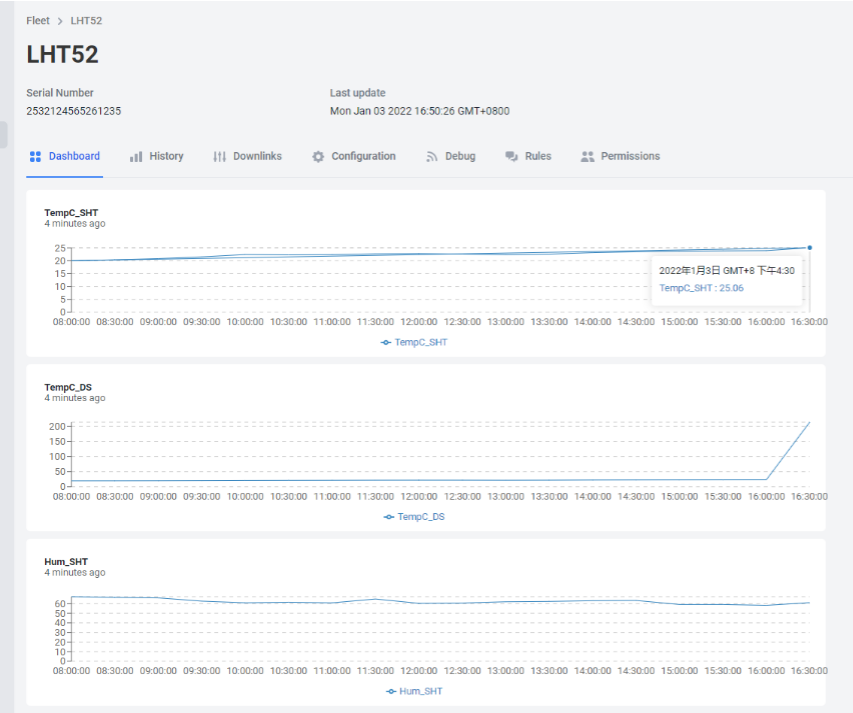
Datacake IoT platform provides a human friendly interface to show the sensor data in charts, once we have sensor data in TTN V3, we can use Datacake to connect to TTN V3 and see the data in Datacake. Below are the steps:
Step 1: Be sure that your device is programmed and properly connected to the LoRaWAN network.
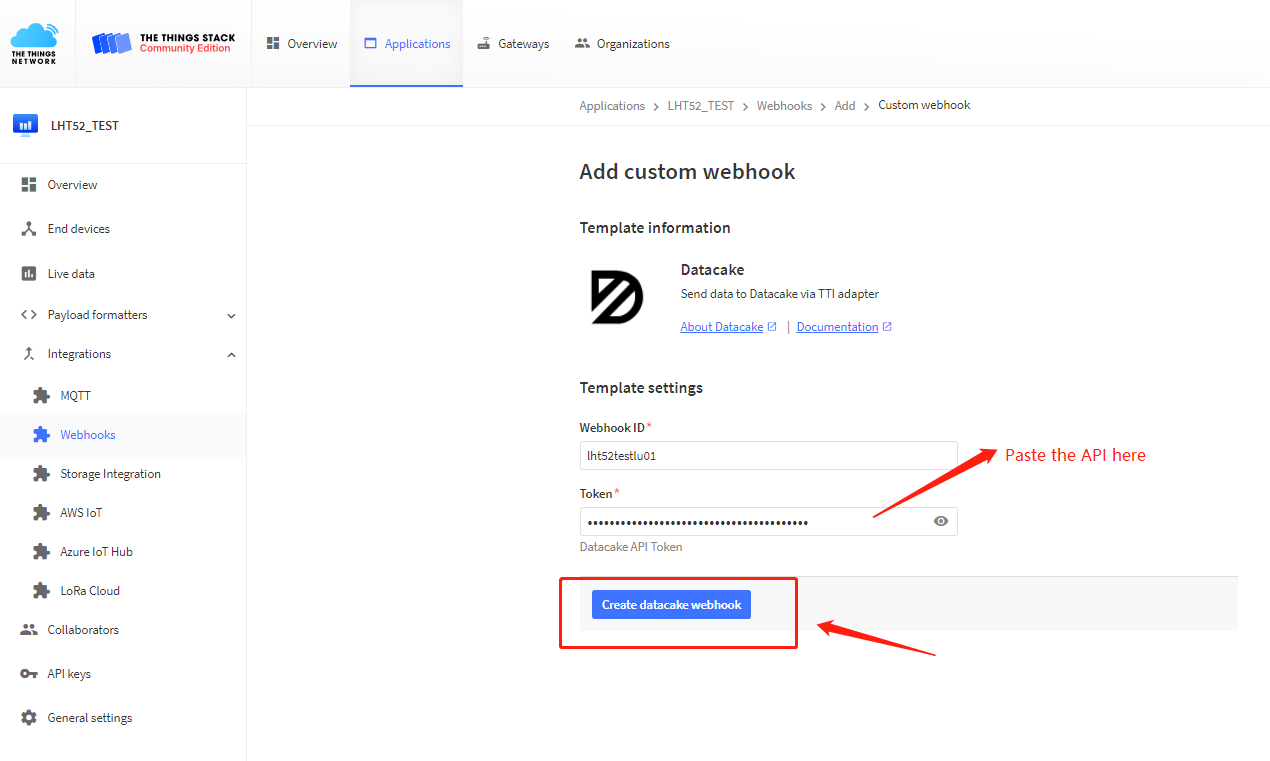
Step 2: Configure your Application to forward data to Datacake you will need to add integration. Go to TTN V3 Console --> Applications --> Integrations --> Add Integrations.
1. Add Datacake:
2. Select default key as Access Key:
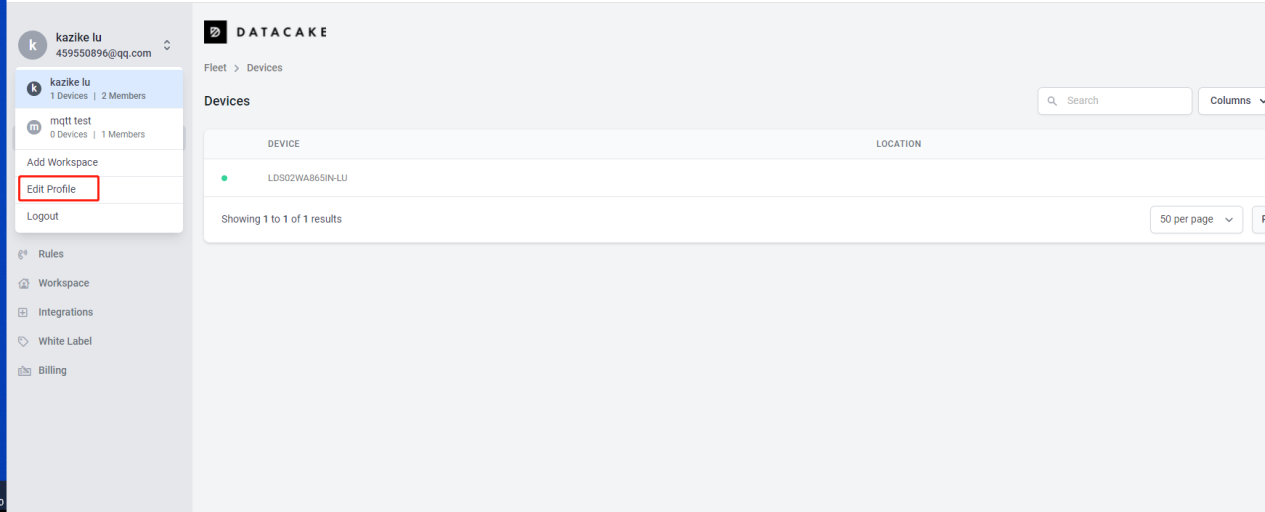
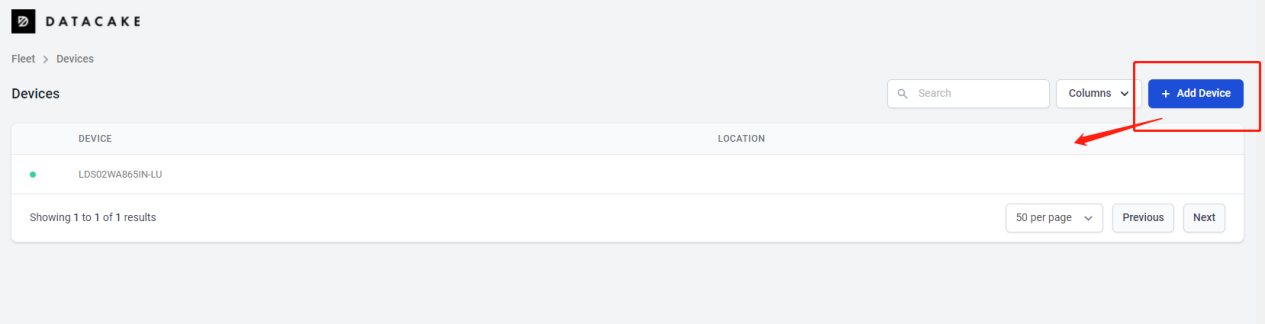
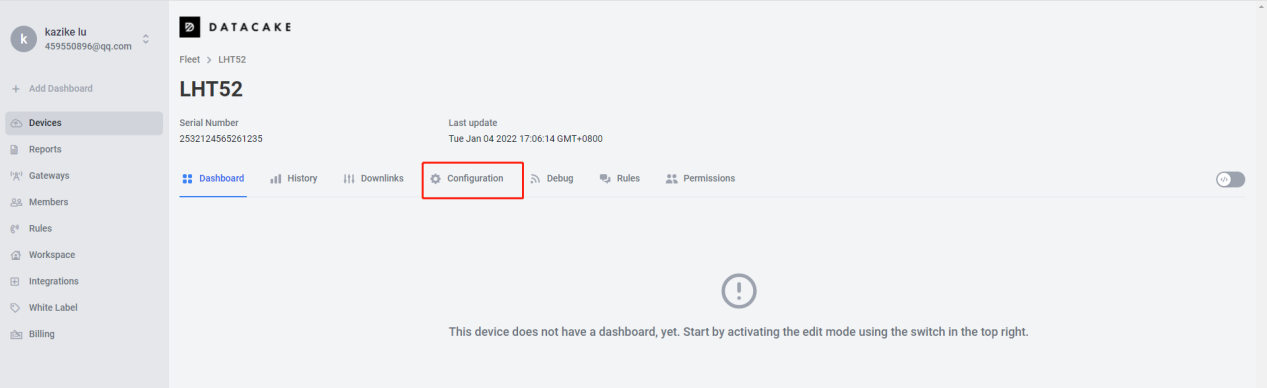
3. In Datacake console (https://datacake.co/) , add LHT52:
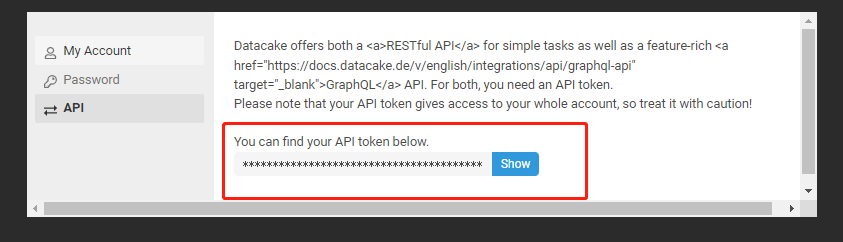
Please refer to the figure below
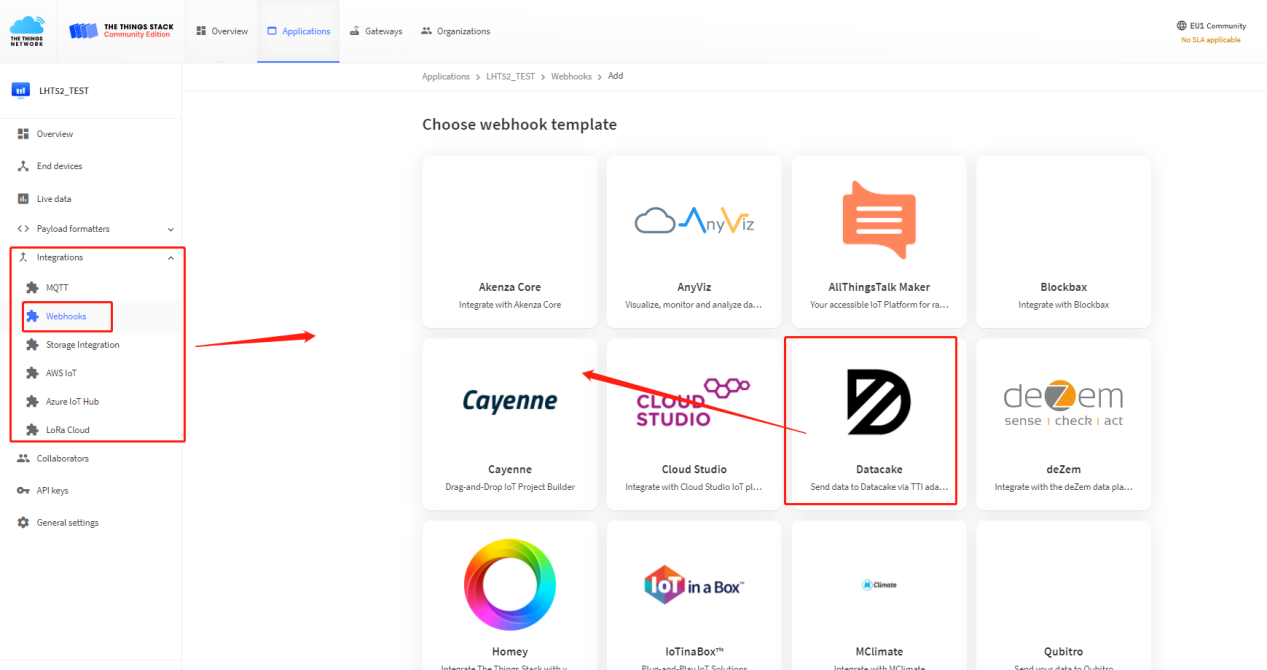
Log in to DATACAKE, copy the API under the account
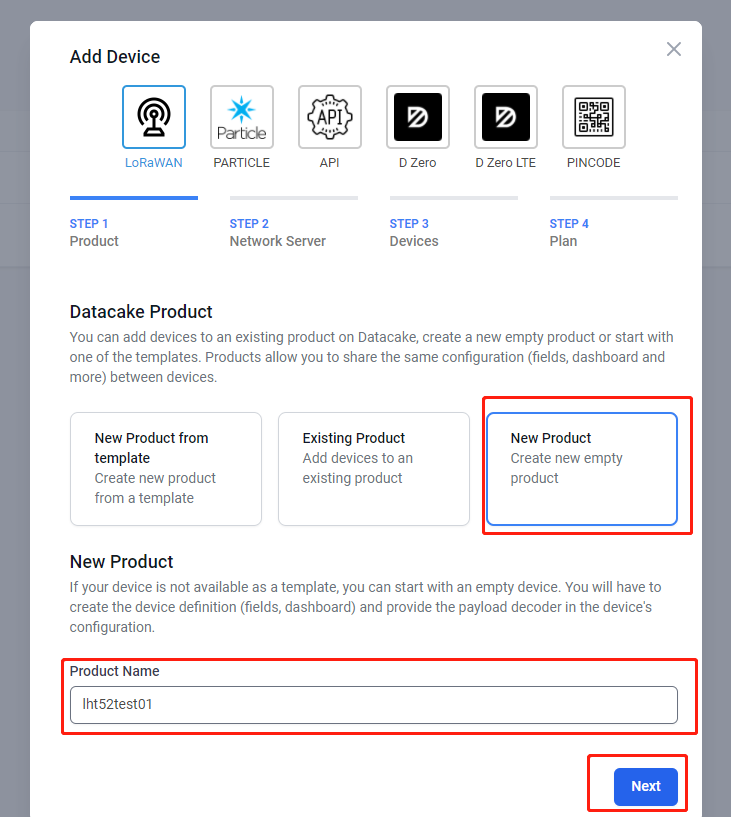
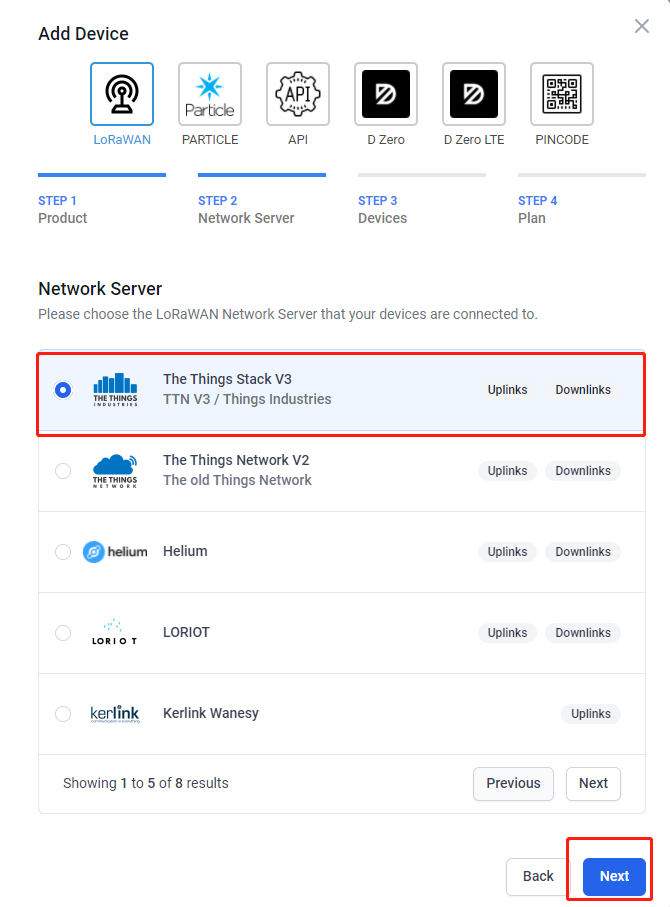
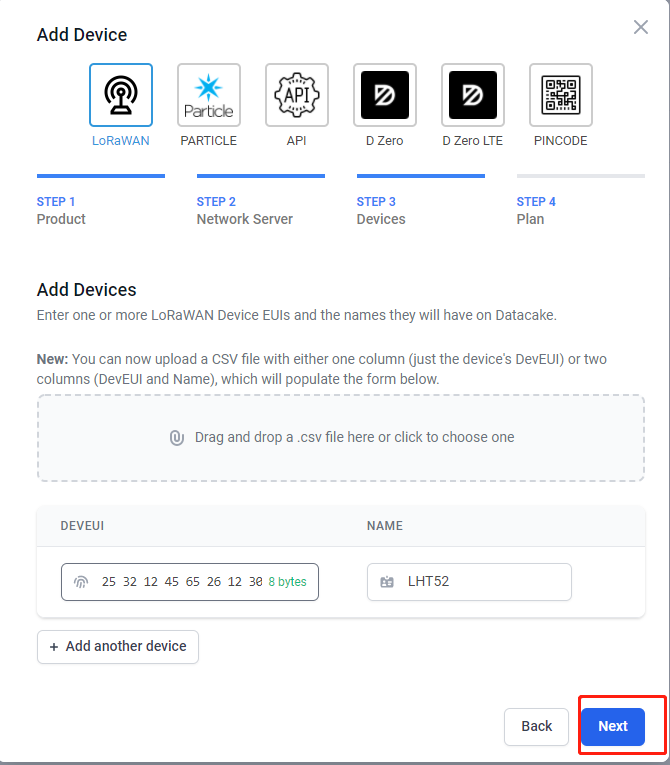
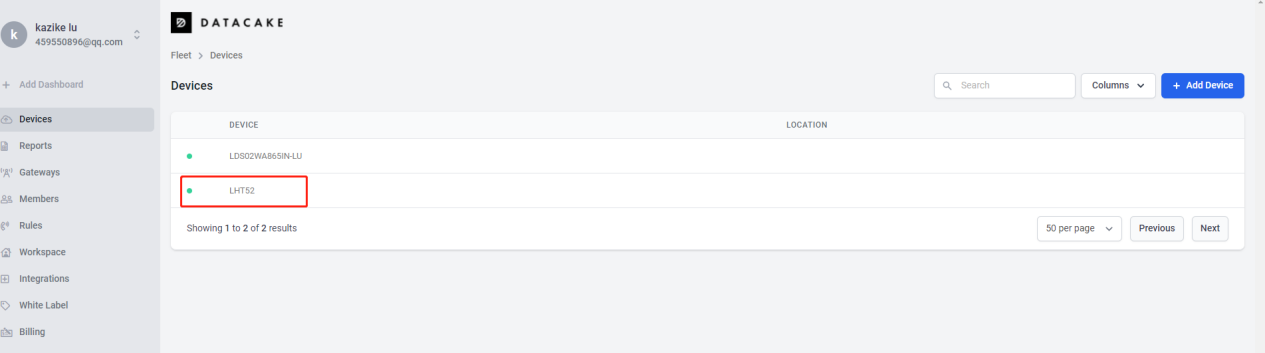
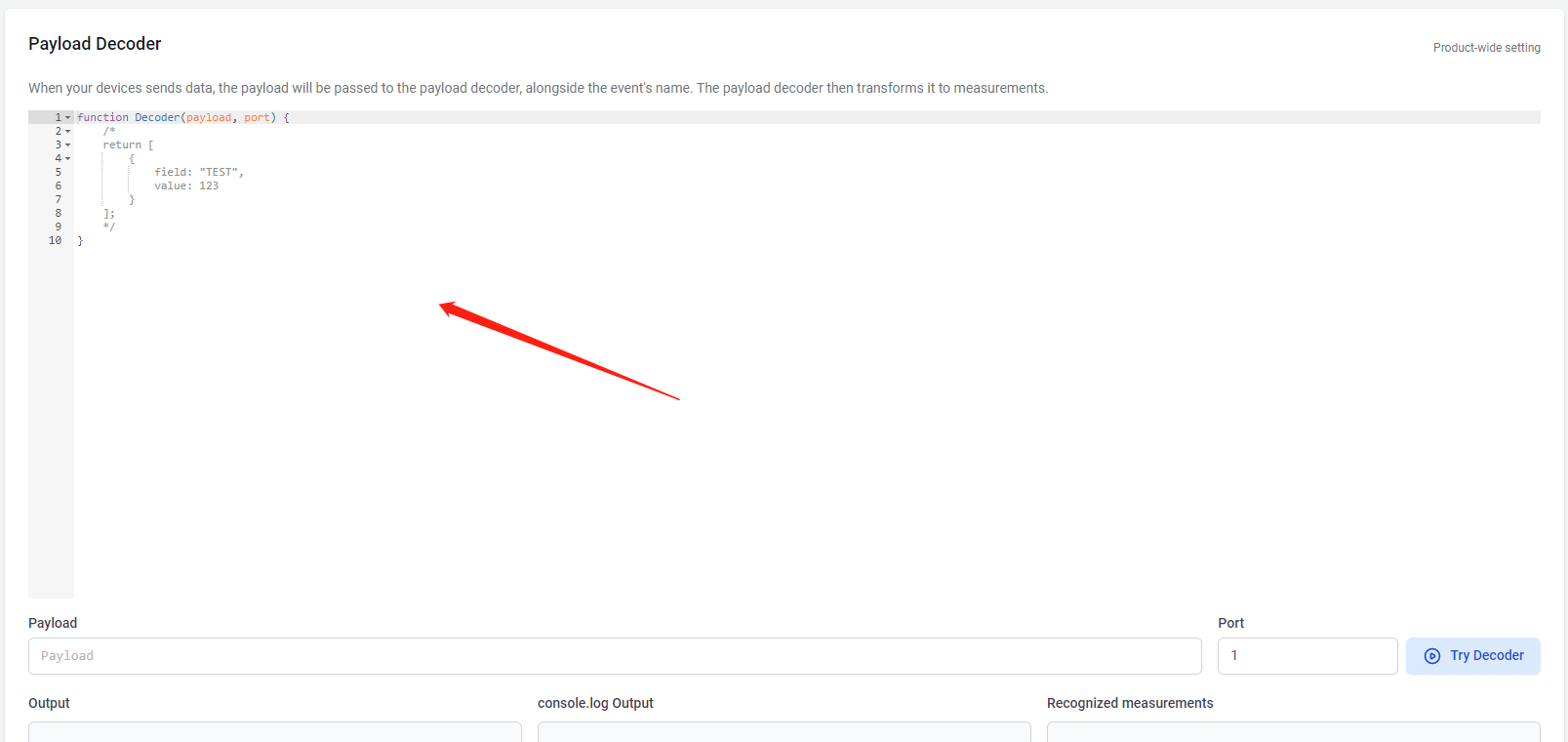
Copy and paste the TTN decoder here and save
Visual widgets please read the DATACAKE documentation
2.6 Datalog Feature
Datalog Feature is to ensure IoT Server can get all sampling data from Sensor even if the LoRaWAN network is down. For each sampling, LHT52 will store the reading for future retrieving purposes.
2.6.1 Unix TimeStamp
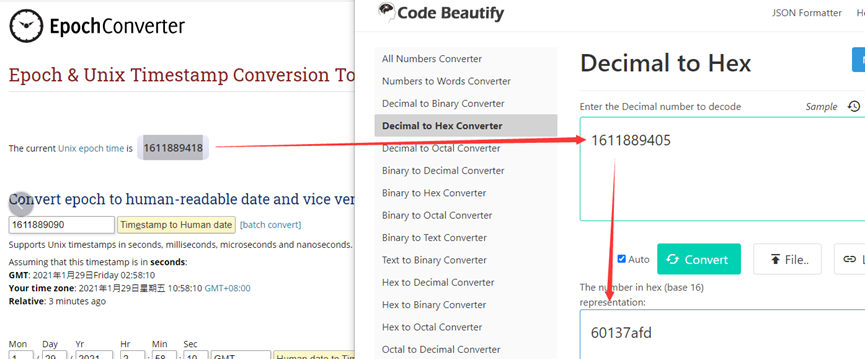
Unix TimeStamp shows the sampling time of uplink payload. format base on

User can get this time from link: https://www.epochconverter.com/ :
For example: if the Unix Timestamp we got is hex 0x60137afd, we can convert it to Decimal: 1611889405. and then convert to the time: 2021 – Jan -- 29 Friday 03:03:25 (GMT)
2.6.2 Poll sensor value
User can poll sensor value based on timestamps from the server. Below is the downlink command.
Timestamp start and Timestamp end use Unix TimeStamp format as mentioned above. Devices will reply with all data log during this time period, use the uplink interval.
For example, downlink command 
Is to check 2020/12/1 07:40:00 to 2020/12/1 08:40:00's data
Uplink Internal =5s,means LHT52 will send one packet every 5s. range 5~255s.
2.6.3 Datalog Uplink payload
See Uplink FPORT=3, Datalog sensor value
2.7 Alarm Mode
When device is in Alarm mode, it will check the built-in sensor temperature in a short interval. If the temperature exceeds the pre-configure range, it will send an uplink immediately.
The alarm mode can be modified by AT command or downlink, Alarm mode is disabled by default.
If you need to enable the Alarm mode, please refer to the following
Note: Alarm mode will increase the power consumption, we recommend extending the normal uplink time (20 minutes default) when enable this feature. AT Commands for Alarm mode:
AT+WMOD=1:Enable/Disable Alarm Mode. (0:Disable, 1: Enable),need to reset the node to take effect
AT+CITEMP=1:The interval to check temperature for Alarm. (Unit: minute)
AT+ARTEMP=-40,125:Set the normal temperature range from -40°C to 125°C
Suppose you want to set the normal temperature from 15°C to 50°C, and turn on the alarm mode, and check the temperature every 2 minutes. Please refer to the following
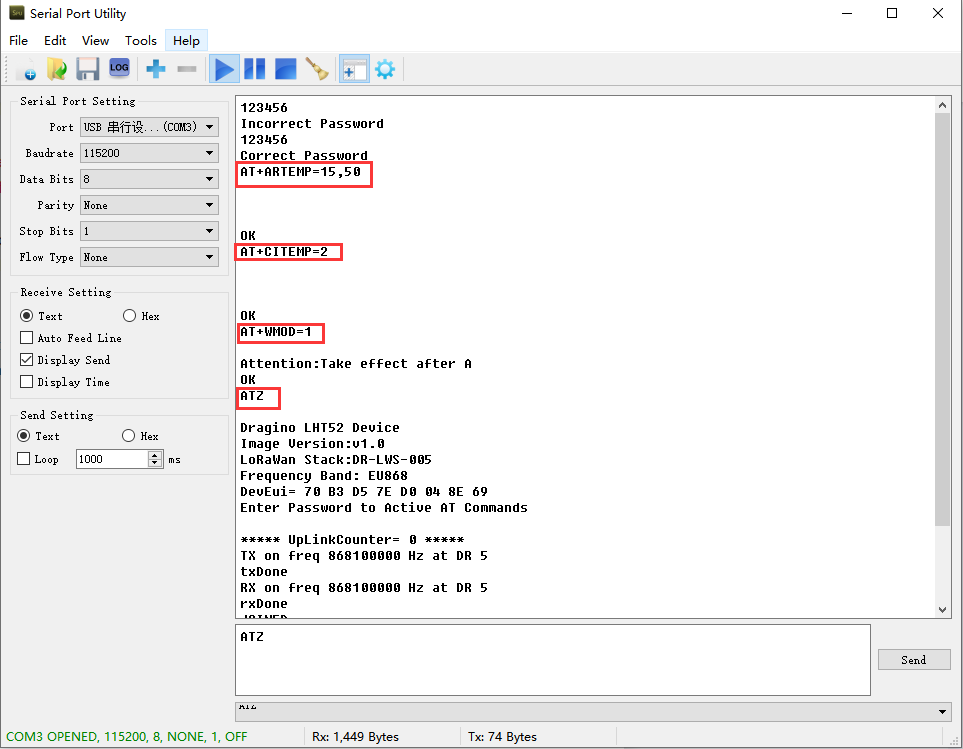

Modification via downlink,Take TTN_V3 as an example(downlink commands, please refer to the downlink command set for details)
In order to ensure that the node is indeed modified by downlink, I reset the node to factory settings first.

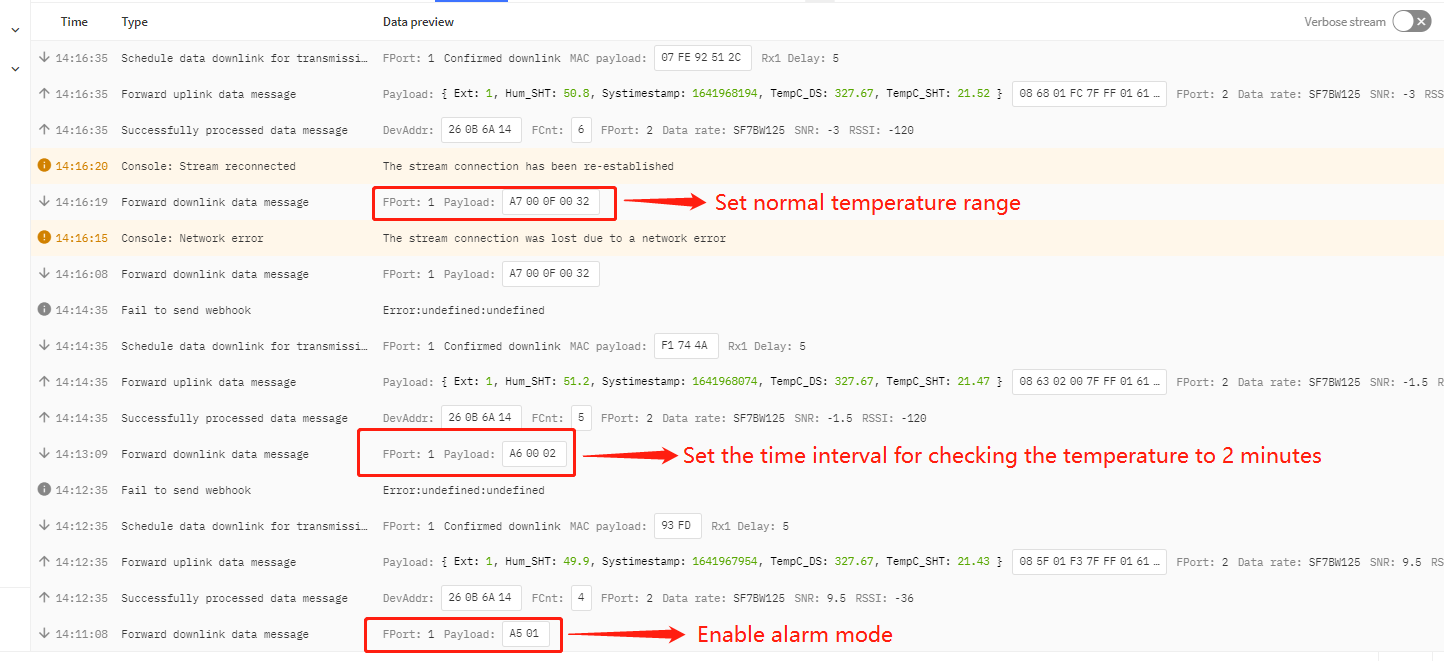

Or use a downlink directly: AA010002000F0032 (See command info)

2.8 LED Indicator
The LHT52 has a triple color LED which for easy showing different stage.
In a normal working state:
-
When the node is restarted, GREEN, RED and **BLUE **are sequentially lit.
-
During OTAA Join:
- For each Join Request uplink: the GREEN LED will blink once.
- Once Join Successful: the GREEN LED will be solid on for 5 seconds.
-
After joined, for each uplink, the BLUE LED or GREEN LED will blink once.
- BLUE LED when external sensor is connected
- GREEN LED when external sensor is not connected
-
For each success downlink, the PURPLE LED will blink once
In AT Command Mode:
If user use console cable to send AT Command to LHT52, the RED LED will always on until:
- Power off/on LHT52
- Press reset button of LHT52.
- Send an AT Command:
AT+CLPM=1
2.9 Button
Press the button LHT52 will reset and join network again.
3. Configure LHT52 via AT command or LoRaWAN downlink
Use can configure LHT52 via AT Command or LoRaWAN Downlink.
-
AT Command Connection: See FAQ.
-
LoRaWAN Downlink instruction for different platforms: IoT LoRaWAN Server
There are two kinds of commands to configure LHT52, they are:
These commands are to configure:
-
General system settings like: uplink interval.
-
LoRaWAN protocol & radio-related commands.
They are the same for all Dragino Devices which supports DLWS-005 LoRaWAN Stack(Note**). These commands can be found on the wiki: End Device Downlink Command
- Commands special design for LHT52
These commands are only valid for LHT52, as below:
3.1 Downlink Command Set
| Command Example | Function | Response | Downlink |
|---|---|---|---|
| AT+TDC=? | View current TDC time | 1200000 OK | Default 1200000(ms) |
| AT+TDC=300000 | Set TDC time | OK | 0X0100012C: 01: fixed command 00012C: 0X00012C=300(seconds) |
| ATZ | Reset node | 0x04FF | |
| AT+FDR | Restore factory settings | 0X04FE | |
| AT+CFM=? | View the current confirmation mode status | 0 OK | Default 0 |
| AT+CFM=1 | Turn on confirmation mode | OK | 0x0500: close 0x0501: open 05: fixed command |
| AT+CHE=? | View the current sub-band select 0-7, the default is 0 | 0 OK | Default 0 |
| AT+CHE=2 | Set subband to 2 (: CN470、US915、AU915 | ||
| AT+WMOD=? | View the current alarm mode status | 0 OK | Default 0 |
| AT+WMOD=1 | Turn on alarm mode | Attention:Take effect after ATZ OK | 0xA501: open 0XA500: close A5: fixed command |
| AT+CITEMP=? | View the current temperature detection time interval | 1 OK | Default 1(min) |
| AT+CITEMP=2 | Set the temperature detection time interval to 2min | OK | 0XA70002 A7: fixed command 0002: 0X0002=2(min) |
| AT+NJM=? | Check the current network connection method | 1 OK | Default 1 |
| AT+NJM=0 | Change the network connection method to ABP | Attention:Take effect after ATZ OK | 0X2000: ABP 0x2001: OTAA 20: fixed command |
| AT+RPL=? | View current RPL settings | 0 OK | Default 0 |
| AT+RPL=1 | set RPL=1 | OK | 0x2101: 21: fixed command 01: for details, check wiki |
| AT+ADR=? | View current ADR status | 1 OK | Default 0 |
| AT+ADR=0 | Set the ADR state to off | OK | 0x2200: close 0x2201: open 22: fixed command |
| AT+DR=? | View the current DR settings | OK | |
| AT+DR=1 | set DR to 1 It takes effect only when ADR=0 | OK | 0X22000100: 00: ADR=0 01: DR=1 00: TXP=0 22: fixed command |
| AT+TXP=? | View the current TXP | OK | |
| AT+TXP=0 | set TXP to 0 It takes effect only when ADR=0 | OK | 0X22000100: 00: ADR=0 01: DR=1 00: TXP=0 22: fixed command |
| Upload node configuration or DS18B20 ID | 0X2301:Upload node configuration 0x2302: Upload DS18B20 ID 23: fixed command | ||
| AT+DWELL=? | Check the high-rate upload settings | 1 OK | Default 1 |
| AT+DWELL=1 | Set high rate upload (AS923,AU915) | Attention:Take effect after ATZ OK | 0x2501: close 0x2500: open 25: fixed command for details, check wiki |
| AT+RJTDC=? | View current RJTDC set time | 20 OK | Default 20(min) |
| AT+RJTDC=10 | Set RJTDC time interval | OK | 0X26000A: 26: fixed command 000A: 0X000A=10(min) for details, check wiki |
| Retrieve stored data for a specified period of time | 0X3161DE7C7061DE8A800A: 31: fixed command 61DE7C70:0X61DE7C70=2022/1/12 15:00:00 61DE8A80:0X61DE8A80=2022/1/12 16:00:00 0A: 0X0A=10(second) View details 2.6.2 | ||
| AT+DDETECT=? | View the current DDETECT setting status and time | 0,1440 OK | Default 0,1440(min) |
| AT+DDETECT=1,1440 | Set DDETECT setting status and time (When the node does not receive the downlink packet within the set time, it will re-enter the network) | OK | 0X320005A0: close 0X320105A0: open 32: fixed command 05A0: 0X05A0=1440(min) |
| Downlink Modification Alarm Mode (AT+WMOD,AT+CITEMP,AT+ARTEMP) | 0XAA010002000F00032: AA: fixed command 01: 0X01=1(AT+MOD) 0002: 0X0002=2(AT+CITEMP) 000F: 0X000F=15(AT+ARTEMP) 0032: 0X0032=50(AT+ARTEMP) |
3.2 Set Password
Feature: Set device password, max 9 digits.
AT Command: AT+PWORD
| Command Example | Function | Response |
|---|---|---|
| AT+PWORD=? | Show password | 123456 OK |
| AT+PWORD=999999 | Set password | OK |
Downlink Command:
No downlink command for this feature.
4. Battery & How to replace
4.1 Battery Type and replace
LHT52 uses 2 x AAA LR03(1.5v) batteries. If the batteries running low (shows 2.1v in the platform). User can buy generic AAA battery and replace it.
**Note: **
- The LHT52 doesn't have any screw, use can use nail to open it by the middle.
- Make sure the direction is correct when install the AAA batteries.
4.2 Power Consumption Analyze
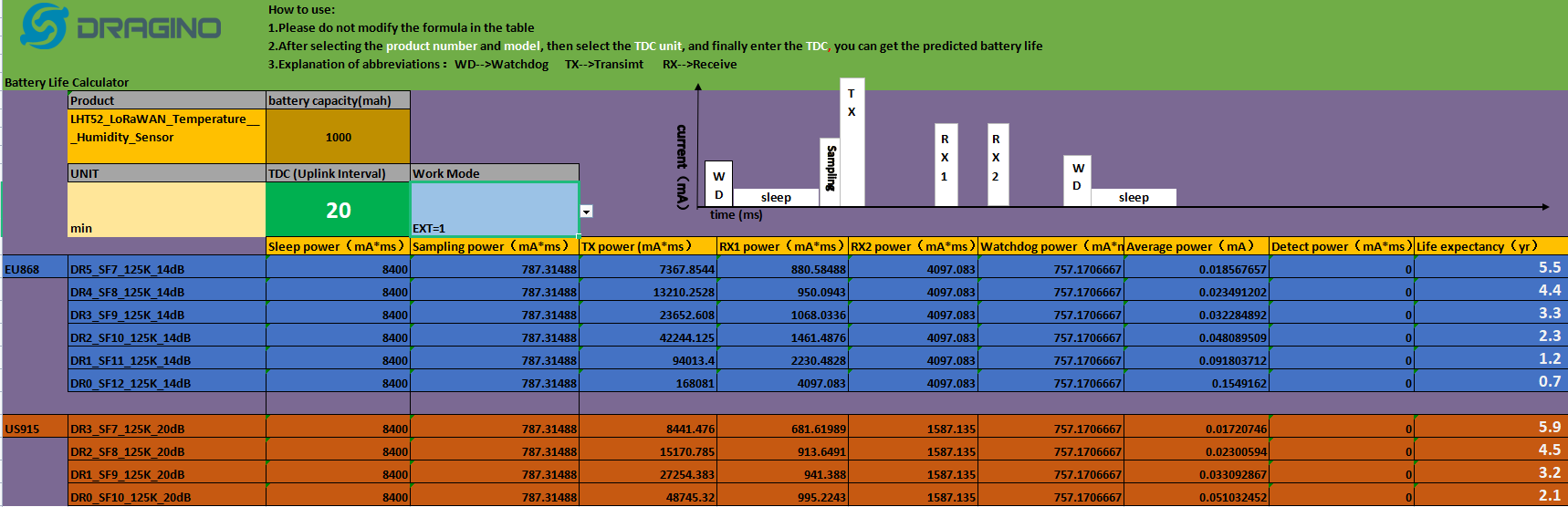
Dragino battery powered product are all runs in Low Power mode. We have an update battery calculator which base on the measurement of the real device. User can use this calculator to check the battery life and calculate the battery life if want to use different transmit interval.
Instruction to use as below:
Step 1: Downlink the up-to-date DRAGINO_Battery_Life_Prediction_Table.xlsx from:
https://www.dragino.com/downloads/index.php?dir=LoRa_End_Node/Battery_Analyze/
Step 2: Open it and choose
- Product Model
- Uplink Interval
- Working Mode
And the Life expectation in difference case will be shown on the right.
5. Sensors and Accessories
5.1 Temperature Probe (AS-01)
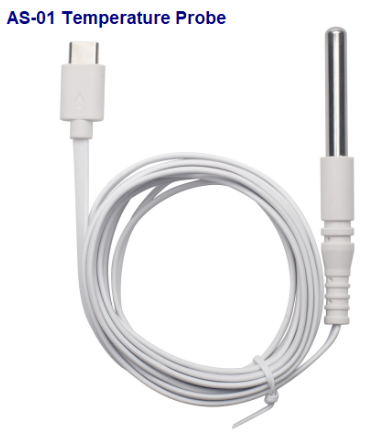
External Temperature Probe base on DS18B20. (note: Default Package doesn't include AS-01)
**External Temperature Probe (AS-01): **
- Resolution: 0.0625 °C
- ±0.5°C accuracy from -10°C to +85°C
- ±2°C accuracy from -55°C to +125°C
- Operating Range: -55 °C ~ 125 °C
- Cable Length: 2 meters
5.2 Program Converter (AS-02)
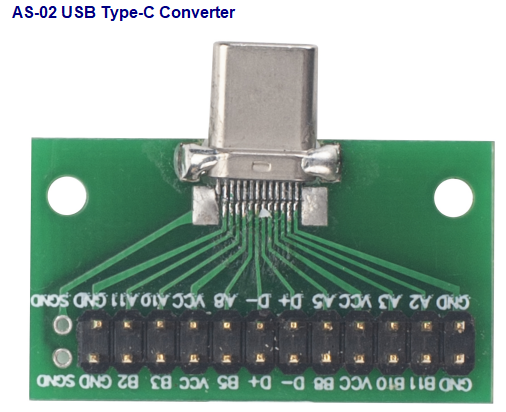
AS-02 is an optional accessory, it is USB Type-C converter. AS-02 provide below feature:
- Access AT console of LHT52 when used with USB-TTL adapter. See this link.
- Update firmware to LHT52 when used with DAP-Link adapter. See this link.
6. FAQ
6.1 How to use AT Command to configure LHT52
LHT52 supports AT Command set. User can use a USB to TTL adapter plus the Program Cable to connect to LHT52 for using AT command, as below.
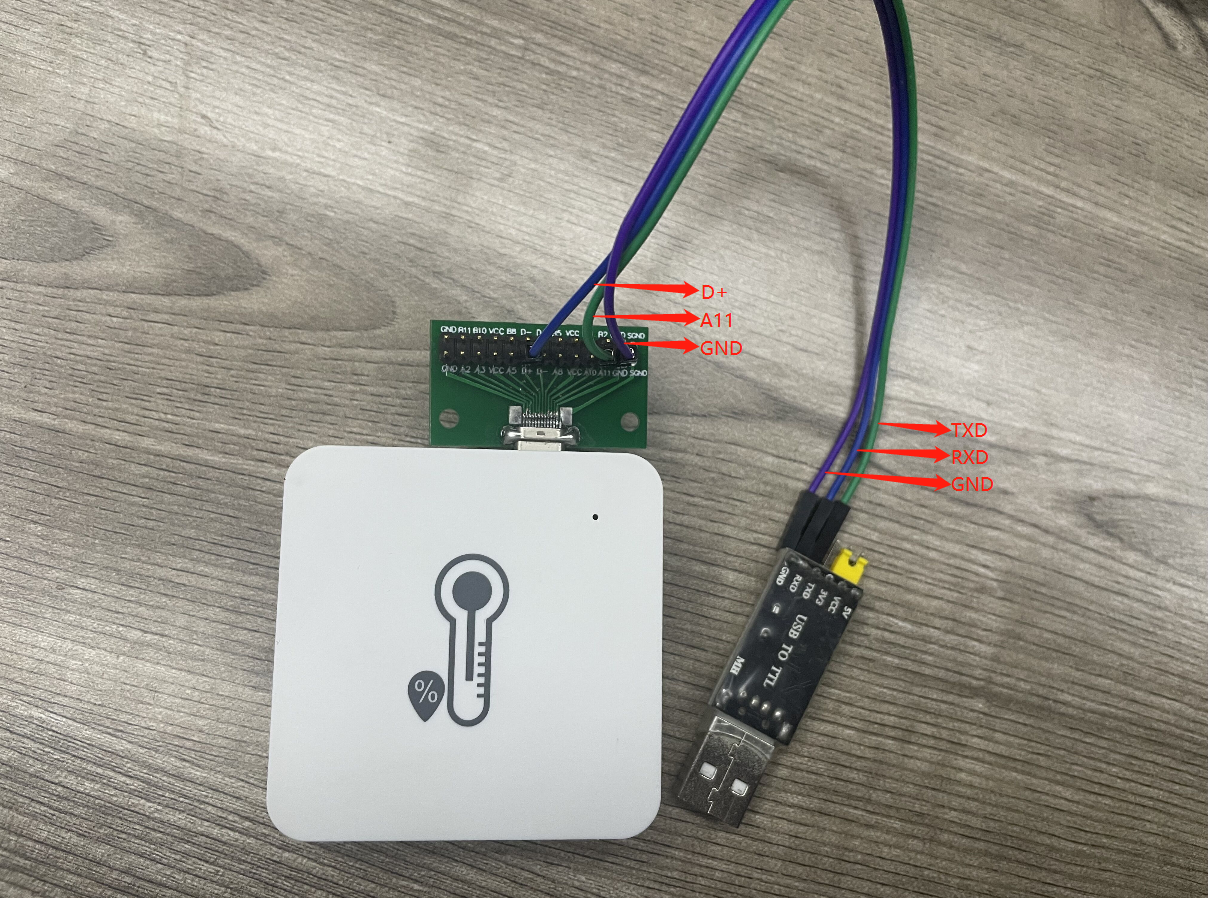
Connection:
- USB to TTL GND <--> Program Converter GND pin
- USB to TTL RXD <--> Program Converter D+ pin
- USB to TTL TXD <--> Program Converter A11 pin
It is also possible to connect using DAPLink
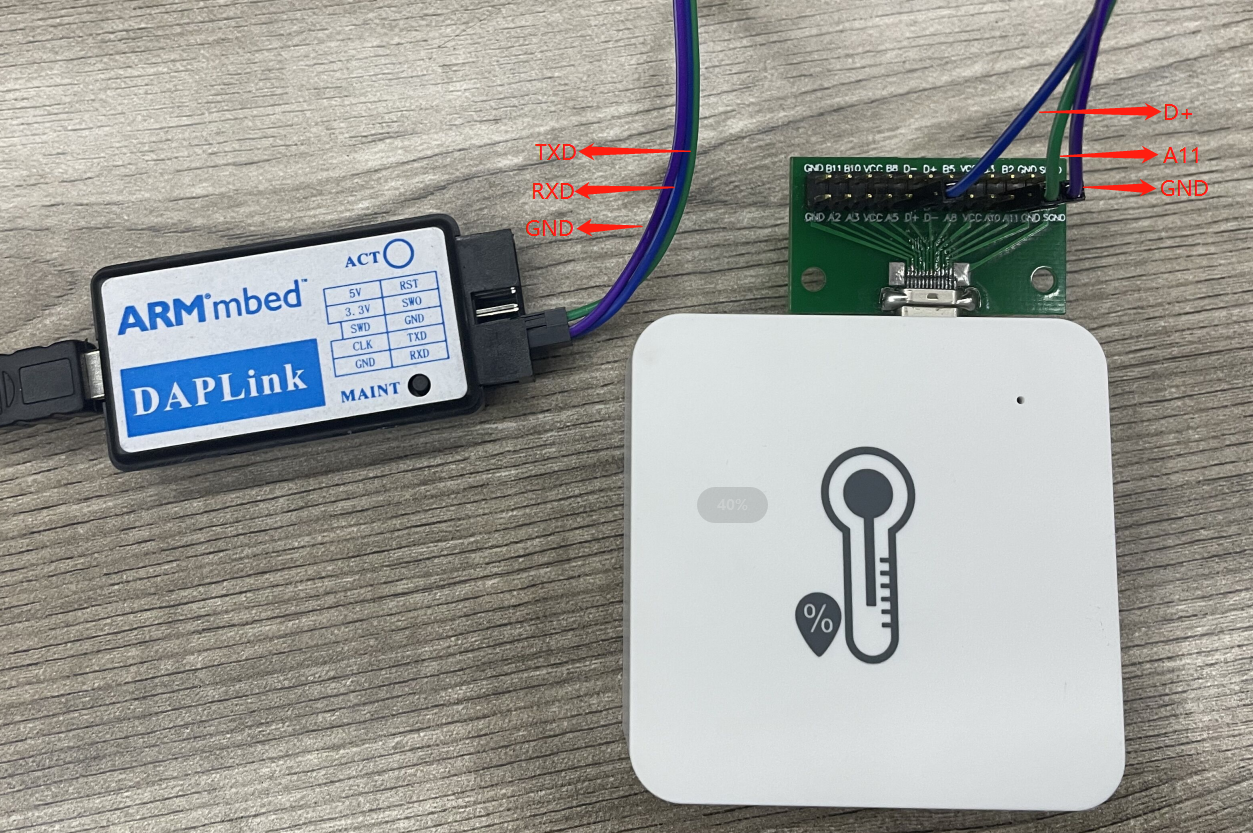
Connection:
USB to DAP-LINK GND <--> Program Converter GND pin
USB to DAP-LINK RXD <--> Program Converter D+ pin
USB to DAP-LINK TXD <--> Program Converter A11 pin
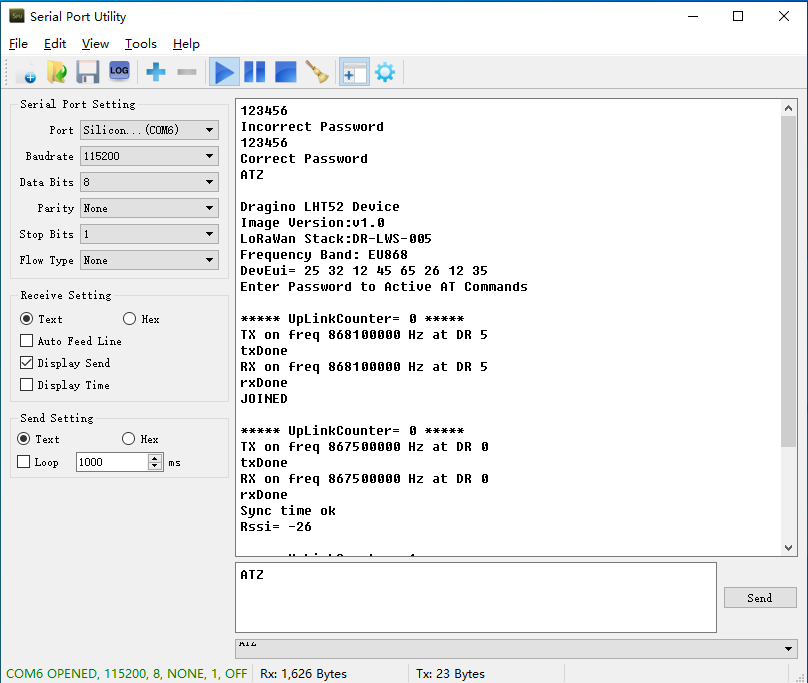
In PC, User needs to set serial tool(such as putty, SecureCRT) baud rate to 115200 to access to access serial console for LHT52. The AT commands are disable by default and need to enter password (default:123456) to active it. Timeout to input AT Command is 5 min, after 5-minute, user need to input password again.
Input password and ATZto activate LHT52,As shown below:
6.2 AT Command and Downlink
Sending ATZwill reboot the node
Sending AT+FDRwill restore the node to factory settings
Get the node's AT command setting by sending AT+CFG
Example:
AT+VER=EU868v1.0
AT+NJM=1
AT+DEUI=2532 12 45 65 26 12 35
AT+APPEUI=2532 12 45 65 26 32 16
AT+APPKEY=2532 12 45 65 26 32 16 89 48 85 65 45 87 89 55
AT+DADDR=0000 00 00
AT+APPSKEY=0000 00 00 00 00 00 00 00 00 00 00 00 00 00 00
AT+NWKSKEY=0000 00 00 00 00 00 00 00 00 00 00 00 00 00 00
AT+NWKID=0000 00 13
AT+ADR=1
AT+DR=5
AT+TXP=0
AT+CHS=0
AT+CLASS=A
AT+CFM=0
AT+JN1DL=5000
AT+JN2DL=6000
AT+RX1DL=5000
AT+RX2DL=6000
AT+RX1WTO=24
AT+RX2WTO=6
AT+RX2FQ=869525000
AT+RX2DR=0
AT+RPL=0
AT+FCU=6
AT+FCD=0
AT+CFS=0
AT+NJS=1
AT+DCS=0
AT+PNM=1
AT+PWORD=123456
AT+EXT=1
AT+TDC=120000
AT+TIMESTAMP=16408510372021 12 30 7 57 17
AT+RJTDC=20
AT+DDETECT=0,1440
AT+WMOD=0
AT+CITEMP=1
AT+ARTEMP=-40,125
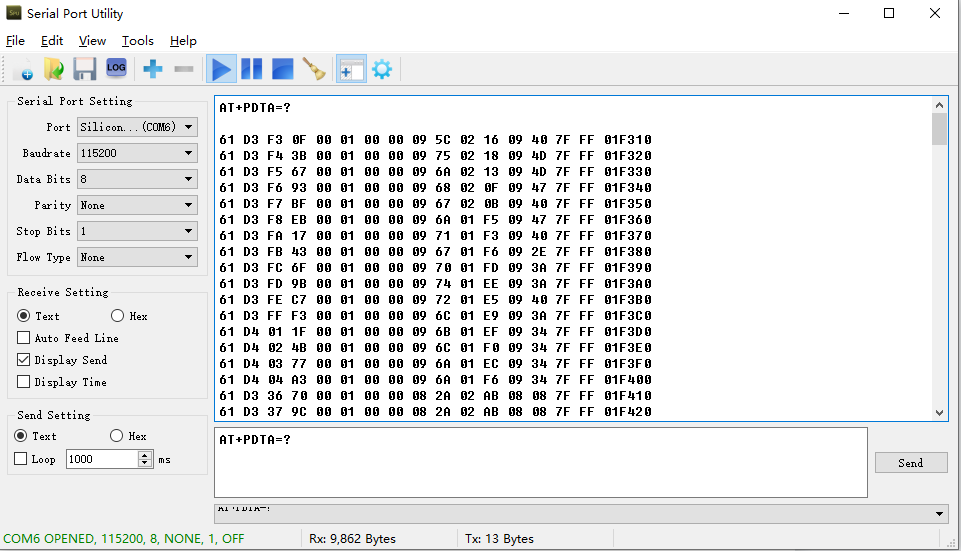
Send AT+PDTA=?to get the stored 174 data
Example:
6.3 How to upgrade the firmware?
LHT52 requires a program converter to upload images to LHT52, which is used to upload image to LHT52 for:
- Support new features
- For bug fix
- Change LoRaWAN bands.
User can check this link for the detail of operation of firmware upgrade: Firmware Upgrade Instruction
6.4 How to change the LoRa Frequency Bands/Region?
User can follow the introduction for how to upgrade image. When download the images, choose the required image file for download.
6.5 Why i see different working temperature for the device?
The working temperature range of device depends on the battery user choose.
- Normal AAA Battery can support -10 ~ 50°C working range.
- Special AAA battery can support -40 ~ 60 °C working range. For example: Energizer L92
6.6 How to enable LHT52's offline device re-join function?
Before firmware v1.1(including v1.1):
For LHT52, we turn off the offline re-join function by default, so customers need to manually configure to start offline detection.
AT Command: AT+DDETECT
AT+DDETECT=\<Flag\>,\<ACK_Timout\>(Default Value: AT+DDETECT=0,1440)
- ACK_Timout: Unit: min
| Command Example | Function | Response |
|---|---|---|
| AT+DDETECT=1,1440 value1 | Enable online detect | 1 OK |
| AT+DDETECT=1,? value2 | Online detection packet sending time | OK |
Downlink Command: 0x32
Format: Command Code (0x32) followed by 3 bytes.
If the downlink payload=32 01 05A0, it means set end node to use confirm mode, while type code is 32.
-
Example 1: Downlink Payload: 32 01 05A0 // Set
AT+DDETECT=1,1440- 0x01** : Flag**- **0x05A0 **: ACK_Timout : 1440minutes (24 hours)
-
Explain: Enable Online Detect, if end node doesn't receive any downlink within ACK_Timout( 1440 minutes or 24 hours). means device doesn't get ACK from server within last 24 hours. Device will process rejoin, rejoin request interval is [
AT+RJTDC(/docs/wiki/Configuration/end-node/at-commands-downlink/) period. For AU915/ US915, device will use the sub-band used for last join.
After firmware v1.1:
After firmware v1.1, we enabled offline re-join function by default and changed the default ACK_Timout to 2880minutes (48 hours).
- Default:
AT+DDETECT=1,2880 - Explain: Enable Online Detect, if end node doesn't receive any downlink within ACK_Timout( 2880 minutes or 48 hours). means device doesn't get ACK from server within last 48 hours. Device will process rejoin, rejoin request interval is [
AT+RJTDC(/docs/wiki/Configuration/end-node/at-commands-downlink/) period. For AU915/ US915, device will use the sub-band used for last join.
7. Order Info
7.1 Main Device
Part Number: **LHT52-XX XX **: The default frequency band
- **AS923: **LoRaWAN AS923 band
- **AU915: **LoRaWAN AU915 band
- **EU433: **LoRaWAN EU433 band
- EU868: LoRaWAN EU868 band
- **KR920: **LoRaWAN KR920 band
- **US915: **LoRaWAN US915 band
- **IN865: **LoRaWAN IN865 band
- **CN470: **LoRaWAN CN470 band
7.2 Accessories
Note: below accessories are not include in the main device package, need to order separately. Temperature Probe: AS-01 Program Converter: AS-02
8. Packing Info
Package Includes:
- LHT52 Temperature & Humidity Sensor x 1
9. Support
- Support is provided Monday to Friday, from 09:00 to 18:00 GMT+8. Due to different timezones we cannot offer live support. However, your questions will be answered as soon as possible in the before-mentioned schedule.
- Provide as much information as possible regarding your enquiry (product models, accurately describe your problem and steps to replicate it etc) and send a mail to support@dragino.com.
10. Reference material
11. FCC Warning
This device complies with part 15 of the FCC Rules.Operation is subject to the following two conditions:
(1) This device may not cause harmful interference;
(2) this device must accept any interference received,including interference that may cause undesired operation.