DishSense
1. Introduction
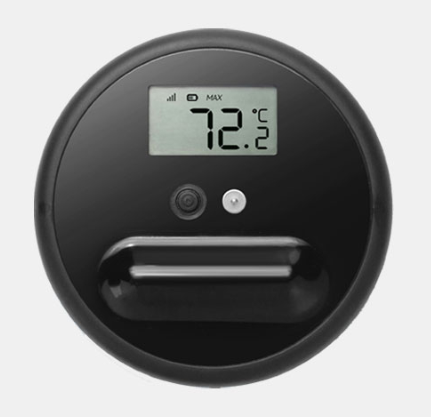
1.1 What is DishSense Dishwasher Wireless Thermometer
DishSense is a professional-grade dishwasher thermometer designed for accurate and reliable temperature monitoring in commercial food service environments. Ideal for restaurants, central kitchens, food service establishments, and food processing facilities, DishSense ensures that critical temperatures required by hygiene standards are met during the high-temperature cleaning and sanitizing processes of dishwashers. Its precise monitoring helps verify sanitizing effectiveness, ensures tableware hygiene and safety, and meets HACCP compliance standards.
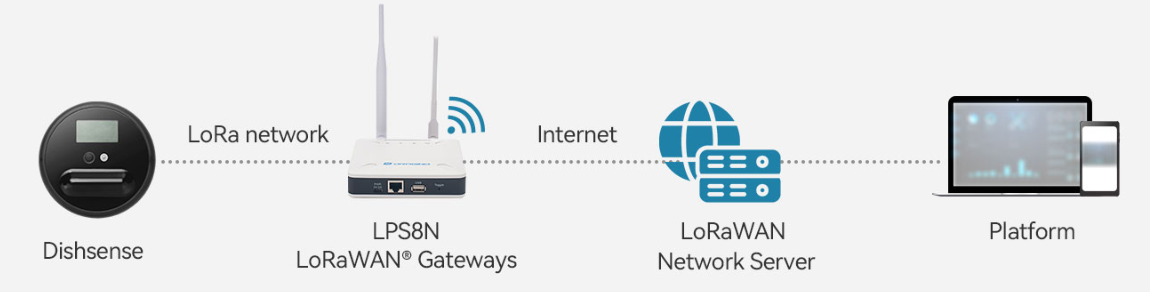
With built-in LoRaWAN connectivity, DishSense enables long-range, low-power, and maintenance-friendly data transmission even in complex commercial kitchen environments. Temperature records and sanitization status can be sent in real time to an IoT backend or kitchen management system, allowing operators to monitor dishwasher performance remotely, receive alerts when temperature thresholds are not met, and maintain traceable compliance logs without manual checks.
DishSense is ideal for environments requiring strict adherence to food safety regulations, such as restaurants, central kitchens, food service establishments, and food processing plants.
1.2 Features
- Dishwasher Thermometer– Designed specifically for dishwasher water temperature monitoring
- Food-Grade – Safe for food contact and dishwasher-compatible for easy cleaning
- LoRaWAN Connectivity – Enables long-range, low-power data transmission to IoT platforms
1.3 Specification
- Built-in 2400mAh 3.0v CR17450 battery
- -20°C ~ 93°C or -4°F ~ 199.4°F
- Accuracy: +0.5°C or +0.9°F
- IP Rate: IP67
1.4 Applications
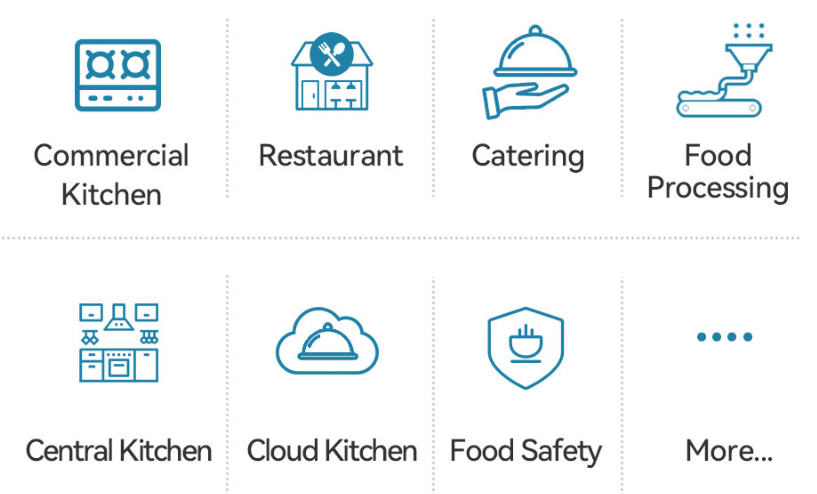
- Commercial Kitchen
- Restaurant
- Catering
- Food Processing
- Central Kitchen
- Cloud Kitchen
- Food Safety
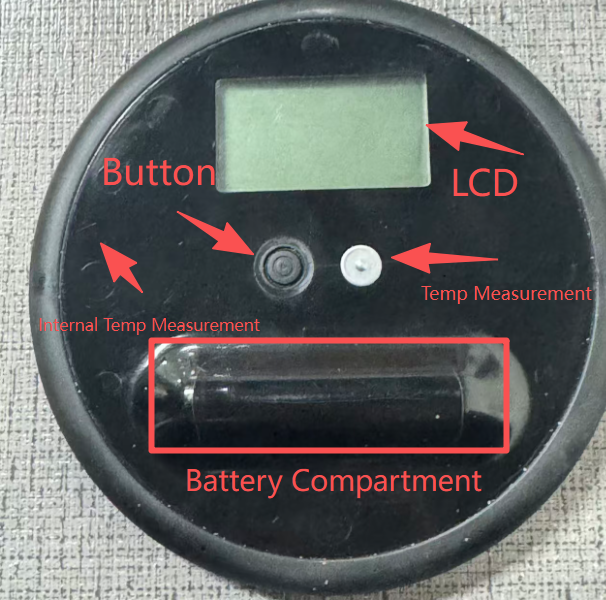
1.5 Product Apperance
1.6 Working Mode and LCD Display
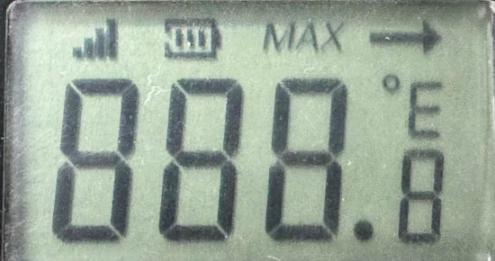
1. 上面每一块区域需要标注是什么功能。
FF1: Represents MOD1
FF2: Represents MOD2
FF3: Represents MOD3
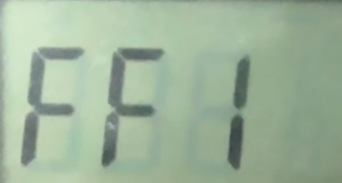
Power On:
Each time powered on or reset, all segments of the LCD will be displayed in sequence and then disappear, then it will shows the current mod.
FF1 to FF3 standands for MOD1 to MOD3. Example Display as below: 下面放一个启动动态符
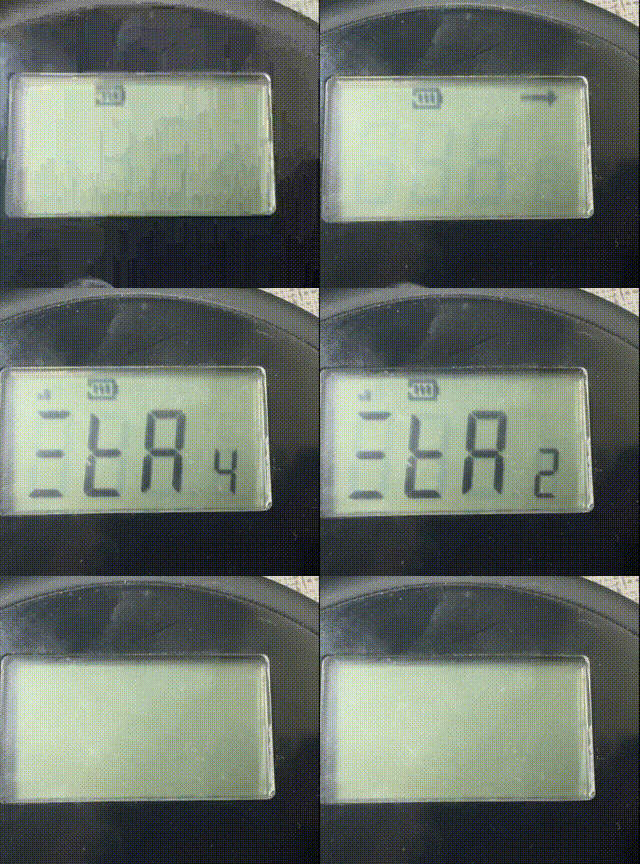
Registering LoRaWAN Network
After Power ON, the battery level will be displayed, and device will start to Join Network. Signal strength will be shown after network join successful, otherwise, there will no signal icon . The arrow will flash each time there is transmit to LoRaWAN or get a signal from LoRaWAN network.
Standby
After Join Successful, the device will show STA5 to STA0 and then enter Standby model.
In Standby mode, DishSense will:
- Turn off LCD to make sure the lowest power consumption.
- Send Keep Alive Message every 12 hours.
- Wait for user to push button to wait up and measure.
Notice: if Dishsense join fail to LoraWAN network, it will keep join to the network, untill successful. The join behaviour is as explain here:
- EU868 OTAA Join DR Logic. SF7->SF8->SF9->SF10->SF11->SF12; Each SF will make 3 attempts and then loop
- US915 and AU915 OTAA Join procedure,. End node by default will use all 72 channels (All sub-bands) to join and it will be set to use the proper sub-band after Join success
Measuring
In Standby mode:
1. Single press  turn on display will show FFx (1s) and then last max temp 1s (Last: 38.4) and then display RDY (3 seconds)
2. Press and hold  for 2 seconds to start new measure cycle. ( Display: GO 3 --> 2 --> 1 --> 0) and then start. Shows temperautre change in the first 5 seconds and then display turn off.
3. Place DishSense with other dishware before start of wash cycle.
4. During Measurement, Dishsense will send an uplink at the begining and send uplink every 15 seconds.
5. After wash cycle, Press and hold  for 2 seconds to check the Max TEMP and exit measure mode. Before exit the measurement mode, DishSense will send an uplink with MAX temp during the measure cycle. To make sure the uplink not lost, the uplink will use Datalog and Retry feature.
6. Automatic Exit Mode. You can set the device to automatically exit working mode after a certain period. The factory default is 2 minutes and 15 seconds. You can set the corresponding time using download port 1.
Minimum time is 90 seconds, download command is 39 00 00 00 09 Minimum time increment is 15 seconds, 105 seconds, download command is 39 00 00 00 0A Maximum time is 1200 seconds, download command is 39 00 00 00 50
Configure MODE
To enter ready mode, tap once in standby mode; otherwise, enter standby mode after 20 seconds of inactivity. Alternatively, press and hold for 3 seconds to enter standby mode.
In Register mode or Standand by mode:
Press and hold for 5 to enter configure mode. User will see CFG (last 3 seconds), press will switch between below option. when display showing the option, press and hold for 3 seconds will enable the configure of this option:
- SLP: Deep Sleep Mode: Sensor doesn't have any LoRaWAN activate. This mode is used for storage and shipping to save battery life.
- RST: Reset DishSense to re-join network
- U C: Set unit to °C
- U F: Set unit to F°
- FF1: Set measuring mode to mod 1
- FF2: No function yet, features to be developed.
- FF3: No function yet, features to be developed.
After setting, press and hold for 5 seconds to return to the main interface.
1.8 Some other instructions
The LCD transmission result shows 0, indicating that the transmission was successful, which means that the data packet was sent. In fact, the platform side may not receive it due to packet loss, but the actual fcnt has been increased, so the number of packets lost during the period can be determined by receiving the next unlost data packet. To ensure successful network access and reduce packet loss, good signal strength needs to be ensured. The device may not work when the battery power is too low. Pay attention to the upstream battery voltage.
2. Use DishSense
2.1 Quick guide to connect to a LoRaWAN server (OTAA)
In this example, we use The Things Stack as the LoRaWAN network server to show you how to register the DishSense with a LoRaWAN network server and how to activate it using OTAA. In this network diagram, the probe sends data packets to the charger/repeater unit via BLE. The repeater then converts those BLE data packets to LoRa packets and sends them to the Network Server.
In this example, we use the LPS8v2 as the LoRaWAN gateway.
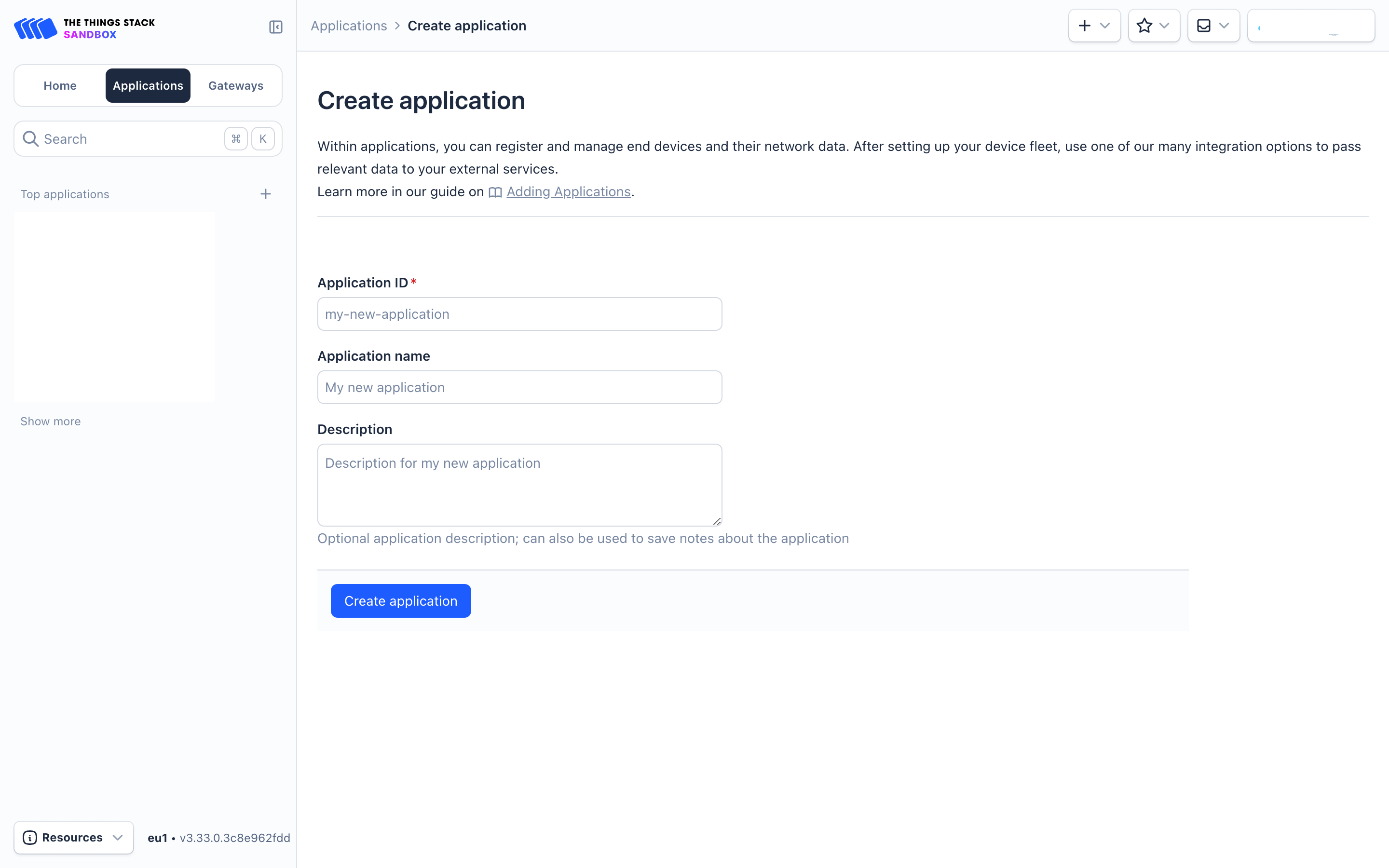
Sign up for a free account with The Things Stack Sandbox if you do not have one yet. Then, create an application as shown in the screenshots below.
Application ID: Provide a unique name to identify your application within The Things Stack, e.g., dragino-docs.
2.2.2 Adding manually
You can refer to the screenshots below to register your DishSense using The Things Stack's manual option.
On The Things Stack console:
1. Click Applications.
2. Click <your application>. E.g. dragino-docs
3 Click End devices.
4. Click + Register end device button.
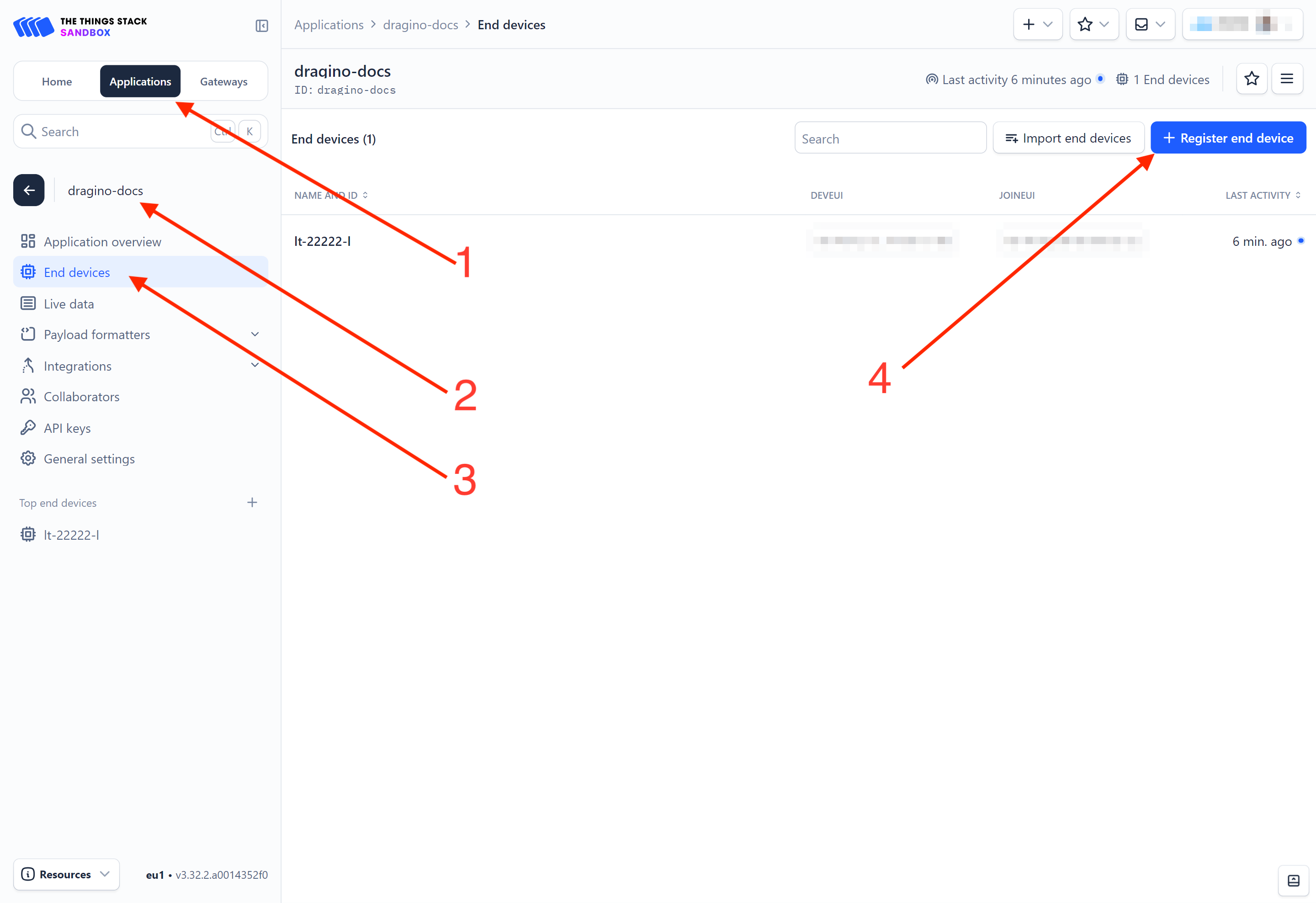
5. Select Enter end device specifies manually option.
-
Frequency plan: Select the frequency plan that matches your device. E.g.: Europe 863-870 MHz (SF9 for RX2 - recommended).
-
LoRaWAN version: LoRaWAN Specification 1.0.3
-
Regional Parameters version: You can't change it and it will select automatically.
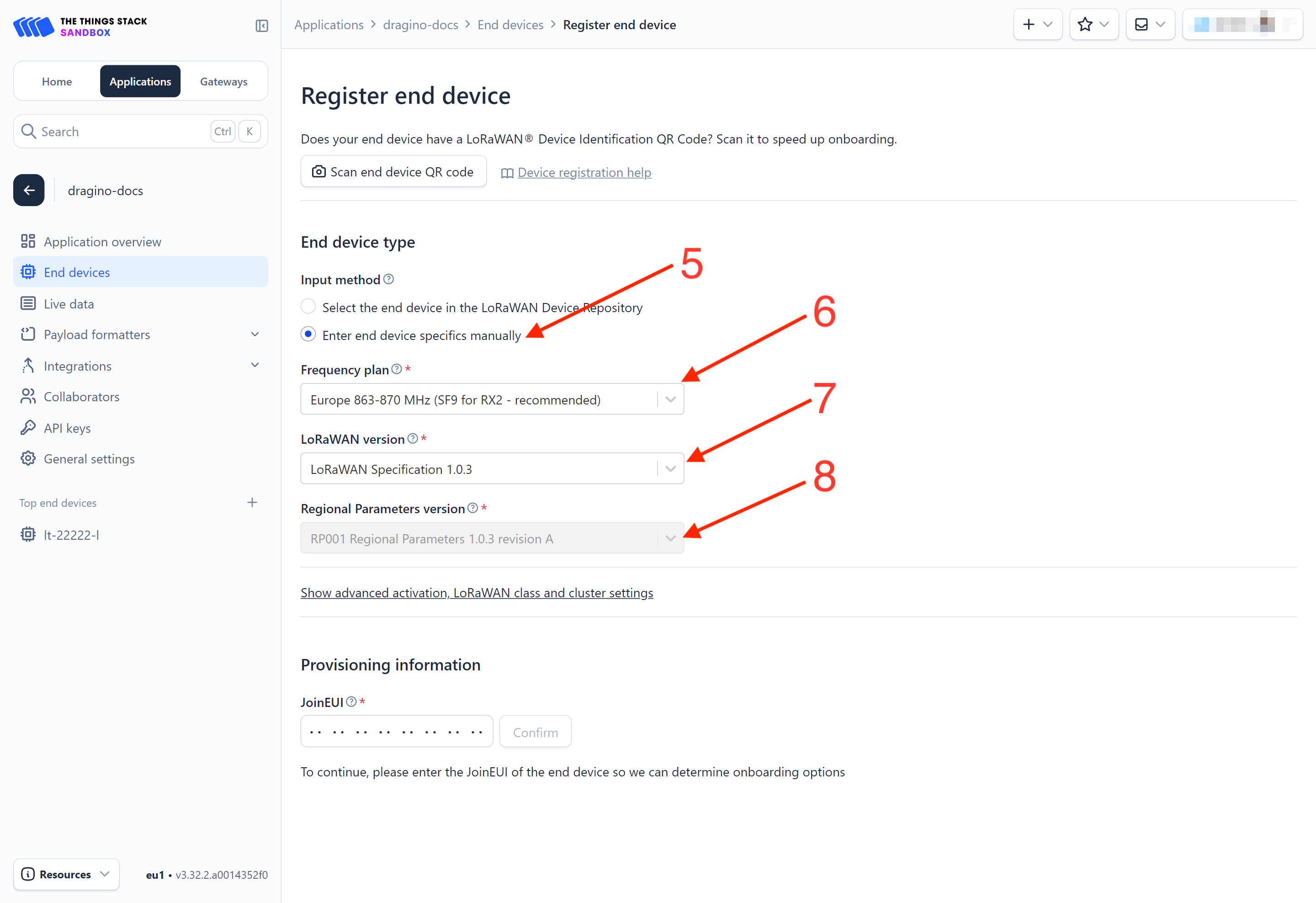
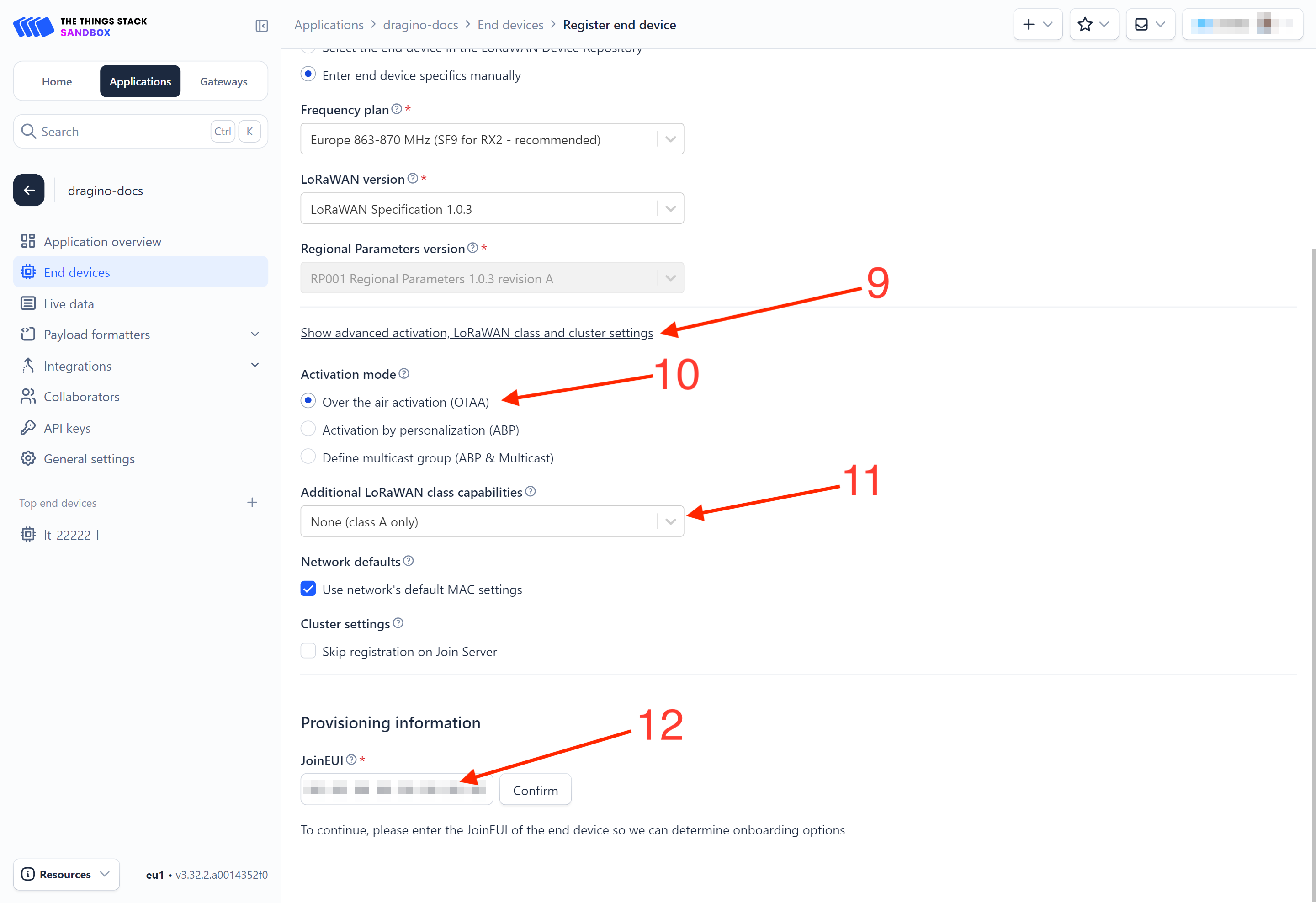
9. Click on the **Show advanced activation, LoRaWAN class and cluster settings **to expand the section.
10. Select Over the air activation (OTAA) option.
11. Select None (class A only).
- JoinEUI: Enter the AppEUI of the device (see the registration information sticker) and Click the Confirm button.
-
DevEUI: Enter the DevEUI of the device (see the registration information sticker).
-
AppKey: Enter the AppKey of the device (see the registration information sticker).
-
End device ID: Enter a name for your end device to uniquely identify it within this application.
16. Click View registered end device option.
17. Click Register end device button.
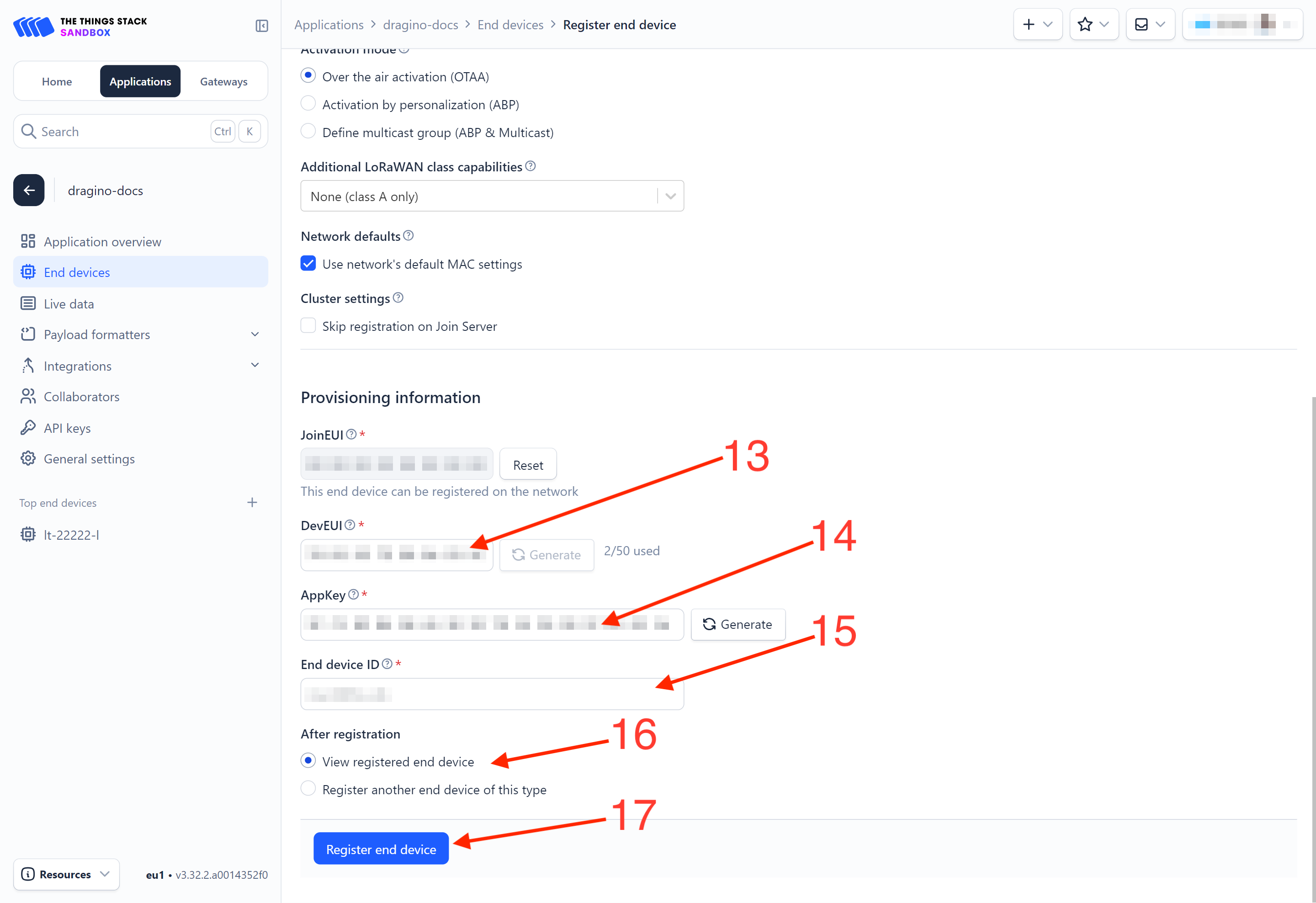
You will be navigated to the **Device overview **page.
2.2.3 Power on the DishSense
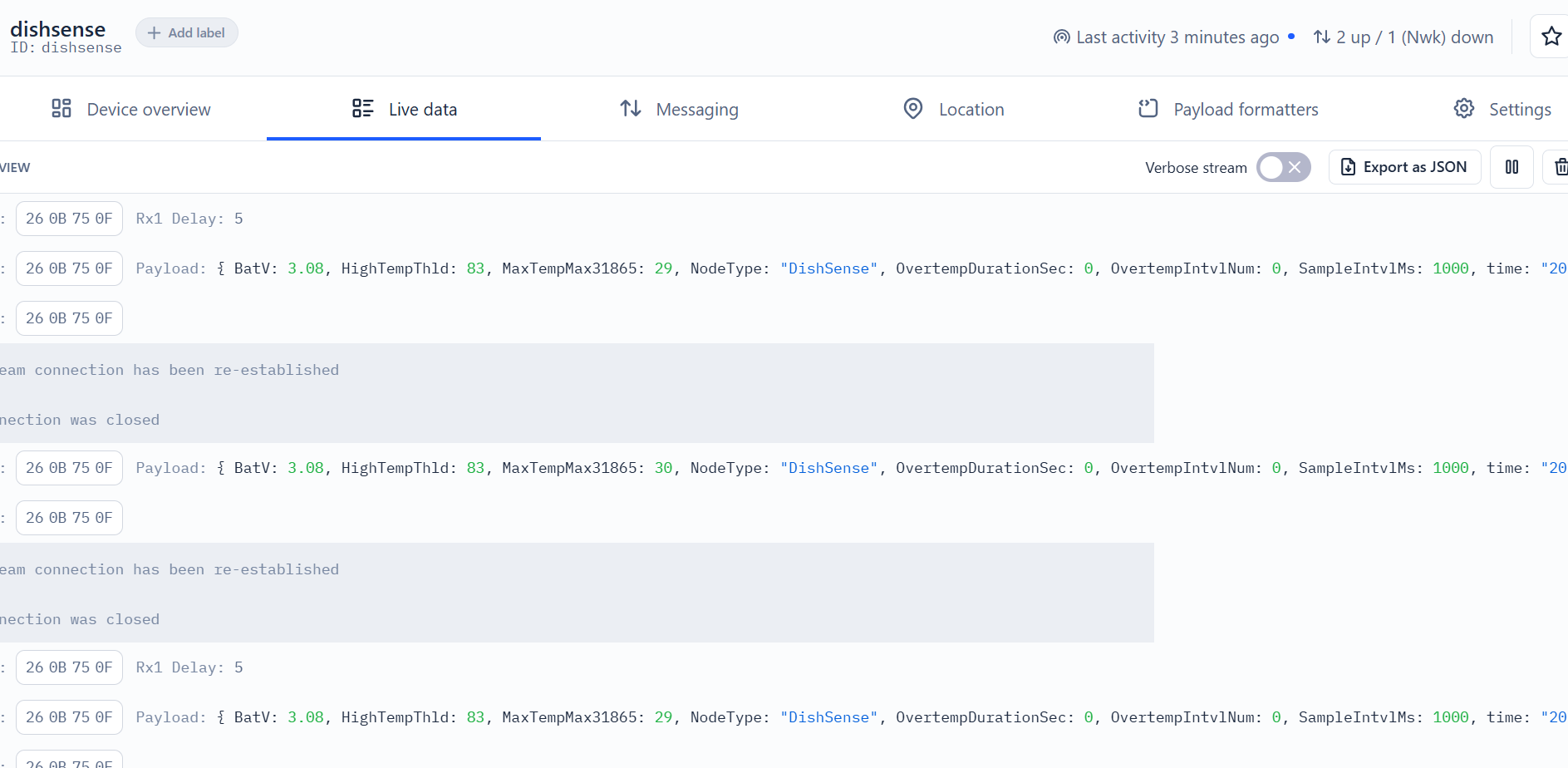
Power on the DishSense. It will then join The Things Stack. Once successfully connected, the device will begin uplinking sensor data to The Things Stack, which can be viewed on the Live data panel.
2.2.4 Uplink Decoder in The Things Stack
When the uplink payload arrives in The Things Stack, it is displayed in HEX format, which is not easy to read. You can add the DishSense decoder in The Things Stack for easier readability of each sensor reading.
The uplink decoder can be added to the** Payload Formatters** of your device in The Things Stack. Refer to the screenshot below.
1. Click Uplink tab.
-
Formatter type: Select Custom Javascript formatter.
-
Formatter code: Copy the uplink payload formatter code from our dragino-end-node-decoder GitHub repository and paste it here.
4. Finally, click on the Save changes button.
2.2 LoRaWAN Uplink Payload
Uplink payloads include two types: Valid Sensor Values and other status/control commands.
- Valid Sensor Values: Use FPort=2.
- Other status/control commands: Use FPort other than 2
2.2.1 DishSense Working Modes FPort=2
This port is used for reporting probe placement status, charging events, and periodic keep-alive messages.
The payload includes the Timestamp, ProbeEvent, and the battery level of the charger/repeater box. The format is as follows:
timestamp (4 Bytes) + battery voltage (1 Byte, 0.02V) + MAX31865 maximum temperature (1 Byte, 1℃) + temperature threshold (1 Byte, 1℃) + Number of sampling intervals exceeding the temperature threshold (2 Bytes, up to 600 groups) + acquisition interval (2 Bytes, 1ms)
| **Size(**bytes) | 4 | 1 | 1 | 1 | 2 | 2 |
|---|---|---|---|---|---|---|
| Value | times tamp | BAT | max temp | temp threshold | Number of collections | collection interval |
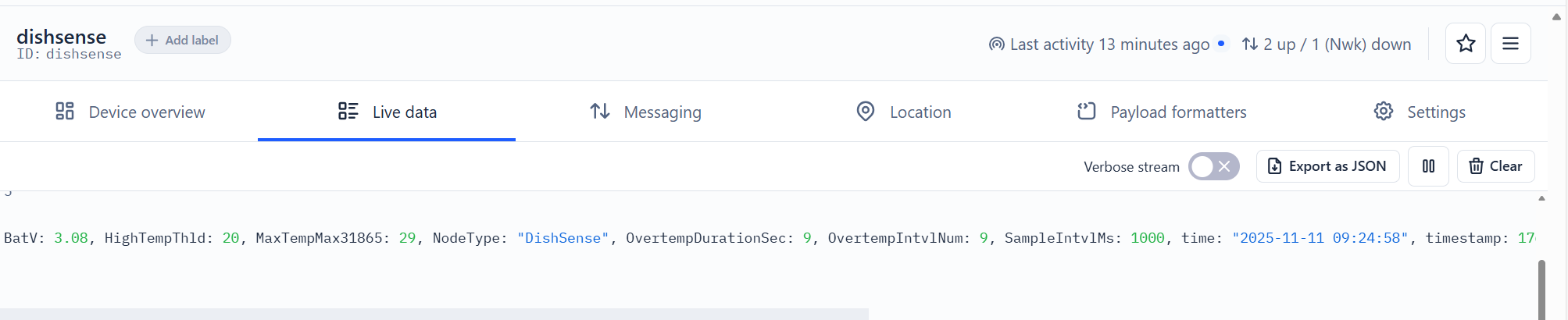
Example in The Things Stack: 691300EA 9A 1D 14 0009 03E8
**Timestamp:**0x691300EA=2025-11-11 09 : 24 : 58
BAT: ( 0x9A * 20) / 1000= 3.08V
**max temp :**0x1D=29
**temp threshold:**0x14=20
**Number of collections:**0x0009=9
**collection interval:**0x03E8=1000
2.2.2 Temperature acquisition, FPort=17
| **Size(**bytes) | 4 | 1 | 1 | 3 |
|---|---|---|---|---|
| Value | times tamp | BAT | temp | Meaningless |

Example in The Things Stack:69 85 8A 7E A5 1C 53 03 E8
**Timestamp:**0x69 85 8A 7E=1770359422=2026-2-6-Friday AM6:30
BAT: ( 0xA5 * 20) / 1000= 3.3V
**max temp :**0x1C=28
**temp threshold:**0x14=20
2.2.2 Device Status, FPort=5
You can use the downlink command (0x26 01) to request DishSense to send its configuration details, including the device configuration status. DishSense will uplink a payload to the LoRaWAN Network Server via FPort = 5.
The Payload format is as below.
| Device Status (FPort=8) | |||||
| Size (bytes) | 1 | 2 | 1 | 1 | 2 |
| Value | Sensor Model | Firmware Version | Frequency Band | Sub-band | BAT |
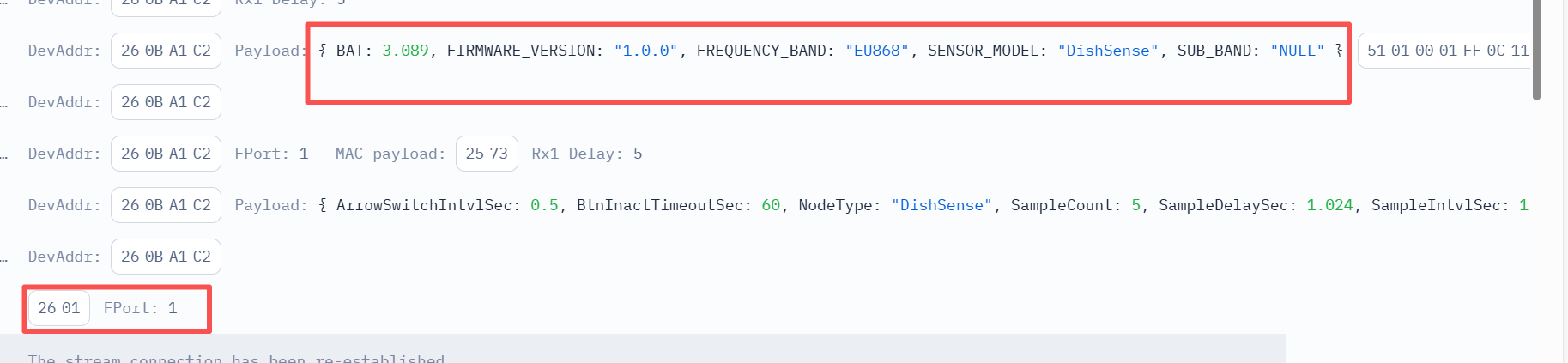
Example in The Things Stack: 51 0100 01 FF 0C11
Sensor Model: For DishSense, this value is 0x51
Firmware Version: 0x0100, which means v1.0.0
Frequency Band:
0x01: EU868
0x02: US915
0x03: IN865
0x04: AU915
0x05: KZ865
0x06: RU864
0x07: AS923
0x08: AS923-1
0x09: AS923-2
0x0a: AS923-3
0x0b: CN470
0x0c: EU433
0x0d: KR920
0x0e: MA869
Sub-Band:
AU915 and US915: value 0x00 ~ 0x08
CN470: value 0x0B ~ 0x0C
Other Bands: Always 0x00
BAT:0x0C11/1000=3.089v
2.2.3 Device MOD Status (FPort=8)
The Datalog uplinks use the following payload format.
2.2.3.1 Work MOD1
Working mode (1 Byte) + Delay (2 Bytes, 1ms) + Arrow symbol flashing interval (2 Bytes, 1ms) + Acquisition interval (2 Bytes, 1ms) + Number of acquisition groups (2 Bytes, maximum 600 groups) + Temperature threshold (2 Bytes, 0.01℃)
| Size(bytes) | 1 | 2 | 2 | 2 | 2 | 2 |
|---|---|---|---|---|---|---|
| Value | MOD | Delay | flashing interval | Acquisition interval | Number of acquisition | Temp threshold |

Example in The Things Stack: 01 1388 01F4 03E8 000A 07D0
BAT: 0x0C0E= 3.088V
**Delay:**0x1388=5000ms
**flashing interval:**0x01F4=500ms
**acquisition interval:**0x03E8=1000ms
**Number of collections:**0x000A=10
**Temp threshold:**0x07D0/100=20.00°C
2.2.3.1 Work MOD2 and Work MOD3
Working mode (1 Byte) + Delay time before start of data acquisition (2 Bytes, 1ms) + Arrow symbol flashing interval (2 Bytes, 1ms) + Data acquisition interval (2 Bytes, 1ms) + Number of data acquisition groups (1 Byte, maximum 117 groups in mode 2, maximum 58 groups in mode 3) + Timeout for entering low-power state without button operation (2 Bytes, 1s, actual configurable range is 1 minute to 1 hour)
| Size(bytes) | 1 | 2 | 2 | 2 | 1 | 2 |
|---|---|---|---|---|---|---|
| Value | MOD | Delay | flashing interval | Acquisition interval | Number of acquisition | Temp threshold |

Example in The Things Stack: 02 0400 01F4 03E8 05 003C
**MOD:**0x02=2
**Delay:**0x0400=1024ms
**flashing interval:**0x01F4=500ms
**acquisition interval:**0x03E8=1000ms
**Number of collections:**0x005=5
**Temp threshold:**0x003C=60°C
2.3 Decode payload
While using TTN V3 network, you can add the payload format to decode the payload.
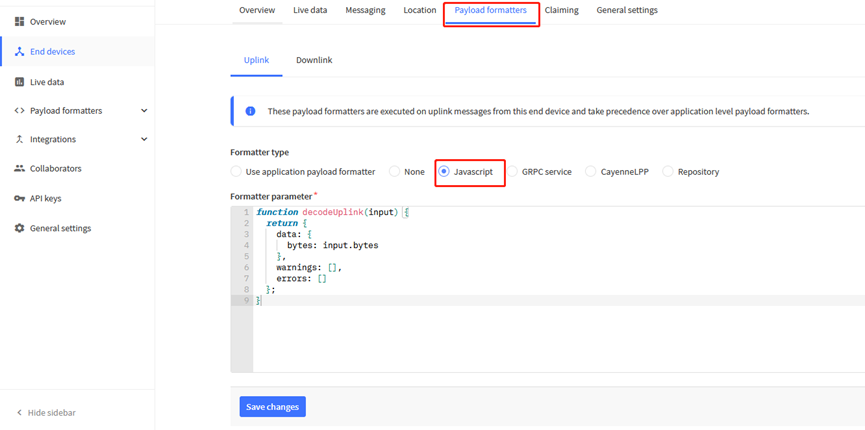
The payload decoder function for TTN V3 are here:
DishSense Payload Decoder: dragino-end-node-decoder/DishSense at main · dragino/dragino-end-node-decoder
3. Configure DishSense
3.1 Configure Methods
DishSense supports below configure method:
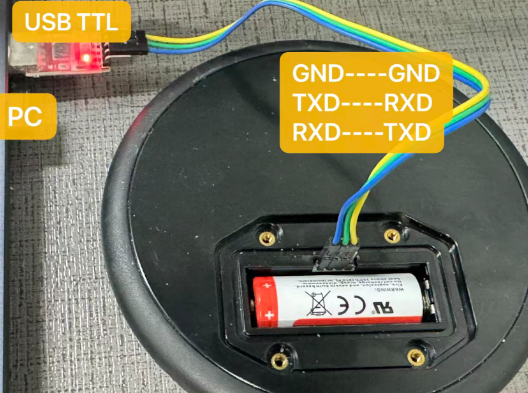
- AT Command via UART Connection : See UART Connection.
- LoRaWAN Downlink. Instruction for different platforms: See IoT LoRaWAN Server section.
3.2 General Commands
These commands are to configure:
- General system settings like: uplink interval.
- LoRaWAN protocol & radio related command.
They are same for all Dragino Devices which support DLWS-005 LoRaWAN Stack. These commands can be found on the wiki:
http:///docs/wiki/Configuration/end-node/at-commands-downlink/
3.3 Commands special design for DishSense
These commands only valid for DishSense, as below:
3.3.1 Set Transmit Interval Time
Feature: Change LoRaWAN End Node Transmit Interval.
AT Command: AT+TDC
| Command Example | Function | Response |
|---|---|---|
| AT+TDC=? | Show current transmit Interval | 30000 OK the interval is 30000ms = 30s |
| AT+TDC=60000 | Set Transmit Interval | OK Set transmit interval to 60000ms = 60 seconds |
Downlink Command: 0x01
Format: Command Code (0x01) followed by 3 bytes time value.
If the downlink payload=0100003C, it means set the END Node's Transmit Interval to 0x00003C=60(S), while type code is 01.
- Example 1: Downlink Payload: 0100001E // Set Transmit Interval (TDC) = 30 seconds
- Example 2: Downlink Payload: 0100003C // Set Transmit Interval (TDC) = 60 seconds
3.3.2 Get Device Status
Send a LoRaWAN downlink to ask the device to send its status.
Downlink Payload: 0x26 01
Sensor will upload Device Status via FPORT=5. See payload section for detail.
3.3.3 Set Interrupt Mode
Feature, Set working mode and data collection time
AT Command: AT+WMOD
| Command Example | Function | Response |
|---|---|---|
| AT+WMOD=? | Show current interrupt mode | 0 OK the mode is 0 =Disable Interrupt |
| AT+WMOD=1,a,b,c | 1.Set to mode 1 a,Collection interval(ms) b,collection times c,temp threshold(0.01°) | OK |
| AT+WMOD=2,a,b,c AT+WMOD=3,a,b,c | 2\3.Set to mode 2\3 a,Collection interval(ms) b,collection times | OK |
Downlink Command: 0xA5
Mode 1 format: A5 + Working mode (1 Byte) + Acquisition interval (2 Bytes, ms, minimum configurable 1s) + Number of acquisition groups (2 Bytes, minimum configurable 1 group, maximum configurable 600 groups) + Temperature threshold (2 Bytes, unit °C, 1 represents 0.01 °C)
Example 1: Downlink Payload: A50103E8003C1F40 // Set AT+WMOD=1,1000,60,8000
Mode 2 or Mode 3 format: A5 + Working mode (1 Byte) + Acquisition interval (2 Bytes, ms, minimum configurable 1s) + Number of acquisition groups (1 Byte, minimum configurable 1 group, maximum configurable 117 groups for Mode 2, maximum configurable 58 groups for Mode 3)
Example 2: Downlink Payload: A50203E83A // Set AT+WMOD=2,1000,58
3.3.3 Set Celsius and Fahrenheit
Feature, Set working mode and data collection time
AT Command: AT+TEMPUNI
| Command Example | Function | Response |
|---|---|---|
| AT+TEMPUNI=? | Show current interrupt mode | 0 (-> degC) 1 (-> degF) |
| AT+TEMPUNI=0 | Set Celsius as the unit. | OK |
| AT+TEMPUNI=1 | Set Fahrenheit as the unit. | OK |
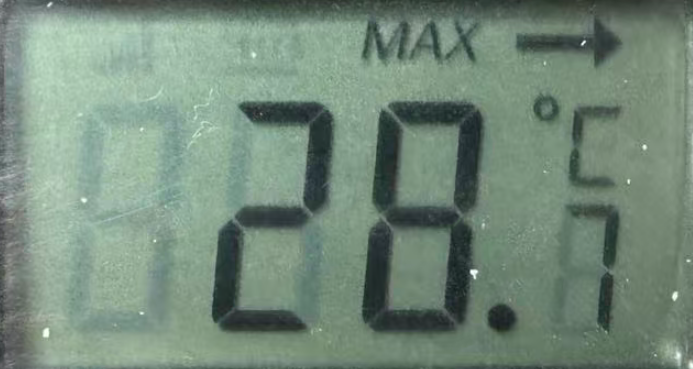
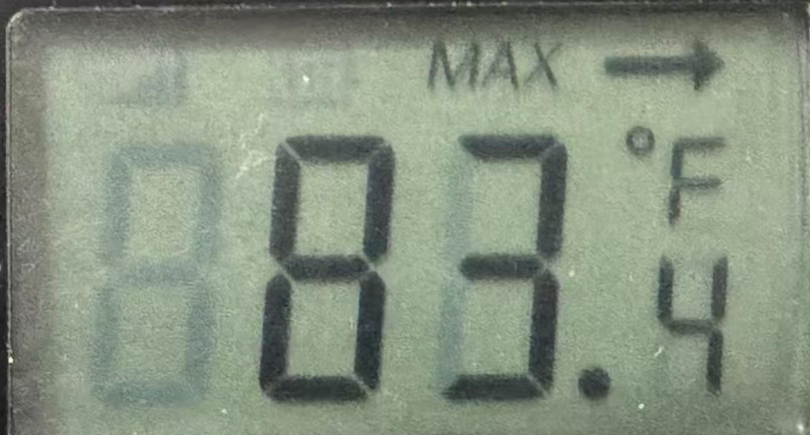
Downlink Command: 0x35
- Example 1: Downlink Payload: 3500001E // Set Celsius as the unit.
- Example 2: Downlink Payload: 3500003C // Set Fahrenheit as the unit.
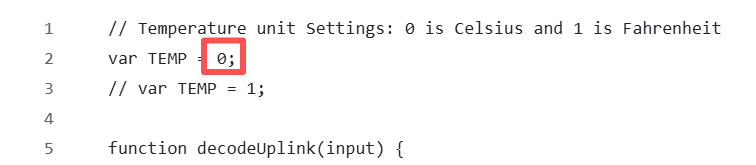
The default in the decoder is Celsius. If you need to change it to Fahrenheit, then you should change the code in the red box to 1.
3.3.4 Set Celsius and Fahrenheit
Feature, Set working mode and data collection time
AT Command: AT+PRESMPDLY
| Command Example | Function | Response |
|---|---|---|
| AT+PRESMPDLY=? | Display current settings | Default 5000ms OK |
| AT+PRESMPDLY=5000 | Set the delay before data collection begins. Adjustable range: 1000ms - 60000s | OK |
Downlink Command: 0x36
- Example 1: Downlink Payload:36011388 // Set mode 1, 5000ms delay.
- Example 1: Downlink Payload:36021388 // Set mode 2, 5000ms delay.
3.3.5 Set Celsius and Fahrenheit
Feature, Set working mode and data collection time
AT Command: AT+BTNINACTTO
| Command Example | Function | Response |
|---|---|---|
| AT+BTNINACTTO=? | Sleep time | 60 |
| AT+BTNINACTTO=5000 | The minimum time to enter sleep mode after no activity can be set to 60 seconds, and the maximum time can be set to 3600 seconds. | OK |
Downlink Command: 0x36
- Example 1: Downlink Payload:37003C // Set Sleep mode will be activated after 60 seconds of inactivity.
4. Firmware update
User can change firmware DishSense to:
- Change Frequency band/ region.
- Update with new features.
- Fix bugs.
Firmware and changelog can be downloaded from : Firmware download link Methods to Update Firmware:
- (Recommended way) OTA firmware update via wireless: **/docs/wiki/Configuration/gateway/ota-update-firmware-for-gateway/
- Update through UART TTL interface: Instruction.
5. FAQ
6. Order Info
Part Number: DishSense**-XX XX:**
- EU433: Frequency bands EU433
- EU868: Frequency bands EU868
- KR920: Frequency bands KR920
- CN470: Frequency bands CN470
- AS923: Frequency bands AS923
- AU915: Frequency bands AU915
- US915: Frequency bands US915
- IN865: Frequency bands IN865
- CN779: Frequency bands CN779
7. Packing Info
Package Includes:
- DishSense x 1
Dimension and weight:
- Package Size / pcs : 190*80*50mm
- Weight / pcs : 310g
8. Support
- Support is available Monday to Friday, from 09:00 to 18:00 GMT+8. Due to different time zones, we cannot offer live support. However, your questions will be answered as soon as possible within the above-mentioned schedule.
- Please provide as much information as possible regarding your inquiry (product models, a detailed description of the problem, and steps to reproduce it) and send an email to support@dragino.com.
0