Weight Scale-LB/LS
1. Introduction
1.1 What is the Weight Scale-LB/LS LoRaWAN IoT Weight Sensor?
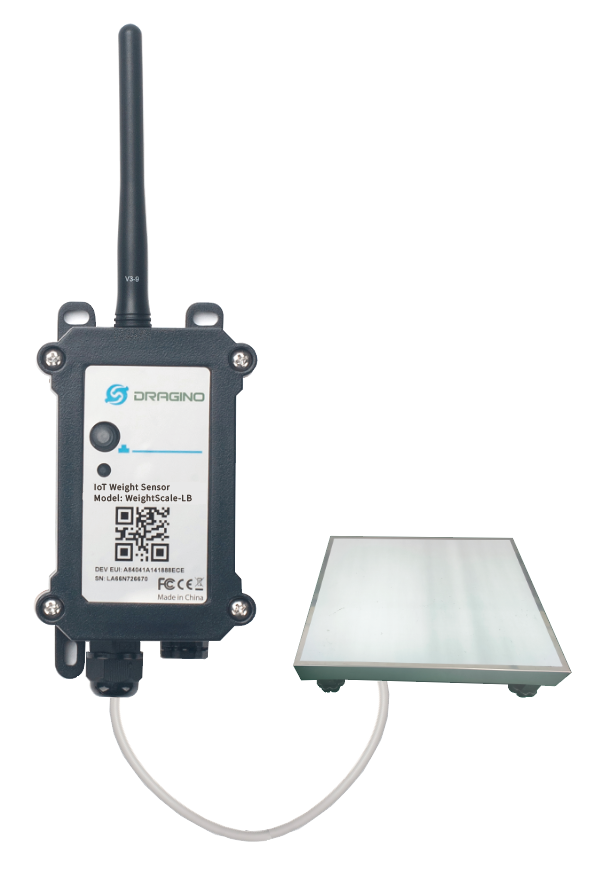
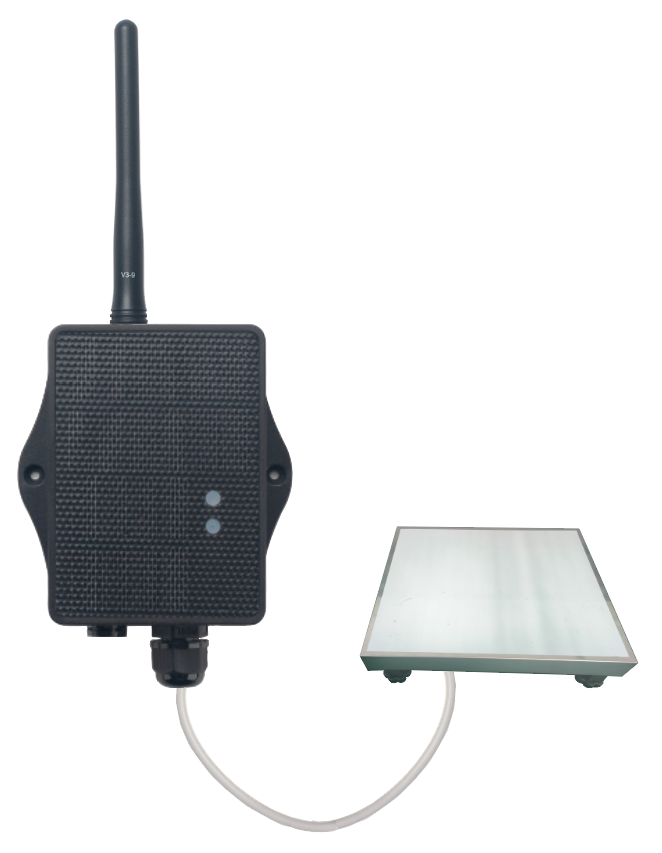
The Dragino Weight Scale-LB/LS is a LoRaWAN IoT Weight Sensor for Internet of Things solution. It is designed to precisely measure weight and then upload the data to an IoT server via the LoRaWAN wireless protocol.
The Weight Scale-LB/LS provides a complete, all-in-one hardware solution. It integrates a high-precision weighing platform with a LoRaWAN transmission node into a single, ready-to-use unit. Customers receive a fully assembled and tested device, eliminating the need for external hardware purchases and complex integration work.
The Weight Scale-LB/LS is available in two standard configurations to meet common application requirements: a 30cm x 40cm platform with 150KG capacity and a 40cm x 50cm platform with 300KG capacity.. These standard versions allow customers to easily evaluate the solution for their specific use cases.
The LoRaWAN wireless technology used in the Weight Scale-LB enables data transmission over extremely long ranges at low data rates, providing ultra-long-range spread spectrum communication and high interference immunity while minimizing current consumption.
Scale-LB/LS supports BLE configure and **wireless OTA update ** which make user easy to use.
The Weight Scale-LB/LS is powered by an 8500mAh Li-SOCI2 battery or solar powered + Li-ion battery, designed for long-term use up to 5 years depending on configuration.
Each Weight Scale-LB/LS is pre-loaded with a unique set of keys for LoRaWAN registration. Simply register these keys to your local LoRaWAN server, and the device will automatically connect after power-on.
1.2 Features
- LoRaWAN 1.0.3 Class A
- Ultra-low power consumption
- Bands: CN470/EU433/KR920/US915/EU868/AS923/AU915/IN865
- Support Bluetooth v5.1 and LoRaWAN remote configure
- Support wireless OTA update firmware
- Uplink on periodically
- Downlink to change configure
- 8500mAh Li-SOCI2 Battery (Weight Scale-LB)
- Solar panel + 3000mAh Li-ion battery (Weight Scale-LS)
- Standard Evaluation Models: 30cm x 40cm, 150KG and 40cm x 50cm, 300KG versions for easy solution assessment
- Customizable Platform: Support for custom shape, size, capacity, and multi-sensor configurations for specialized applications
1.3 Specification
Common DC Characteristics:
- Supply Voltage: Built-in Battery , 2.5v ~ 3.6v
- Operating Temperature: -40 ~ 85°C
Temperature Sensor:
- Range: -40 to + 80°C
- Accuracy: ±0.2 @ 0-90 °C
- Resolution: 0.1°C
- Long Term Shift: <0.03 °C/yr
**Humidity Sensor: **
- Range: 0 ~ 99.9% RH
- Accuracy: ± 2%RH ( 0 ~ 100%RH)
- Resolution: 0.01% RH
- Long Term Shift: <0.25 %RH/yr
LoRa Spec:
- Frequency Range, Band 1 (HF): 862 ~ 1020 Mhz
- Max +22 dBm constant RF output vs.
- RX sensitivity: down to -139 dBm.
- Excellent blocking immunity
Battery:
- Li/SOCI2 un-chargeable battery
- Capacity: 8500mAh
- Self-Discharge: <1% / Year @ 25°C
- Max continuously current: 130mA
- Max boost current: 2A, 1 second
Power Consumption
- Sleep Mode: 5uA @ 3.3v
- LoRa Transmit Mode: 125mA @ 20dBm, 82mA @ 14dBm
1.4 Sleep mode and working mode
**Deep Sleep Mode: **Sensor doesn't have any LoRaWAN activate. This mode is used for storage and shipping to save battery life.
Working Mode: In this mode, Sensor will work as LoRaWAN Sensor to Join LoRaWAN network and send out sensor data to server. Between each sampling/tx/rx periodically, sensor will be in IDLE mode), in IDLE mode, sensor has the same power consumption as Deep Sleep mode.
1.5 Button & LEDs
| Behavior on ACT | Function | Action |
|---|---|---|
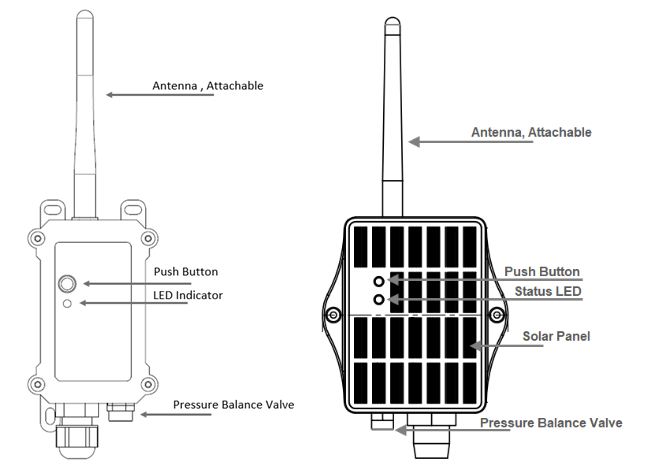
 1~3s 1~3s | Send an uplink | If sensor is already Joined to LoRaWAN network, sensor will send an uplink packet, blue led will blink once. Meanwhile, BLE module will be active and user can connect via BLE to configure device. |
| >3s | Active Device | Green led will fast blink 5 times, device will enter OTA mode for 3 seconds. And then start to JOIN LoRaWAN network. Green led will solidly turn on for 5 seconds after joined in network. Once sensor is active, BLE module will be active and user can connect via BLE to configure device, no matter if device join or not join LoRaWAN network. |
 x5 x5 | Deactivate Device | Red led will solid on for 5 seconds. Means device is in Deep Sleep Mode. |
1.6 BLE connection
Weight Scale-LB/LS support BLE remote configure.
BLE can be used to configure the parameter of sensor or see the console output from sensor. BLE will be only activate on below case:
- Press button to send an uplink
- Press button to active device.
- Device Power on or reset.
If there is no activity connection on BLE in 60 seconds, sensor will shut down BLE module to enter low power mode.
1.7 Pin Definitions
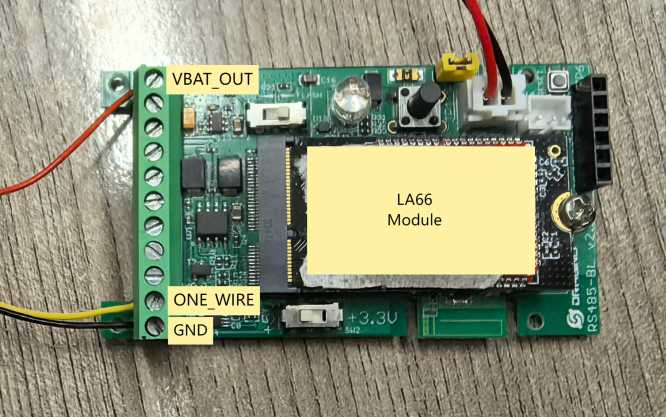
1.8 Wiring of DS18B20 temperature sensor
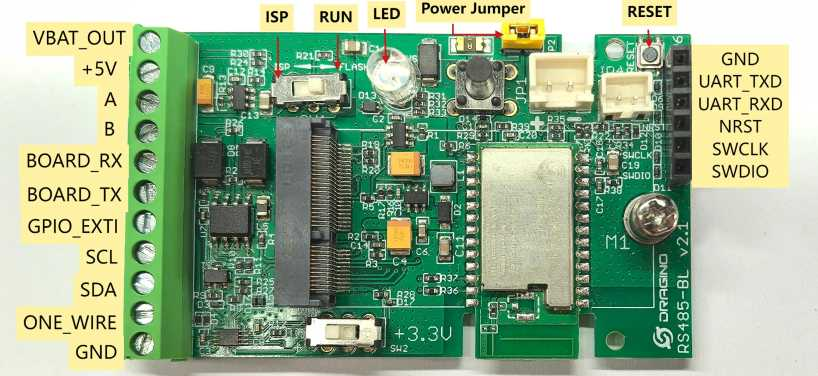
The Weight Scale-LB/LS supports connection to the external temperature sensor DS18B20. The wiring method is as follows: Connect DS18B20 sensor:
RED <---------> VBAT_OUT(+3.3V)
YELLOW <----> ONE_WIRE
BLACK <------> GND
1.9 Mechanical
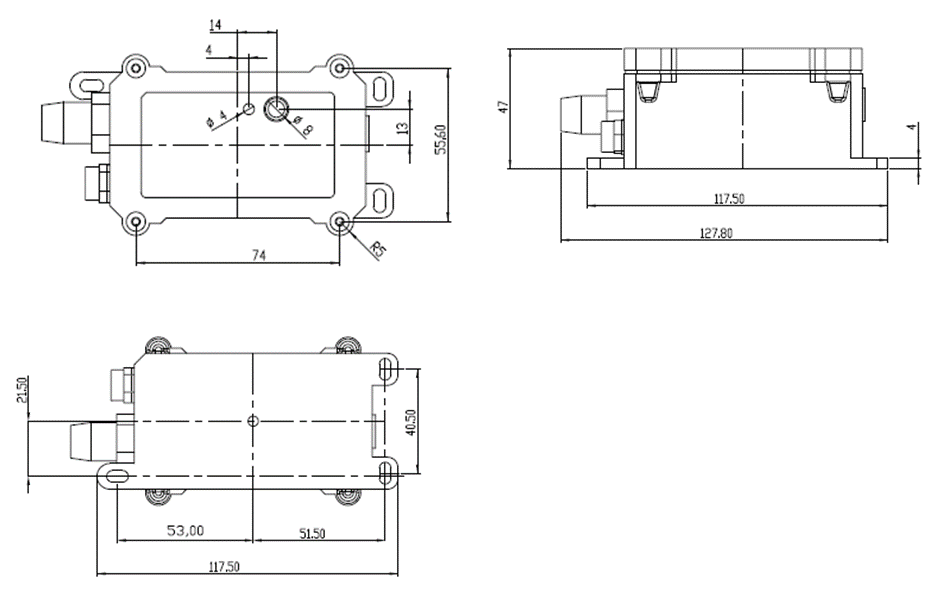
1.9.1 for LB version
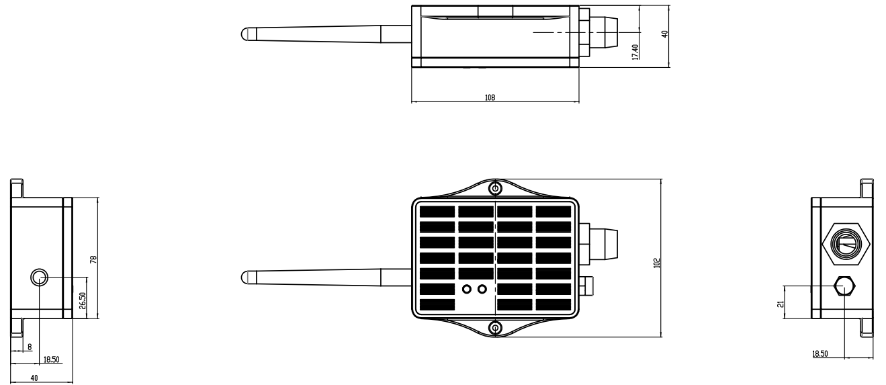
1.9.2 for LS version
1.10 Pre-use operation
To protect the load cell from damage during transportation, four screws have been added to provide support and protection. Before use, loosen the screws halfway to release the support mechanism, as shown below:
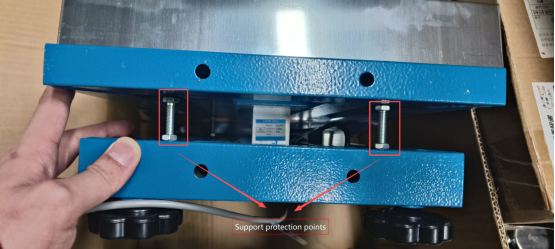
There are a total of four support points.
2. Configure Weight Scale-LB/LS to connect to LoRaWAN network
2.1 How it works
The Weight Scale-LB/LS is configured as LoRaWAN OTAA Class A mode by default. It has OTAA keys to join LoRaWAN network. To connect a local LoRaWAN network, you need to input the OTAA keys in the LoRaWAN IoT server and press the button to activate the Weight Scale-LB/LS. It will automatically join the network via OTAA and start to send the sensor value. The default uplink interval is 20 minutes.
2.2 Quick guide to connect to LoRaWAN server (OTAA)
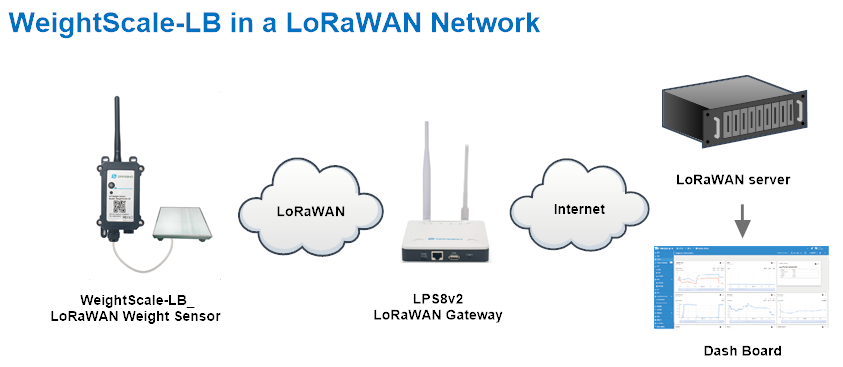
Following is an example for how to join the TTN v3 LoRaWAN Network. Below is the network structure; we use the LPS8v2 as a LoRaWAN gateway in this example.
The LPS8V2 is already set to connected to TTN network , so what we need to now is configure the TTN server.
Step 1: Create a device in TTN with the OTAA keys from Weight Scale-LB/LS.
Each Weight Scale-LB/LS is shipped with a sticker with the default device EUI as below:
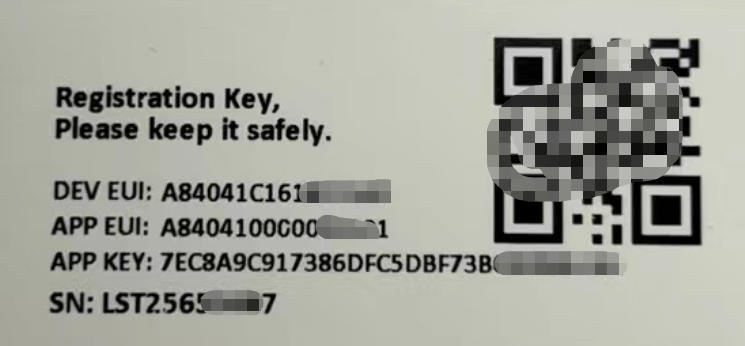
You can enter this key in the LoRaWAN Server portal. Below is TTN screen shot:
Create the application.

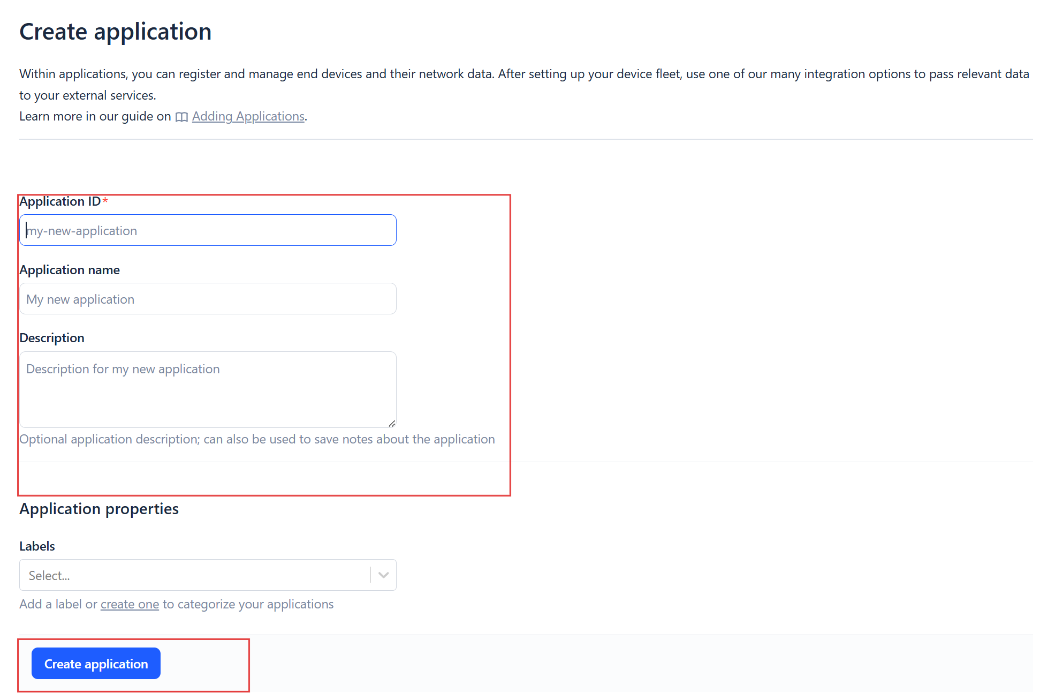
Add devices to the created Application.
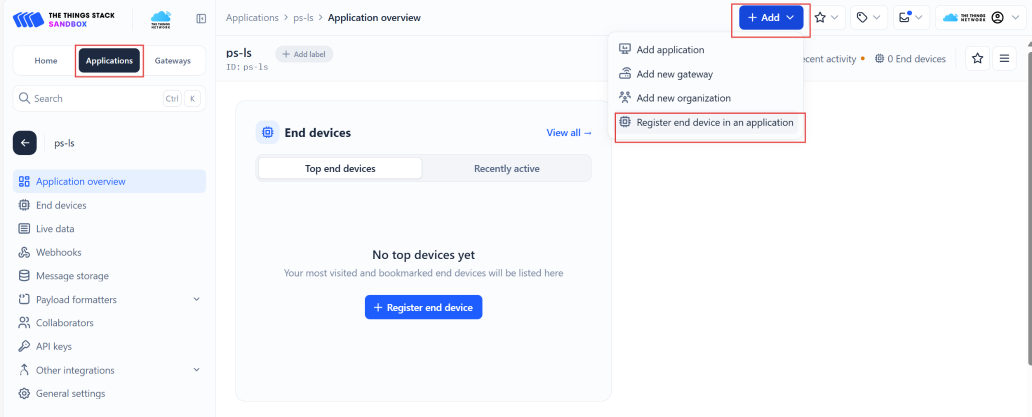
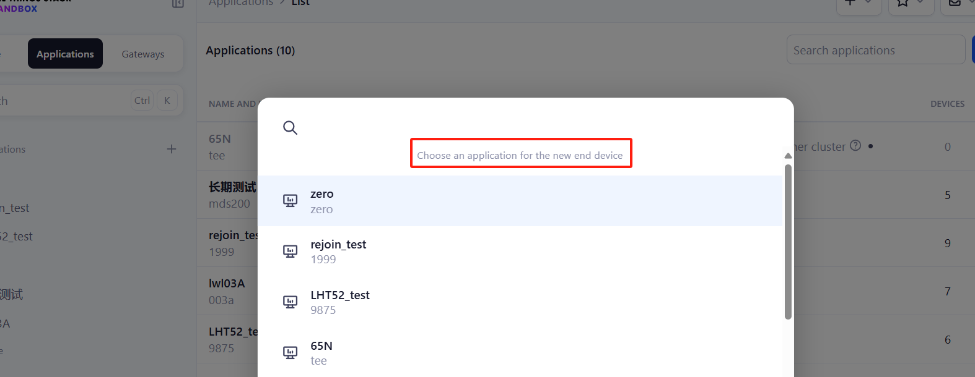
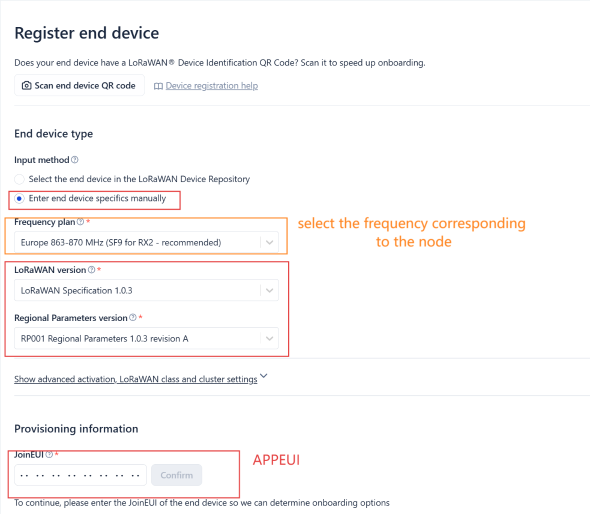
Enter end device specifics manually.
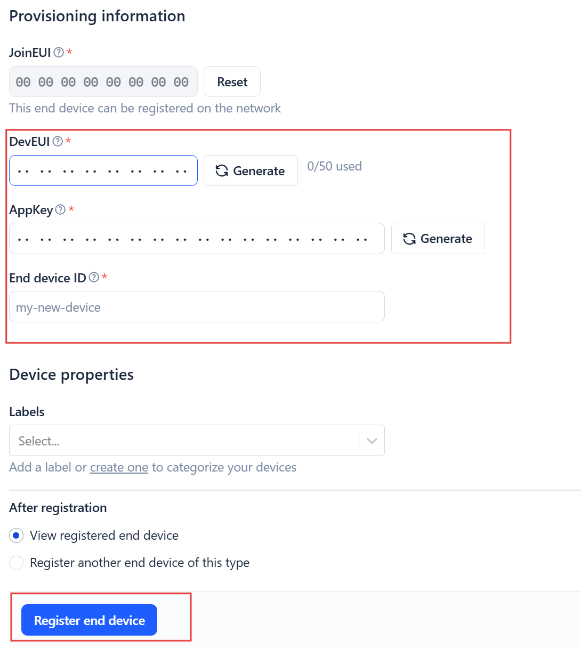
Add DevEUI and AppKey. Customize a platform ID for the device.
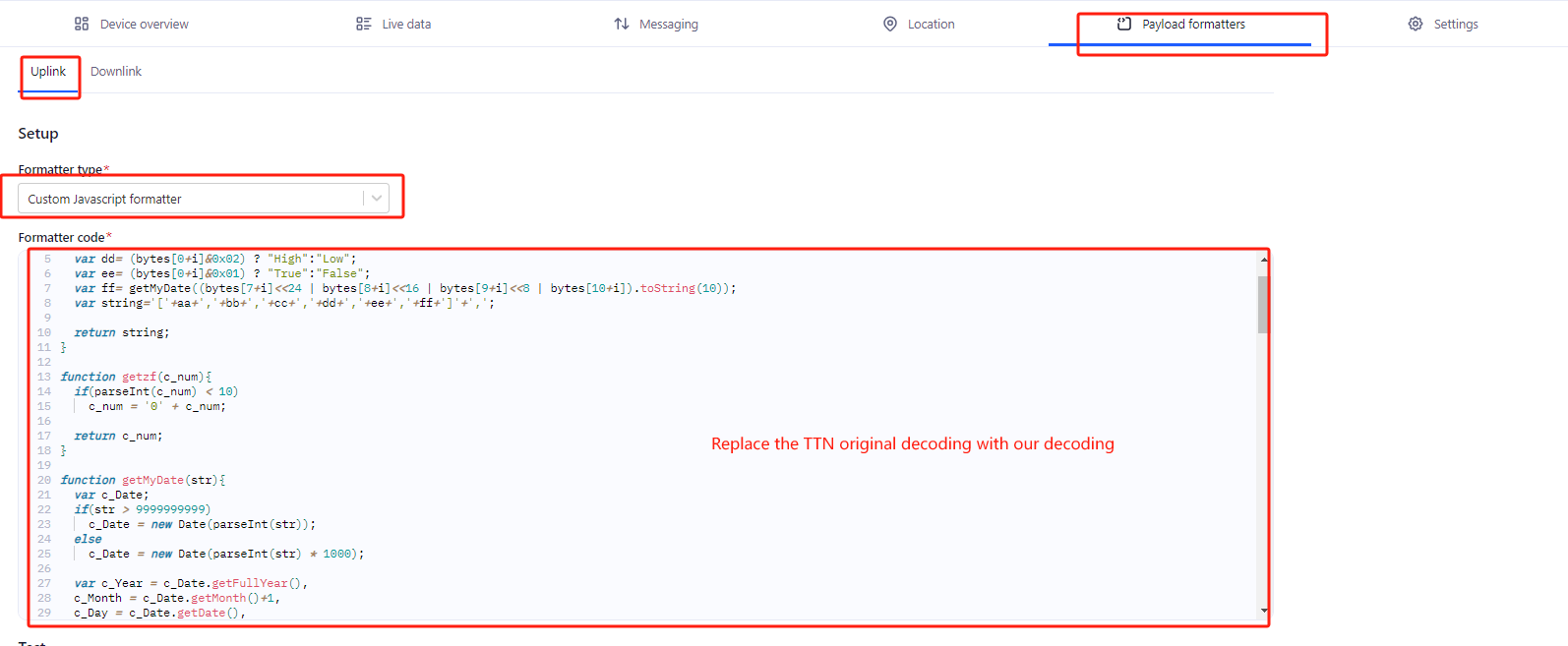
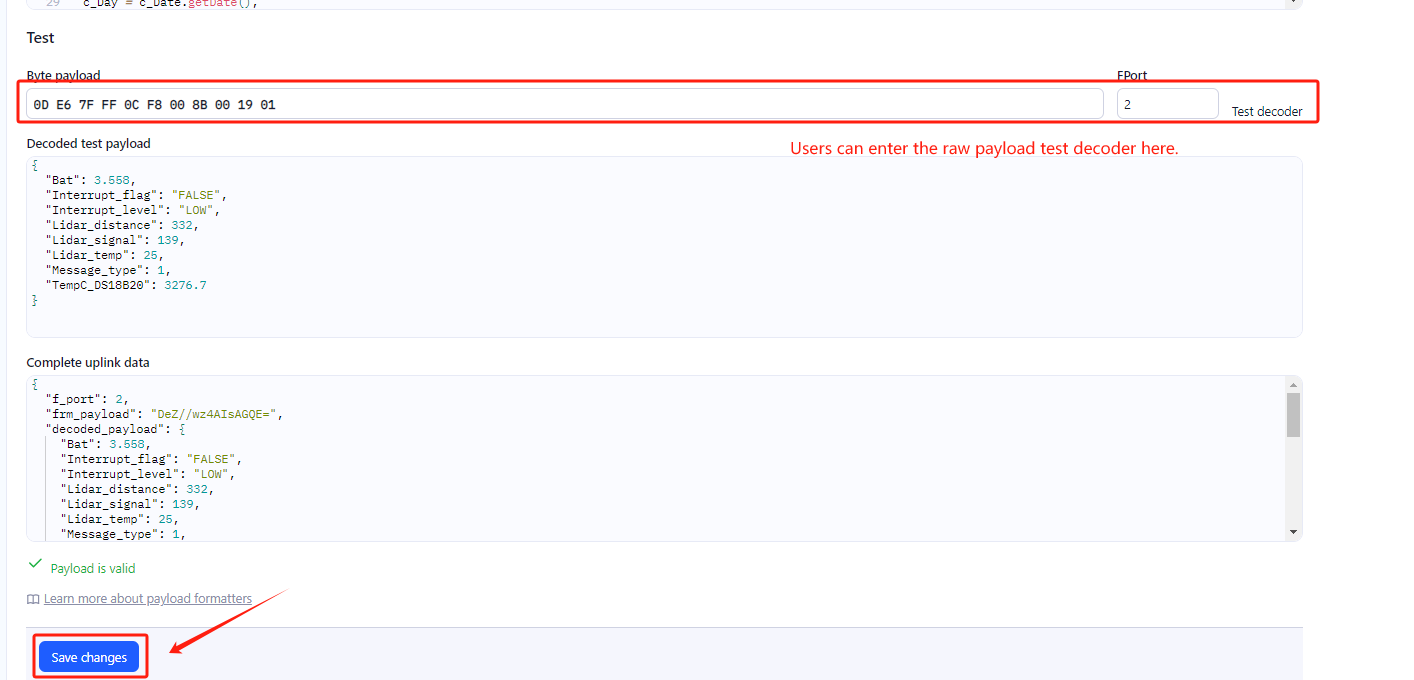
Step 2: Add decoder.
In TTN, user can add a custom payload so it shows friendly reading.
Click this link to get the decoder: https://github.com/dragino/dragino-end-node-decoder/tree/main/
Below is TTN screen shot:
Step 3: Activate on Weight Scale-LB/LS
Press the button for 5 seconds to activate the Weight Scale-LB/LS.
Green led will fast blink 5 times, device will enter OTA mode for 3 seconds. And then start to JOIN LoRaWAN network. Green led will solidly turn on for 5 seconds after joined in network.
After join success, it will start to upload messages to TTN and you can see the messages in the panel.
2.3 Uplink Payload
2.3.1 Device Status, FPORT=5
Users can use the downlink command(0x26 01) to ask S31x-LB/LS to send device configure detail, include device configure status. Weight Scale-LB/LS will uplink a payload via FPort=5 to server.
The Payload format is as below.
| Device Status (FPORT=5) | |||||
| Size (bytes) | 1 | 2 | 1 | 1 | 2 |
| Value | Sensor Model | Firmware Version | Frequency Band | Sub-band | BAT |
Example parse in TTNv3
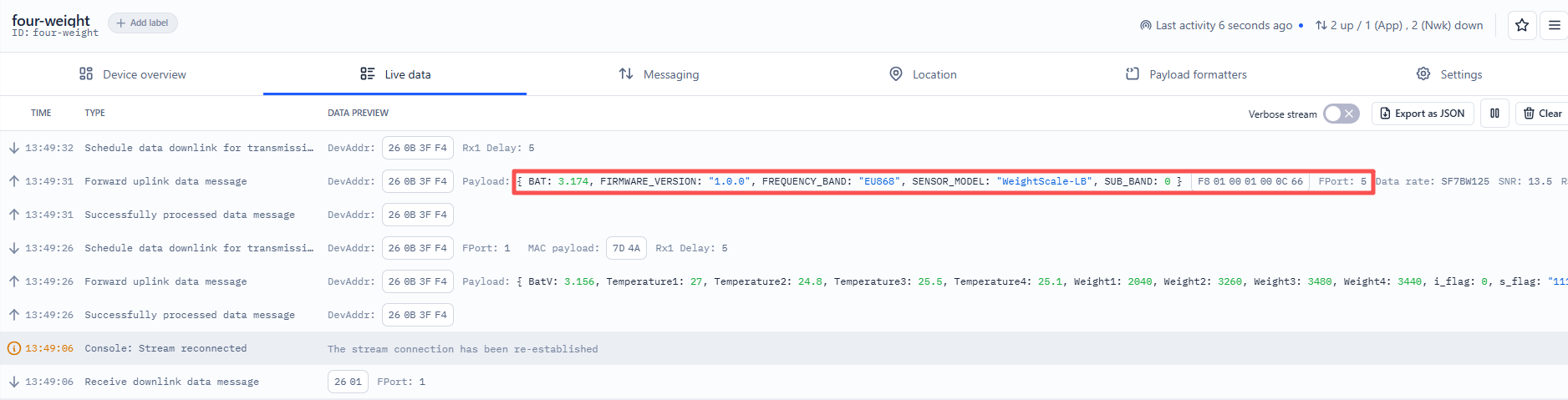
Sensor Model: For Weight Scale-LB/LS, this value is 0xF8
Firmware Version: 0x0100, Means: v1.0.0 version
Frequency Band:
0x01: EU868
0x02: US915
0x03: IN865
0x04: AU915
0x05: KZ865
0x06: RU864
0x07: AS923
0x08: AS923-1
0x09: AS923-2
0x0a: AS923-3
0x0b: CN470
0x0c: EU433
0x0d: KR920
0x0e: MA869
Sub-Band:
AU915 and US915:value 0x00 ~ 0x08
CN470: value 0x0B ~ 0x0C
Other Bands: Always 0x00
Battery Info:
Check the battery voltage.
Ex1: 0x0C66 = 3174mV
Ex2: 0x0B49 = 2889mV
2.3.2 Sensor Data. FPORT=2
Sensor Data is uplink via FPORT=2
Note:
Can connect and recognize up to 8 weight sensors,Each time an additional sensor is connected, 4 bytes will be added to the payload.
- When 4 sensors are recognized, the number of bytes in the uplink is 30;
- When 3 sensors are recognized, the number of uplink bytes is 24;
- When 2 sensors are recognized, the number of bytes in the upper row is 18;
- When 1 sensor is recognized, the number of bytes in the uplink is 12;
Uplink payload to recognize 4 sensors 30 bytes as an example.


Battery
Sensor Battery Level.
Ex1: 0x0C54 = 3162mV /1000 = 3.162V
Ex2: 0x0B49 = 2889mV/1000 = 2.889V
DS18B20_Temp
Example:
If payload is: 0105H: (0105 & 8000 == 0), temp = 0105H /10 = 26.1 degree
If payload is: FF3FH : (FF3F & 8000 == 1) , temp = (FF3FH - 65536)/10 = -19.3 degrees.
(FF3F & 8000:Judge whether the highest bit is 1, when the highest bit is 1, it is negative)
Level of GPIO_EXTI
Example:
If payload & 0x40>>6 = 0x01 --> The GPIO_EXTI is low level.
If payload & 0x40>>6 =0x00 --> The GPIO_EXTI is high level.
Weight1
Example:
If payload is: 0x000007F8H: weight = 000007F8H = 2024 (unit: g)
Temperature1
Example:
If payload is: 010EH: (010E & 8000 == 0), temp = 010EH /10 = 27 degree
If payload is: FF3FH : (FF3F & 8000 == 1) , temp = (FF3FH - 65536)/10 = -19.3 degrees.
(FF3F & 8000:Judge whether the highest bit is 1, when the highest bit is 1, it is negative)
Weight2
Example:
If payload is: 0x00000CBCH: weight = 00000CBCH = 3260 (unit: g)
Temperature2
Example:
If payload is: 00F8H: (00F8 & 8000 == 0), temp = 00F8H /10 = 24.8 degree
If payload is: FF3FH : (FF3F & 8000 == 1) , temp = (FF3FH - 65536)/10 = -19.3 degrees.
(FF3F & 8000:Judge whether the highest bit is 1, when the highest bit is 1, it is negative)
Weight3
Example:
If payload is: 0x00000D98H: weight = 00000D98H = 3480 (unit: g)
Temperature3
Example:
If payload is: 00FFH: (00FF & 8000 == 0), temp = 00FFH /10 = 25.5 degree
If payload is: FF3FH : (FF3F & 8000 == 1) , temp = (FF3FH - 65536)/10 = -19.3 degrees.
(FF3F & 8000:Judge whether the highest bit is 1, when the highest bit is 1, it is negative)
Weight4
Example:
If payload is: 0x00000D70H: weight = 00000D70H = 3440 (unit: g)
Temperature4
Example:
If payload is: 00FCH: (00FC & 8000 == 0), temp = 00FCH /10 = 25.2 degree
If payload is: FF3FH : (FF3F & 8000 == 1) , temp = (FF3FH - 65536)/10 = -19.3 degrees.
(FF3F & 8000:Judge whether the highest bit is 1, when the highest bit is 1, it is negative)
2.4 Payload Decoder file
In TTN, use can add a custom payload so it shows friendly reading
In the page Applications --> Payload Formats --> Custom --> decoder to add the decoder from:
https://github.com/dragino/dragino-end-node-decoder/tree/main/S31-LB%26S31B-LB
2.5 Enable sync time
The user needs to ensure that the following settings are enabled in order to enable the time scheduling synchronization feature;
- SYNCMOD=1(Default) to enable sync time via LoRaWAN MAC command, click here (AT+SYNCMOD) for detailed instructions.
2.7 Frequency Plans
The Weight Scale-LB/LS uses OTAA mode and below frequency plans by default. Each frequency band use different firmware, user update the firmware to the corresponding band for their country.
/docs/wiki/Configuration/end-node/frequency-band/
2.8 Firmware Change Log
**Firmware download link: **https://www.dropbox.com/sh/fis3g6nmhv0eokg/AAC6BcCZaX4BdqZkduUvZ3jIa?dl=0
3. Configure Weight Scale-LB/LS
3.1 Configure Methods
Weight Scale-LB/LS supports below configure method:
- AT Command via Bluetooth Connection (Recommended): BLE Configure Instruction.
- AT Command via UART Connection : See UART Connection.
- LoRaWAN Downlink. Instruction for different platforms: See IoT LoRaWAN Server section.
3.2 General Commands
These commands are to configure:
- General system settings like: uplink interval.
- LoRaWAN protocol & radio related command.
They are same for all Dragino Devices which support DLWS-005 LoRaWAN Stack. These commands can be found on the wiki:
/docs/wiki/Configuration/end-node/at-commands-downlink/
3.3 Commands special design for Weight Scale-LB/LS
These commands only valid for Weight Scale-LB/LS, as below:
3.3.1 Set Transmit Interval Time
Feature: Change LoRaWAN End Node Transmit Interval.
AT Command: AT+TDC
| Command Example | Function | Response |
|---|---|---|
| AT+TDC=? | Show current transmit Interval | 30000 OK the interval is 30000ms = 30s |
| AT+TDC=60000 | Set Transmit Interval | OK Set transmit interval to 60000ms = 60 seconds |
Downlink Command: 0x01
Format: Command Code (0x01) followed by 3 bytes time value.
If the downlink payload=0100003C, it means set the END Node's Transmit Interval to 0x00003C=60(S), while type code is 01.
- Example 1: Downlink Payload: 0100001E // Set Transmit Interval (TDC) = 30 seconds
- Example 2: Downlink Payload: 0100003C // Set Transmit Interval (TDC) = 60 seconds
3.3.2 Get Device Status
Send a LoRaWAN downlink to ask device send Alarm settings.
**Downlink Payload: **0x26 01
Sensor will upload Device Status via FPORT=5. See payload section for detail.
3.3.3 Set Interrupt Mode
Feature, Set Interrupt mode for GPIO_EXTI of pin.
When AT+INTMOD=0 is set, GPIO_EXTI is used as a digital input port.
AT Command: AT+INTMOD
| Command Example | Function | Response |
|---|---|---|
| AT+INTMOD=? | Show current interrupt mode | 0 OK the mode is 0 =Disable Interrupt |
| AT+INTMOD=2 | 0: Disable Interrupt 1: Trigger by rising and falling edge 2: Trigger by falling edge 3: Trigger by rising edge | OK |
Downlink Command: 0x06
Format: Command Code (0x06) followed by 3 bytes.
This means that the interrupt mode of the end node is set to 0x000003=3 (rising edge trigger), and the type code is 06.
- Example 1: Downlink Payload: 06000000 // Turn off interrupt mode
- Example 2: Downlink Payload: 06000003 // Set the interrupt mode to rising edge trigger
3.3.4 Set Power Output Duration
Control the output duration 5V . Before each sampling, device will
1. first enable the power output to external sensor,
2. keep it on as per duration, read sensor value and construct uplink payload
3. final, close the power output.
AT Command: AT+5VT
| Command Example | Function | Response |
|---|---|---|
| AT+5VT=? | Show 5V open time. | 0 (default) OK |
| AT+5VT=1000 | Close after a delay of 1000 milliseconds. | OK |
Downlink Command: 0x07
Format: Command Code (0x07) followed by 2 bytes.
The first and second bytes are the time to turn on.
- Example 1: Downlink Payload: 070000 ---> AT+5VT=0
- Example 2: Downlink Payload: 0701F4 ---> AT+5VT=500
3.3.5 Zero calibration
AT Command:
| Command Example | Function | Response |
|---|---|---|
| AT+RSWRITE= aa10000800020400000000 | Zero calibration of the weighing sensor | Sensor address 06 00 24 00 00 |
Parameter Explanation:
- aa: Weighing sensor address
Eg: Send command 01 10 00 08 00 02 04 00 00 00 00 to Weight sensor
AT+RSWRITE=0110000800020400000000
Downlink Command: 0xE2
Format: Command Code (0xE2) followed by the RS485 command for the weighing sensor.
- 0xE20110000800020400000000 Same as: AT+RSWRITE=0110000800020400000000
Note:
If the transmission is successful, the device will send the bytes received from the sensor in the form of data packets to the platform.
Users can determine whether the calibration was successful based on the payload received.
Example:
- Downlink command: E20110000800020400000000
Then the platform or the sensor will reply:
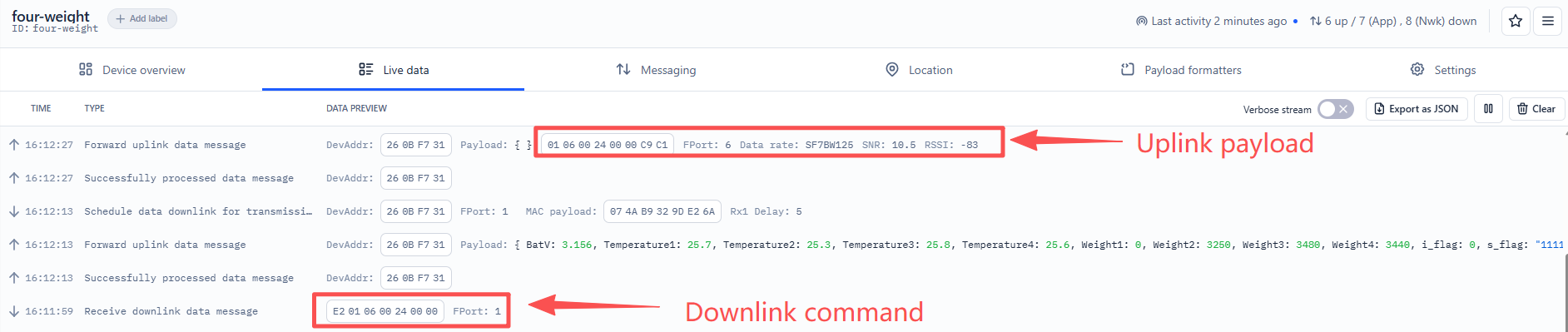
Uplink payload is: 011000080002C00A
011000080002: The sensor responds with instructions. If the content of the response matches the instructions sent down, it is regarded as a success. If there is no reply or the content of the reply is different from that below, it will be regarded as invalid.
C00A: The CRC check code for the return command of the sensor is usually calculated automatically by the sensor and included in the returned data. Users do not need to add the check code themselves.
3.3.6 Weight calibration
AT Command:
| Command Example | Function | Response |
|---|---|---|
| AT+RSWRITE=aa 100010000204 bb | Calibrate the weighing sensor by using weights to fix the weight. | aa 100010000204 bb CRC |
Parameter Explanation:
- aa: Weighing sensor address
- bb: The weights are standard weights measured in grams.
Eg: Send command 01 10 00 10 00 02 04 13 88 00 00 to Weight sensor
AT+RSWRITE=0110001000020413880000
Downlink Command:
- 0xE20110001000020413880000 Same as: AT+RSWRITE=0110001000020413880000
Note:
If the transmission is successful, the device will send the bytes received from the sensor in the form of data packets to the platform.
Users can determine whether the calibration was successful based on the payload received.
Example:
- Downlink command: E20110001000020413880000
Then the platform or the sensor will reply:
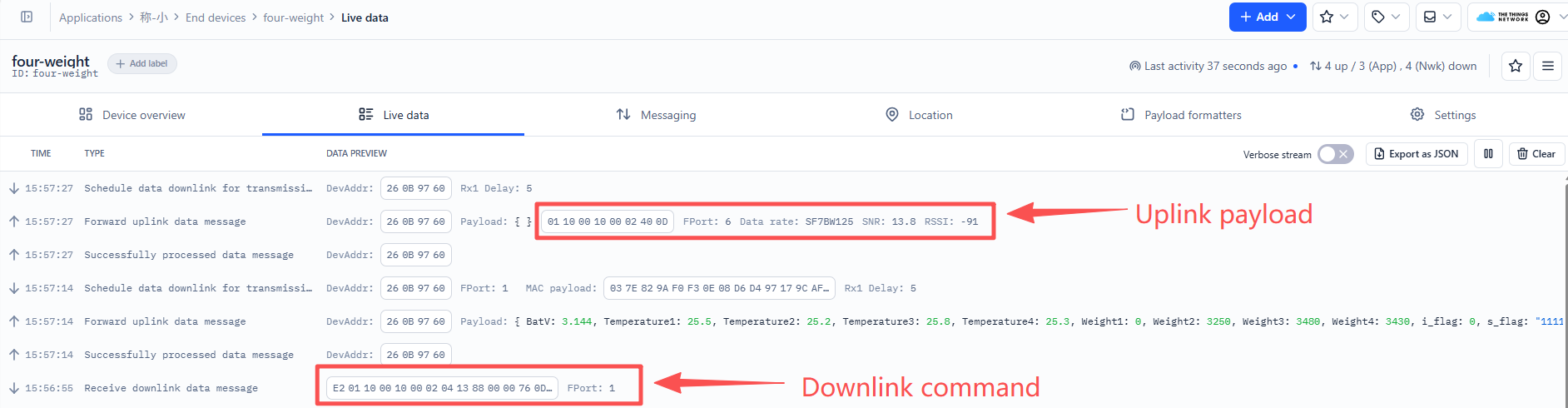
Uplink payload is: 011000100002400D
011000100002: The sensor responds to the instructions. If the response content is: sensor address + 1000100002, it is regarded as successful. If there is no response or the response content is different from the issued content, it is regarded as invalid.
400d: The CRC check code for the return command of the sensor is usually calculated automatically by the sensor and included in the returned data. Users do not need to add the check code themselves.
4. Battery & Power Consumption
Weight Scale-LB use ER26500 + SPC1520 battery pack and Weight Scale-LS use 3000mAh Recharable Battery with Solar Panel. See below link for detail information about the battery info and how to replace.
Battery Info & Power Consumption Analyze .
5. OTA Firmware update
User can change firmware Weight Scale-LB/LS to:
- Change Frequency band/ region.
- Update with new features.
- Fix bugs.
Firmware and changelog can be downloaded from : Firmware download link
Methods to Update Firmware:
- (Recommended way) OTA firmware update via wireless: Firmware OTA Update for LoRaWAN End Node
- Update through UART TTL interface : Instruction.
6. FAQ
6.1 Why is there no LED response when I press the button on the solar panel model?
If the LED does not light up when you press the button, it may be because the battery has entered protection mode.
Solution: To reactivate the battery, simply expose the solar panel to direct sunlight. For more details, please refer to: Battery Protection State (Apply to Solar Panel + Li-ion battery)
7. Order Info
Part Number: Weight Scale-LB-XX or Weight Scale-LS-XX
XX: The default frequency band
-
AS923: LoRaWAN AS923 band
-
AU915: LoRaWAN AU915 band
-
EU433: LoRaWAN EU433 band
-
EU868: LoRaWAN EU868 band
-
KR920: LoRaWAN KR920 band
-
US915: LoRaWAN US915 band
-
IN865: LoRaWAN IN865 band
-
CN470: LoRaWAN CN470 band
8. Packing Info
Package Includes:
- Weight Scale-LB or Weight Scale-LS LoRaWAN Weight Sensor
Dimension and weight:
-
Device Size: cm
-
Device Weight: g
-
Package Size / pcs : cm
-
Weight / pcs : g
9. Support
-
Support is provided Monday to Friday, from 09:00 to 18:00 GMT+8. Due to different timezones we cannot offer live support. However, your questions will be answered as soon as possible in the before-mentioned schedule.
-
Provide as much information as possible regarding your enquiry (product models, accurately describe your problem and steps to replicate it etc) and send a mail to Support@dragino.cc.
0