UART Access Checklist
Use this checklist when an STM32-based end node cannot be accessed through UART or does not respond to AT commands.
1. Check the UART Connection
- Use a USB-to-TTL converter. An RS232 converter will not work for TTL UART pins.
- Confirm the converter's TXD and RXD pins are connected according to the device user manual.
- Make sure GND is connected between the USB-to-TTL converter and the device.
- Power the device correctly before opening the serial console.
2. Check Serial Port Settings
Use the following serial settings:
| Setting | Value |
|---|---|
| Baud rate | 9600 |
| Data bits | 8 |
| Stop bits | 1 |
| Parity | None |
| Flow control | None |
3. Send AT Commands Correctly
- Check whether the serial console shows boot or debug output from the device.
- Add both Enter and New Line after the AT command before pressing send.
- Some serial utilities do not add a new line by default, so the device may not execute the command.
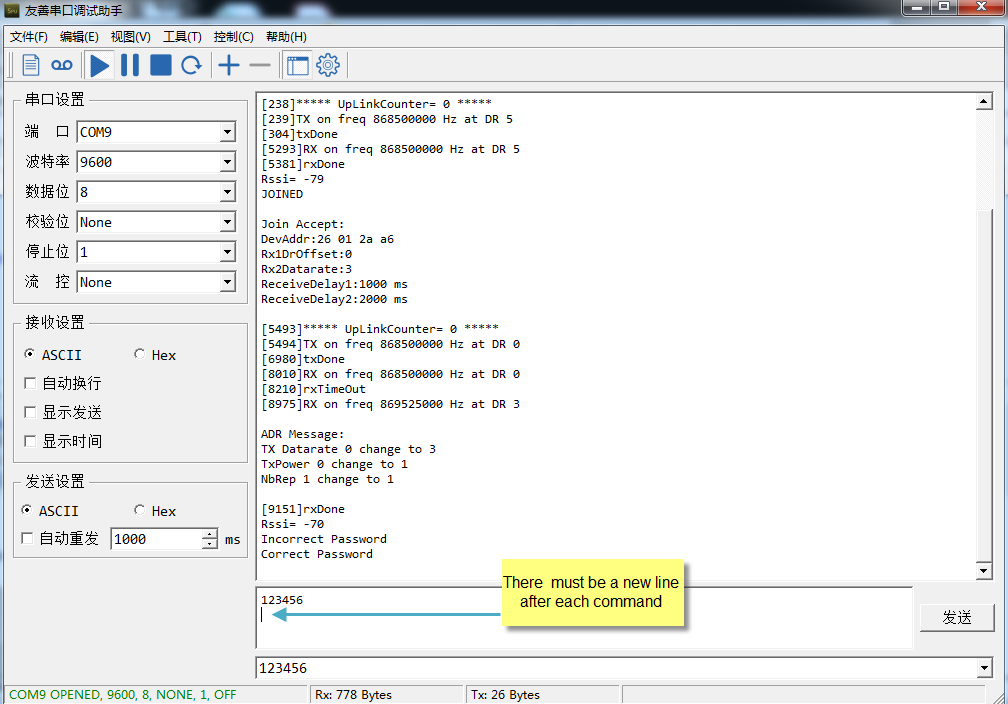
Example of adding a new line in serial software.
4. If the Issue Still Exists
Send the following information to support@dragino.com:
- A screenshot of the serial utility baud-rate settings.
- A screenshot of the serial console output.
- A clear photo showing how the USB-to-TTL adapter is connected to the device.