Set Transmit Time Interval
1. Introduction
This chapter describes how to set Transmit Time Interval.
2. Set Transmit Time Interval
TDC can be controlled by Downlink Payload.
For example: AT+TDC=0x258=600s ; Payload: 01 00 02 58 TDC=600s The time interval is represented by hexadecimal conversion to decimal.
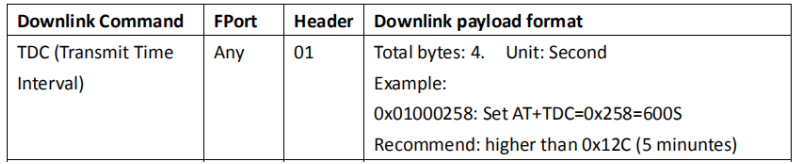
If the payload=0100003C, it means set the END Node's TDC to 0x00003C=60(S), 3C (HEX) = 60 (decimal),while type code is 01.
Payload: 01 00 00 1E TDC=30s Payload: 01 00 00 3C TDC=60s
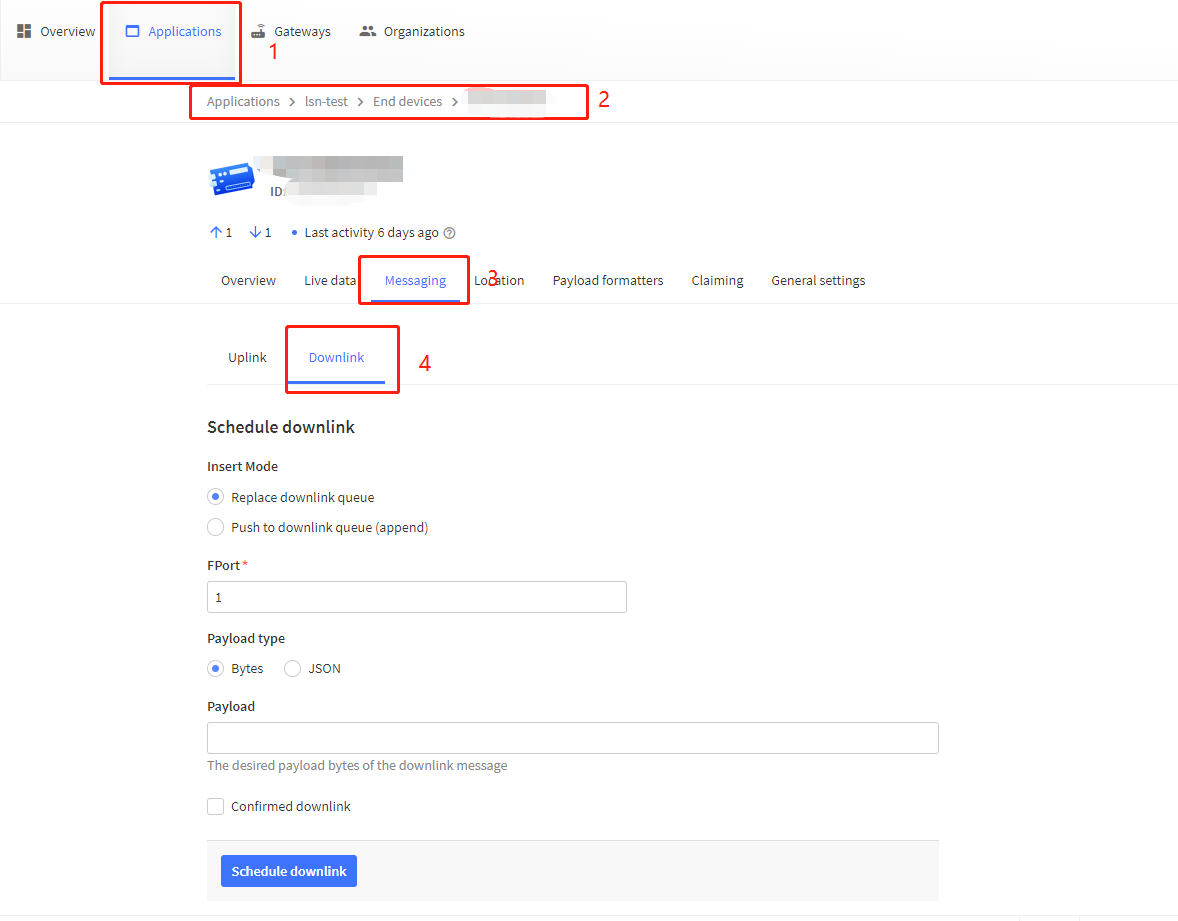
2.1 Example Downlink payload setting in TTN:
2.1 Example of set the Transmit Time Interval using Bluetooth:
TDC can be controlled by Bluetooth.
Note: This feature is only available on devices that support Bluetooth sensors.
Here list the models that support BLE and the method to activate BLE function.
Models: All models with -LB, -LS , -NB, -NS, -CB, -CS suffix
BLE Activate Method:
Device is battery power type and BLE will be only activate on below case:
-
Press button to send an uplink
-
Press button to active device.
-
Device Power on or reset.
If there is no activity connection on BLE in 60 seconds, sensor will shut down BLE module to enter low power mode.
Download link of dragino mobile app: Mobile_APP
Google Play Store: DeviceTool.app
For more detailed steps on how to use the dragino mobile app, please refer to the following link: BLE Bluetooth Remote Configure - DRAGINO AT Command: AT+TDC Command Example Function Response
AT+TDC=?
Show current transmit Interval
30000
OK
the interval is 30000ms = 30s
AT+TDC=60000
Set Transmit Interval
OK
Set transmit interval to 60000ms = 60 seconds
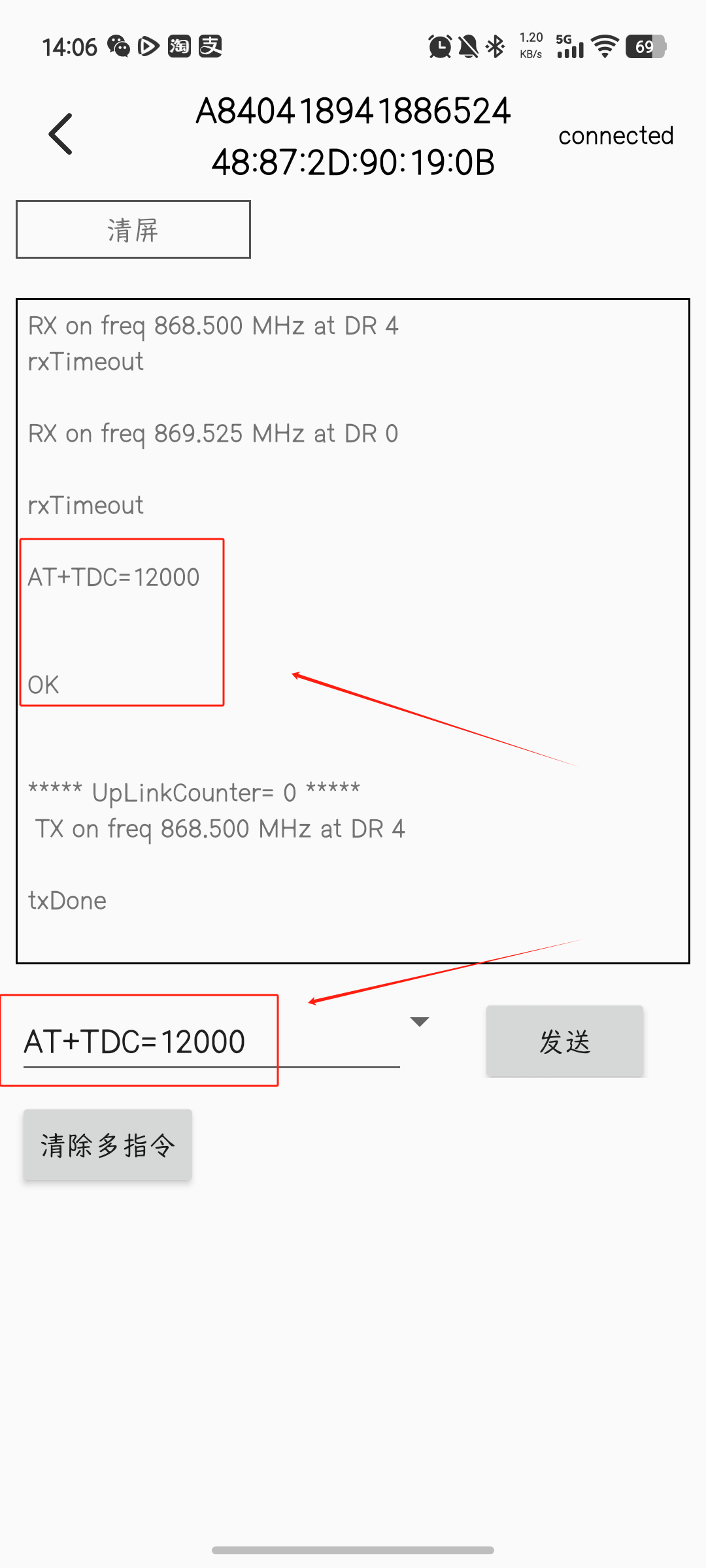
For example, to change the packet sending interval to 12s, use the AT command: AT+TDC=12000
3. Downlink Method
See use note for different serves Servers Note(IoT LoRaWAN Server)