Update Firmware for AI Sensor
1. Prepare Hardware & Software
- Update Tool: OTA_Tool
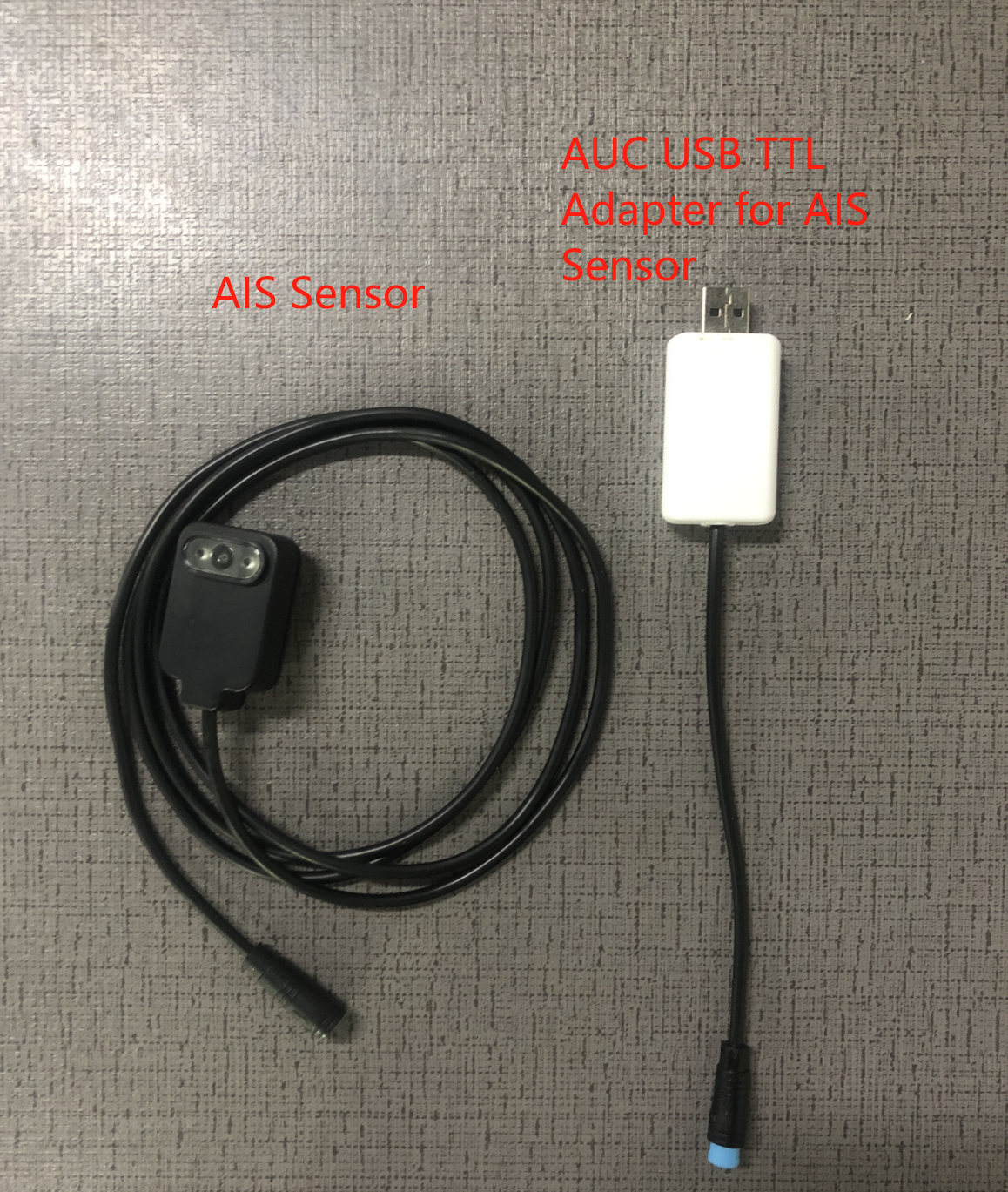
- Hardware: AIS Sensor, AUC USB TTL Adapter for AIS Sensors, PC
- Firmware: Digital wheel dial firmware,Pointer dial firmware
- The AIS node's factory default firmware is digital wheel dial. To change it to pointer wheel firmware, please contact your supplier for pointer wheel firmware.
- Digital wheel decoder, pointer dial decoder
- To switch to a different type of dial reading, you will need to replace the files in three areas: the node firmware, the camera firmware, and the decoder.
2. Hardware Connection
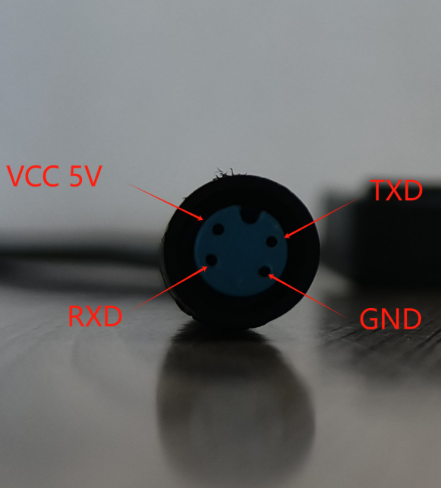
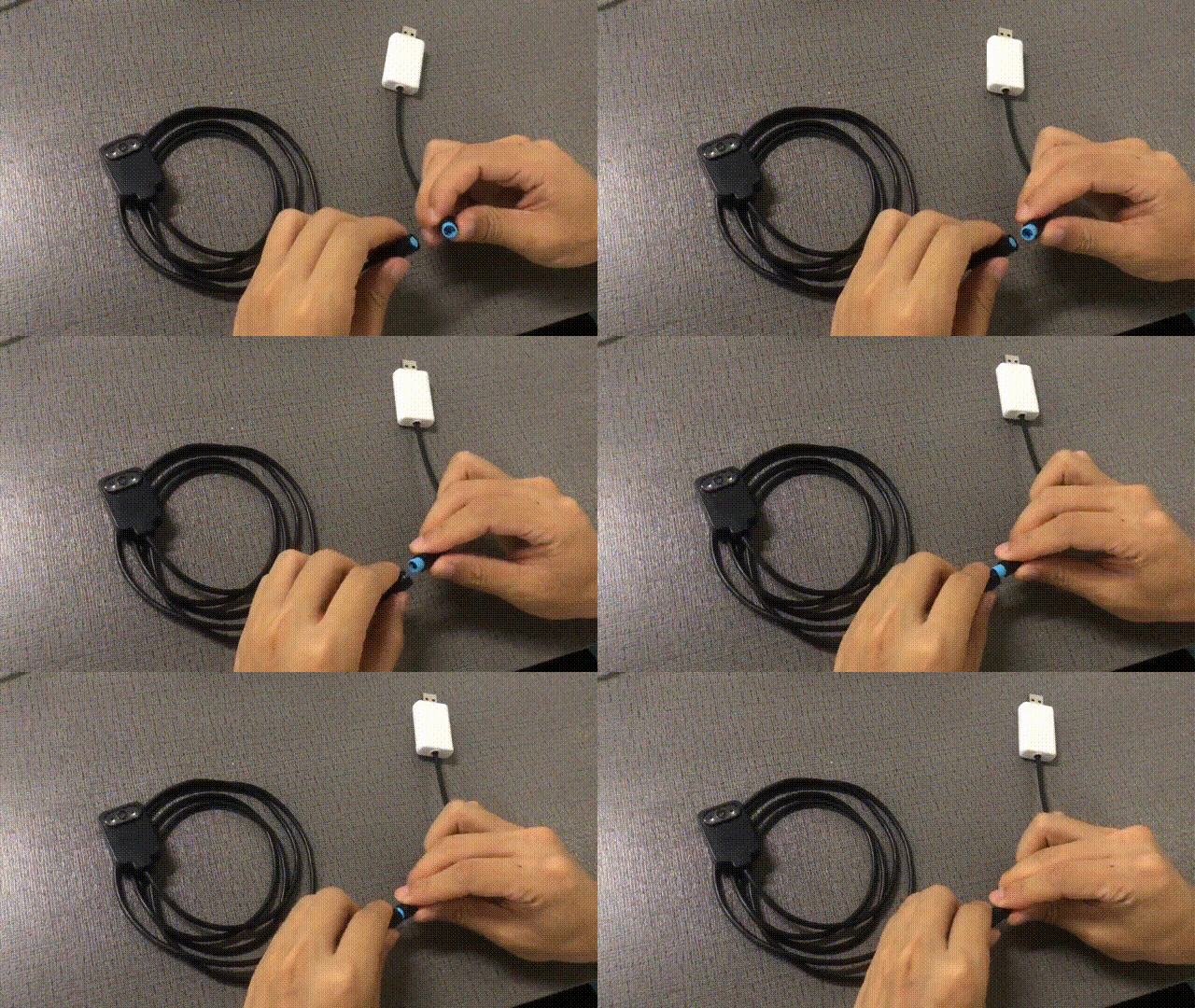
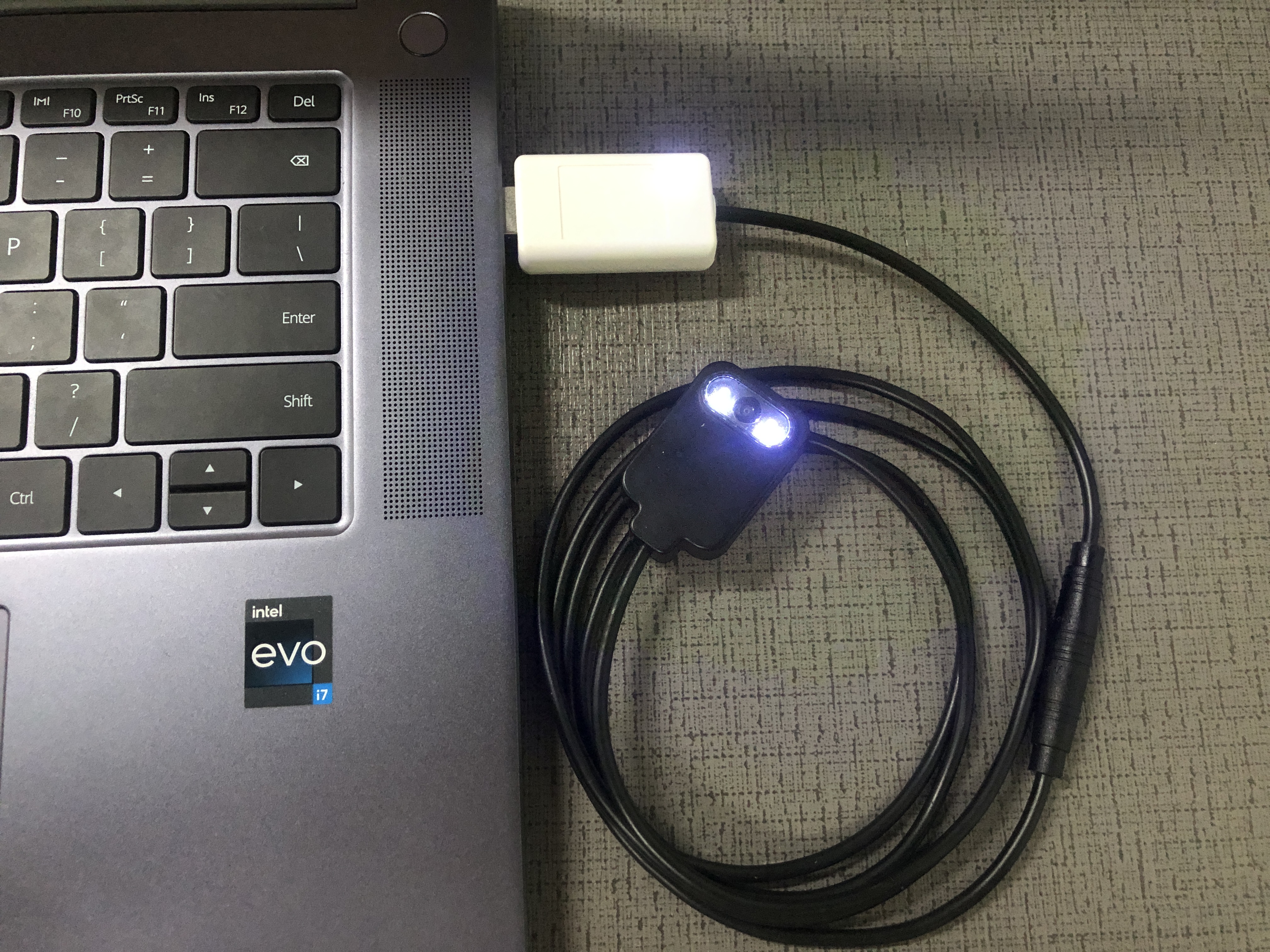
The AIS Sensors and AUC USB TTL Adapter for AIS Sensors are connected and then connected to the PC.
3. OTA UART flash
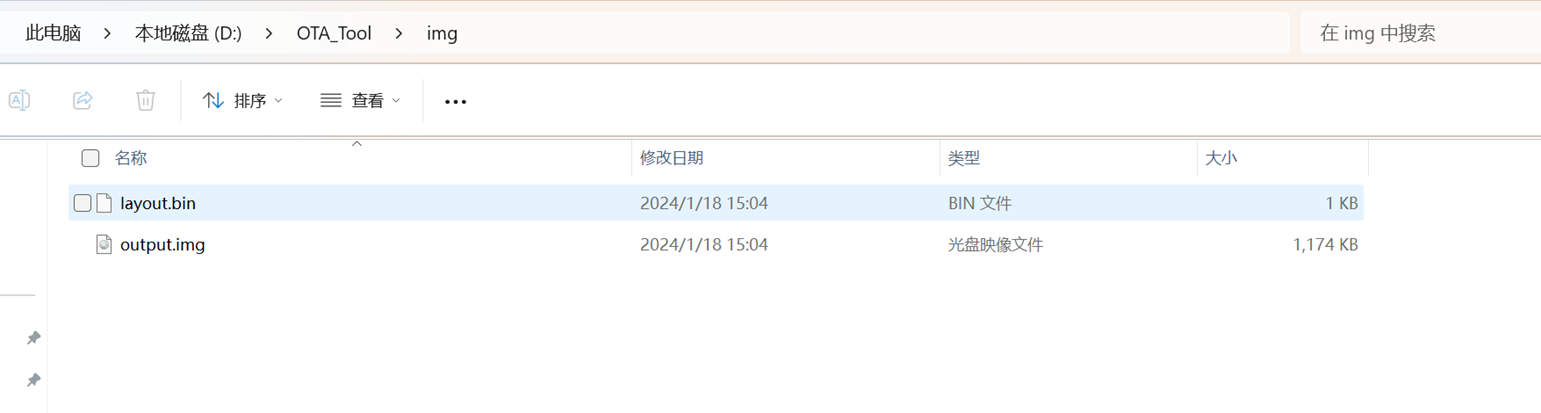
Open the OTA_Tool folder and put the latest firmware "layout.bin" and "output. img" into the img folder.
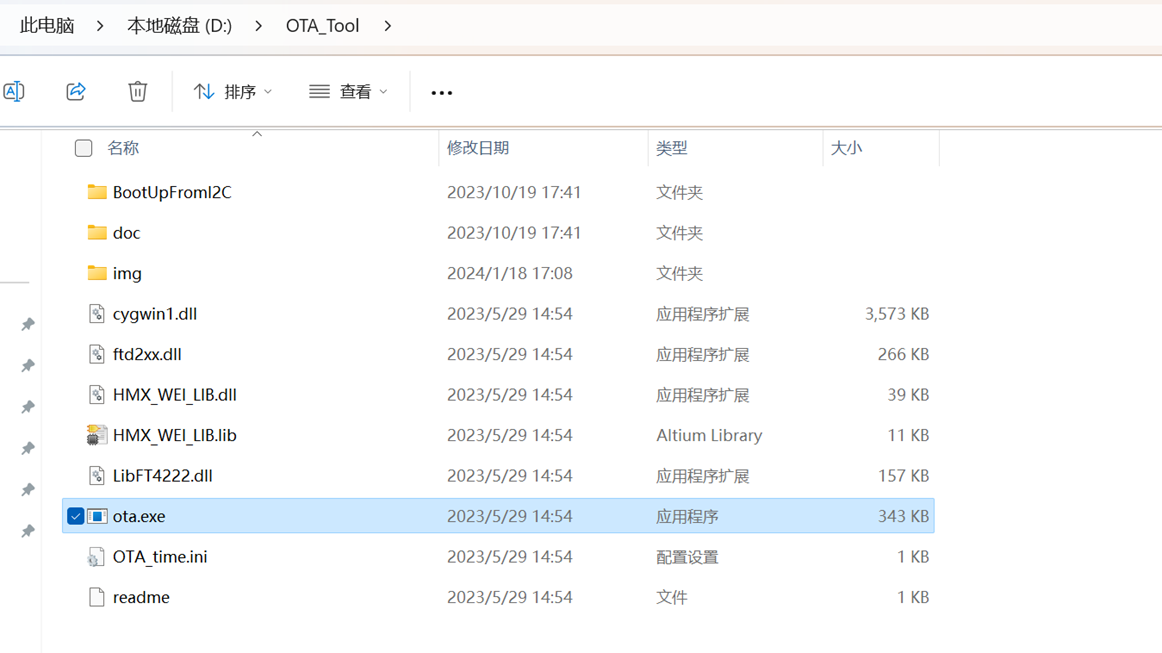
The OTA_Tool folder should be opened and the program can be run by double-clicking on ota.exe.
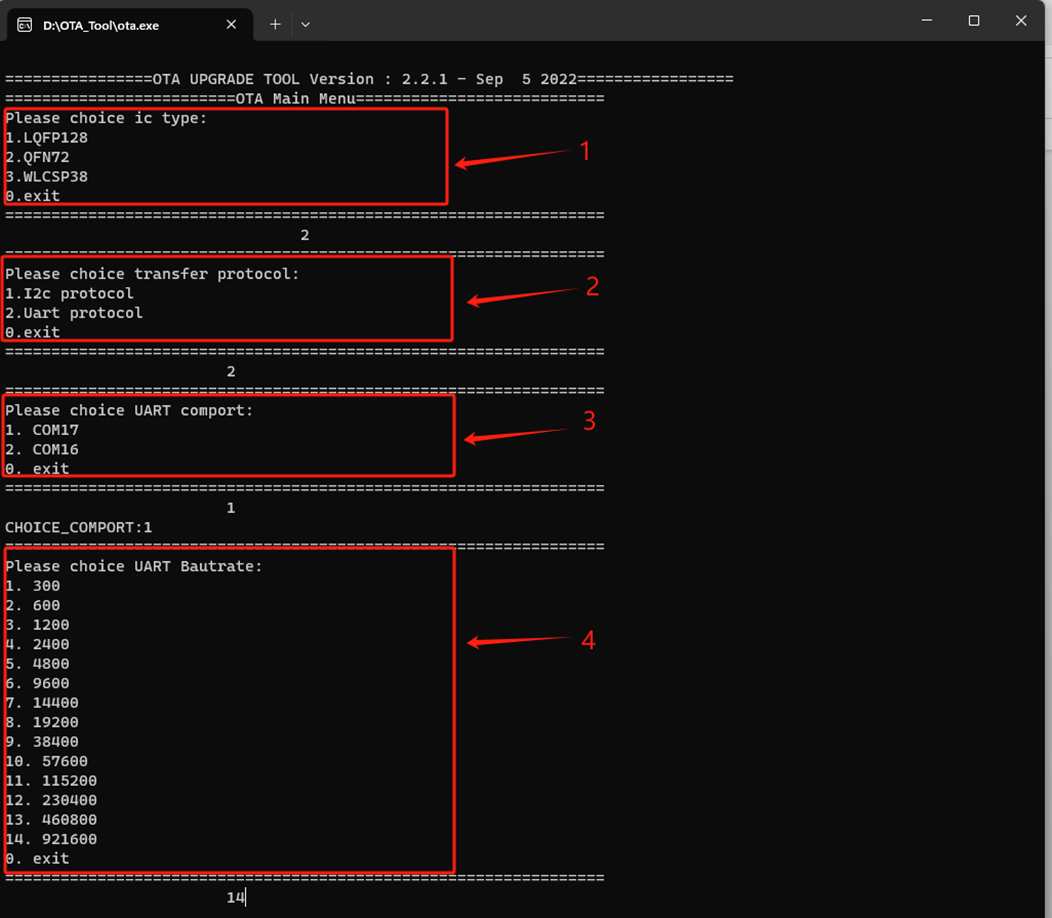
When the program opens, follow these steps.
1 Select the chip type. AIS uses QFN72. Press 2 to select QFN72
2 Select an upgrade mode. AIS supports serial port upgrade only. Press 2 to select Uart protocol
3 Select a port number.The instance device port number is 17.Press 1 to select COM17
4 Select the baud rate. The default baud rate is 921600. Press 14 to select 921600
After the baud rate is configured, the upgrade page is displayed. 1 is to check whether the communication port is correct.
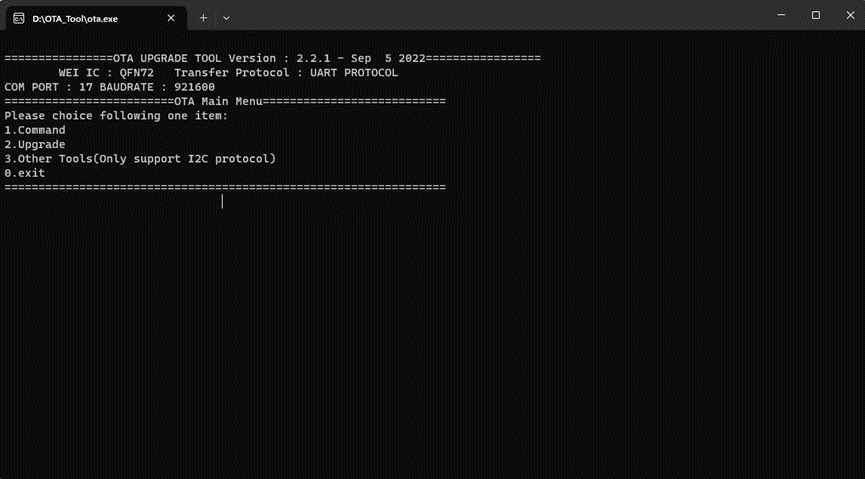
Select 1 to check whether the configured port is correct.
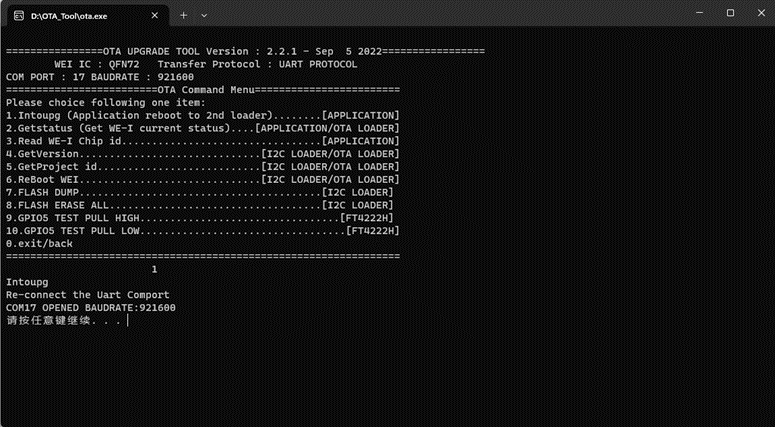
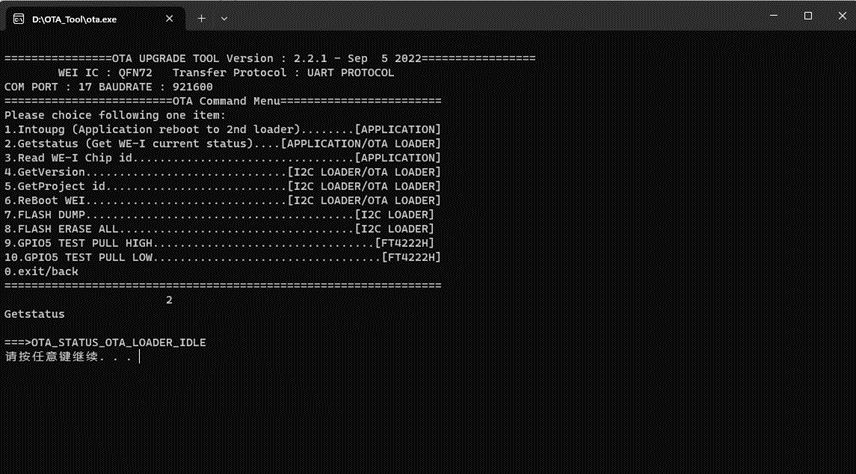
Select 2 is port is after normal communication with AIS.
Press 0, press Enter, and select 2 to go to the upgrade surface.
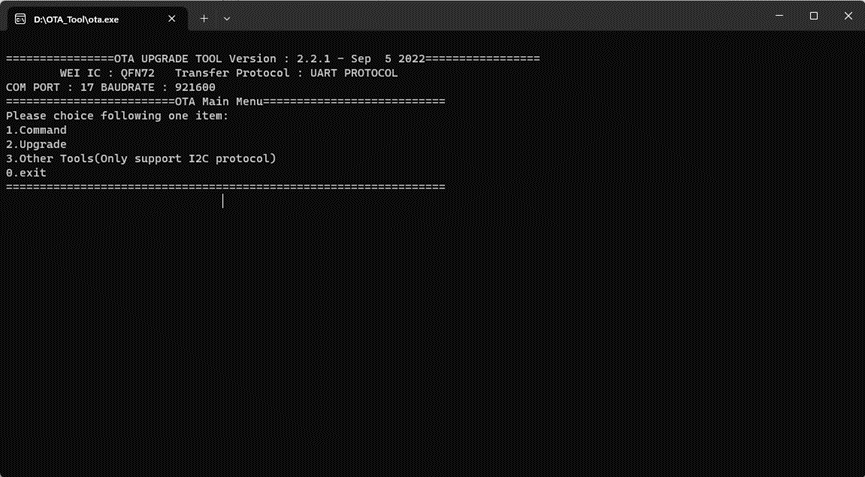
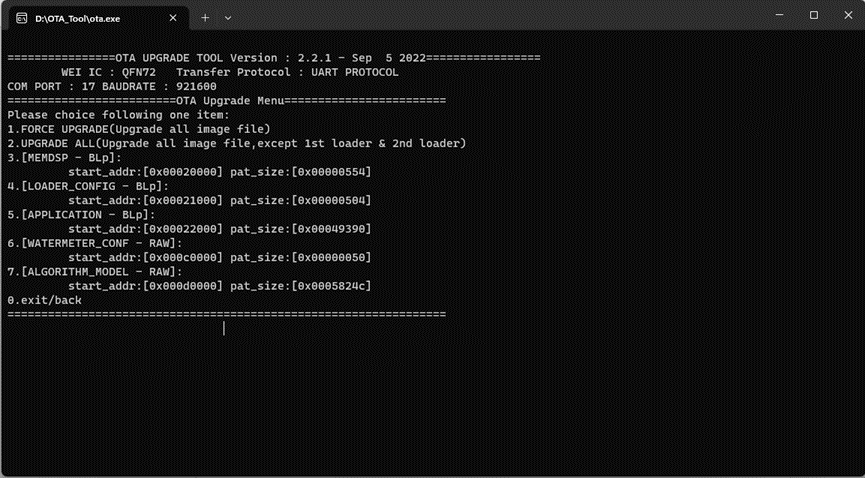
Select 2 to enter the upgrade.
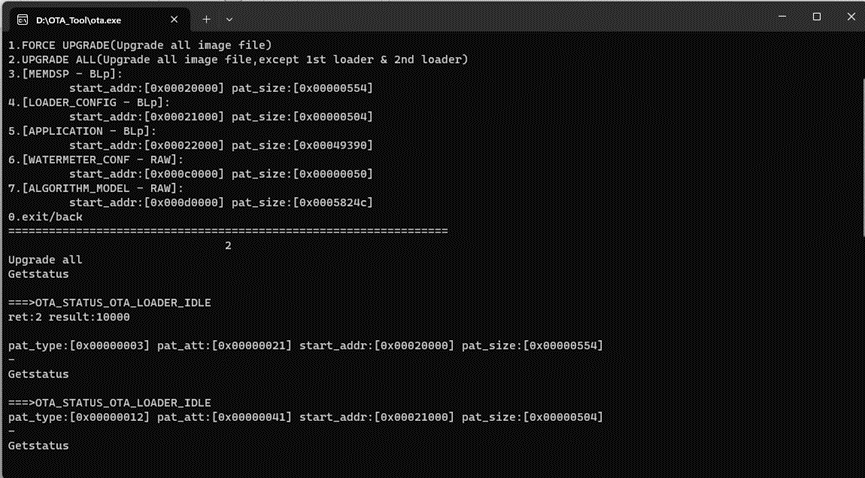
If ReBoot WEI is displayed as shown in the following figure, the upgrade succeeds.
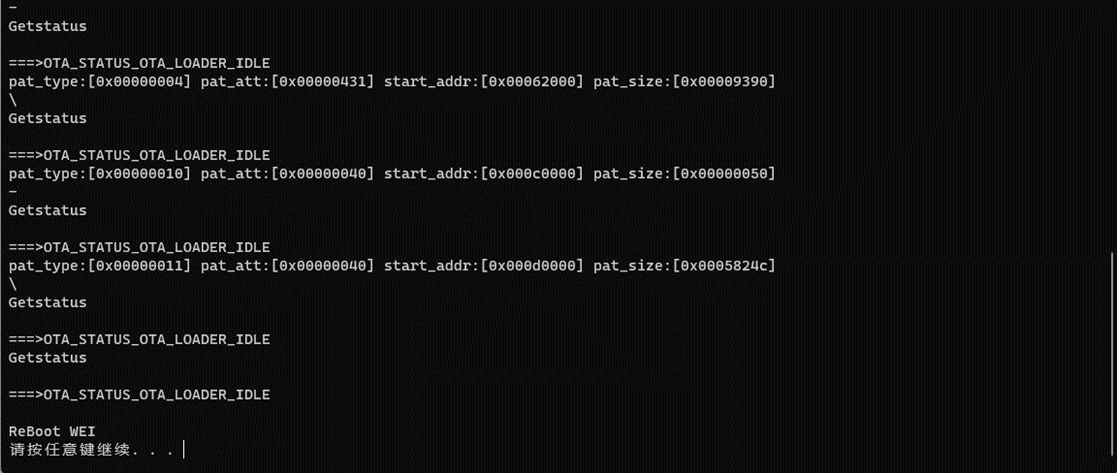
Note: After successfully upgrading and connecting to the node, the first thing to do is to enter AT+FDR to reset the node and use the camera normally.