MA01-KN Mesh to CAT-1 Adapter
MA01-KN User Manual
1. Introduction
1.1 What is MA01-KN Mesh to CAT-1 Adapter
MA01-KN Mesh to CAT-1 Adapter is a LTE CAT-1 device and local Mesh gateway. It is designed for outdoor and industrial use, and is suitable for long term powered installations with a built-in 3000mAh rechargeable Li-ion battery as power backup.
MA01-KN receives sensor data from local Mesh Nodes and forwards the data to IoT servers via MQTT, UDP or TCP over the LTE CAT-1 network.
MA01-KN wireless part combines an EG800G LTE CAT-1 module and a LoRa Mesh module. The Mesh radio provides long range spread spectrum communication and high interference immunity, and targets professional wireless sensor network applications such as irrigation systems, smart metering, smart cities, industrial monitoring and so on.
MA01-KN has a 32MHz ARM Cortex-M0+ microcontroller with 192KB Flash and 20KB RAM. It supports Mesh node table management, multi-node batch uplink and online / offline cache.
MA01-KN has a built-in BLE module. User can configure MA01-KN remotely via Mobile Phone. It also supports serial firmware upgrade for easy maintaining.
1.2 Features
- CAT-1 Bands:
B1/B2/B3/B4/B5/B7/B8/B12/B13/B20/B28/B66. - Support configuration by Bluetooth v5.1 and CAT-1 remote configuration.
- Uplink via MQTT, MQTTs, TCP or UDP.
- IP protection level: IP67
- Built-in LTE CAT-1 and LoRa Mesh modules.
- Support Dragino Mesh Network.
- Support Mesh frequency bands:
CN/EU/RU/BR/IN/US/JP/TH/SG/PH. - Support multi-gateway cooperation.
- Powered by 12v DC.
- Built-in 3000mAh rechargeable Li-ion battery.
- Nano SIM card slot for NB-IoT SIM.
1.3 Specification
Common DC Characteristics:
- Supply Voltage: 12v DC power.
- Operating Temperature: -40 ~ 85°C.
CAT-1 Module: EG800-NGFF
Support Bands:
EU:
-
For European, Asia, Austrial, LTE-FDD: B1/3/5/7/8/20/28
-
B1 @FDD: 2100MHz
-
B3 @FDD: 1800MHz
-
B5 @FDD: 850MHz
-
B7 @FDD: 2600MHz
-
B8 @FDD: 900MHz
-
B20 @FDD: 800MHz
-
B28 @FDD: 700MHz
LA:
-
For Latin America, LTE-FDD: B2/3/4/5/7/8/28/66
-
B2 @FDD: 1900MHz
-
B3 @FDD: 1800MHz
-
B4 @FDD: 1700/2100MHz
-
B5 @FDD: 850MHz
-
B7 @FDD: 2600MHz
-
B8 @FDD: 900MHz
-
B28 @FDD: 700MHz
-
B66 @FDD: 1700/2100MHz
NA:
-
For North America, LTE-FDD: B2/4/5/12/13/66
-
B2 @FDD: 1900MHz
-
B4 @FDD: 1700/2100MHz
-
B5 @FDD: 850MHz
-
B12 @H-FDD: 720MHz
-
B13 @H-FDD: 740MHz
-
B66 @FDD: 1700/2100MHz
Data cache:
- 24 RAM-first pending records for sensor data uplink buffer.
- 8KB Flash spare cache for sensor data uplink records; approximately 64 maximum-length records. The number of records depends on record length.
Node table:
- Supports up to 70 Mesh Nodes Entry. Each entry includes
NodeID,DevEUI,AppKey, andstatus flagsin non-volatile storage and last seen in RAM.
LoRa Spec:
- 1 x LoRa Mesh module, plus 1 x LTE CAT-1 module for the server connection.
- Frequency Range, Band 1 (HF): 862 ~ 1020 MHz.
- Max +22 dBm constant RF output.
- RX sensitivity: down to -139 dBm.
- Excellent blocking immunity.
- Select the Mesh frequency profile according to the deployment country. See Mesh Frequency Plan.
Battery:
- 3000mAh rechargeable Li-ion battery.
1.4 BLE Configuration Interface
MA01-KN has a built-in BLE module. It is always powered and available for local configuration by Mobile BLE APP. User can connect to MA01-KN by phone, scan the QR code on the Mesh Node package, and read the node DevEUI and AppKey for managing it.
The APP will save the Mesh Network ID generated by the first connected MA01-KN. When connecting to other MA01-KN gateways, user can configure the same Mesh Network ID to make the gateways work in the same private Mesh network.
1.5 Button & LEDs
| Button Action | Function | Behavior |
|---|---|---|
 1-3s 1-3s | Status indication | When CAT-1 has registered, the green LED turns on while the button is held. Else, the blue LED turns on while the button is held. |
| >3s | Reset device | The green LED blinks about 5 times, then the device resets. |
 x5 x5 | Reset device | After the fifth release, the red LED turns on for about 3 seconds, then the device performs a software reset. |
LED Status:
| LED | Status | Description |
|---|---|---|
| Blue LED | Power on | Turns on for about 1 second. |
| Green LED | CAT-1 network information obtained | After the first successful QNWINFO query, turns on for about 3 seconds, pauses about 100 ms, then turns on for about 500 ms. Subsequent successful queries give a 500 ms green indication. |
| Green LED | CAT-1 downlink | After receiving CAT-1 downlink data, turns on for about 500 ms. |
| Blue LED | CAT-1 uplink | When an uplink payload is submitted to the CAT-1 module, turns on for about 500 ms. |
Five-click reset and long press do not clear CAT-1 or Mesh configuration. To restore configuration, use the AT+FDR command.
1.6 Download Resources
| Resource | Download Link |
|---|---|
| Firmware | to be filled |
| Burning Tool | STM32CubeProgrammer |
| Mobile BLE APP | Download "Devices.tool" from Google Play Store / App Store. |
| Decoder | to be filled |
1.7 Pin Definitions , Switch & SIM Direction
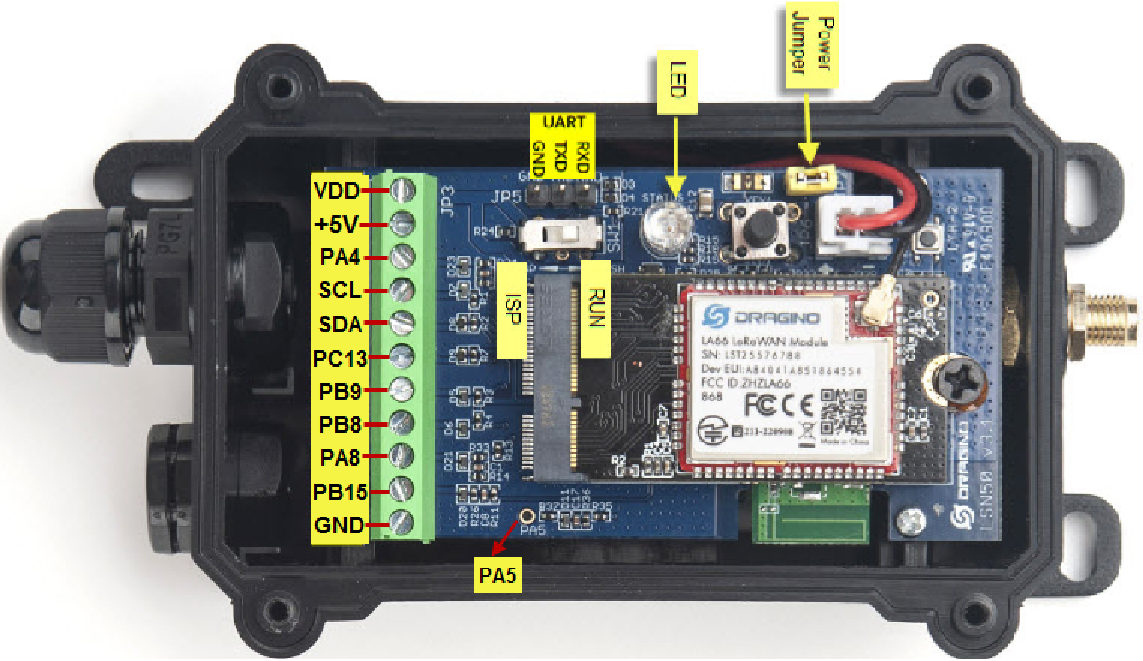
1.7.1 Jumper JP2
Power on Device when put this jumper.
Power off device when take out this jumper
1.7.2 BOOT MODE / SW1
1) ISP: upgrade mode, device won't have any signal in this mode. but ready for upgrade firmware. LED won't work. Firmware won't run.
2) Flash: work mode, device starts to work and send out console output for further debug
1.7.3 Reset Button
Press to reboot the device.
1.7.4 SIM Card Direction
See this link. How to insert SIM Card
2. Use MA01-KN to communicate with IoT Server
2.1 Send data to IoT server via LTE CAT-1 network
The MA01-KN is equipped with a LTE CAT-1 module. The pre-loaded firmware in MA01-KN will get data from local Mesh Nodes and send the value to the local LTE CAT-1 network via the LTE CAT-1 module. The LTE CAT-1 network will forward this value to the IoT server via the protocol defined by MA01-KN.
Below shows the network structure:
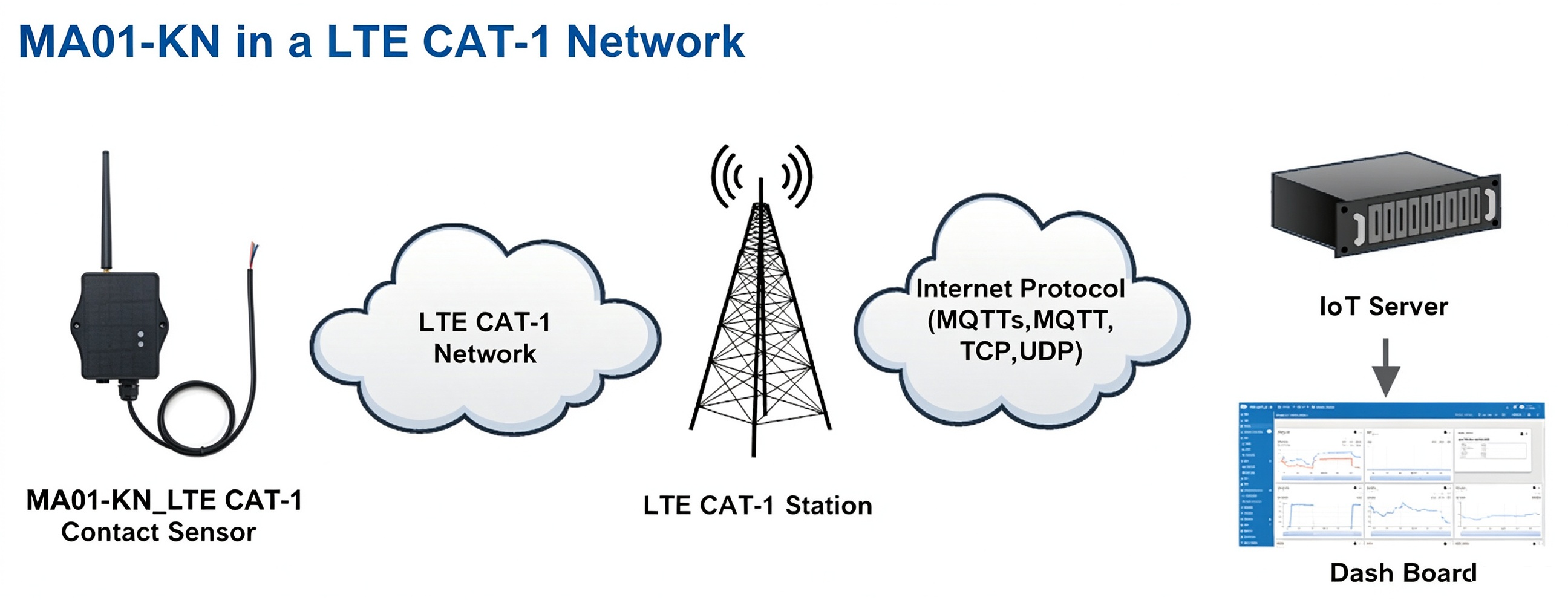
There are two version: -GE and -1T version of MA01-KN.
GE Version: This version doesn't include SIM card or point to any IoT server. User needs to use AT Commands to configure below two steps to set MA01-KN send data to IoT server.
- Install LTE CAT-1 SIM card and configure APN. See instruction of Attach Network.
- Set up the device to point to IoT Server. See instruction of Configure to Connect Different Servers.
1T Version: This version has 1NCE SIM card pre-installed and configure to send value to ThingsEye. User Just need to select the sensor type in ThingsEyeand Activate CPL03-KS and user will be able to see data in ThingsEye. See here for ThingsEye Config Instruction.
Below shows results of different servers at a glance. The dashboards are platform examples; MA01-KN telemetry depends on its Mesh Nodes and payload converter.
| Servers | Dash Board | Comments |
|---|---|---|
| Node-RED | 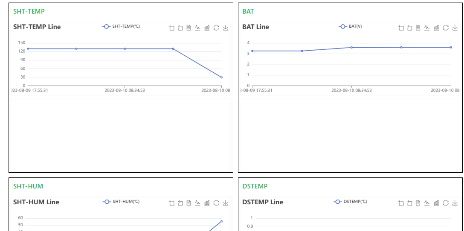 | |
| DataCake | 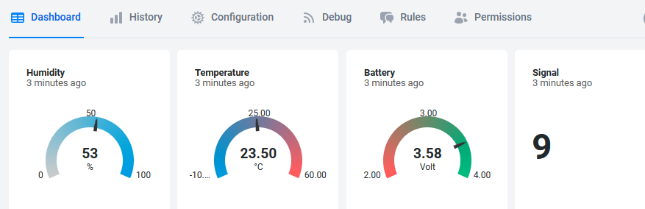 | |
| General UDP | Raw Payload. Need Developer to design Dash Board. | |
| General MQTT | Raw Payload. Need Developer to design Dash Board. | |
| ThingSpeak | 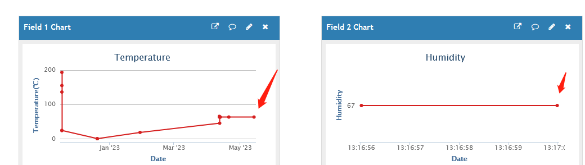 | |
| ThingsBoard | 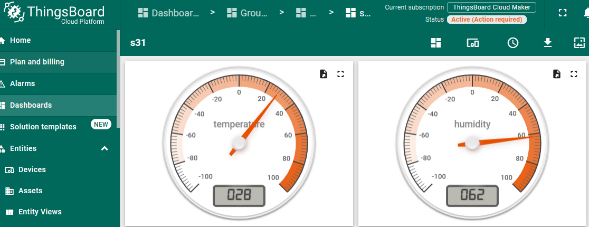 |
2.2 Payload Types
To meet different server requirements, MA01-KN supports different payload types.
Includes:
- General JSON format payload. (Type=5)
- HEX format Payload. (Type=0)
- ThingSpeak Format. (Type=1)
- ThingsBoard Format. (Type=3)
User can specify the payload type when choosing the connection protocol.
Example:
AT+PRO=2,0           // Use UDP Connection & HEX Payload
AT+PRO=2,5           // Use UDP Connection & JSON Payload
AT+PRO=3,0           // Use MQTT Connection & HEX Payload
AT+PRO=3,5           // Use MQTT Connection & JSON Payload
AT+PRO=4,0           // Use TCP Connection & HEX Payload
AT+PRO=4,5           // Use TCP Connection & JSON Payload
The comments above explain the commands; send only the AT command itself.
2.2.1 General Json Format(Type=5)
This is the General Json Format. As below:
{
  "IMEI": "867586073790123",
  "IMSI": "460042482728035",
  "Model": "MA01-KN",
  "records": [
    {
      "sensor_deveui": "A8404106300B",
      "time": 1700000000,
      "battery_v": 3.92,
      "temperature": 23.4,
      "humidity": 56.7
    }
  ]
}
Notice, from above payload:
IMEIidentifies the MA01-KN gateway;IMSIis the current SIM subscriber identity read withAT+CIMI(not ICCID).Modelis the gateway model. Unavailable identities are reported asUNKNOWN.recordscontains the Mesh Node records in this uplink. A payload may contain one or more complete records.sensor_deveuiis the short identifier used for uplink. It is not a zero-padded full DevEUI.timeis the record timestamp in Unix seconds.battery_v,temperatureandhumidityare values reported by that Mesh Node, in volts, degrees Celsius and percent. Available measurement fields depend on the node.- A platform converter can traverse
recordsand store each node's measurements.
2.2.2 HEX format Payload(Type=0)
This is the current A3 HEX format (updated on 2026-10-16). As below:
A3f867586073737165f454312901016115010000000100416063566553F1000F500203000000EA0400000237
| Field | Example | Description |
|---|---|---|
| Format marker | A3 | MA01-KN A3 payload. Do not decode as the old A1/A2 layouts. |
| IMEI | f867586073737165 | Gateway IMEI, 8 bytes: lowercase prefix f + 15 decimal digits in BCD. |
| IMSI | f454312901016115 | Current SIM subscriber identity from AT+CIMI, 8 bytes: lowercase prefix f + 15 decimal digits in BCD. |
| Record count | 01 | One record in this payload. |
| Sequence | 00000001 | Record sequence 1. |
| Record kind | 00 | Telemetry record. |
| sensor_deveui | 41606356 | Short fragment from DevEUI bytes [2,5,6,7]; display as A84041606356, consistent with JSON. Not the Mesh radio Node ID or a complete DevEUI. |
| Timestamp | 6553F100 | 1700000000 Unix seconds. |
| Battery | 0F50 | 3920 mV. |
| Tag count | 02 | Two measurement tags follow. |
| Temperature | 03 000000EA | Tag 3; 234 / 10 = 23.4°C. |
| Humidity | 04 00000237 | Tag 4; 567 / 10 = 56.7%. |
The example uses the real node DevEUI A840417131606356; its radio Node ID can be different. IMEI and IMSI are sent once per payload, 8 bytes each, followed by the record count and records. Both use lowercase-prefix-f BCD, not suffix-F or swapped-nibble encoding. Use the MA01-KN decoder when configuring the server. Historical A1 has no gateway identity and carries the radio Node ID; A2 has suffix-F IMEI but no IMSI. The updated host tool still decodes both old layouts.
2.2.3 ThingsBoard Payload(Type=3)
Type3 payload is designed for ThingsBoard. Select it with:
AT+PRO=3,3
Configure the MQTT server, credentials and topics for your ThingsBoard connection. MA01-KN uses the same JSON record body as Type5:
{
  "IMEI": "867586073790123",
  "IMSI": "460042482728035",
  "Model": "MA01-KN",
  "records": [
    {
      "sensor_deveui": "A8404106300B",
      "time": 1700000000,
      "battery_v": 3.92,
      "temperature": 23.4,
      "humidity": 56.7
    }
  ]
}
3. Configuration for Mesh Network
3.1 Check Mesh Network
MA01-KN by default generates its own mesh network. After user connect to the MA01-KN via BLE( for detailed BLE connection and configuration steps, see BLE Configure Instruction), they can check the Mesh Network Info, which shows:
- Mesh Network ID
- Network LoRa Spec.
- Number of Mesh Nodes
- Mesh network Spec
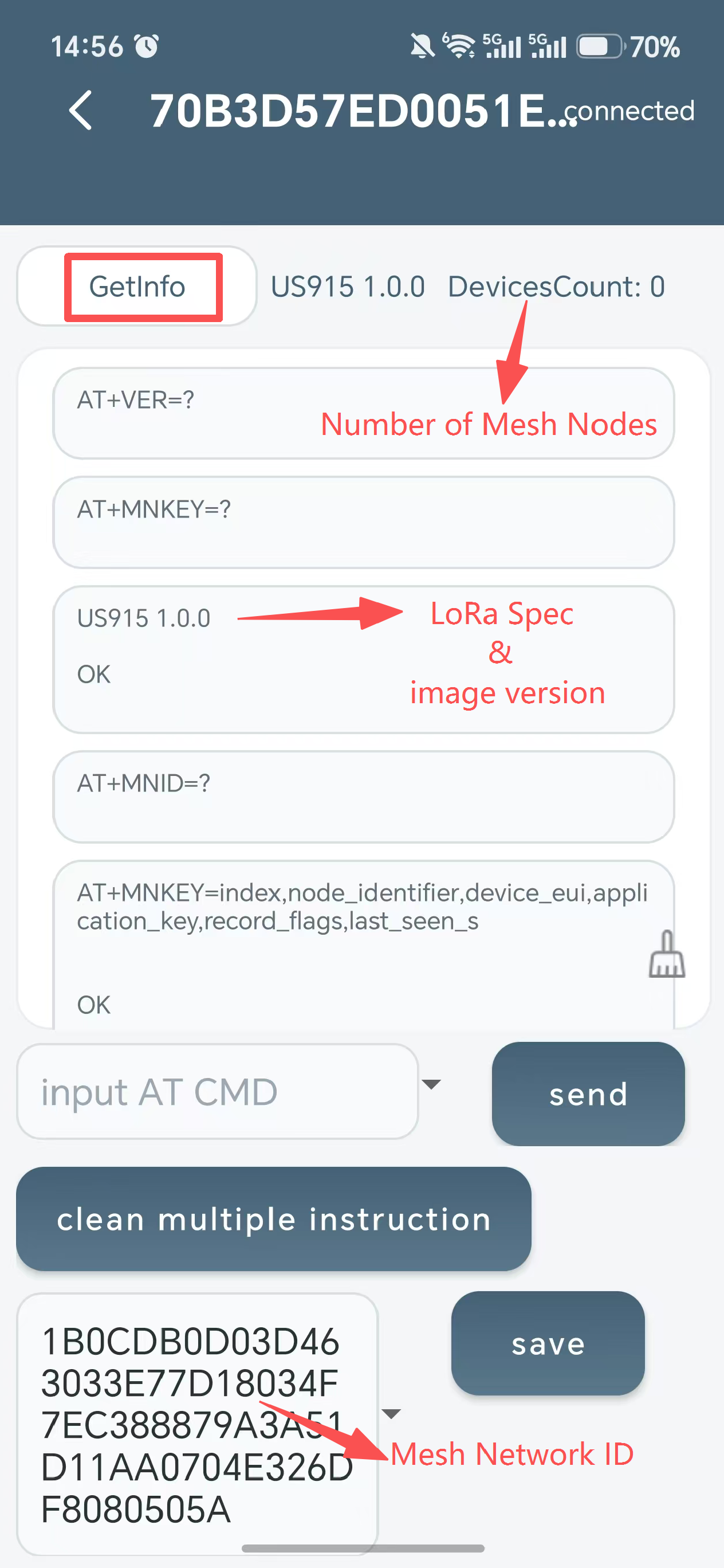
User can change the Network ID so several Mesh Gateway set up a multiply gateway mesh network. More info, please check FAQ: Multiple gateway mesh network.
3.2 Configure Mesh Network Synchronized Wake-up
Synchronized Wake-up gives nodes the same predictable wake-up rhythm while MA01-KN remains powered and available as the gateway. After Mesh time is synchronized, nodes using the same plan wake in a common receive window, transmit sensor data or management packets.
User-configurable settings:
- interval_min: a positive whole number that defines how often the node wakes, in minutes. For example,
AT+MNWAKE=40means nodes will wake up at 00:00, 00:40, 01:20 and so on. Select the interval according to the required reporting latency and power budget.
Fixed system settings:
- Startup delay: 15 seconds. After a node wakes for its scheduled window, it waits for the system, sensors, and radio to become ready.
- Random delay: 0 to 15 seconds. After startup, the node adds a random wait before its first data or management transmission. This staggers transmissions from nodes that use the same schedule, reducing the chance of radio collisions. it does not move the next scheduled wake-up point.
- Gateway wait: 90 seconds. After reporting, the node remains available to receive a gateway command during this period.
How to configure:
- Before applying a common wake-up plan, make sure MA01-KN has joined CAT-1 and all nodes keep awake.
- Choose a plan for your application. For example,
AT+MNWAKE=30configures one node for the common 30-minute xx:00 / xx:30 schedule. - Send the AT Command through BLE APP.
A node will get the Synchronized Wake-up configuration of the network when it joins. So, it is not necessary to send AT+MNWAKE when you add a new node.
3.3 Add a Mesh Node
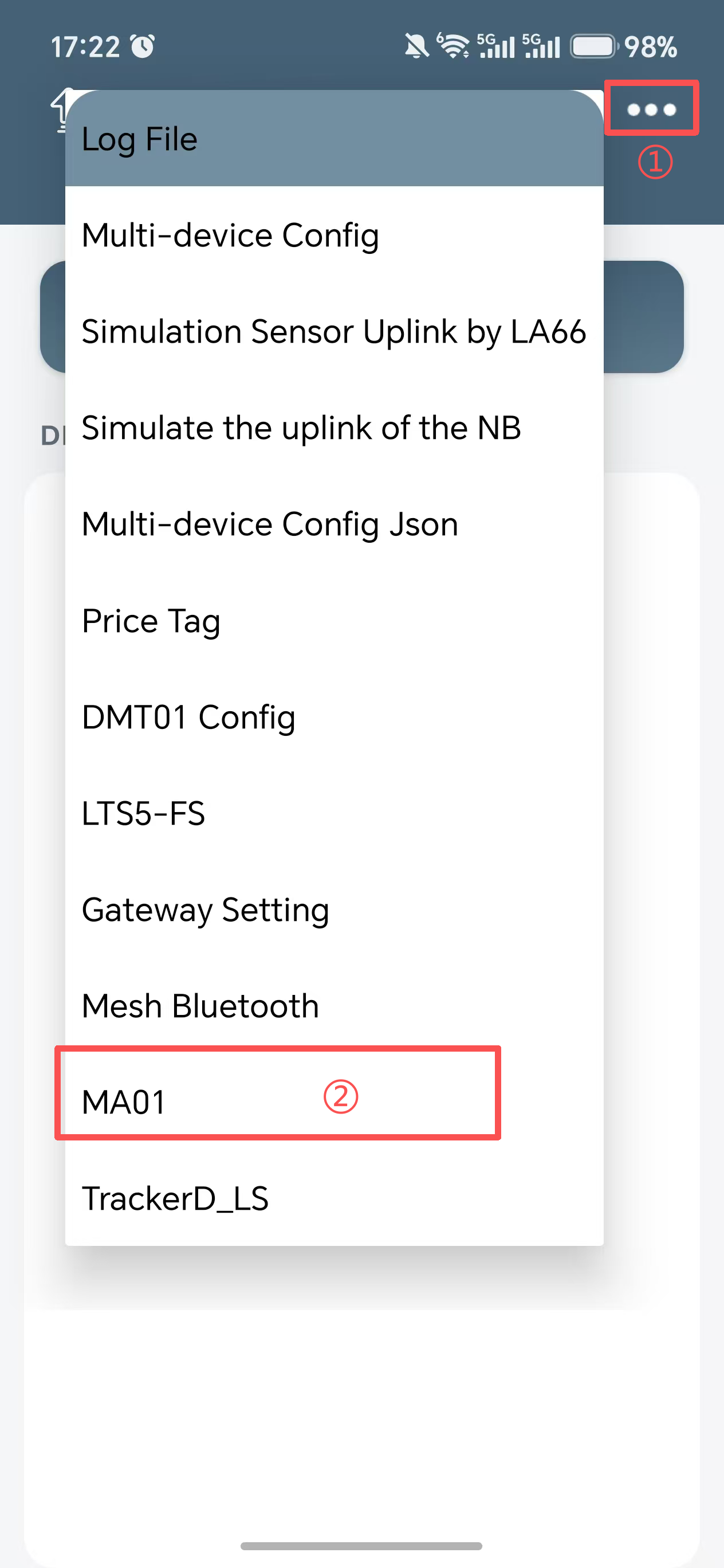
- Download the mobile BLE app Devices.tool. Open it, tap the three horizontal dots (•••) in the upper-right corner, and select MA01.
- Tap Scan BLE Device to search for the MA01-KN device. The device name is
MA01-KN+ the last 4 characters of theIMEI(e.g.,MA01-KN-1234). Locate the target device and tap to enter.
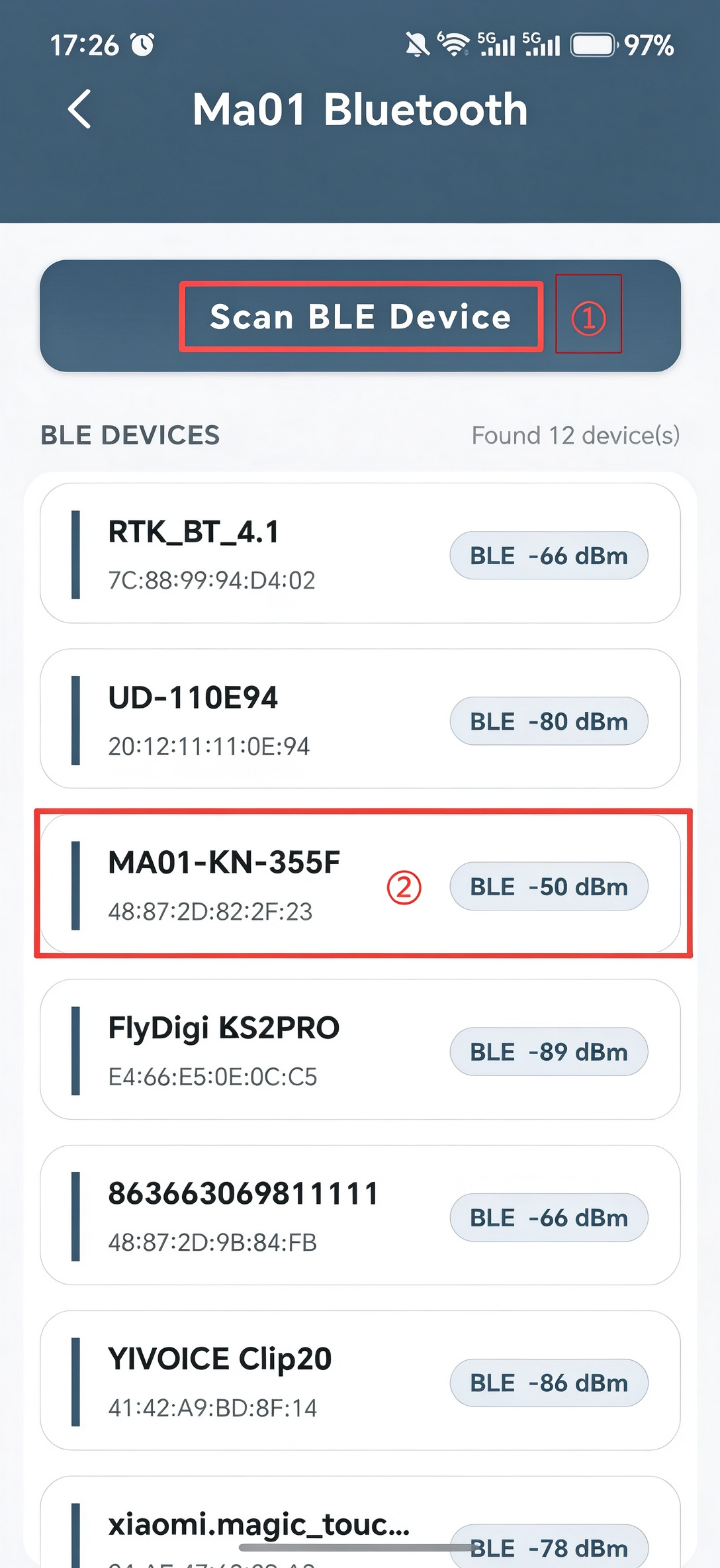
The device used in this example is MA01-KN-355F. The actual device name may vary.
- On the device page, tap Add Device and scan the QR code on the Mesh node packaging box. MA01-KN will obtain the
DevEUIandAPPKEYof the Mesh node and add it to the MA01-KN network.
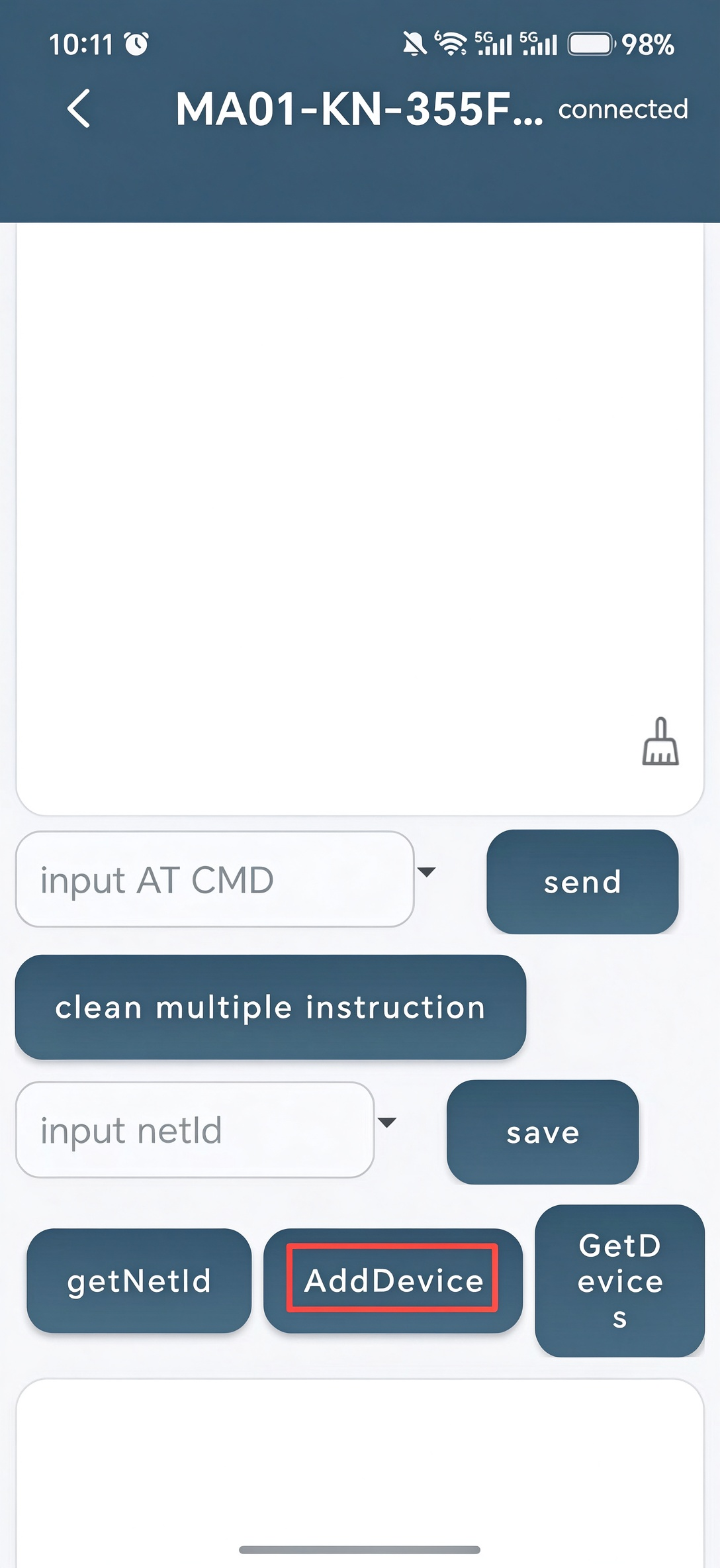
- If the page prompts you to enter the MA01-KN device password, tap the input field and enter the password that is provided on the product packaging box. Then tap GetDevices to check whether the device has been added successfully.
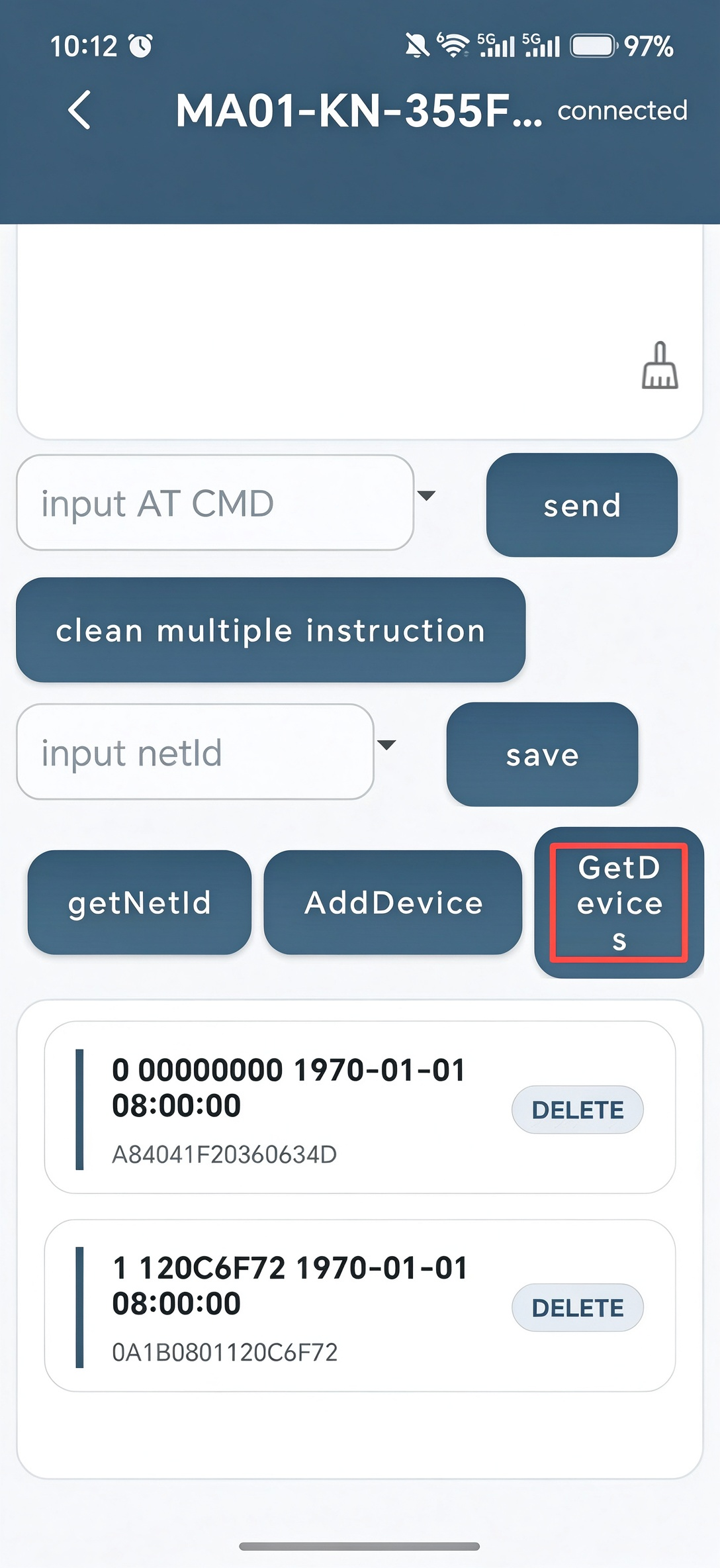
-
If you cannot scan the QR code, use an AT command to add the Mesh node manually:
AT command
AT+MNKEY=<DevEUI16>,<AppKey32>Example
AT+MNKEY=1234567812345678,12345678123456781234567812345678The above is an example only. Do not use these literal values.
The node cannot join the Mesh network while it is sleeping, so please wait for the next wakeup or keep the node awake.
4. Configure MA01-KN
4.1 Configure Methods
MA01-KN supports the following configuration methods:
- AT commands via Bluetooth connection (recommended): see BLE Configure Instruction.
- AT commands via UART connection: See UART Connection for connection guidance. Do not use the Mesh communication UART as the configuration port.
- CAT-1 downlink via MQTT, UDP or TCP: the supported configuration and control commands are listed in Section 4.3.5.
4.2 General Commands
| Command Example | Function | Response |
|---|---|---|
AT | Check the AT connection. | OK |
AT+CFG | Print the main system configuration. | Configuration list, followed by OK |
ATZ | Software reset; | OK, then restart |
AT+FDR | Restore CAT-1 settings, system settings and AT password to factory defaults. Keep the current Mesh network private key and gateway IMEI. | OK, then restart |
AT+VER=? | Query the MA01-KN firmware version. | FW v1.0.0, then OK on the next line |
AT+PWORD=<password> | Set the local AT password. | OK |
AT+DEBUG=1 / AT+DEBUG=0 | Enable/disable detailed logs. | Debug state, followed by OK |
The following commands configure the CAT-1 server connection. Use AT+<command>=? to query the corresponding saved setting, for example, AT+SERVADDR=? or AT+PRO=?.
| Command Example | Function | Response |
|---|---|---|
AT+SERVADDR=<host>,<port> | Set the server hostname/IP address and port. | OK |
AT+APN=<apn> | Set the APN required by the SIM operator. | OK |
AT+PRO=<protocol>,<type> | Select the connection protocol and uplink payload format. | OK |
AT+CLIENT=<client_id> | Set the MQTT client ID. | OK |
AT+UNAME=<username> | Set the MQTT username. | OK |
AT+PWD=<password> | Set the MQTT password; this is different from the local AT password set by PWORD. | OK |
AT+PUBTOPIC=<topic> | Set the MQTT uplink topic. | OK |
AT+SUBTOPIC=<topic> | Set the MQTT downlink subscription topic. | OK |
AT+MQOS=<qos> | Set MQTT QoS. | OK |
AT+TLSMOD=<mode>,<cert> | Set the MQTT TLS mode and certificate authentication setting to match the server. | OK |
AT+IPTYPE=<type> | Set the modem PDP IP type. | OK |
Parameter description:
| Parameter | Values and functions |
|---|---|
<port> | Integer from 1 to 65535. |
<protocol> | 2: UDP; 3: MQTT; 4: TCP. |
Payload <type> | 0: HEX; 1: ThingSpeak; 3: ThingsBoard; 5: General JSON.MQTT supports all four types; UDP and TCP support only HEX and General JSON. See Section 2.2. |
<qos> | 0, 1 or 2. |
<mode>, <cert> | Each accepts 0, 1 or 2. TLS mode 0 disables TLS. Certificate files and authentication must match the selected server; setting these values does not upload certificates. |
IP <type> | 1 or 2, corresponding to the modem PDP IP type setting. |
For example, AT+PRO=3,5 selects MQTT with General JSON, while AT+PRO=2,0 selects UDP with HEX.
4.3 Commands Specially Designed for MA01-KN
The following commands configure the Mesh network, node table, migration, multi-gateway operation and offline cache.
4.3.1 Mesh Network and Node Table
AT+MNKEY: add or update a Mesh node using its complete DevEUI and AppKey. After registration, the gateway can invite the node when it wakes up.
AT+MNDEL: AT+MNDEL=<target> shows a confirmation prompt only. Use AT+MNDEL=<target>,1 to delete the local Flash node table record and notify currently authenticated gateways in the same group.
AT+MNGROUP: query or set the gateway group. Gateways with the same Mesh Network ID and group can synchronize node records and receive deletion notifications. The default group is 0.
AT+MNID: set/change the Mesh Network ID, which is the 32-byte network private key. Make sure all devices wake up before send the command.
| Command Example | Function | Response |
|---|---|---|
AT+MNINFO=? | Query the Mesh gateway status | Multi-line status, followed by OK |
AT+MNID=? | Read the current Mesh network private key. | AT+MNID=<ID64> followed by OK |
AT+MNID=<ID64> | Set the Mesh network private key; changing an existing key starts network migration. | OK |
AT+MNKEY=? | Query the local node table, including each record's index and DevEUI. | Node table |
AT+MNKEY=<DevEUI16>,<AppKey32> | Add or update one node's credentials. | OK |
AT+MNGROUP=? | Query the gateway group. | Decimal group value, e.g. 0 |
AT+MNGROUP=<group> | Set and save the gateway group. | OK |
AT+MNDEL=<target> | Show the deletion confirmation prompt without deleting a record. | Confirmation instructions |
AT+MNDEL=<target>,1 | Delete the selected local node record. | Deletion result, followed by OK |
AT+MNWAKE=? | Query the common node wake-up interval. | AT+MNWAKE=<minutes>, followed by OK |
AT+MNWAKE=<minutes> | Set the common wake-up interval. | OK |
Parameter description:
| Parameter | Values and functions |
|---|---|
<DevEUI16> | Complete 8-byte node DevEUI, written as 16 HEX characters. |
<AppKey32> | 16-byte node AppKey, written as 32 HEX characters. |
<ID64> | Non-zero 32-byte Mesh network private key, written as 64 HEX characters. |
<group> | Decimal group number, 0..255; default 0. |
<target> | Node-table index, 8-HEX-character Mesh Node ID, or 16-HEX-character complete DevEUI. |
<minutes> | Integer from 1 to 1440. |
AT+MNINFO=? reports node_identifier, network_id, mesh_firmware_version, mesh_frequency, node_count and verified_gateway_count. Fields not yet obtained from the Mesh module can show UNKNOWN.
For the synchronized wake-up procedure, see Section 3.2. A node must be awake to receive a new setting, and network time must be synchronized for the common schedule to operate.
4.3.2 Node Migration
Use AT+MNID=<ID64> to change the Mesh Network ID and start network migration. Keep the nodes awake and make sure the all gateways are powered.
If you only want to move a single node to another Mesh network:
- Add the node's complete DevEUI and AppKey to a gateway in the target Mesh network using
AT+MNKEY. - On any gateway that holds the node record in the original group, run
AT+MNDEL=<target>,1. Keep the gateways powered, and wait for the matchinggroup doneresult. - Restart the node.
4.3.3 Multi-gateway Use
Multiple gateways can share a Mesh network when they use the same network private key and Mesh frequency. MA01-KN and compatible MA01-KN gateways can cooperate even though their server connections use different technologies. Learn more on FAQ: Multi-Gateway Mesh Network.
4.3.4 Data Cache
MA01-KN uses a two-level cache for Mesh sensor uplink records: 24 records in RAM and 8 KB in Flash. New records enter RAM first; when RAM reaches its limit, the gateway uses Flash overflow storage.
Flash capacity depends on record length. For maximum-length eight-tag records, Flash holds approximately 64 additional records, giving approximately 88 records in RAM and Flash combined. This is not the MA01-KN cache capacity.
RAM and Flash records share a sequence-number ordering. When CAT-1 transmission resumes, KN selects cached records in FIFO order.
| Command Example | Function | Response |
|---|---|---|
AT+MNCACHE=? | Query RAM and Flash cache status. | Cache fields below, followed by OK |
AT+MNCACHE=CLR | Clear both RAM and Flash pending records. | MNCACHE clear: result=1, followed by OK on success |
AT+MNCACHE:
ram_pending_records=<n>
ram_capacity_records=24
flash_used_bytes=<n>
flash_capacity_bytes=8192
flash_pending_records=<n>
flash_dropped_records=<n>
oldest_sequence=<n>
newest_sequence=<n>
OK
4.3.5 Downlink and Device Status
MQTT, UDP and TCP downlinks use the same CAT-1 configuration/control handler. They configure KN itself.
For JSON downlinks, use the following supported keys. All values must be strings, including numeric settings.
| JSON Key | Value Example | Function |
|---|---|---|
AT+SERVADDR | "example.com,1883" | Server address and port |
AT+APN | "internet" | SIM APN |
AT+CLIENT | "MA01-KN-8806" | MQTT client ID |
AT+UNAME / AT+PWD | "your_value" | MQTT username/password |
AT+PUBTOPIC / AT+SUBTOPIC | "your/topic" | MQTT uplink/downlink topic |
AT+MQOS | "0", "1" or "2" | MQTT QoS |
AT+IPTYPE | "1" or "2" | PDP IP type |
AT+TLSMOD | "1,2" | TLS mode and certificate authentication setting |
AT+PRO | "3,5" | Protocol and payload type, with the same restrictions as the local command |
Example downlink body:
{"AT+MQOS":"0"}
The following non-JSON controls are also supported. Send the ASCII HEX text shown below, not a binary byte sequence or a JSON attribute wrapper.
| Downlink Body | Function | Result |
|---|---|---|
04FF | Software reset of KN; not factory reset. | Gateway restarts |
0700 / 0701 / 0702 | Set MQTT QoS to 0/1/2. | Configuration applied |
09<protocol><type> | Set protocol and payload type, each encoded as one HEX byte. For example, 090305 selects MQTT/JSON. | Configuration applied if the combination is valid |
Learn more on UDP/MQTT/TCP downlink
MNKEY, MNID, MNWAKE, FDR, PWORD, DEBUG and PASS are not supported server-downlink JSON keys. Use local BLE/UART configuration for these functions.
4.3.6 Link Detection and Reconnection
MA01-KN automatically checks SIM readiness, cellular registration and transport state. After a temporary network failure it retries the CAT-1 connection while Mesh reception and caching continue.
4.4 Commands Not Applicable to MA01-KN
KS sensor-specific commands such as AT+TDC, AT+INTMOD, AT+MOD, AT+EXT, AT+5VT, AT+SLEEP, AT+GETSENSORVALUE and AT+CFGMOD are not implemented in KN.
Unsupported or invalid commands return an error rather than enabling features from another product. Typical errors include ERROR:PARAM, ERROR:BUSY, ERROR:NOT_READY, ERROR:STORAGE and ERROR:UNSUPPORTED.
5. Firmware Upgrade
5.1 For LoRaWAN module
User can change firmware to:
-
Update with new features.
-
Fix bugs.
Firmware and changelog can be downloaded from: To be filled
Methods to Update Firmware:
(Recommended way) OTA firmware update via BLE: Instruction.
Update through UART TTL interface : Instruction.
6. FAQ
6.1 Mesh Node does not communicate when sleeping
The mesh node cannot join a mesh network, uplink sensor data or receive configuration commands while sleeping.
6.2 Device only prints bootloader log
This usually means the power supply is not enough. Please burn the correct MA01-KN bin file again.
6.3 Some nodes did not apply the synchronized wake-up configuration
Sync Wakeup Config is sent immediately over the Mesh network and is not queued for a sleeping node. Configure the network while nodes are awake.
6.4 Mesh Node can get the synchronized wake-up configuration automatically when joining network
MA01-KN will send the synchronized wake-up configuration to Mesh Node while inviting it to join the network. Thus, users only need to execute AT+MNWAKE before adding the first Mesh Node. Besides, after reset, Mesh Node will forget the previous network and wait to be invited to join.
6.5 Multiple gateway mesh network
Learn more on this link: Multi-Gateway Mesh Network
7 Order Info
8 Packing Info
9 Support
Support is provided Monday to Friday, from 09:00 to 18:00 GMT+8. Due to different timezones we cannot offer live support. However, your questions will be answered as soon as possible in the before-mentioned schedule.
Provide as much information as possible regarding your enquiry (product models, accurately describe your problem and steps to replicate it etc) and send a mail to Support@dragino.cc