OPC UA
1. Overview
1.1 What is OPC UA?
OPC UA (Open Platform Communications Unified Architecture) is an industrial communication standard (IEC 62541) designed for interoperability, security, and data modelling. It solves the problem of fragmented industrial protocols by providing a unified architecture for safe and reliable data exchange.
Key advantages:
- Unified connectivity – A core Industry 4.0 protocol, connecting PLCs, SCADA, and other industrial devices (e.g., Siemens, Rockwell) through a single interface.
- Built-in security – Native support for X.509 certificates, 256-bit encryption, and other enterprise-grade security mechanisms.
- Rich information model – Transmits value, unit, timestamp, and quality together – eliminating guesswork about data anomalies.
1.2 Supported Products & Prerequisites
- Gateway model: LPS8v2
- Core function: Convert LoRaWAN sensor uplinks into OPC UA data points.
- Prerequisites:
- Sensors must be registered with the ChirpStack server running on the LPS8v2.
- Sensor data must appear correctly in the ChirpStack web interface.
2. Configuration Guide
By following the steps below in the configuration example, Users can convert the uplink data of the lorawan sensor to OPC UA data.
LPS8v2 includes a local ChirpStack Server. This example shows how to configure SN50V3_LB to use with OPC UA. This example assumes users already have:
- SN50V3_LB register on LPS8v2 Built-In ChirpStack server already
- The user is able to see the data on the built-in ChirpStack server device page.
Below are the steps to configure lps8v2 OPC UA.
2.1 Register gateway
For information on how to register a gateway connection to chirpstack, please refer to the link:
Notes for ChirpStack - Semtech UDP for ChirpStack v4
2.2 Register Node
For information on how to register a Node connection to chirpstack, please refer to the link:
Notes for ChirpStack - Node usage introduction
2.3 Configure OPC UA
After completing the steps of registering the gateway and nodes as mentioned above, start configuring OPC UA.
Step 1. Enable OPC UA
First, Uesrs need to click "Integration-->OPC-UA" in the page.
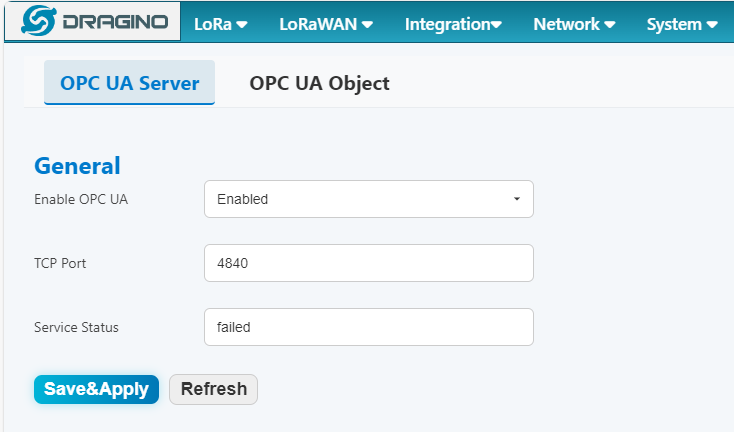
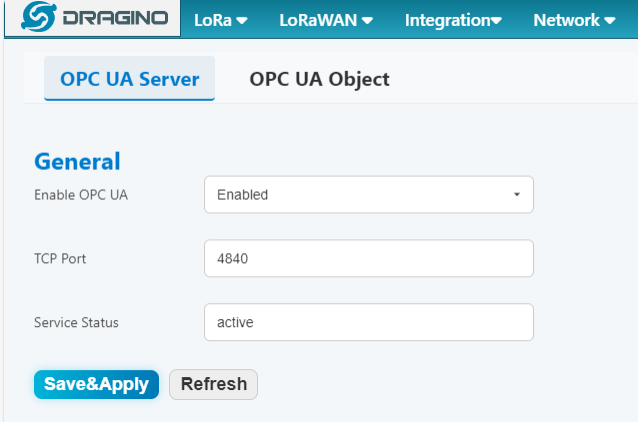
- Enable OPC UA: enable/ disable the OPC UA mode
- TCP Port: TCP/IP port number for OPC UA communications
- Service Status: Display the status of the OPC UA service
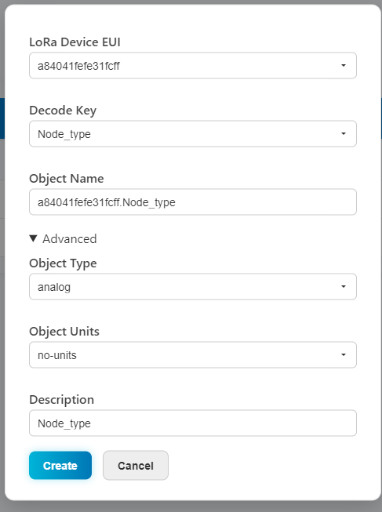
Step 2. Configure OPC UA Object
- LoRa Device EUI: Select the sensor device DevEUI that needs to be added
- Decode Key: Select the required sensor decoding data
- Object Name: Configure object Name
Advanced
- Object Type: Select the Object type
- Object Units: Select the Object unit
- Description: Select the Object Description
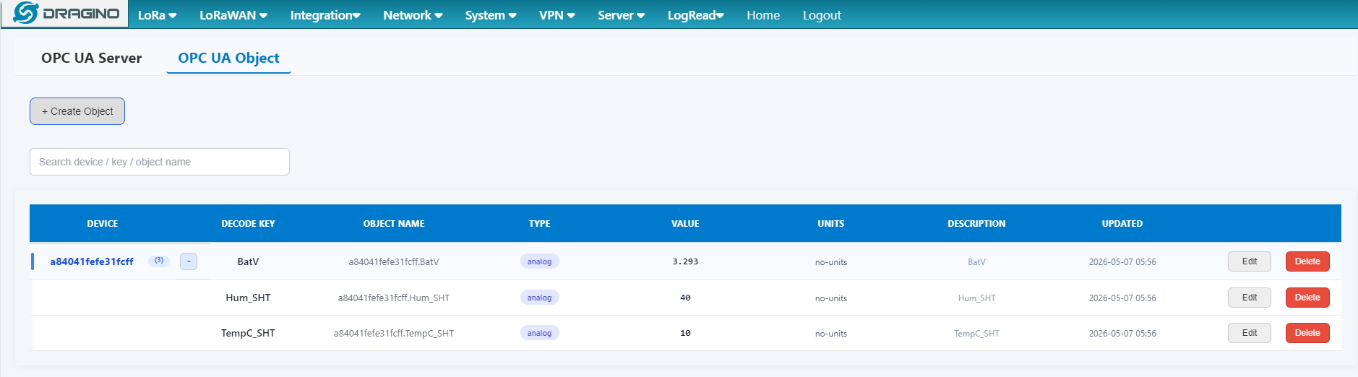
Step 3 – Verify the result
After saving the configuration, follow the verification steps in Section 3 to confirm that data is correctly mapped and reported (using a tool like UaExpert).
3. Testing & Verification – Using UaExpert
UaExpert is a free, cross-platform OPC UA client. To validate your configuration:
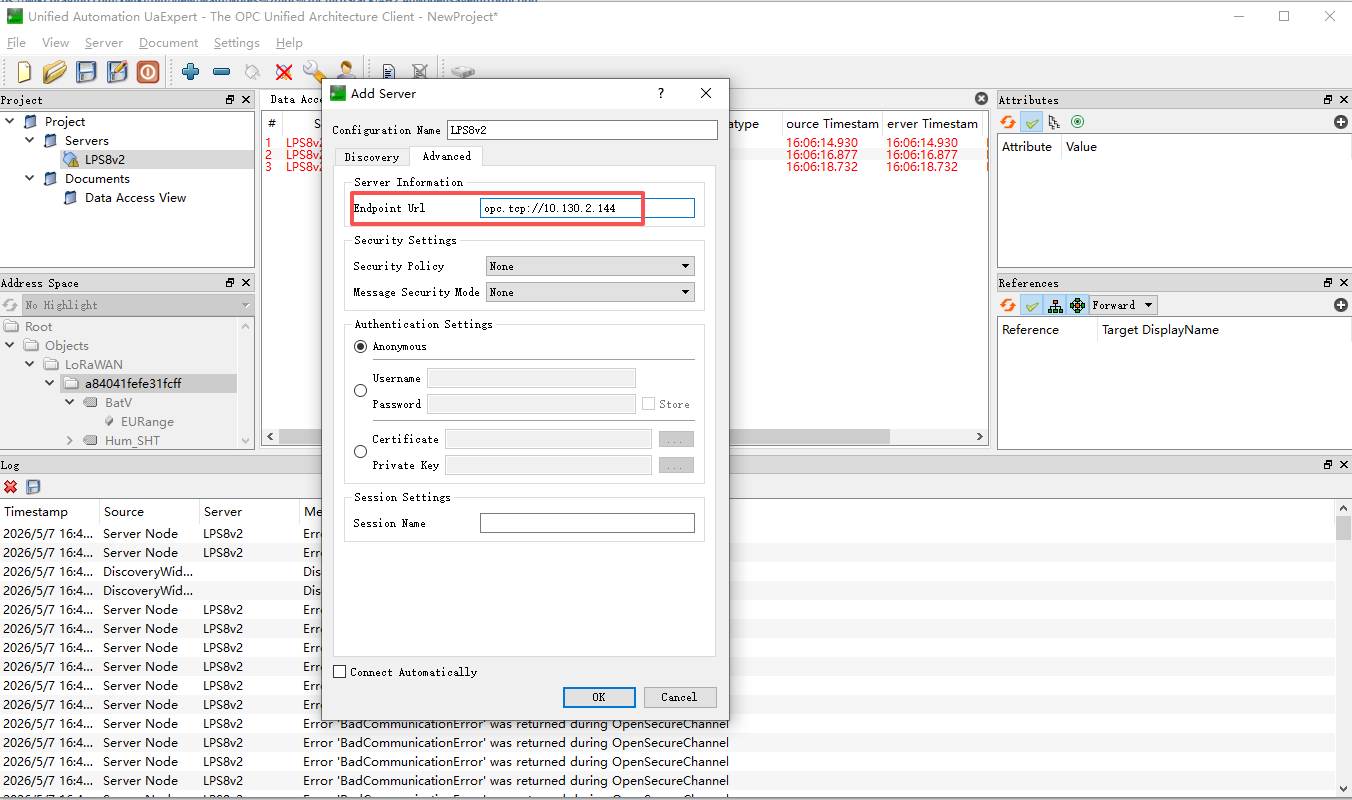
- Add server – Click the “+” button to add a new OPC UA server.
- Enter endpoint URL – Use the format
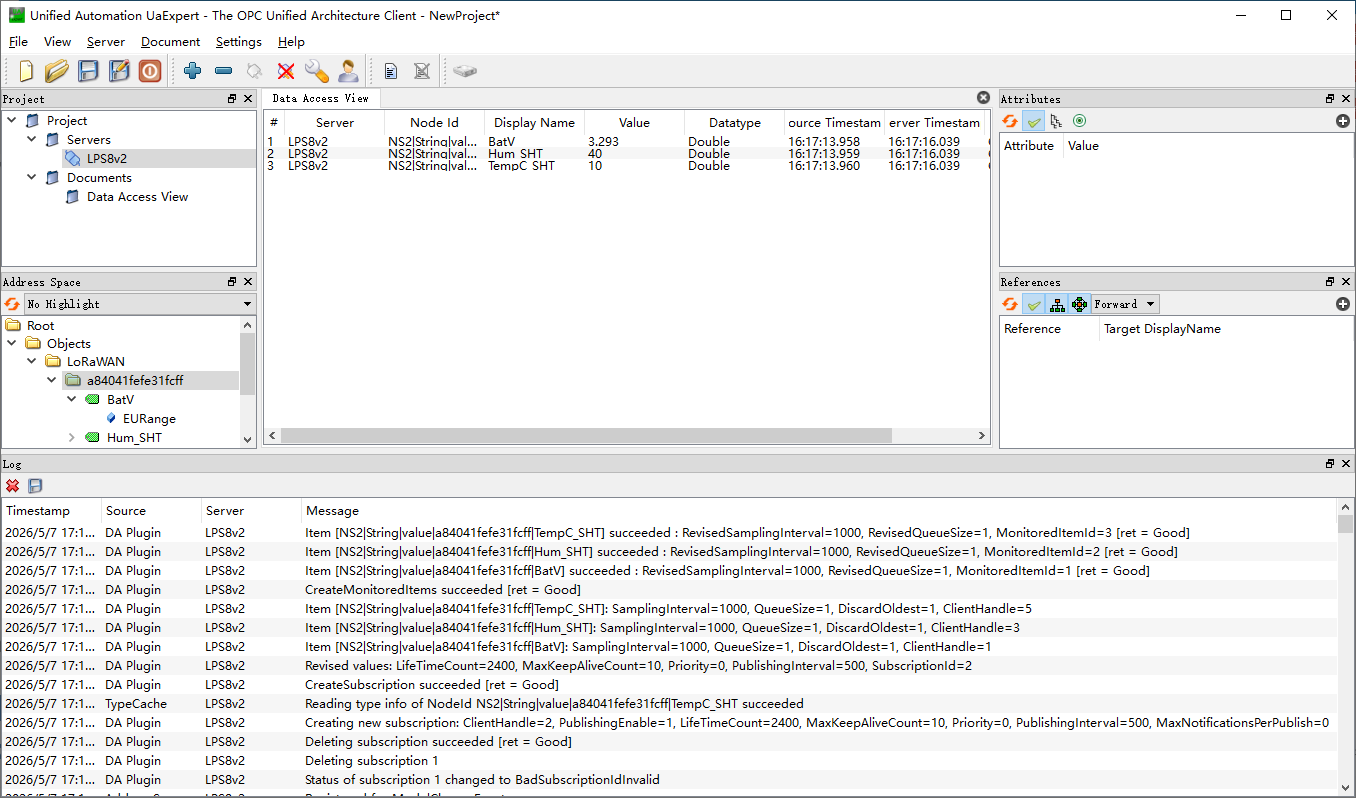
opc.tcp://[gateway IP address]:4840(replace[gateway IP address]with the actual IP of your LPS8v2). - Connect & browse – Click Connect. If successful, you will see the configured objects in the address space on the left. Click on any object to view its value, timestamp, and quality in the right panel.