Monitor & Remote Access Gateway
1. Dragino Platform Monitor
The Dragino Platform Monitor allows you to remotely monitor and manage your gateway through a centralized dashboard.
This section outlines the supported hardware, firmware requirements, and setup steps.
1.1 Supported Hardware & Firmware Requirements
| Device Model | Firmware / Software Version Required |
|---|---|
| LG308N, DLOS8N, LPS8N | Firmware: lgw--build-v5.4.1735869581 or later [Download] |
| LPS8v2, MS48-LR | dragino-ui: 2024-12-15 or later |
1.2 Setup Instructions
Once you have your gateway, follow the steps below to enable remote monitoring.
1.2.1 Choose a Management Platform
Dragino provides two remote monitoring platforms. Both are official Dragino services, but they offer different web interfaces and feature sets.
| Platform | URL | Description |
|---|---|---|
| Gateway Manager | iot.dragino.com | Classic dashboard, focused on basic gateway monitoring and control. |
| New Gateway Manager | remote.dragino.com | Modern interface with enhanced management capabilities. (See section 1.4) |
After registration on either platform, you will receive a dedicated management account with a login password.
For information on how to generate a Gateway Manager account, please contact: support@dragino.cc
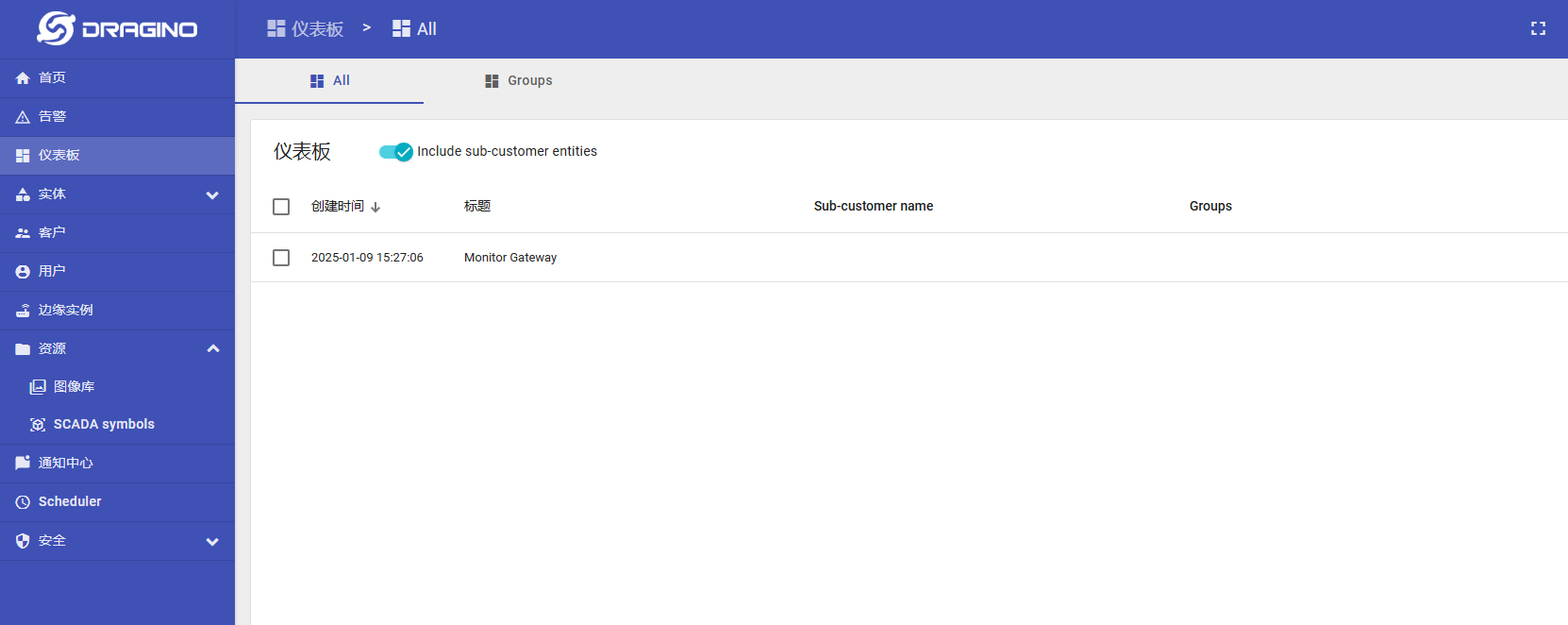
1.Gateway Manager: iot.dragino.com
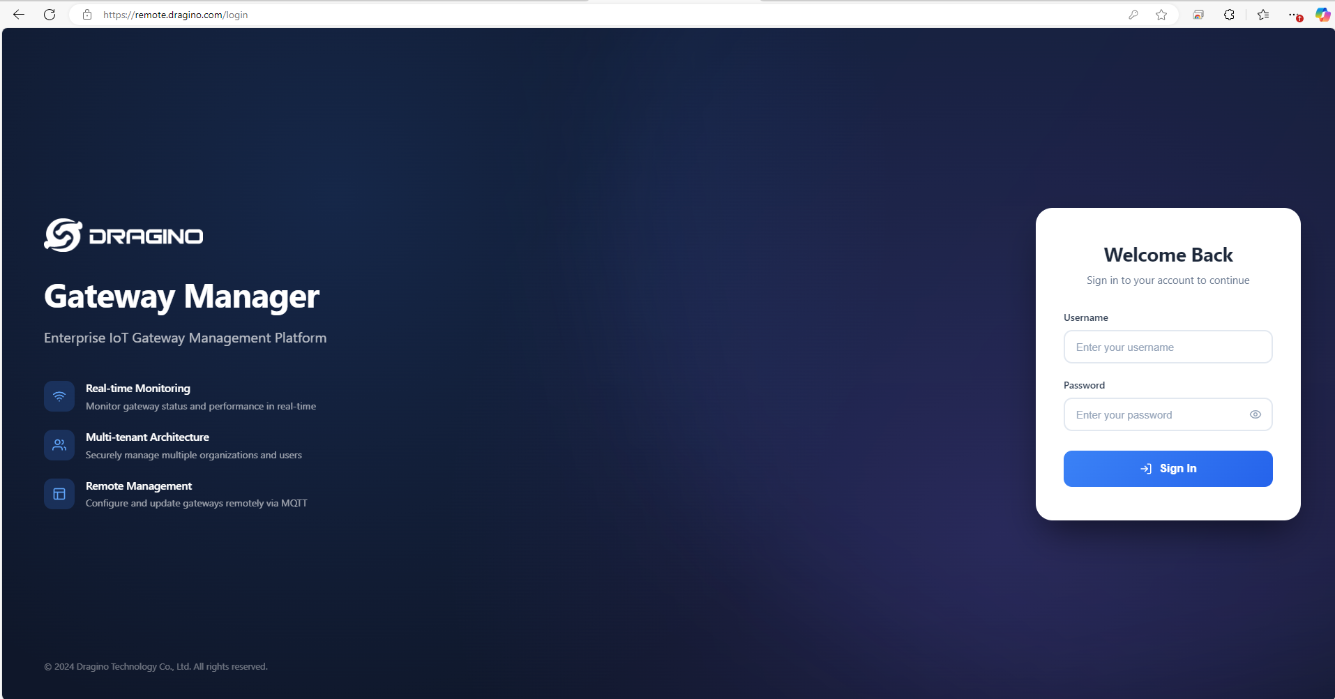
2.New Dashboard Features:Dragino Gateway Manager
1.3 Configure gateway
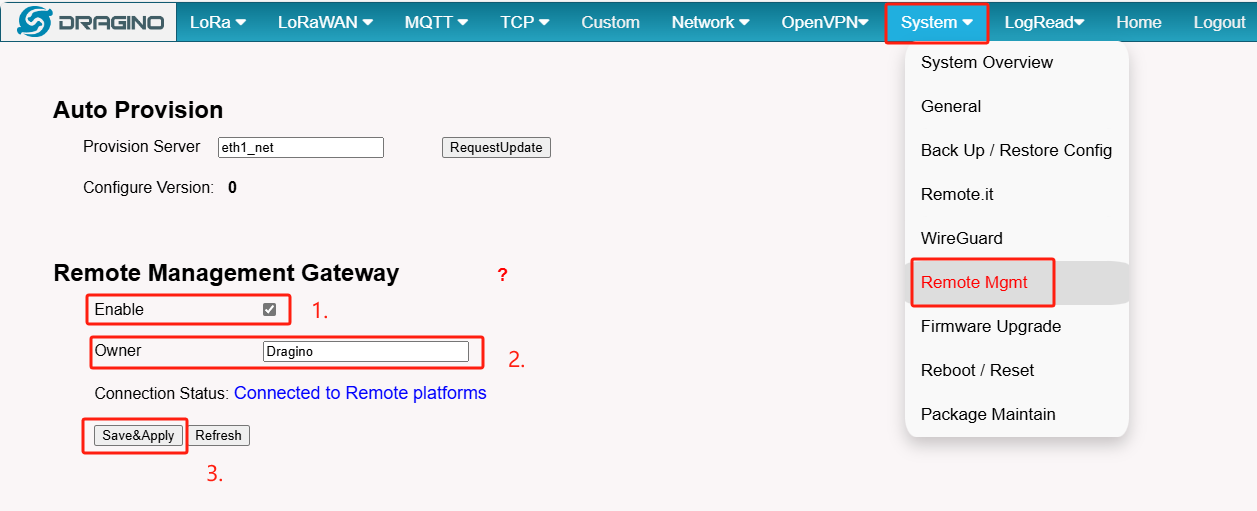
To access the System-->Remote Mgmt interface of the gateway, you can select "Enable" and customize the owner,then click on "Save&Apply".
-
Click "Enable" -----> If this option is checked, the gateway will enable Remote Platform Monitor
-
Configure the Owner -----> Fill in the Owne given by the manufacturer, that's the only one.The default is: registered email
-
Click "Save&Apply"
Note: If the Owner parameter is set to Dragino, the device will be registered with the Dragino account
Check the remote platform connection status
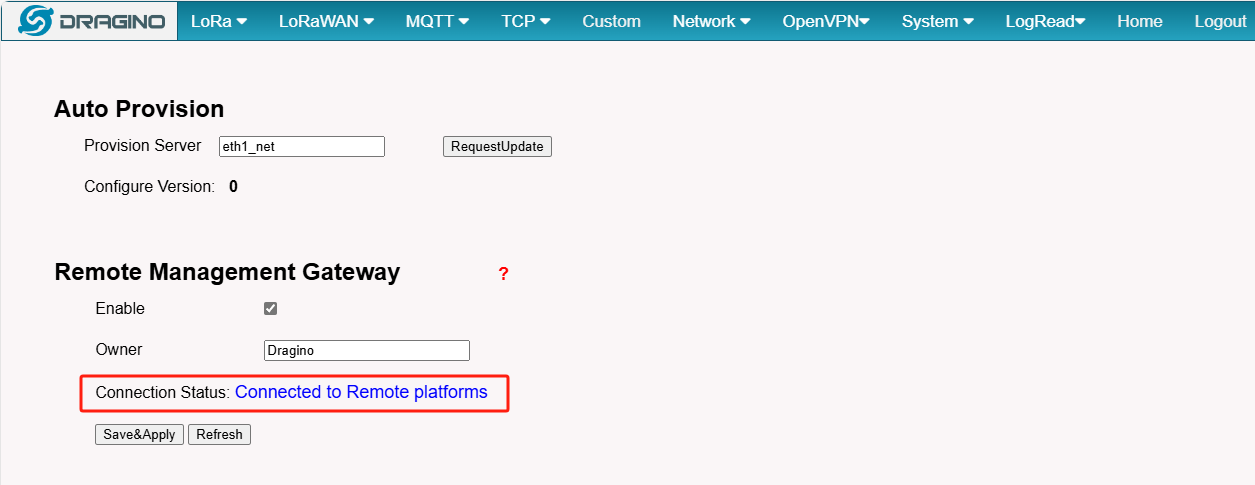
After the above configuration is complete, wait for 2-3 minutes, the gateway will be displayed on the dashboard
1.4 Dashboard Features (iot.dragino.com)
The standard platform (iot.dragino.com) provides the following information and controls:
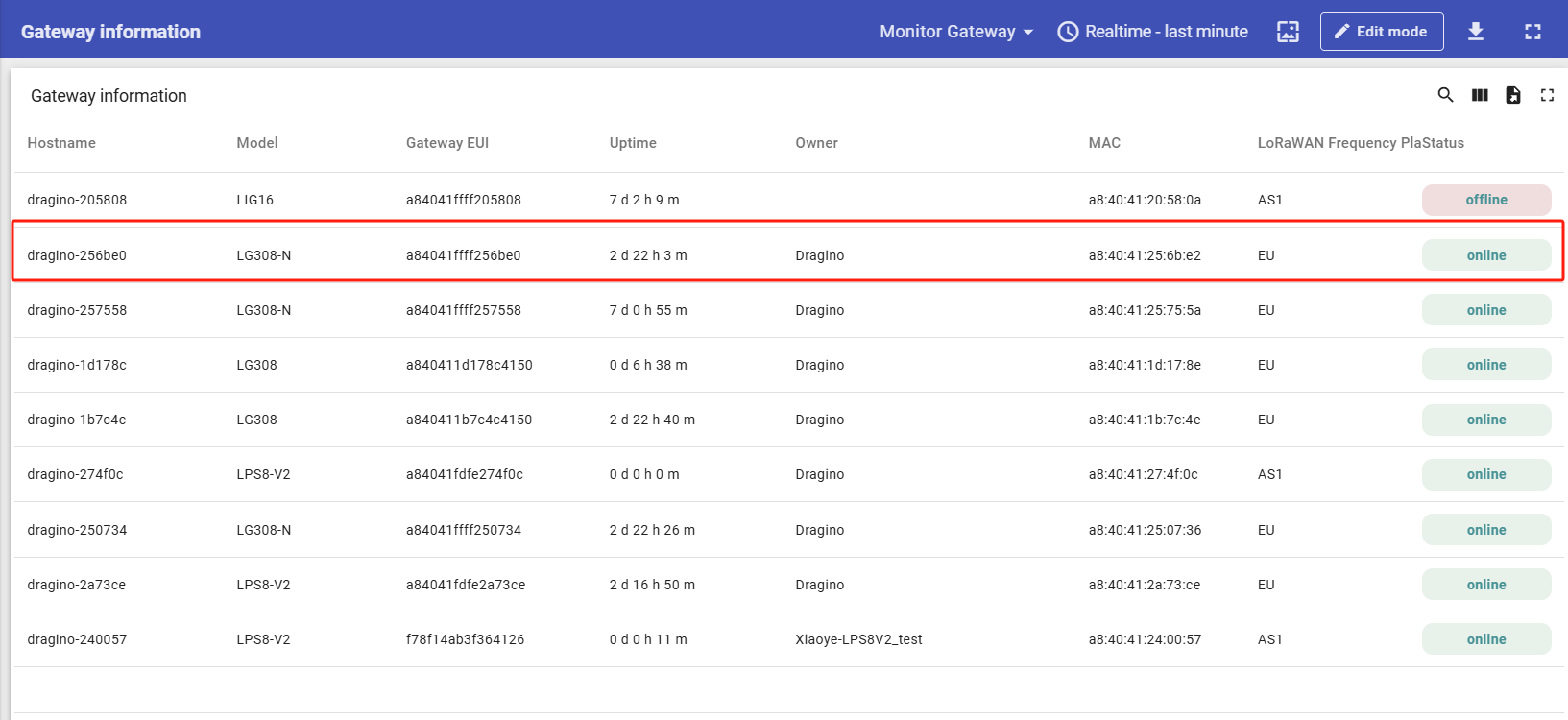
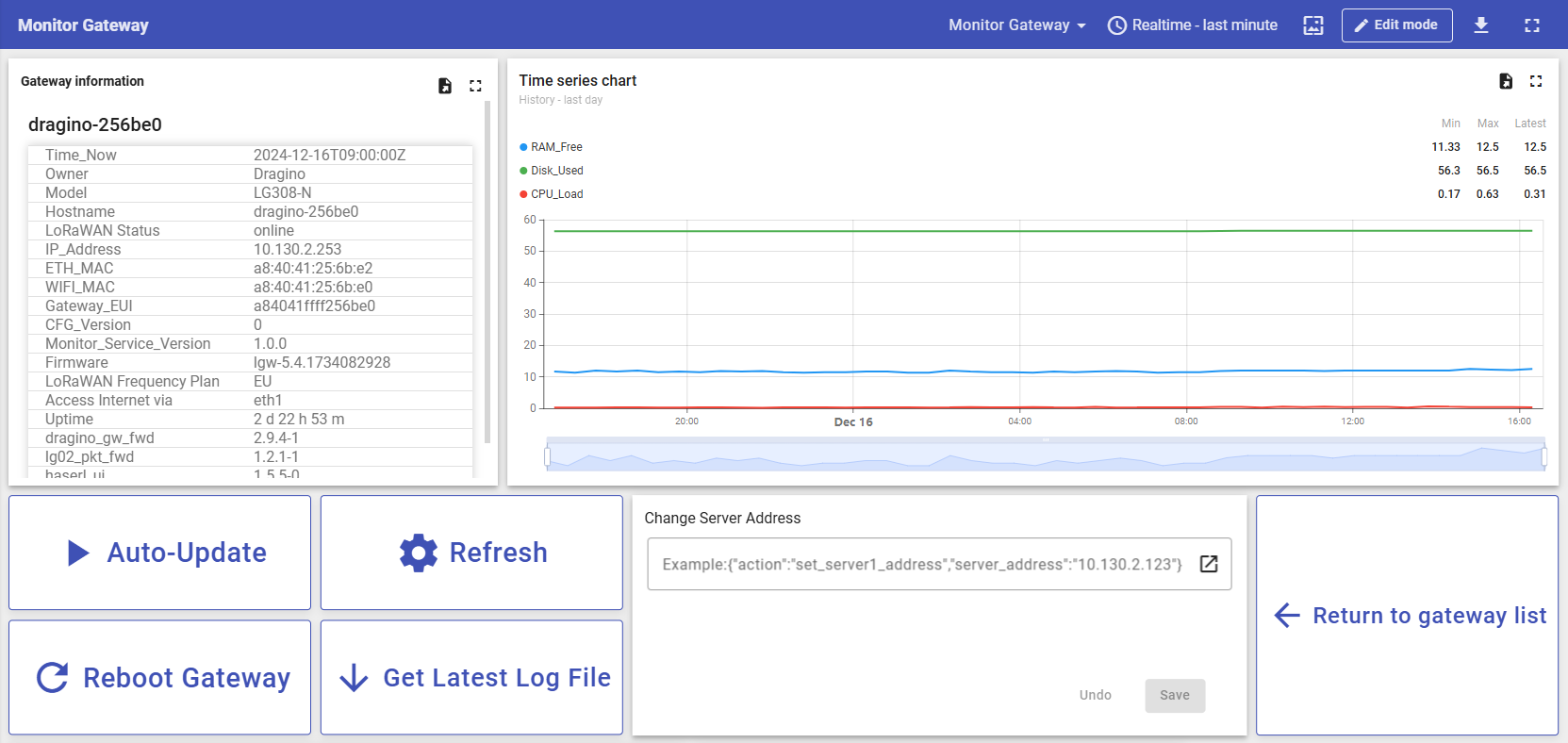
And click on your device to go to the next level to see if the gateway specific information is displayed properly
Gateway Information Displayed
- Hostname, Model, Firmware version, Gateway EUI, Frequency, Owner
- Network details
- System status: CPU load, RAM free, disk used, uptime
- LoRaWAN status
Dashboard Controls
| Control | Function |
|---|---|
| Refresh | Immediately updates gateway data and displays current package version |
| Reboot | Remotely restarts the gateway |
| Get Latest Log File | Records a 5‑minute log and uploads it to the dashboard; click "Click me" to download |
| Configure Server | Change the LoRaWAN server address using the format: {"action":"set_server1_address","server_address":"10.130.2.123"} |

1.5 New Dashboard Features (remote.dragino.com)
The new platform at remote.dragino.com (also referred to as Dragino Gateway Manager) features a redesigned interface and additional management tools. It is fully compatible with the same gateway configuration steps described in 1.3.
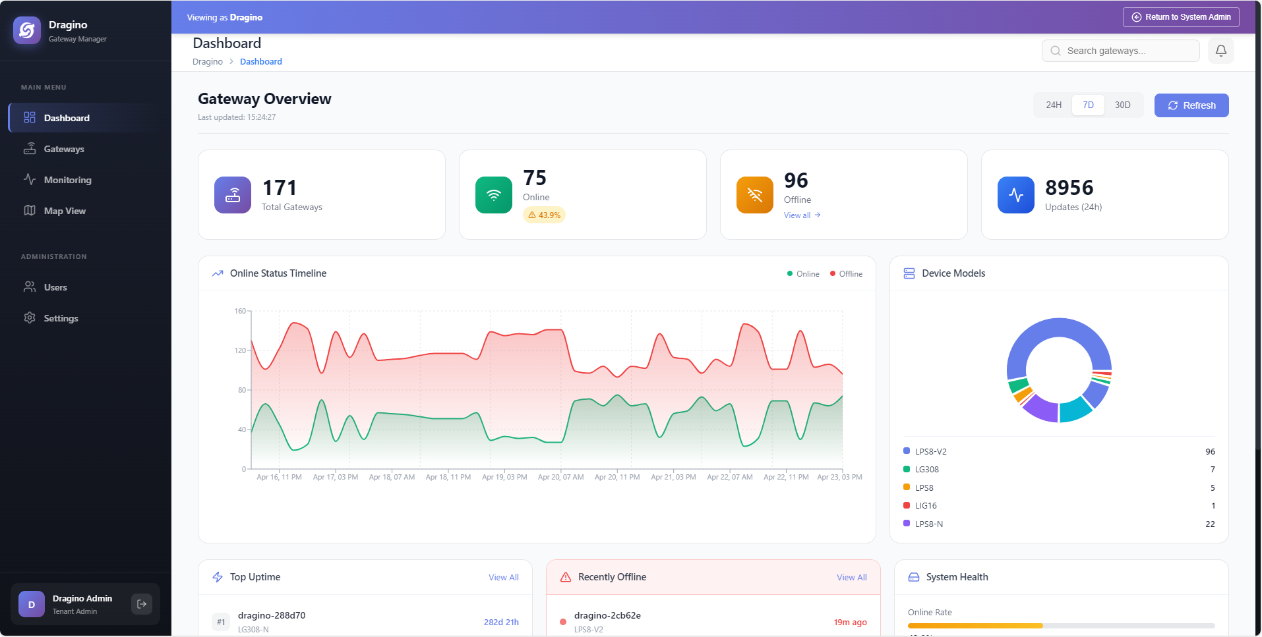
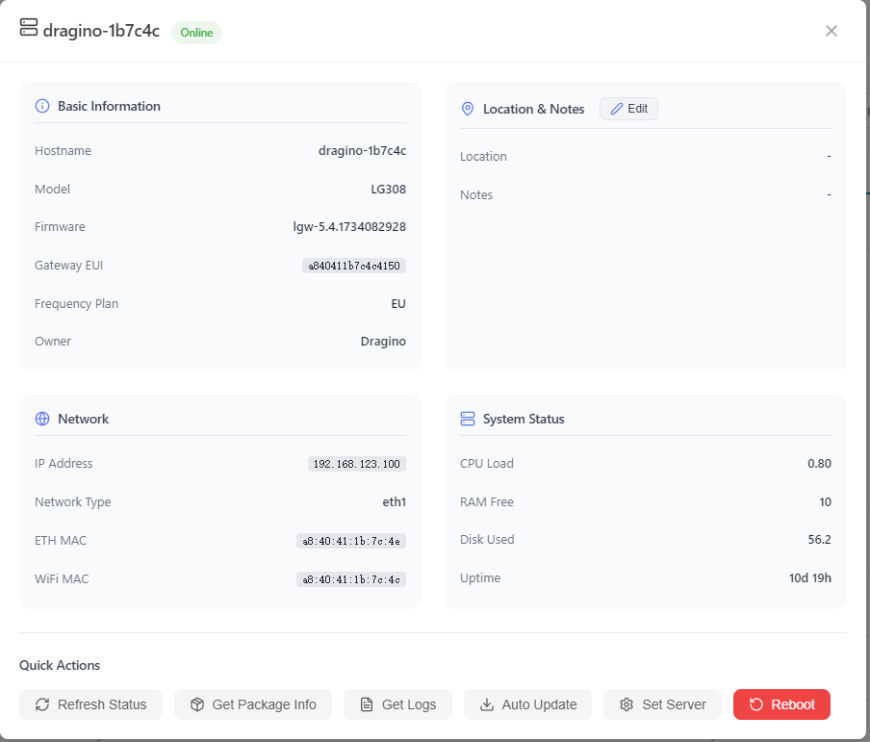
And click on your device to go to the next level to see if the gateway specific information is displayed properly
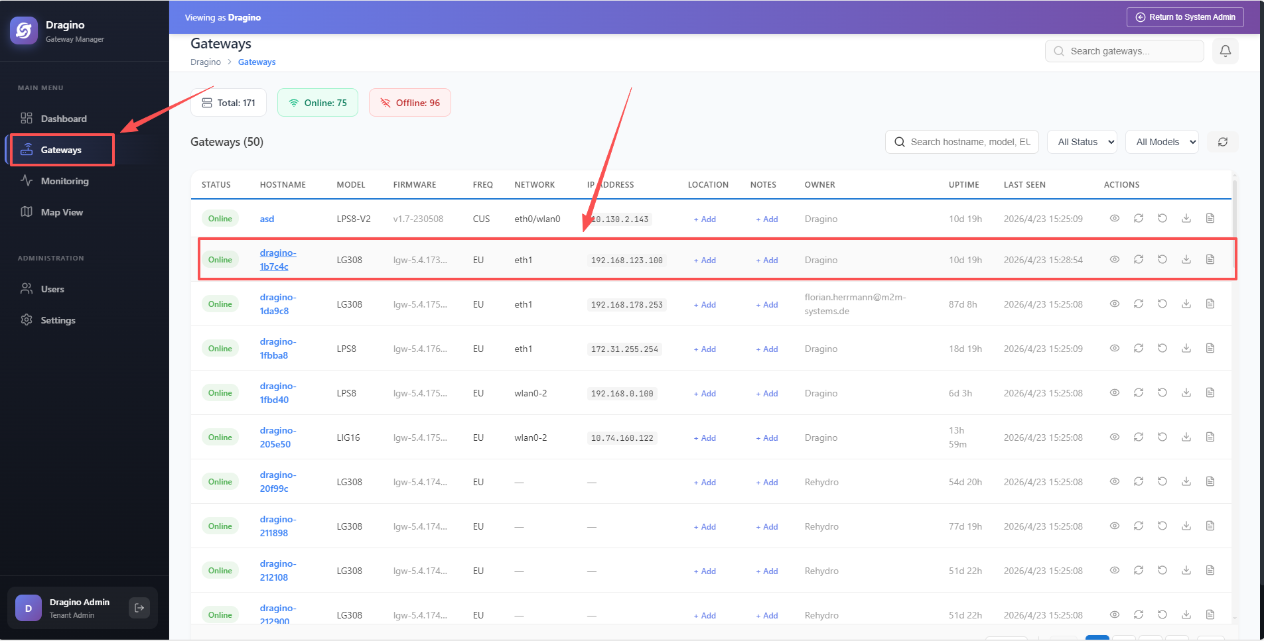
Click the following icon to view the gateway detials


Gateway Information Displayed
- Hostname, Model, Firmware version, Gateway EUI, Frequency, Owner
- Location & Notes (user-editable)
- Network details
- System status: CPU load, RAM free, disk used, uptime
- LoRaWAN status
Dashboard Controls
| Control | Function |
|---|---|
| Refresh Status | After clicking, the gateway will immediately update the data information on the dashboard |
| Get Package Info | After clicking, displays the current package Info on the dashboard |
| Get Logs | After clicking, the gateway records a log for 5 minutes and uploads it to the dashboard |
| Auto Update | After clicking, the gateway will be updated |
| Set Server | Add the lorawan server address and the gateway will be configured and modified,The format is as follows: lns1.thingseye.io |
| Reboot | After clicking, the gateway will reboot. |
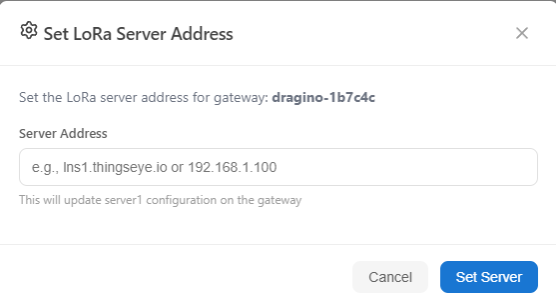
1.6 Enhanced Remote Management (Firmware ≥ lgw-5.4.1778739847)
From firmware version lgw-5.4.1778739847 and later, the Dragino Remote Management function has been significantly enhanced. Instead of using only a fixed Owner field, the gateway now requires a Token associated with your management account for activation.
This new version introduces support for three remote access services:
- Remote SSH
- Remote HTTP (Web UI)
- Remote TCP
These features allow you to securely access your gateway’s command line, web interface, or other TCP-based services from anywhere.
1.6.1 Configure gateway
To access the System-->Remote Mgmt interface of the gateway, you can select "Enable" and customize the owner,then click on "Save&Apply".
-
Click "Enable" -----> If this option is checked, the gateway will enable Remote Platform Monitor
-
Check the Enable option to activate the Remote Platform Monitor.
-
Click "Save&Apply"
Note: If the Owner parameter is set to Dragino, the device will be registered with the Dragino account
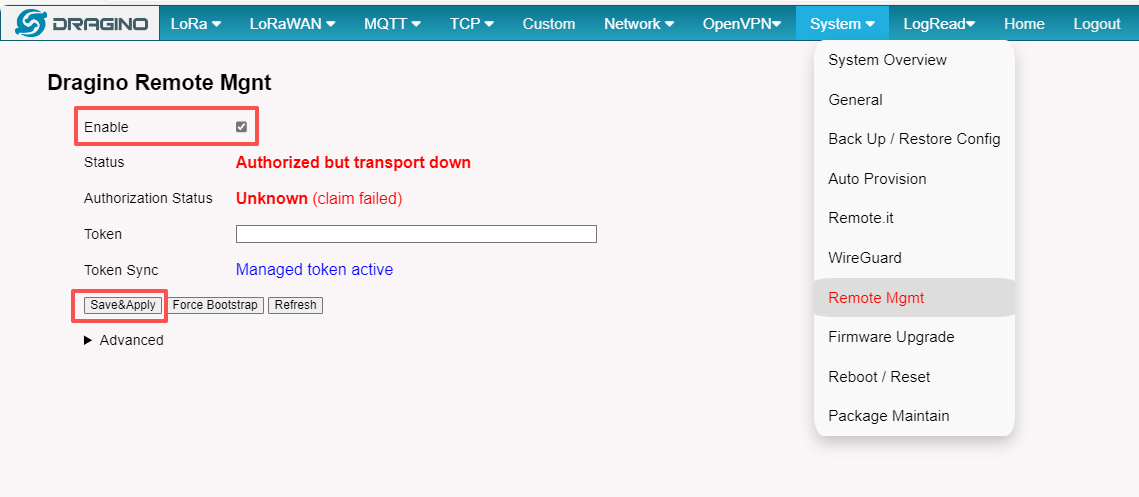
4.Wait approximately 5 minutes for the gateway to send its data to the management platform. Once the gateway appears online in the platform, proceed to the next step.
- Generate and configure the Token: Click the Token icon to generate a new token, then copy it into the corresponding field on the gateway. Click Save & Apply to complete the activation.
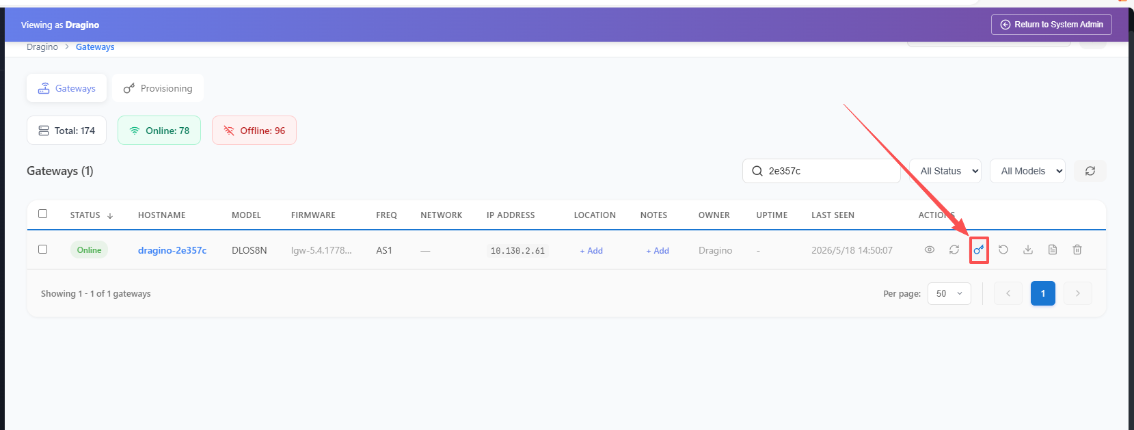
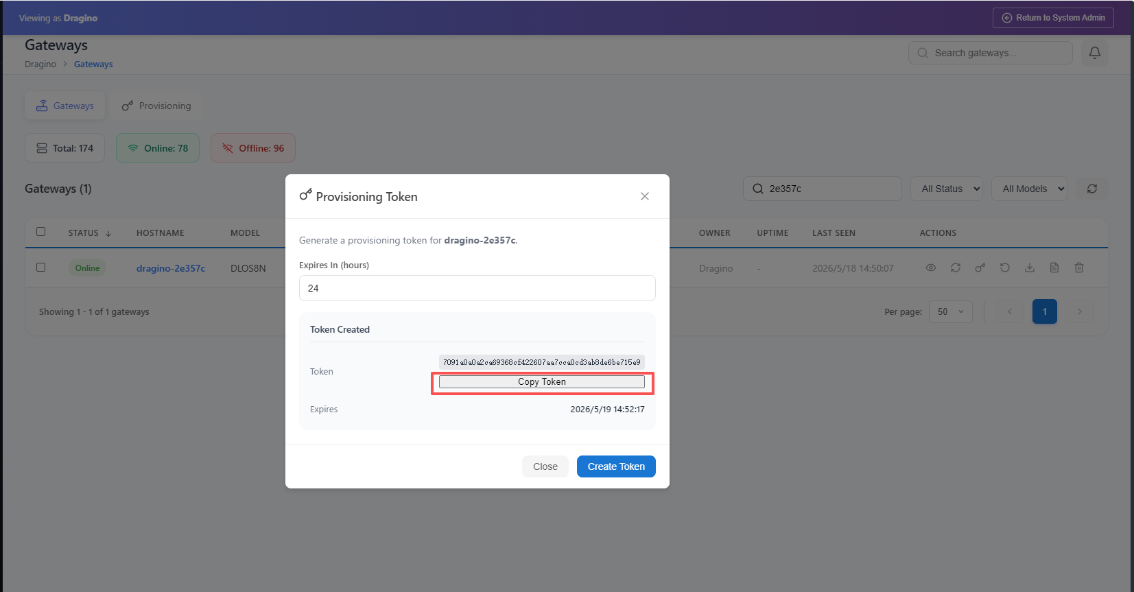
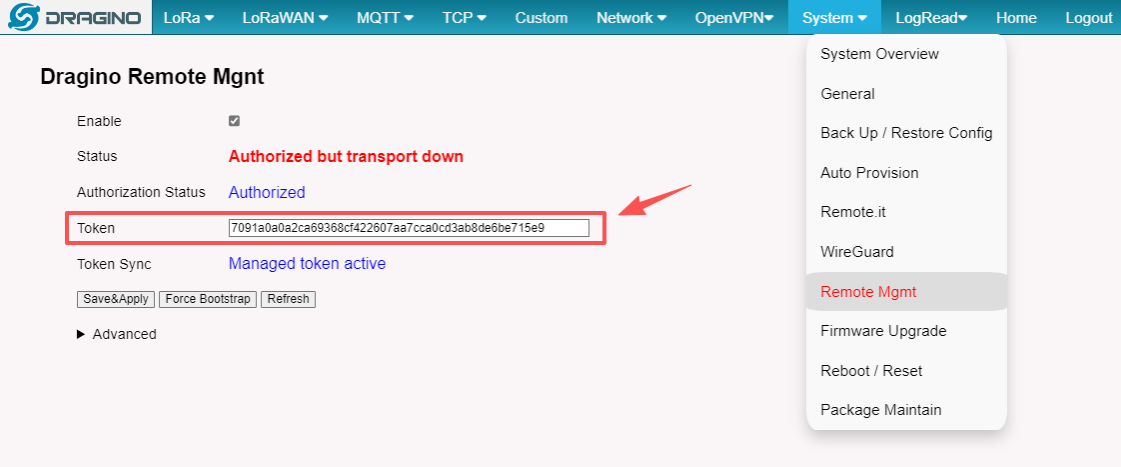
- Click "Save&Apply"
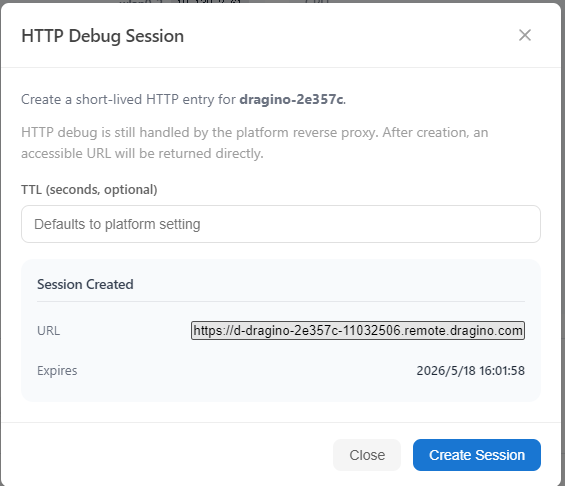
1.6.2 Generate an HTTP Debug remote connection
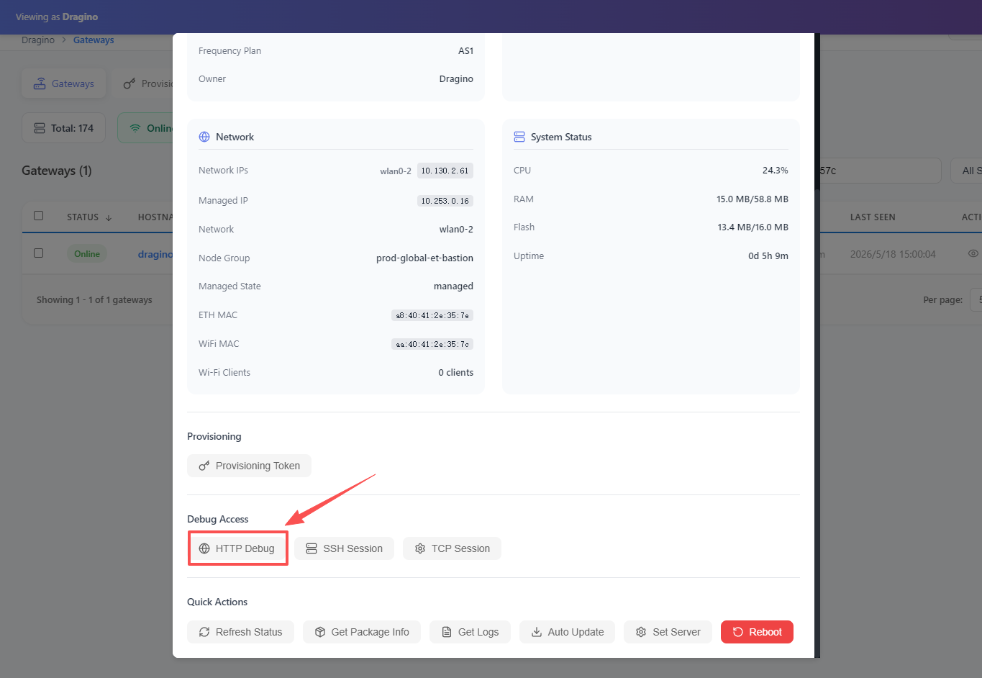
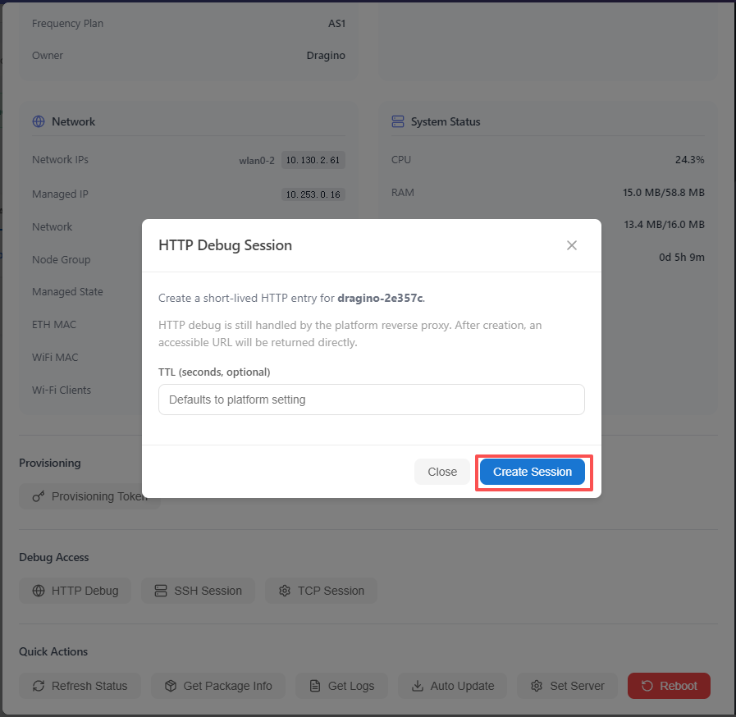
After the generation is completed, users can remotely access the web ui of the gateway using the URL as shown in the figure
For example: https://d-dragino-2e357c-11032506.remote.dragino.com
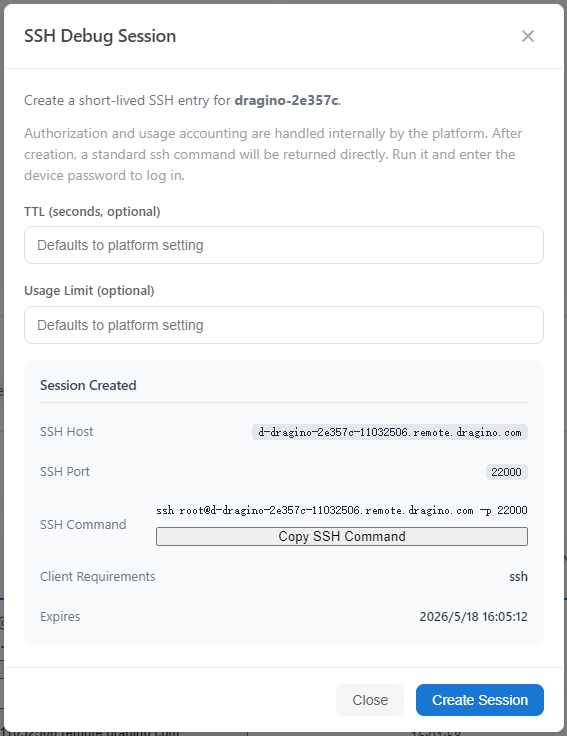
1.6.3 Generate an SSH Debug remote connection
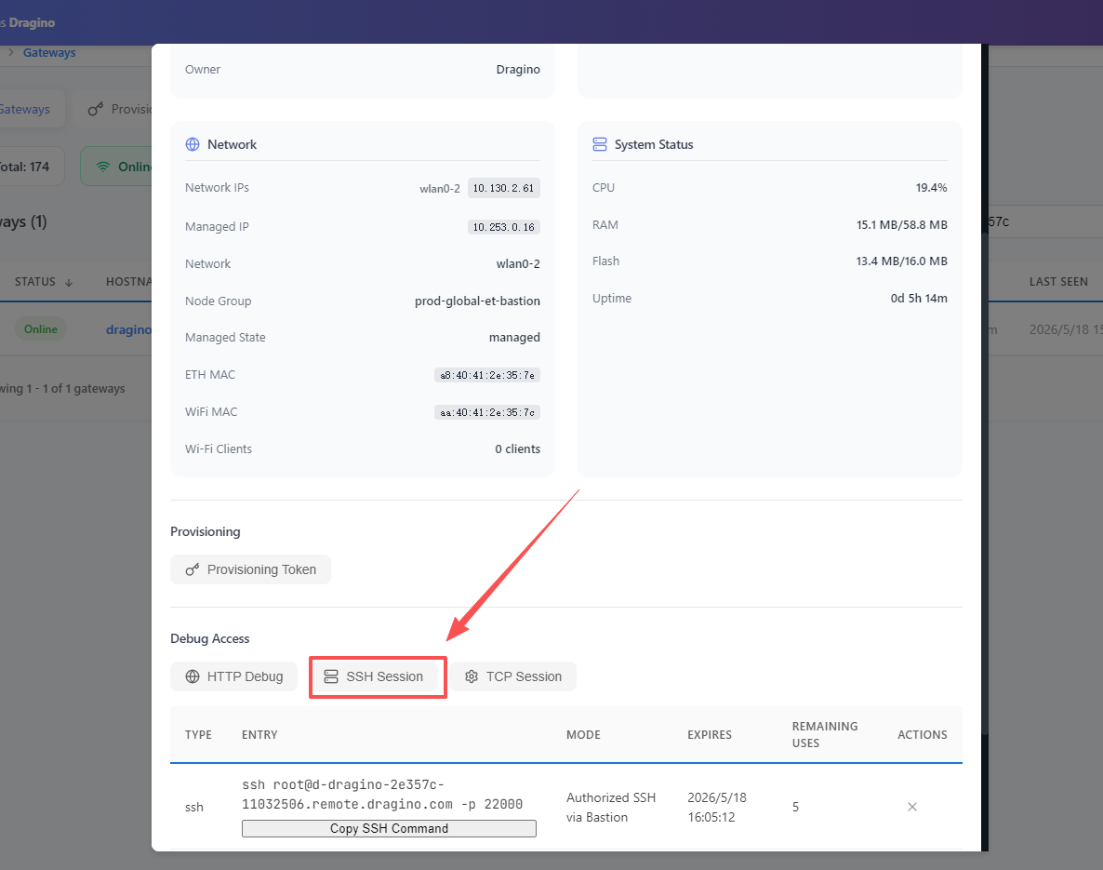
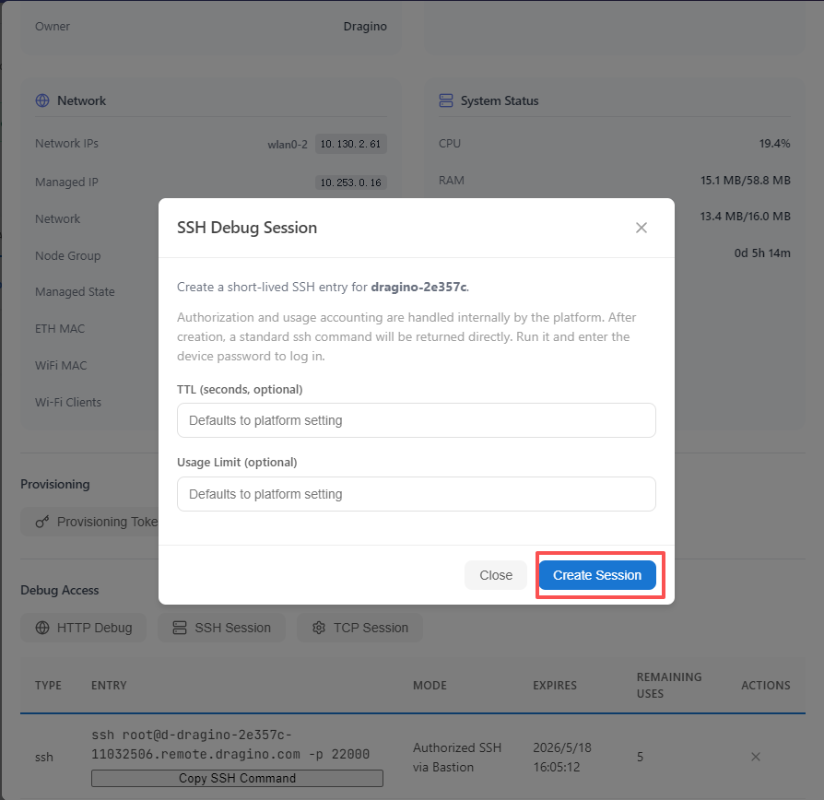
After the generation is completed, users can remotely access the linux console of the gateway through SSH Host as shown in the figure
For example: ssh root@d-dragino-2e357c-11032506.remote.dragino.com -p 22000
1.6.4 Generate an TCP Debug remote connection
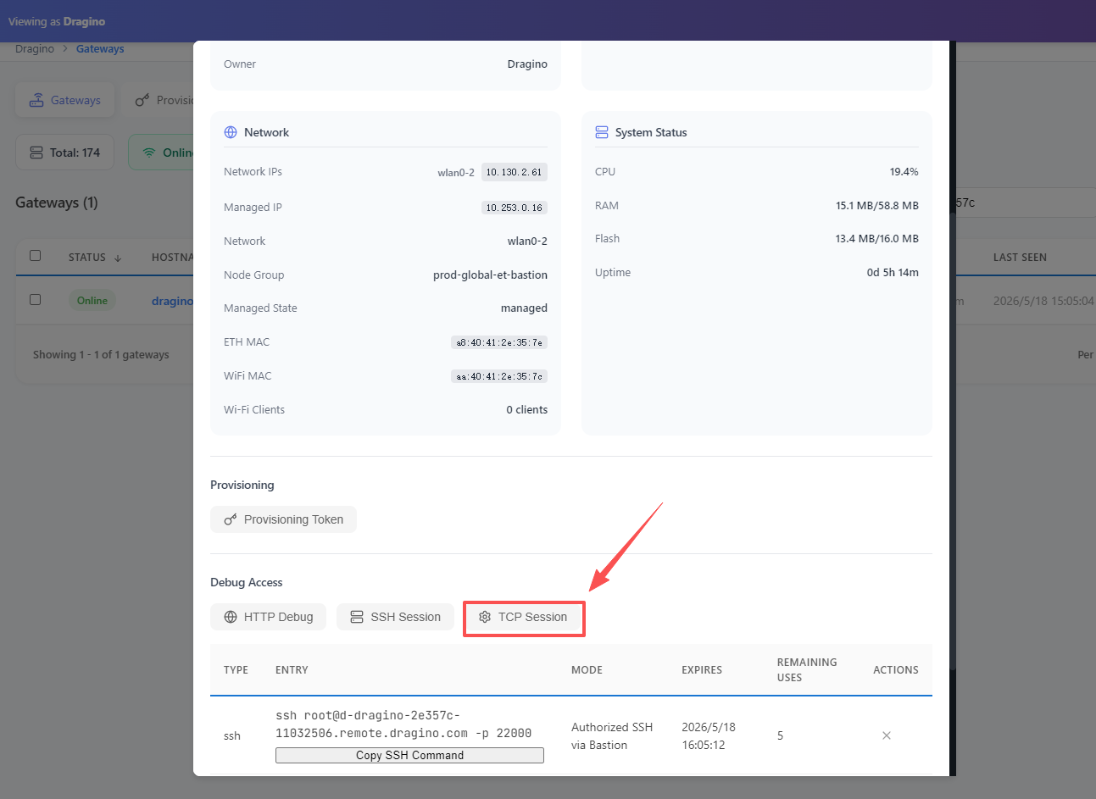
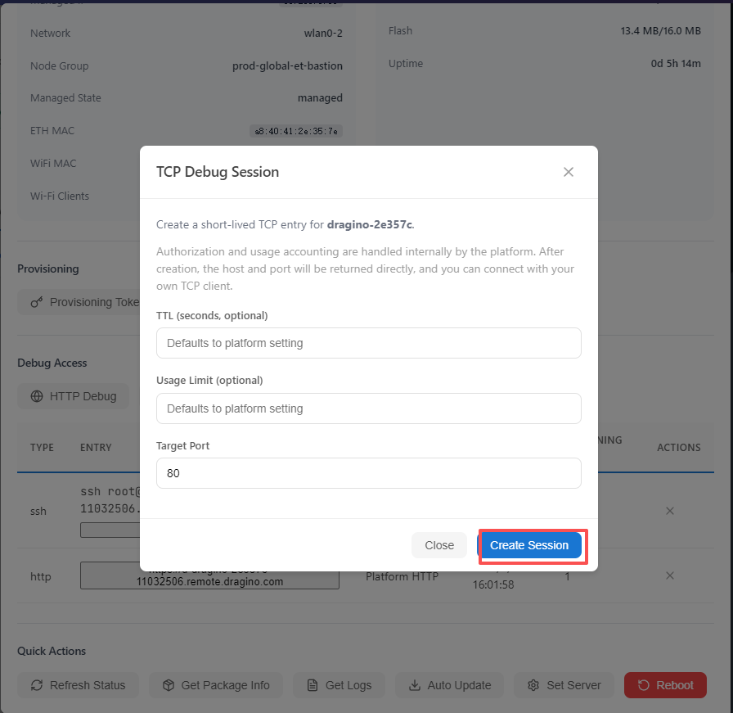
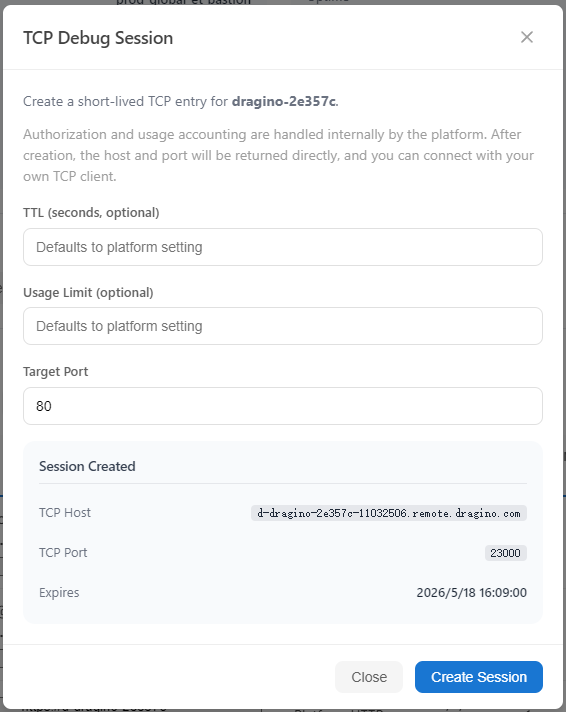
After the generation is completed, users can remotely access the gateway through the TCP Host and port as shown in the figure
For example: d-dragino-2e357c-11032506.remote.dragino.com:23000
2. Remote Access via Remote.it.
Remote.it for remote access is available in the latest Dragino firmware for gateway. For security concern, the remote.it only available base on end user demand.
Important Notice:
-
Remote.it access will give full control of your device to remote support.
-
The Remote.it allows Dragino Support to remote access to the device, If user want to access himself, it need to sign up for an remote.it account.
-
For how to use remote.it for general remote control, please see : Remoteit user instruction for Dragino Gateway.
-
For Quick add remote.it to Dragino for remote debug, please see below:
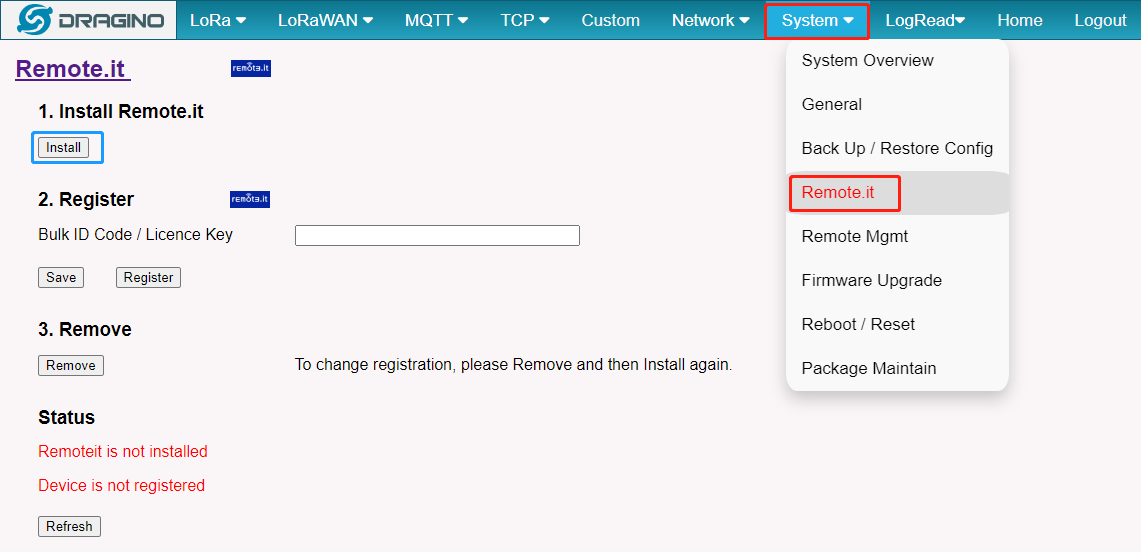
1. Install the Remote.it software
Users can directly click "Install" on the Web UI to install Remote. it.
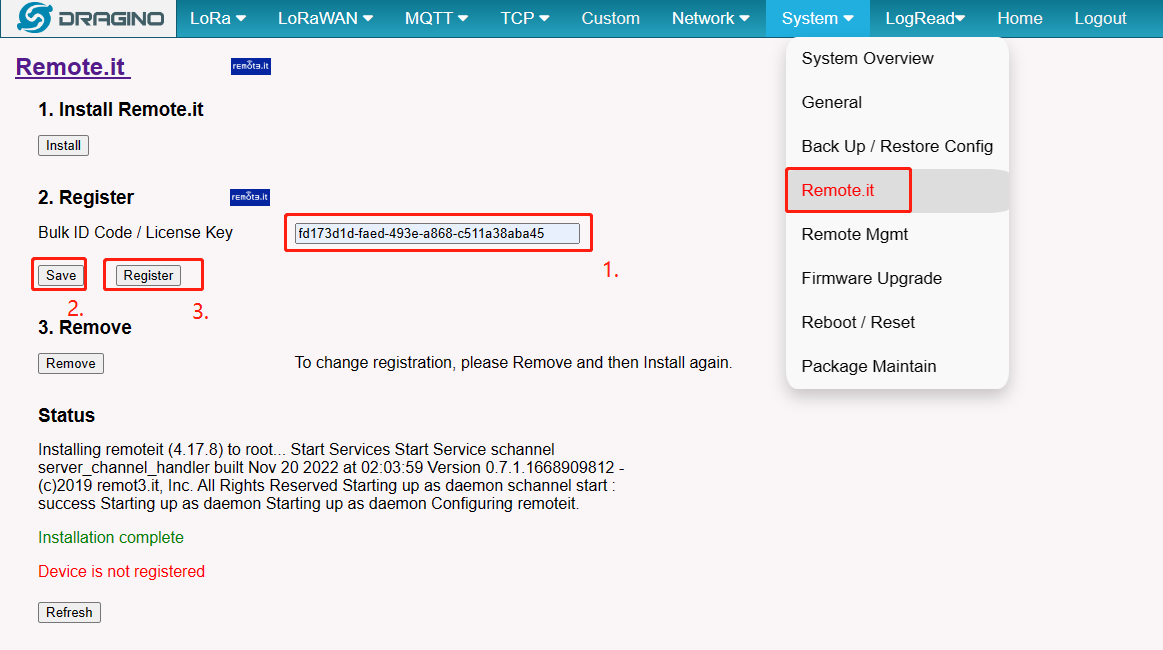
2. Enter the license key
Users need to enter the license key in the box under "2. Register" section and click the "Save" button and "Register" button.
When the user enters this license key, Dragino support will have access to your gateway.
fd173d1d-faed-493e-a868-c511a38aba45
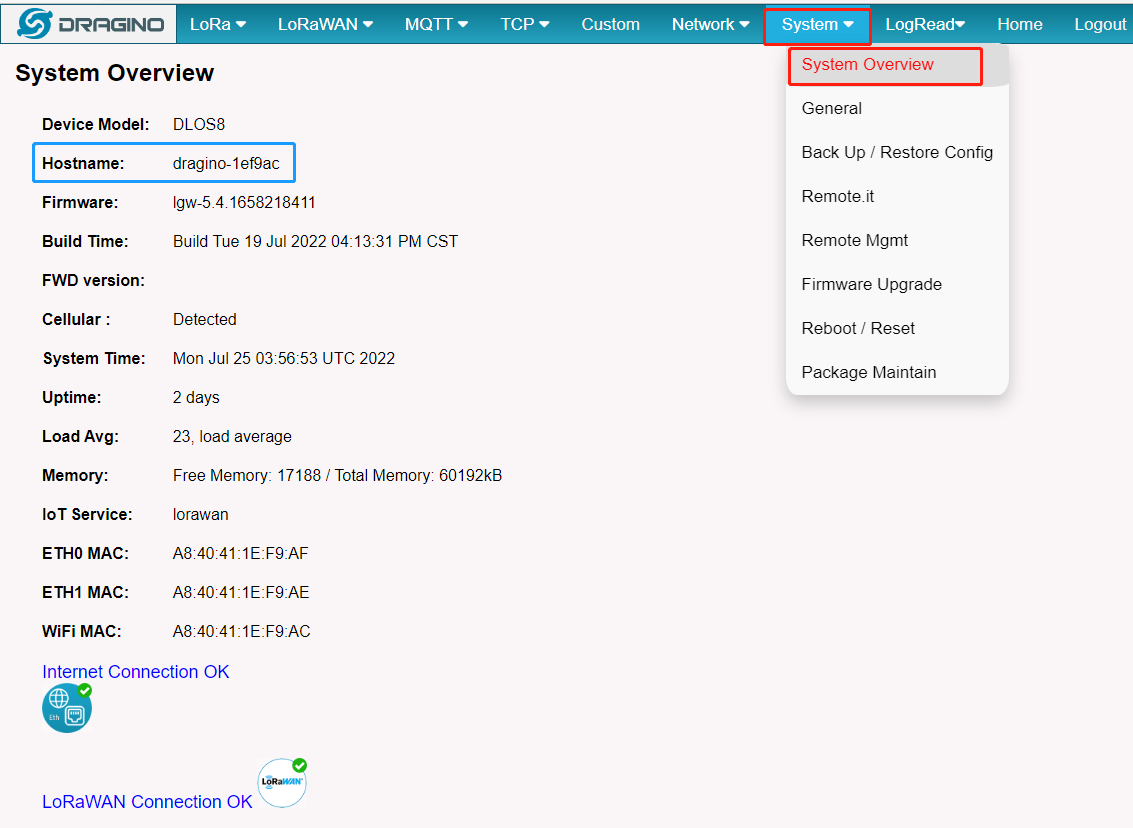
3. Connect and tell us your device ID or Hostname
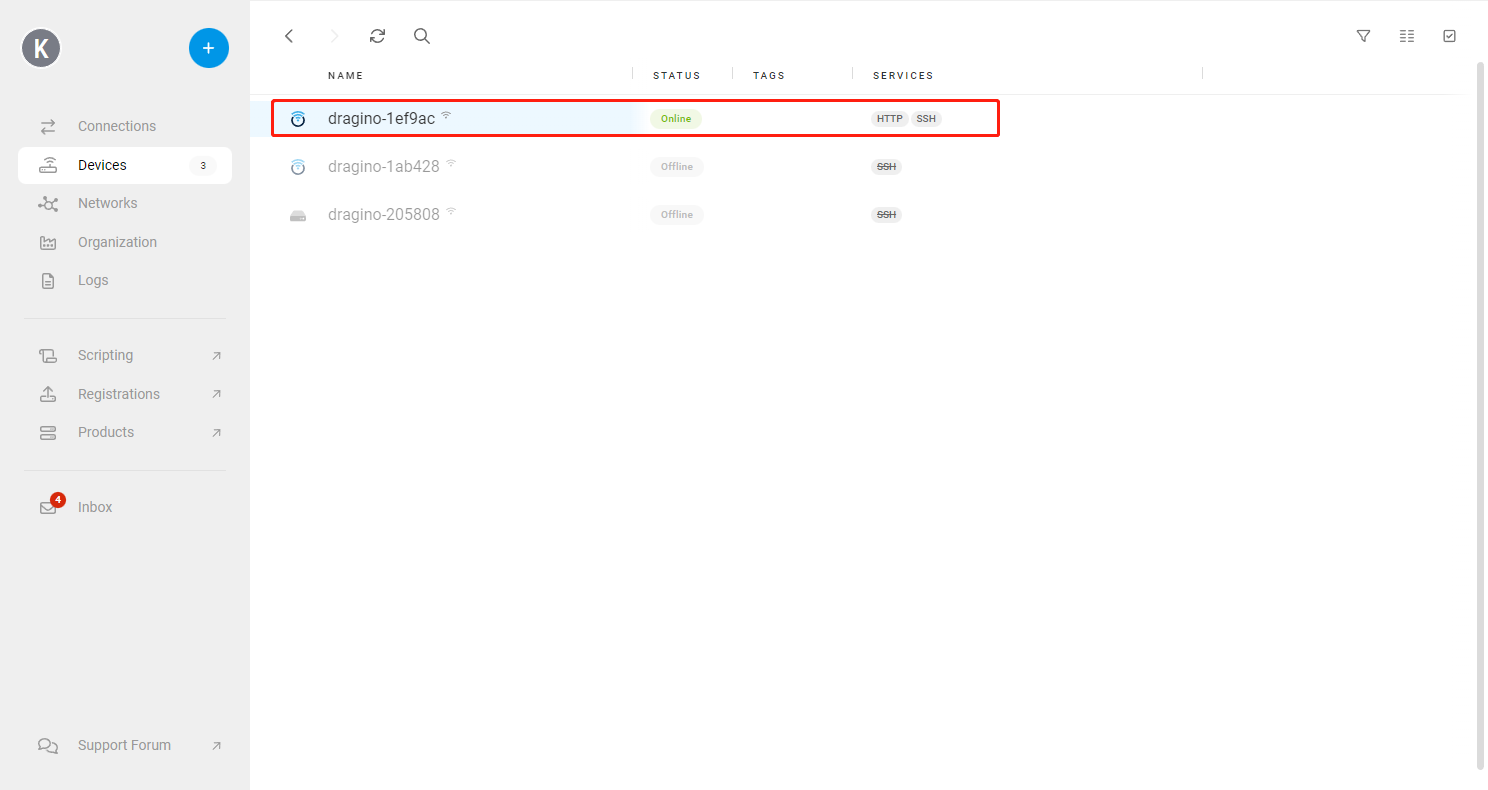
Users can view the device ID or Hostname of the gateway on System --> System Overview interface.Such as : dragino-1ef9ac
2.1 How to save the registered remote after the gateway's firmware update.
Before version lgw--build-v5.4.1668240318-20221112-1606, once the gateway firmware is upgraded the remote configuration is gone.
This issue is now corrected:
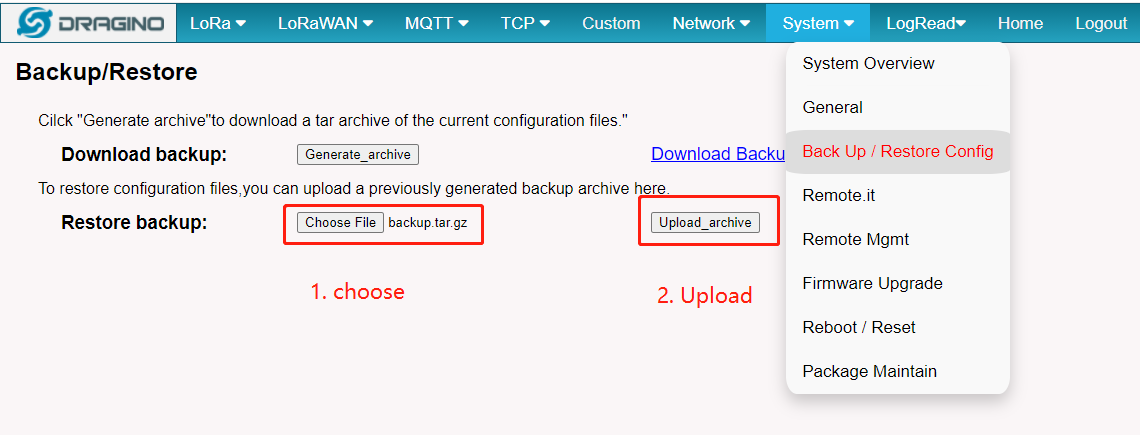
The gateway version is lower than lgw--build-v5.4.1668240318-20221112-1606:
- Upload the backup file to update the configuration.
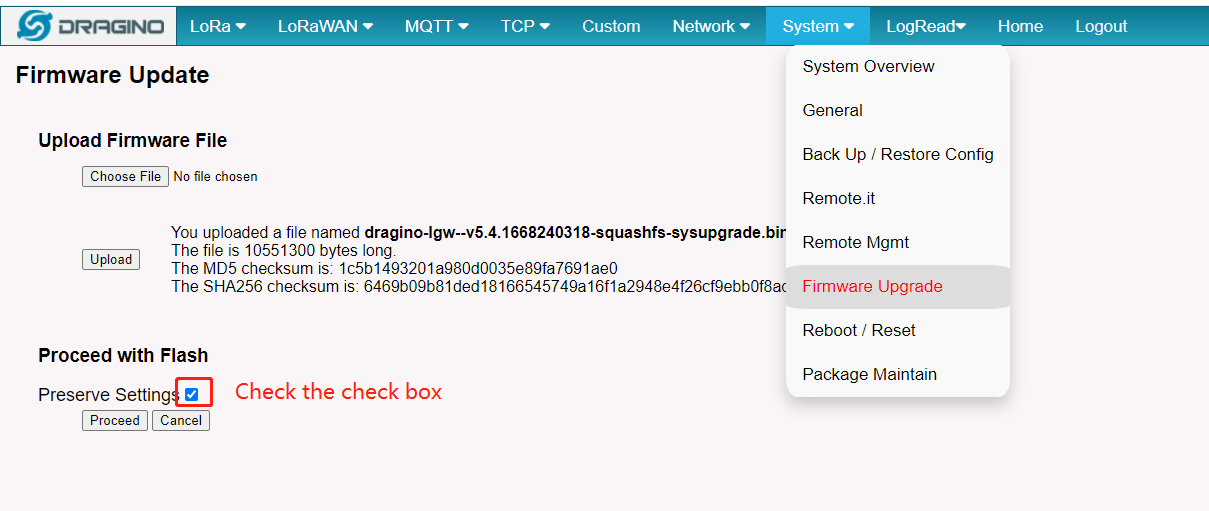
- Check the 'Preserver Settings' check box when you upgrade the gateway with the firmware.
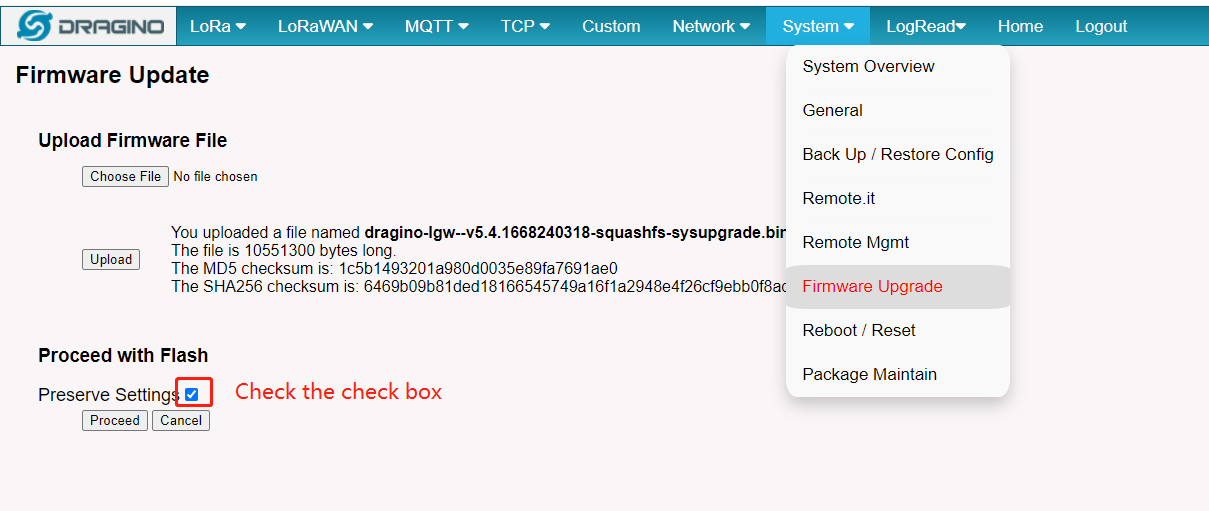
The gateway version is greater or equal to lgw--build-v5.4.1668240318-20221112-1606:
- Only to do: Check the 'Preserver Settings' check box when you upgrade the gateway with the firmware.
2.2 How to register hp0d with Remote.it
Prerequisites:
Users must have an account and APP for remote.it
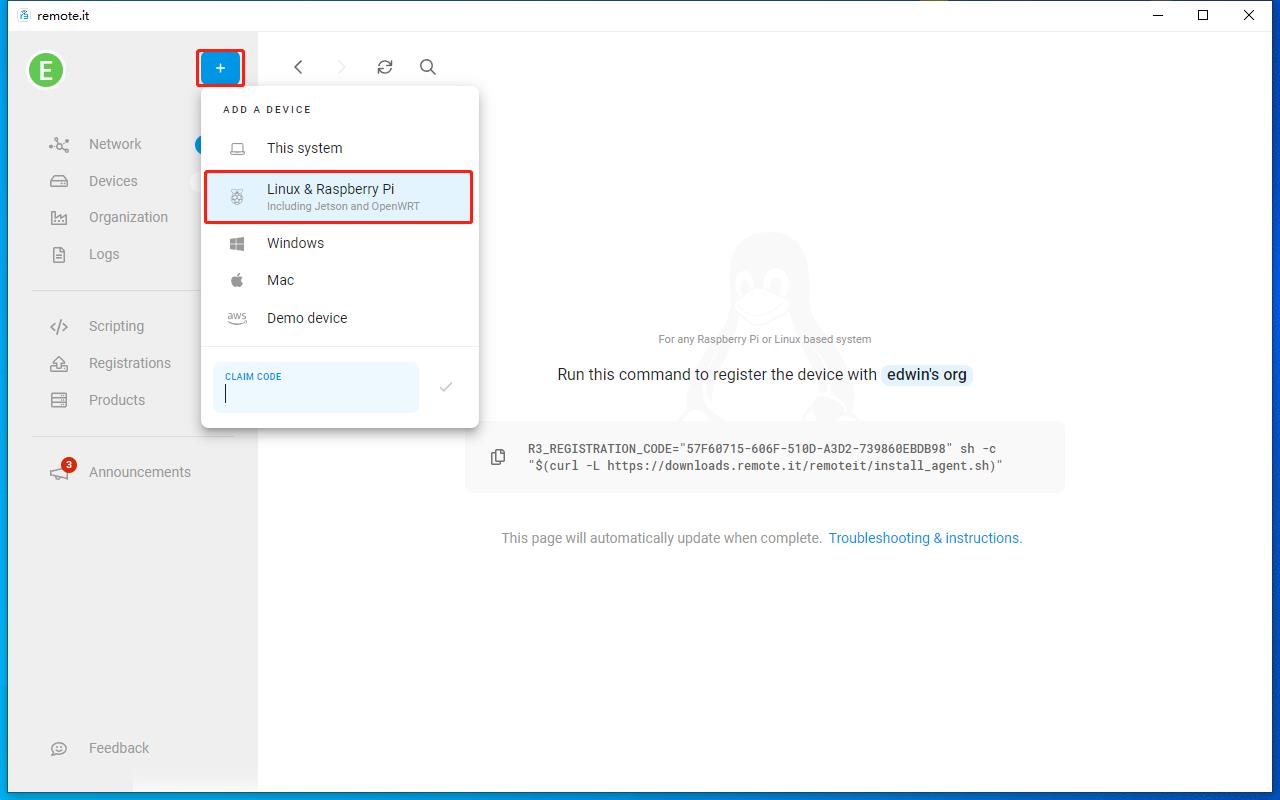
1. Click "+" in the APP to add a device
Then click Add "Linux & Raspberry Pi" and the APP will generate a command to register the device.
2. Copy the register device command
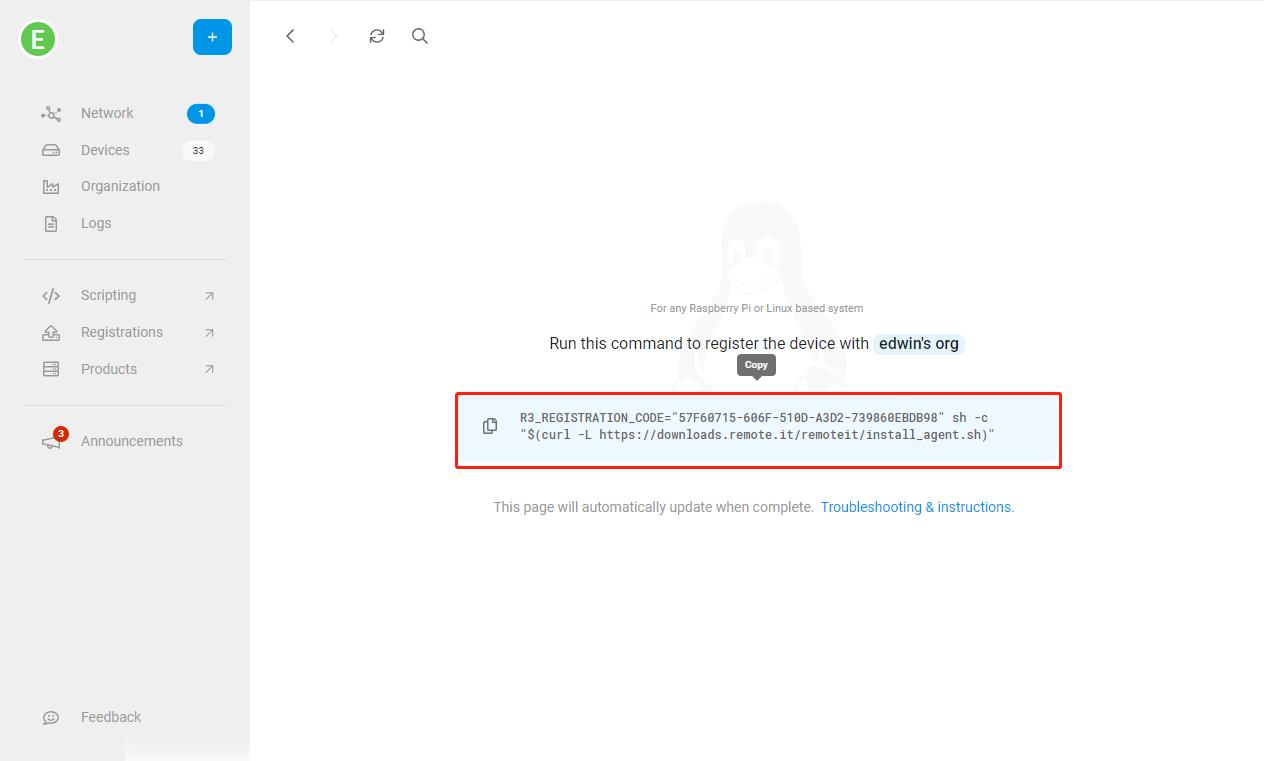
3. Enter the command copied from the previous step on the HP0D Linux command line
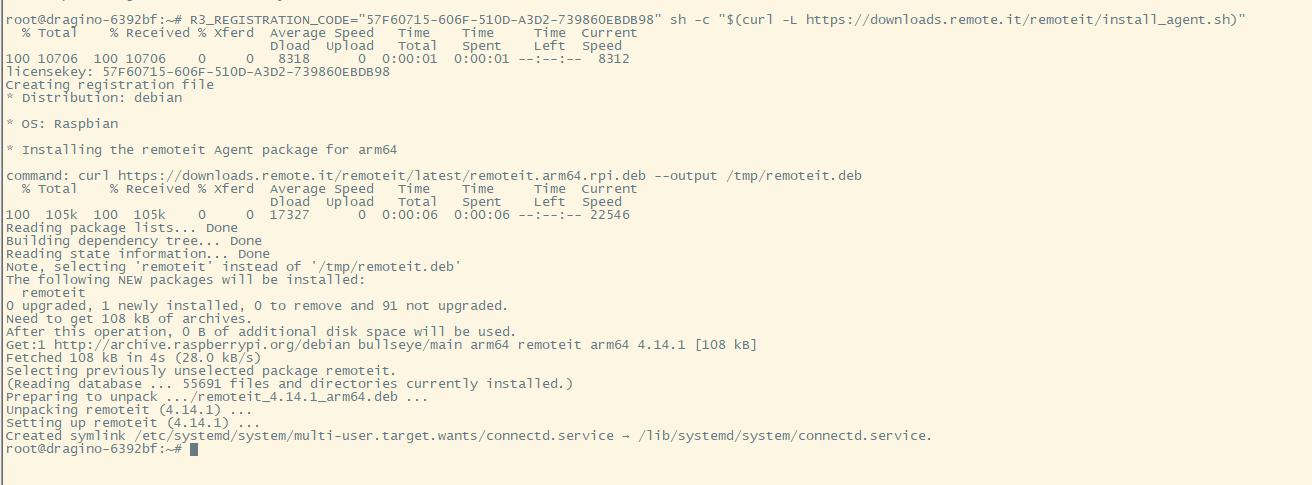
4. Check whether the device is successfully registered on the Remote.it APP
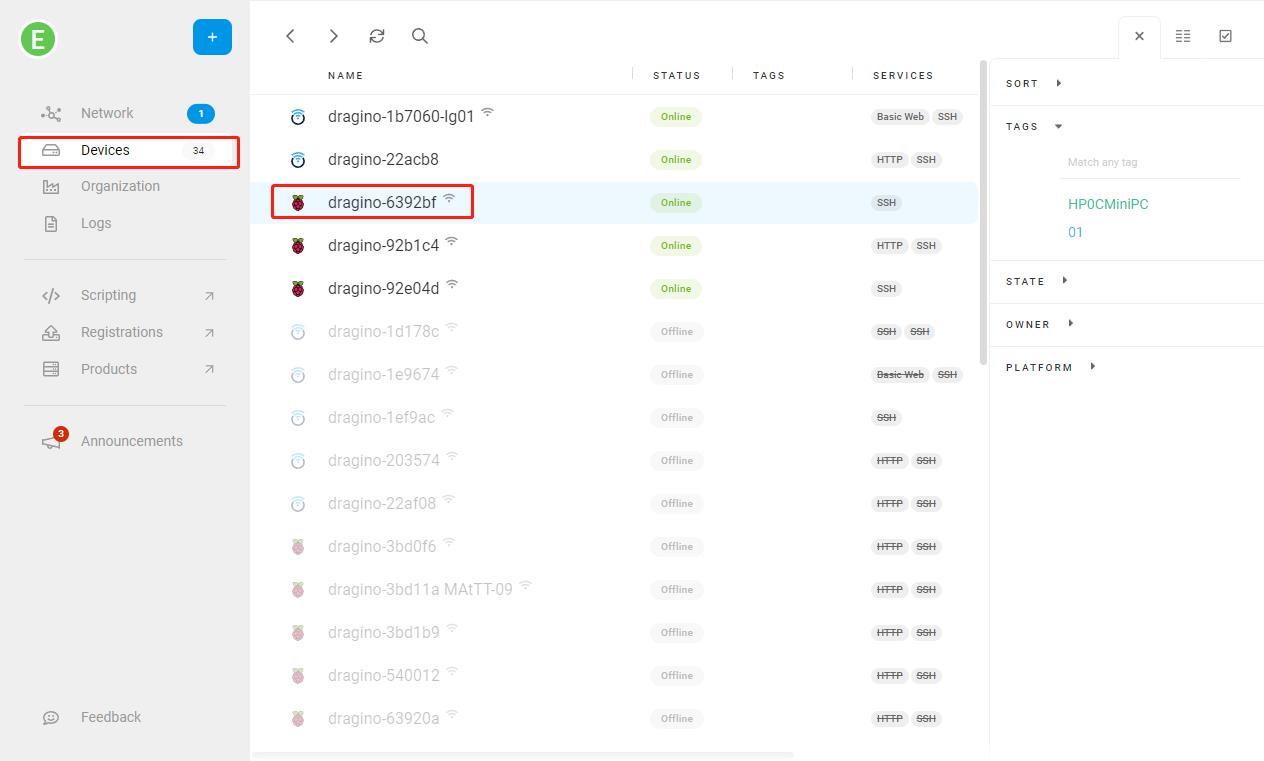
2.3 How to register the gateway with Remote.it via SSH Access for Linux console
Prerequisites:
Users must have an account and APP for remote.it
For detailed examples, please see: OpenWrt How to Connect Guide (remote.it)
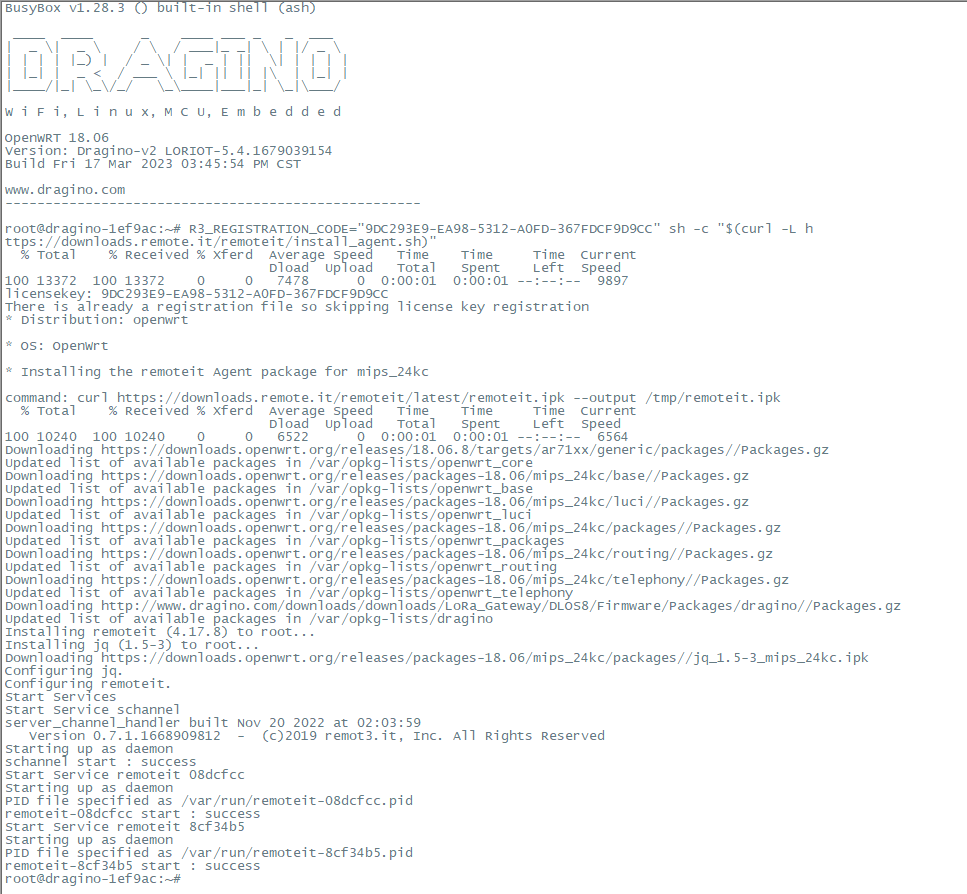
1. Click "+" in the APP to add a device
Then click Add "OpenWrt" and the APP will generate a command to register the device.
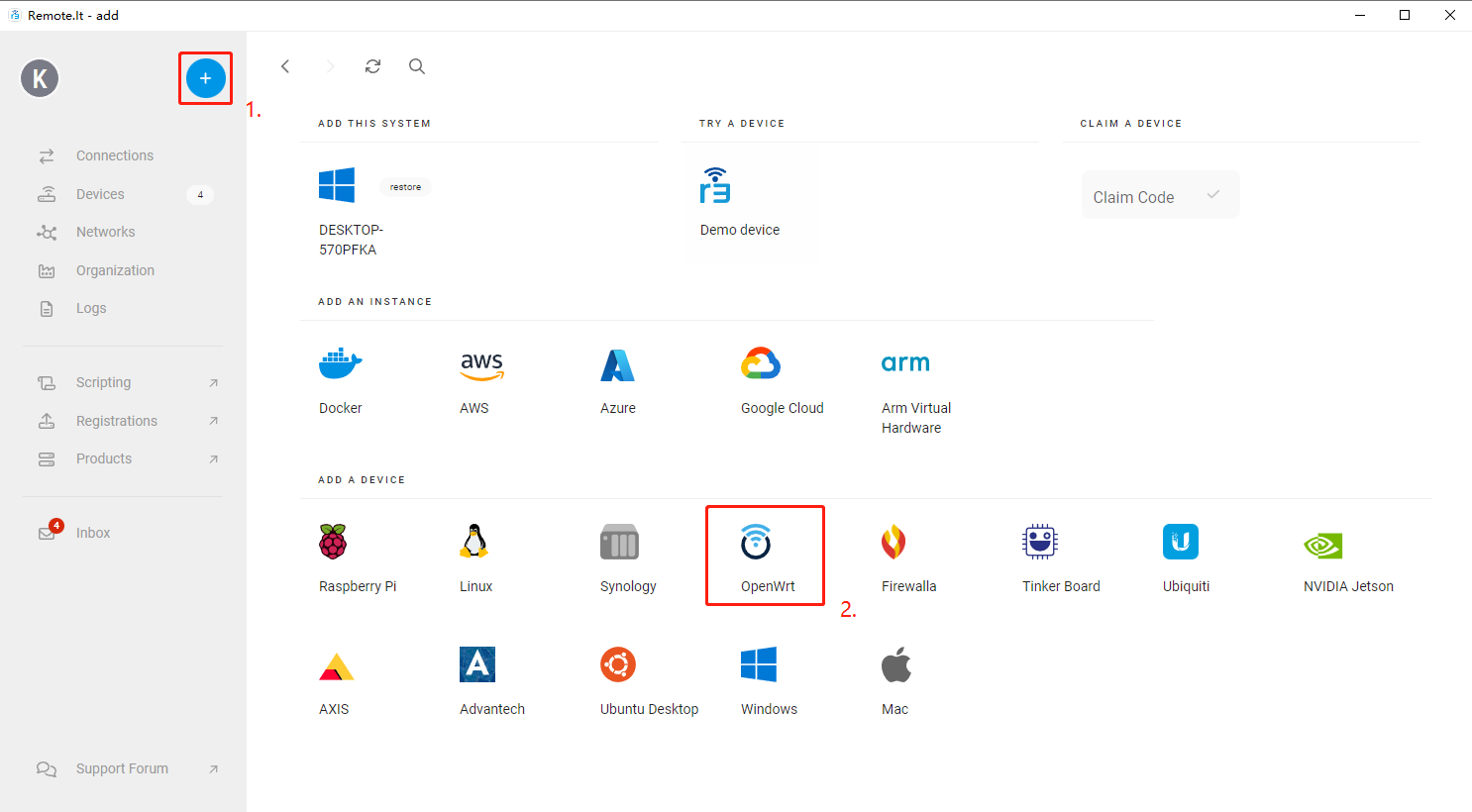
2. Copy the register device command
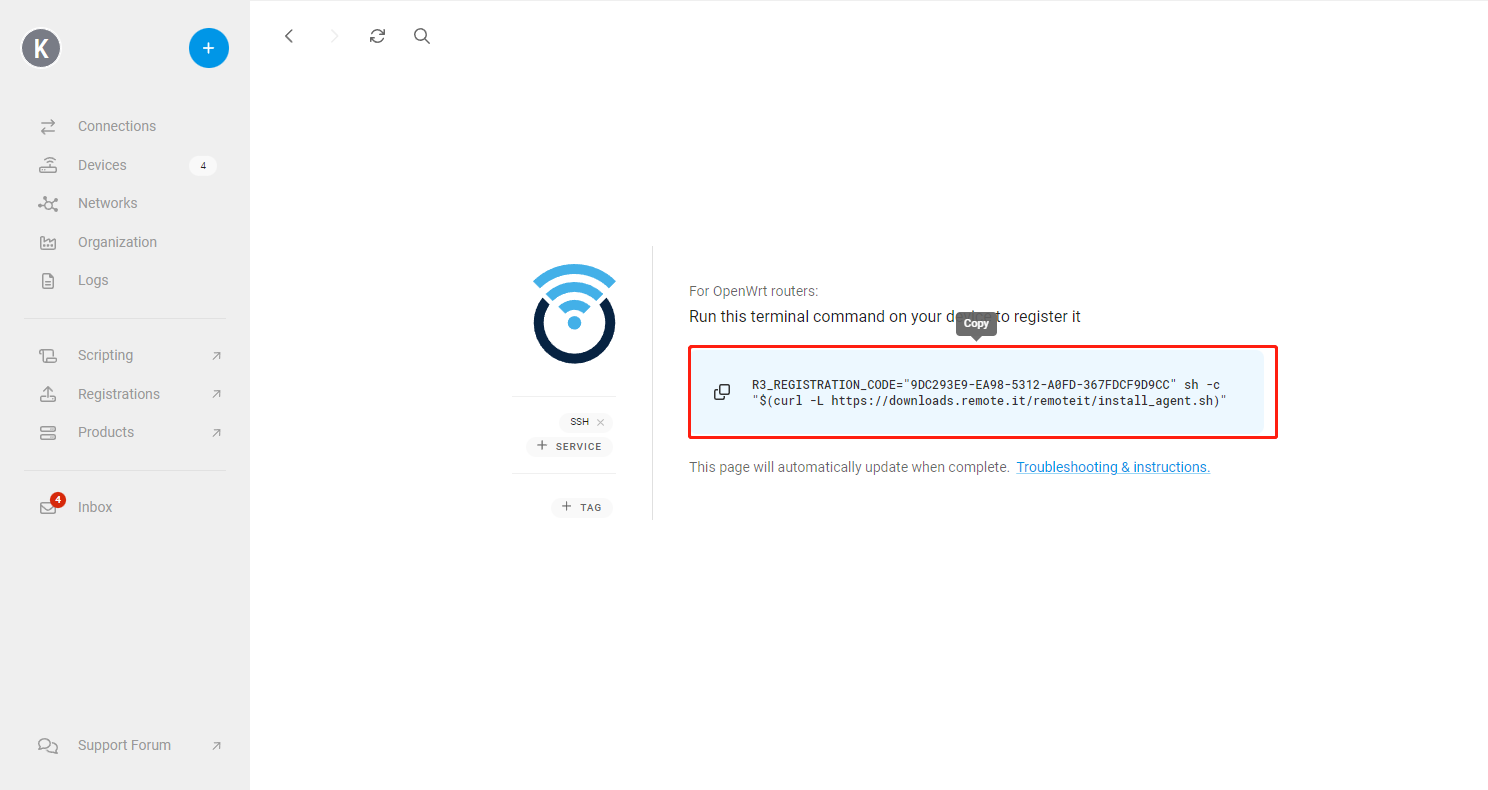
3. Enter the command copied from the previous step on the gateway Linux command line
4. Check whether the device is successfully registered on the Remote.it APP
2.4 Trouble Shooting
1. What should users do when gateway Remote.it installation fails
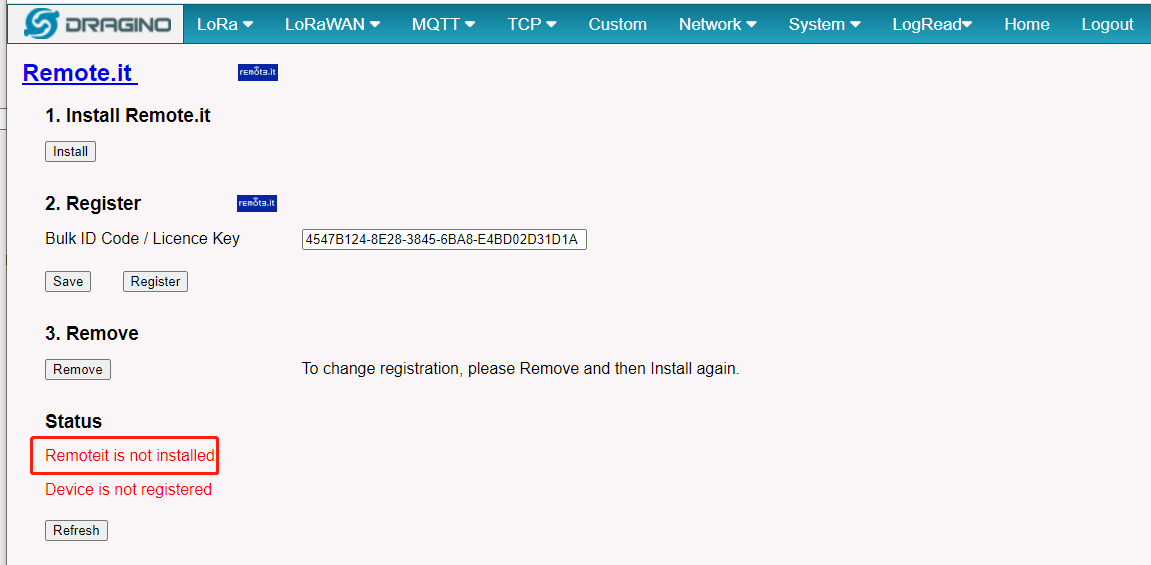
Step 1: Users can download the archive and upload it to the gateway: backup.tar.gz
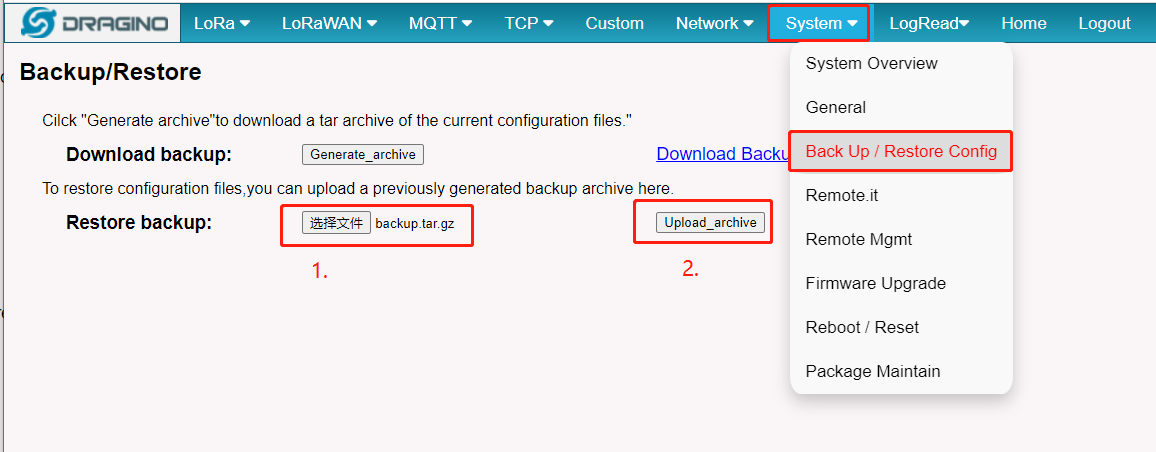
Step 2: Back to the Remote.it screen, and click "Install" again.
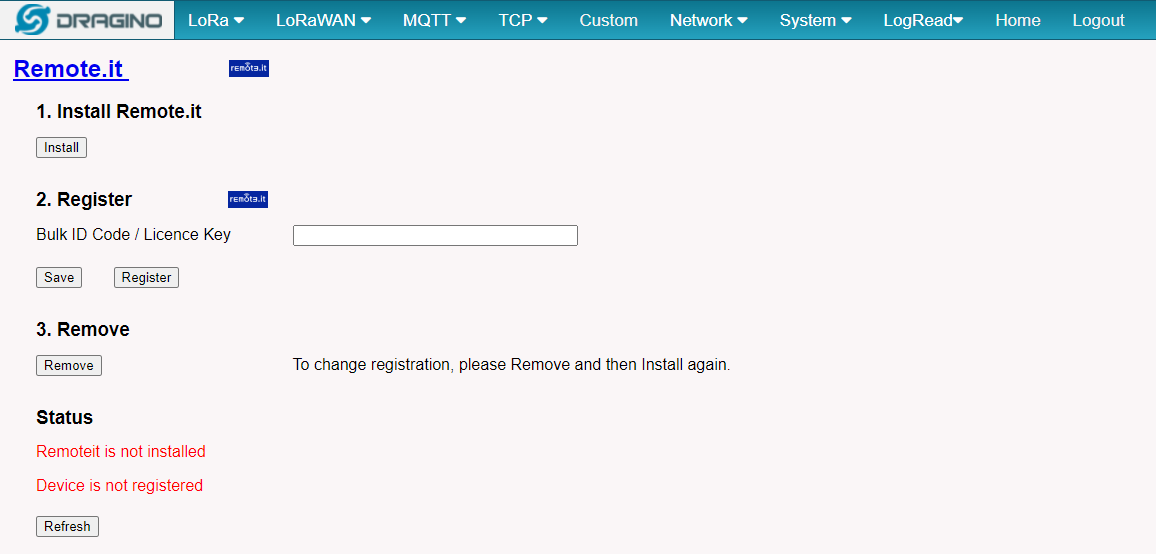
Step 3: Follow the Remoteit user instruction for Dragino Gateway steps to reconfigure
3. RSSH Introduction
Reverse SSH for remote access is available in the latest Dragino firmware for gateway. For security concern, the RSSH only available base on end user demand.
Important Notice:
RSSH access will give full control of your device to remote support. Please remove sensitivity info before perform this This RSSH allow Dragino Support Team to remote access to customer's device. Customer is not able to remote access it via Dragino Server.
If user want to access himself, he need to set up the RSSH server himself.
Below gateway support reverse SSH access:
- Firmware Version > lgw--build-v5.4.1618196981-20210412-1111 Firmware Download
- LG01N, OLG01N (Note: LG01-P LG01-S doesn't support)
- LG02, OLG02
- LG308, DLOS8
- LPS8
- LIG16
- MS14 series if installed with the same firmware.
3.1 End User Guide to use SSH access
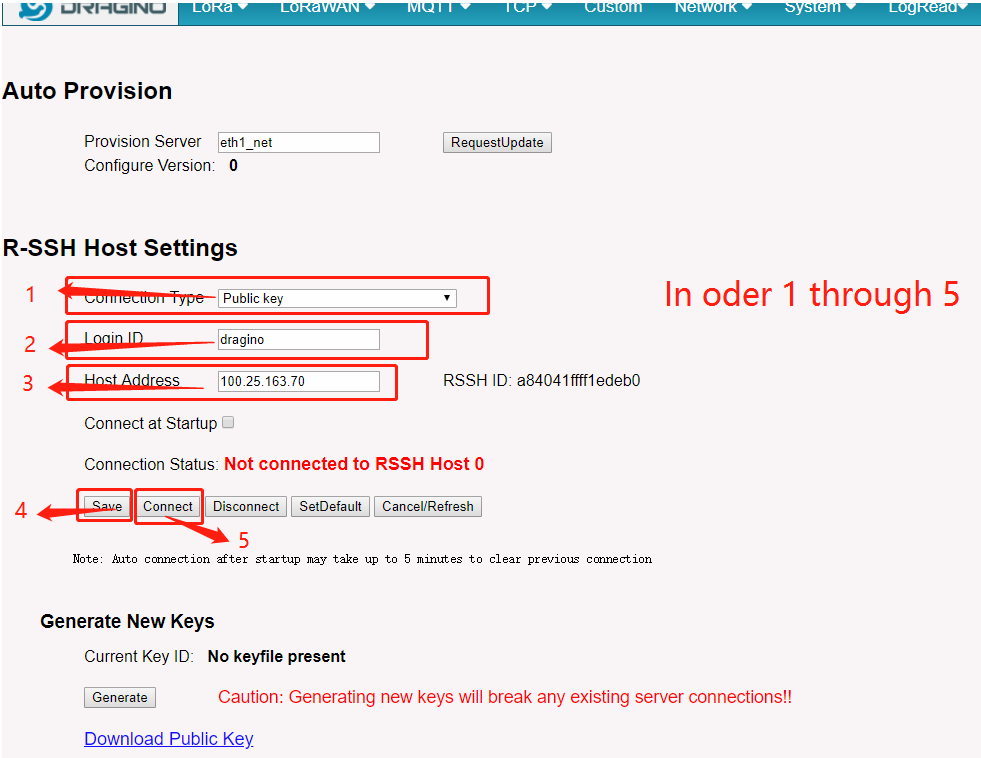
Go to this the Reverse SSH page as below:
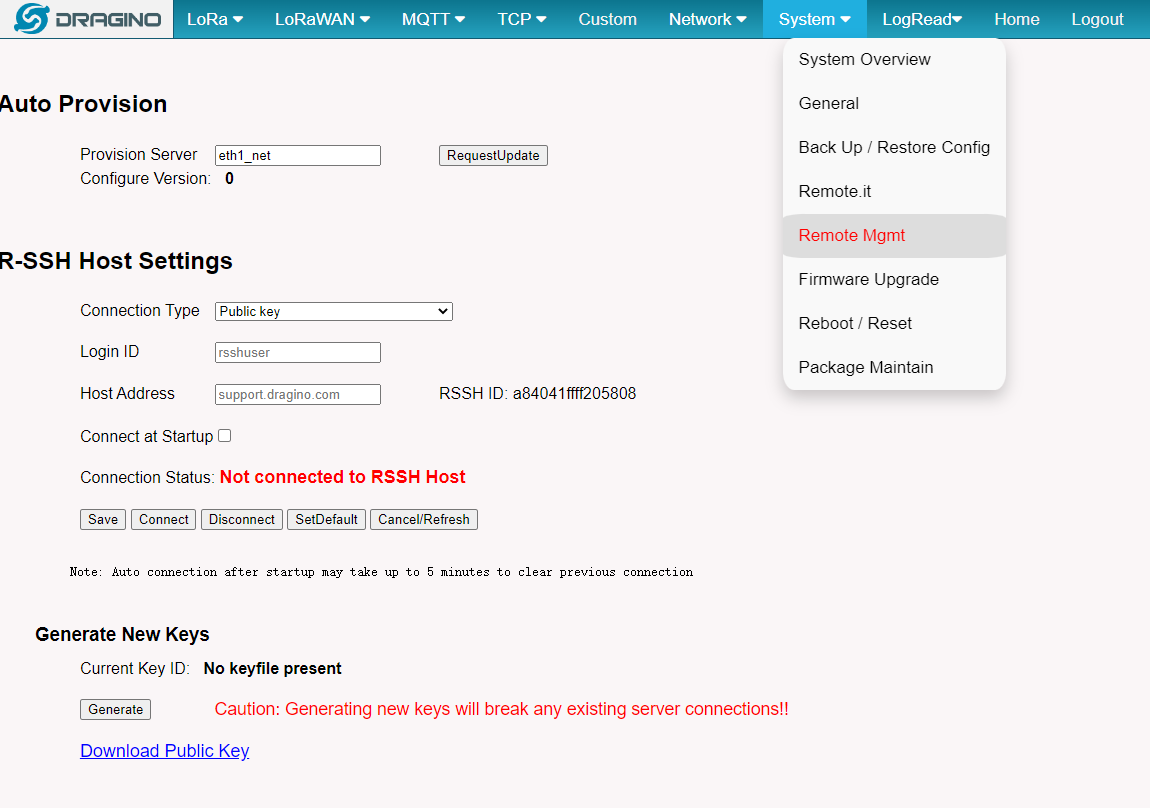
Get the RSSH configure page
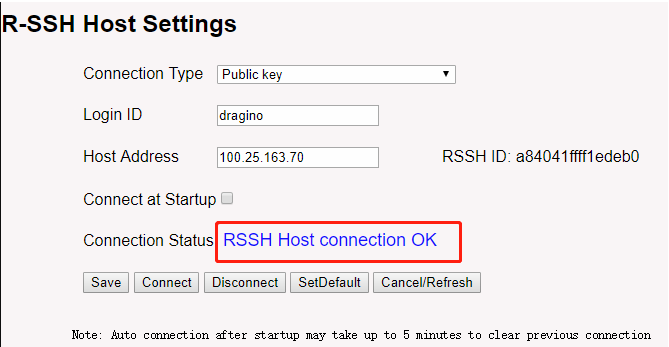
Connection OK.
- ConnectionType: Select a type
- Login ID: Input the rssh server minimal ssh user
- Host Address: Input rssh server public IP address/domain name
- Connect at Startup : Choose to enable connect once the device is powered.
- Network Keys: Click the Generate keys to generate the keys and download / mail it to Dragino support so Dragino can prepare the remote access to
After doing above, please download and mail the public keys to Dragino support and wait for our mail for the valid host port. Input the valid host port got from our support and click connect so we can remote access to your gateway.
3.2 Set Up RSSH Server
Advance administrator can config a SSH server to provide support their end user themselves., Steps as below
Step 1 : Download the SSH service code
1). git clone https://github.com/dragino/rssh-server.git rssh-server
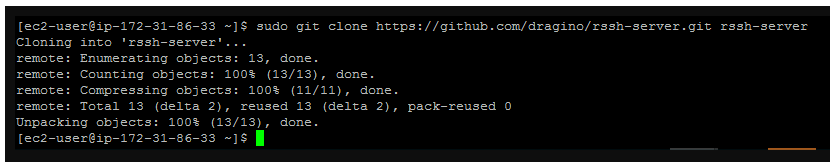
2). cd rssh-server; sudo make ---> to Generate the execute file:rssh_serv
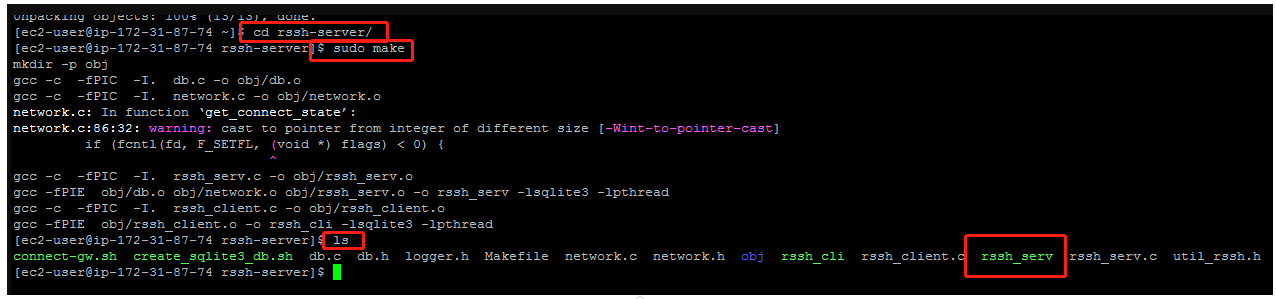
Debug :
if you git fail. --> sudo: git: command not found.
please install git. --> yum install git -y or apt-get install git -y.
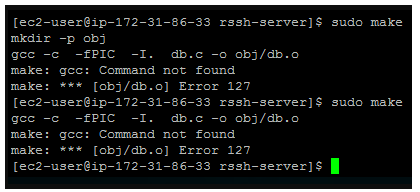
if you make error 127,it lack of gcc.
please install gcc. --> yum install gcc.
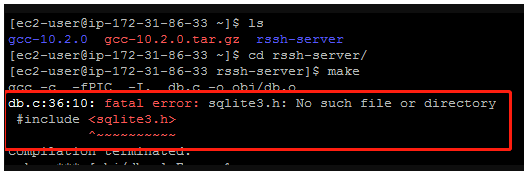
if you make a fatal error : sqlite3.h,it lack of sqlite3.
please insatell sqlite3.
How to install Sqlit3:
Step 1: Download the SQLit3 installation package
sudo wget https://www.sqlite.org/2021/sqlite-autoconf-3350400.tar.gz
Step 2: tar the SQLit3 installation package
sudo tar -zxvf sqlite-autoconf-3350300.tar.gz
Step 3: Generate the makefile
cd sqlite-autoconf-3350300/;./configure
Step 4: Compile makefile
sudo make
Step 5: Install makefile
sudo make install
Check:
cd /usr/local/bin;ls -al --> Check to see if there is a file for sqlite3
cd sqlite-autoconf-3350300/;./sqlite3 test.db --> Test whether the sqlite3 was installed successfully
debug:
If you get the imformation that is SQLite header and source version mismatch, when you execute./sqlite3 test.db.
Please execute the command /sbin/ldconfig.
After that execute the command ./sqlite3 test.db again.
Step 2 : Install and run the RSS service
1). install database for /var/rsshdb.sqlite3 and Server development port for 3721(The default is 3721)
user must enter the root account and run the following commands
$ ./create_sqlite3_db.sh
$ ./rssh_serv -p  3721 2>&1 &
$ ps -ef | grep rssh_serv check 3721 port

Debug:
 Check /var/rsshdb.sqlite3 --> ls /var/rsshdb.sqlite3
 Check ls /var/rsshdb.sqlite3 --> sudo chmod 777 rssh_serv

 if fail to open dpvlry or to bind to it
 please kill rssh_serv,and run  ./rssh_serv -p  3721 2>&1 &  again
Step 3 : Create a minimal SSH user (reverse SSH proxy for the gateway)
1): sudo useradd XXXXX (custom user name)
2): sudo passwd xxxxxx
3): cp /bin/bash /bin/rbash
4): sudo nano /etc/passwd --> Change /bin/bash to /bin/rbash
5): sudo nano /home/xxxxx/.bashrc empty it,and input export PATH=$HOME/bin
6): sudo nano /home/xxxxx/.bash_profile empty it,and input export PATH=$HOME/bin
Now user "XXXXX" is the user with limited permissions of the current system
Step 4 : Create an authorization key file
1): sudo mkdir /home/xxxxx/.ssh; sudo touch /home/xxxxx/.ssh/authorizedkey
Debug:
check: sudo ls /home/xxxxx/.ssh/authorizedkey
3.3 How does user get the gateway to connect to a user's private server
Step 1 : Come back the gateway web UI to get the gateway Public key
1) in the system --> Remote Mgmt
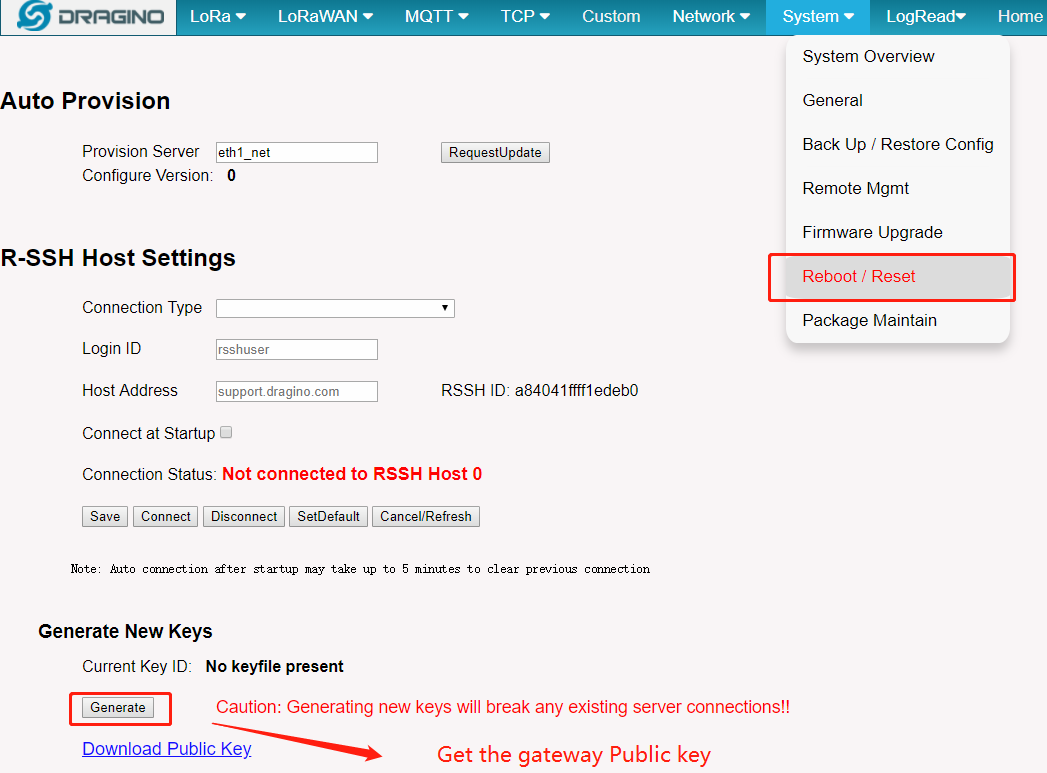
Step 2 : Authorization server
Input the Gateway Publickey into user's private server "/home/XXXXX/.ssh/authorized_keys" file.

Step 3 : Connect private server
This is same as connect Dragino Support Server but just change the server address to customize server address.
Step 4 : Check Connection
Rssh Host connection Ok
User can use common ps | grep ssh to check it in the gateway.

Step 5 : Access the gateway from customized server
Check what gateways link to server.
./connect-gw.sh -l

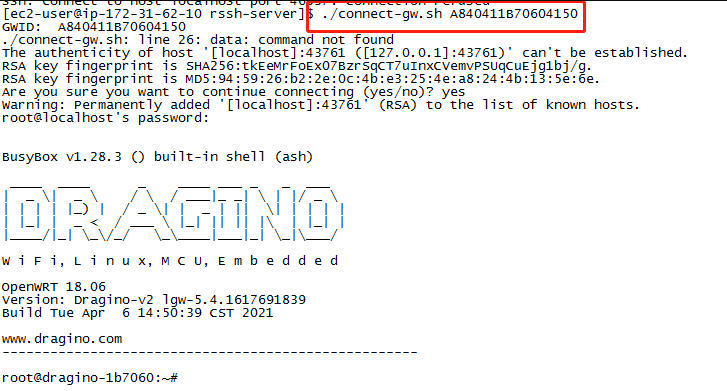
Access the gateway
./connect-gw.sh <GWID>