LoRaWAN Gateway with OpenVPN Support
Due to the size of OpenVPN packages. We didn't add it as a default feature of gateways. If you want to use OpenVPN, he can install the firmware from Dragino LoRa Gateway firmware release. use the firmware lgw-openvpn
How to use/configure OpenVPN
1. Install OpenVPN for the gateway
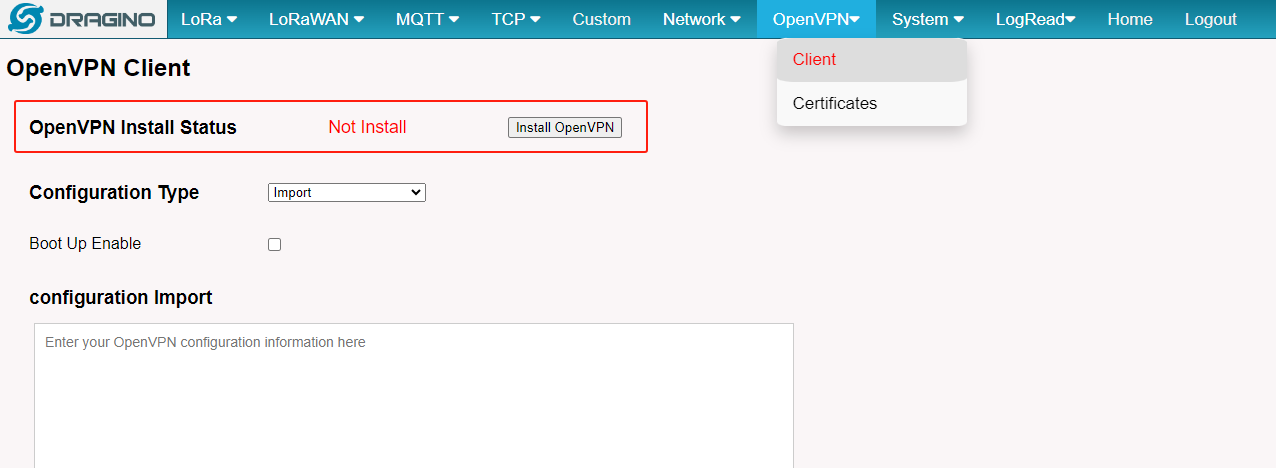
The gateway website will show the install status if OpenVPN is not installed on the gateway. Install OpenVPN for the gateway via the Install OpenVPN button.
note
The gateway has to access the internet when installing OpenVPN.
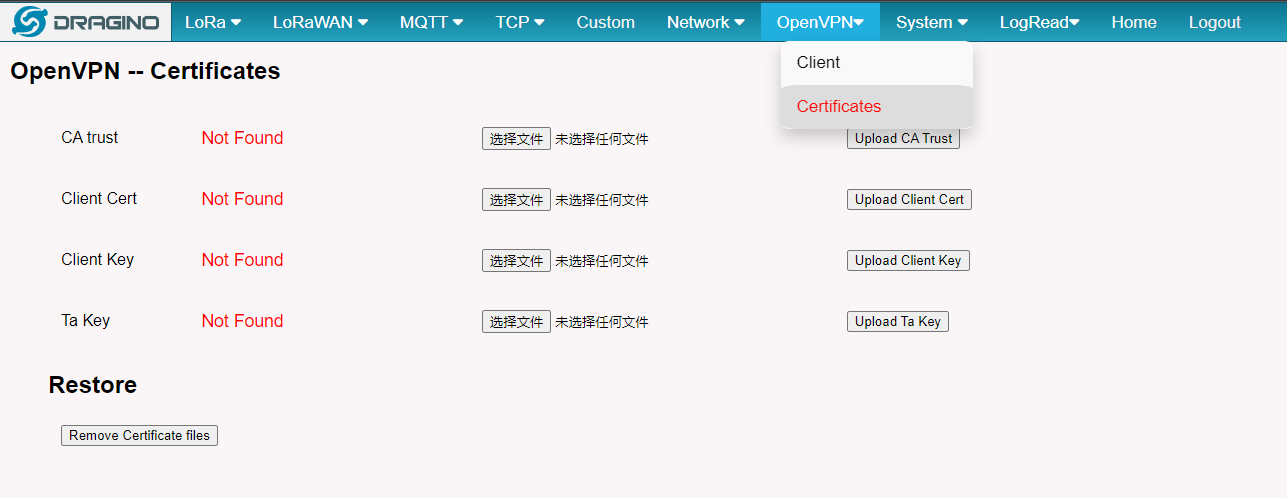
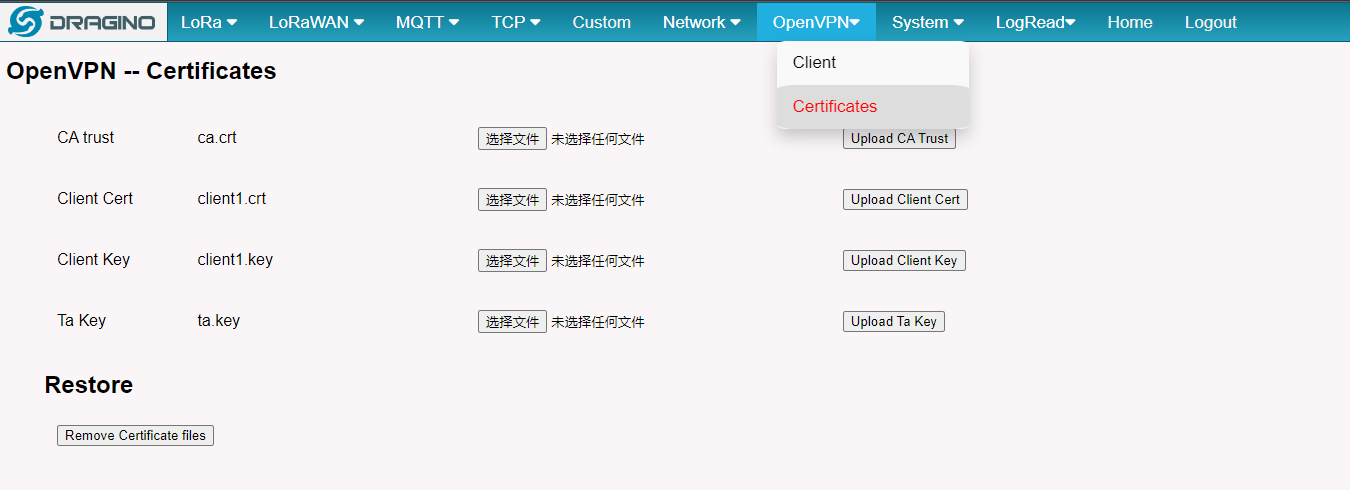
2. Log in to the gateway Web UI and upload the client certificates
Upload the client certificates to the gateway from the Upload Certificates page.
3. Import configurations to the gateway
Import the OpenVPN configuration file to the gateway.
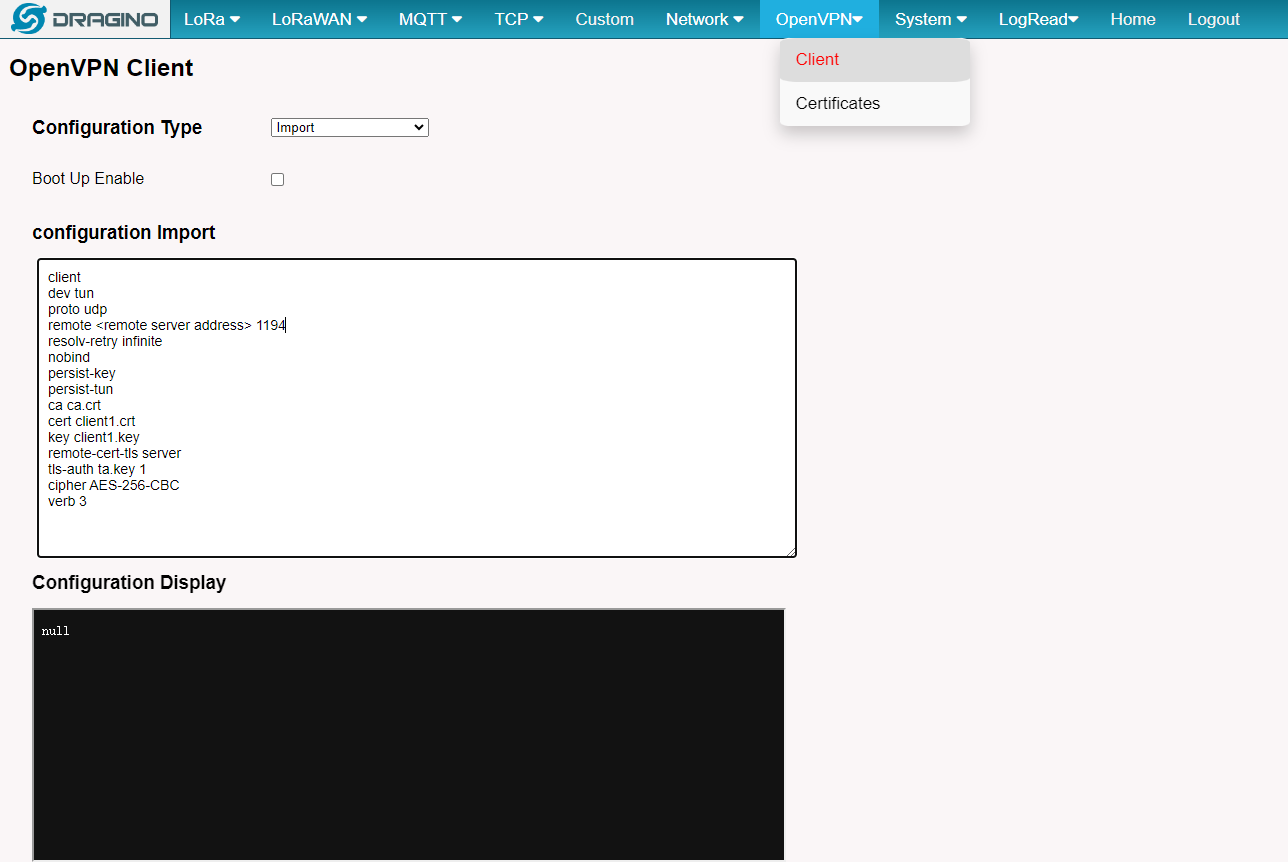
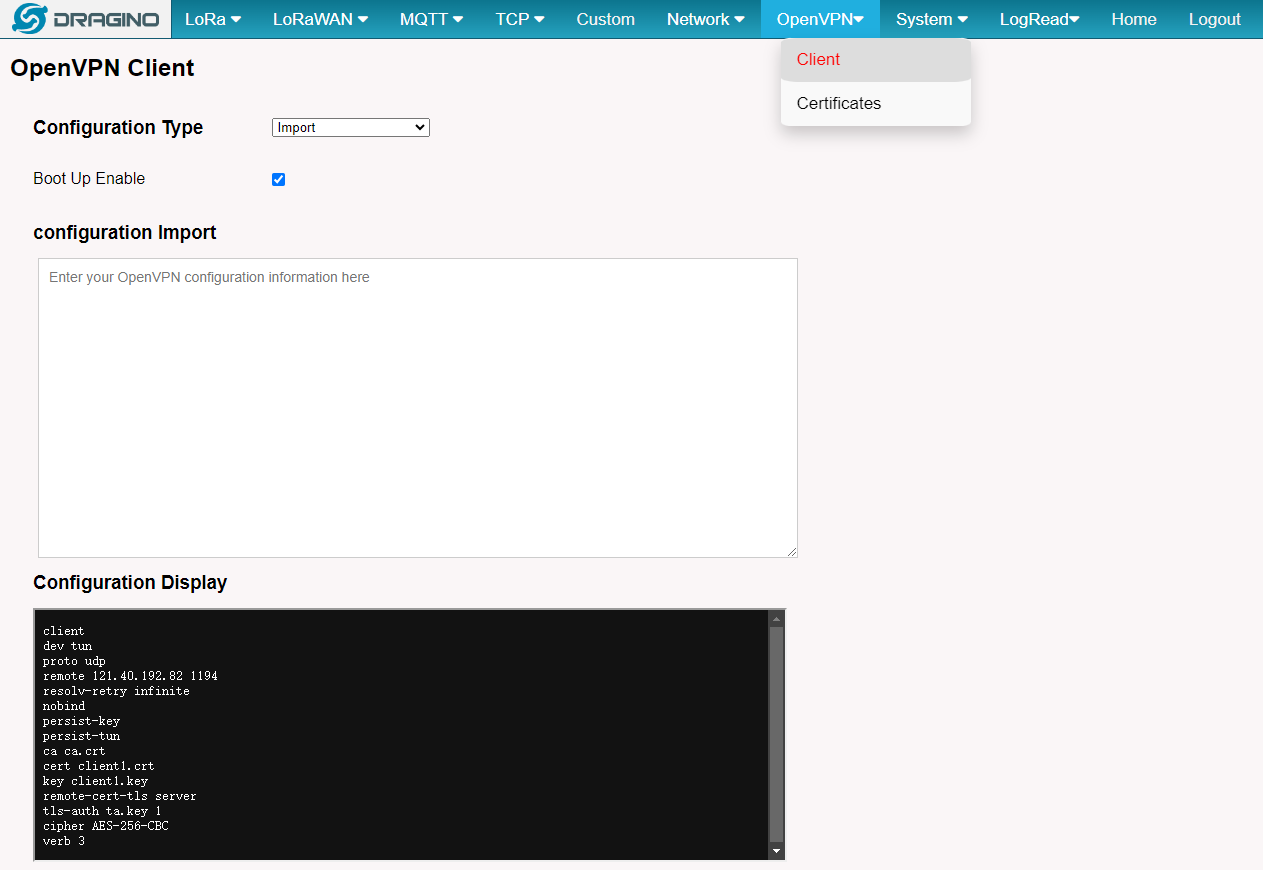
4. Check running status
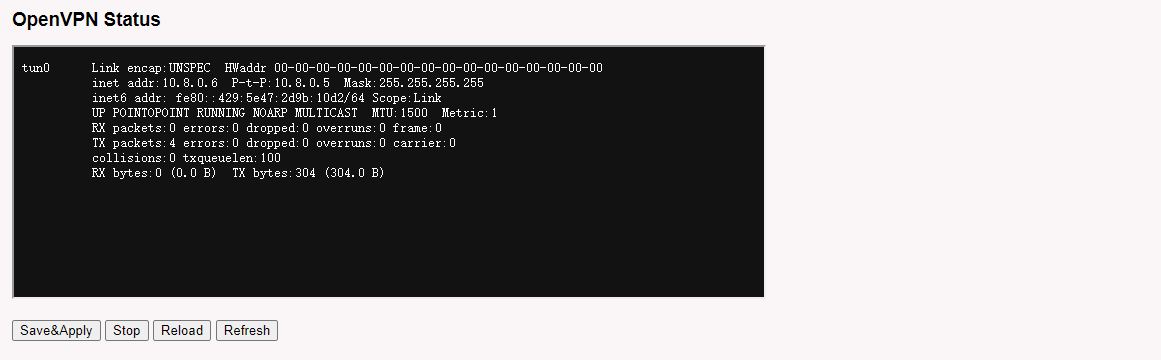
After importing the configuration, check the OpenVPN status page.
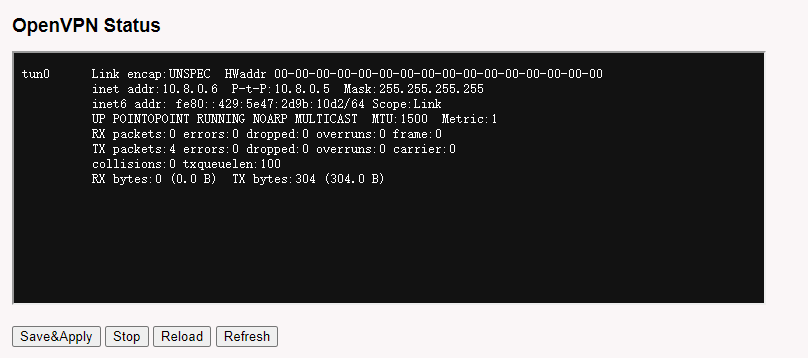
The gateway can also show the OpenVPN tunnel status from the running status page.