SN50v3-KN/KS – CAT-1 Sensor Node
1. Introduction
1.1 What is SN50V3-KN/KS LTE CAT-1 Sensor Node
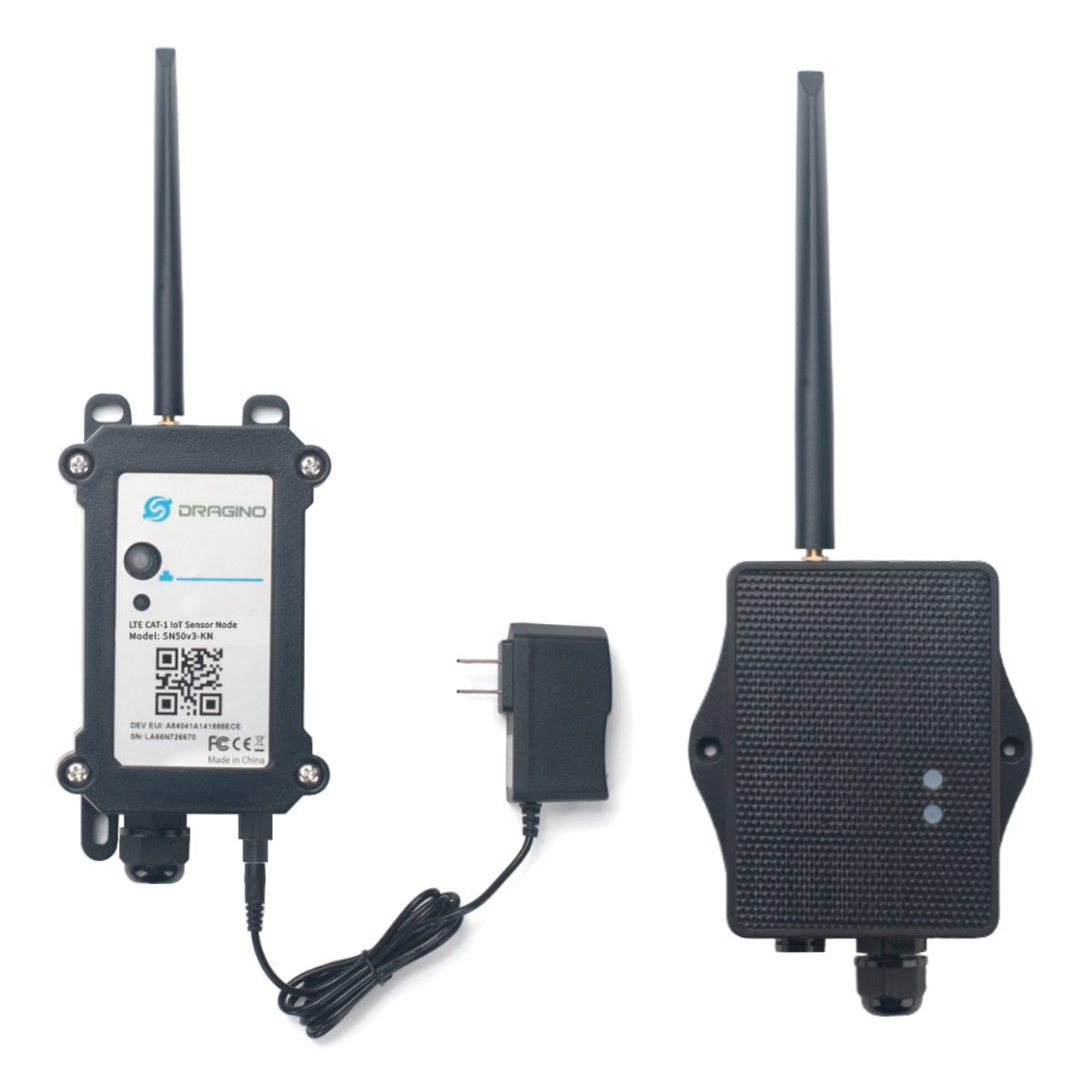
SN50V3-KN/KS is a Long Range LTE CAT-1 Sensor Node. It is designed to facilitate developers to quickly deploy industrial level LTE CAT-1 solutions. It helps users to turn the idea into a practical application and make the Internet of Things a reality. It is easy to program, create and connect your things everywhere.
SN50V3-KN/KS uses STM32l0x chip from ST, STML0x is the ultra-low-power STM32L072xxxx microcontrollers incorporate the connectivity power of the universal serial bus (USB 2.0 crystal-less) with the high-performance ARM® Cortex®-M0+ 32-bit RISC core operating at a 32 MHz frequency, a memory protection unit (MPU), high-speed embedded memories (192 Kbytes of Flash program memory, 6 Kbytes of data EEPROM and 20 Kbytes of RAM) plus an extensive range of enhanced I/Os and peripherals.
SN50V3-KN/KS is an open source product, it is based on the STM32Cube HAL drivers and lots of libraries can be found in ST site for rapid development.
SN50V3-KN/KS supports different uplink methods including MQTT, MQTTs, UDP or TCP for different application requirement, and support uplinks to various IoT Servers.
SN50V3-KN/KS supports BLE configure and OTA update which make user easy to use.
SN50V3-KN is powered by 1000mAh Li-ion battery with a charging pad. SN50V3-KS is powered by 3000mAh Li-ion battery with a solar panel. They are designed for long-term use. Real-world battery life depends on the use environment, update period, external sensor power consumption and uplink method.
SN50V3-KN/KS has optional built-in SIM card and default IoT server connection version. Which makes it works with simple configuration.
*make sure you have LTE CAT-1 coverage locally.
1.2 Features
- CAT-1 Bands: B1/B2/B3/B4/B5/B7/B8/B12/B13/B20/B28/B66
- Ultra-low power consumption
- Open-source hardware / software
- Multiply Sampling and one uplink
- Support Bluetooth v5.1 remote configure and update firmware
- Uplink via MQTT, MQTTs, TCP or UDP
- Uplink on periodically
- Downlink to change configure
- Charging Pad + 1000mAh Li-ion Battery (SN50V3-KN)
- Solar panel + 3000mAh Li-ion Battery (SN50V3-KS)
- Nano SIM card slot for CAT-1 SIM
1.3 Specification
Common DC Characteristics:
- Supply Voltage: 2.6v ~ 3.6v
- Operating Temperature: -40 ~ 85°C
I/O Interface:
- Battery output (2.6v ~ 3.6v depends on battery)
- +5v controllable output
- 3 x Interrupt or Digital IN/OUT pins
- 3 x one-wire interfaces
- 1 x UART Interface
- 1 x I2C Interface
CAT-1 Spec:
CAT-1 Module: EG800-NGFF
Support Bands:
EU:
For European, Asia, Austrial, LTE-FDD: B1/3/5/7/8/20/28
- B1 @FDD: 2100MHz
- B3 @FDD: 1800MHz
- B5 @FDD: 850MHz
- B7 @FDD: 2600MHz
- B8 @FDD: 900MHz
- B20 @FDD: 800MHz
- B28 @FDD: 700MHz
LA:
For Latin America, LTE-FDD: B2/3/4/5/7/8/28/66
- B2 @FDD: 1900MHz
- B3 @FDD: 1800MHz
- B4 @FDD: 1700/2100MHz
- B5 @FDD: 850MHz
- B7 @FDD: 2600MHz
- B8 @FDD: 900MHz
- B28 @FDD: 700MHz
- B66 @FDD: 1700/2100MHz
NA:
For North America, LTE-FDD: B2/4/5/12/13/66
- B2 @FDD: 1900MHz
- B4 @FDD: 1700/2100MHz
- B5 @FDD: 850MHz
- B12 @FDD: 700MHz
- B13 @FDD: 700MHz
- B66 @FDD: 1700/2100MHz
Battery:
- Li-ion Battery
- Capacity: 3000mAh & 1000mAh
- Self Discharge: <1% / Year @ 25°C
- Max continuously current: 130mA
- Max boost current: 2A, 1 second
Power Consumption
- STOP Mode: 10uA @ 3.3v
- Max transmit power: 350mA @ 3.3v
1.4 Applications
- Smart Buildings & Home Automation
- Logistics and Supply Chain Management
- Smart Metering
- Smart Agriculture
- Smart Cities
- Smart Factory
1.5 Sleep mode and working mode
Deep Sleep Mode: Sensor doesn't have any CAT-1 activate. This mode is used for storage and shipping to save battery life.
Working Mode: In this mode, Sensor will work as CAT-1 Sensor to Join CAT-1 network and send out sensor data to server. Between each sampling/tx/rx periodically, sensor will be in IDLE mode), in IDLE mode, sensor has the same power consumption as Deep Sleep mode.
1.6 Button & LEDs
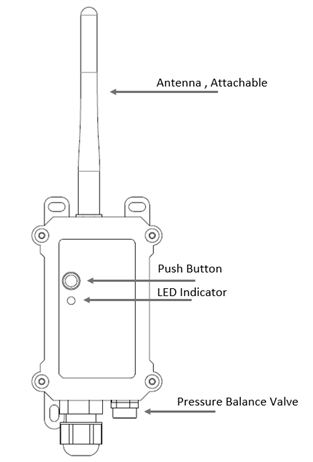
| Behavior on ACT | Function | Action |
|---|---|---|
 1~3s 1~3s | Send an uplink | If sensor has already attached to CAT-1 network, sensor will send an uplink packet, blue led will blink once. |
 >3s >3s | Active Device | Green led will fast blink 5 times, device will enter OTA mode for 12 seconds. And then start to attach CAT-1 network. |
 x5 x5 | Deactivate Device | Red led will solid on for 5 seconds. Means device is in Deep Sleep Mode. |
Note: When the device is executing a program, the buttons may become invalid. It is best to press the buttons after the device has completed the program execution.
1.7 BLE connection
SN50V3-KN/KS support BLE remote configure and firmware update.
BLE can be used to configure the parameter of sensor or see the console output from sensor. BLE will be only activate on below case:
- Press button to send an uplink
- Press button to active device.
- Device Power on or reset.
If there is no activity connection on BLE in 60 seconds, sensor will shut down BLE module to enter low power mode.
1.8 Pin Definitions , Switch & SIM Direction
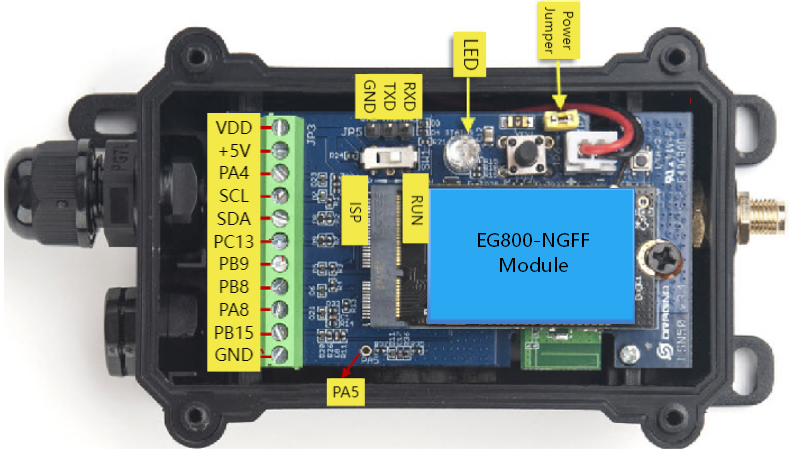
SN50V3-KN/KS use the mother board which as below.
- Figure 1.8-1: Motherboard Pinout (Silkscreen Labeling)
Image showing the pin arrangement as labeled on the PCB silkscreen:
- Figure 1.8-2: Corresponding Microcontroller Pin Mapping (STM32)
Image showing the actual microcontroller pin mapping for SN50V3-KN/KS:
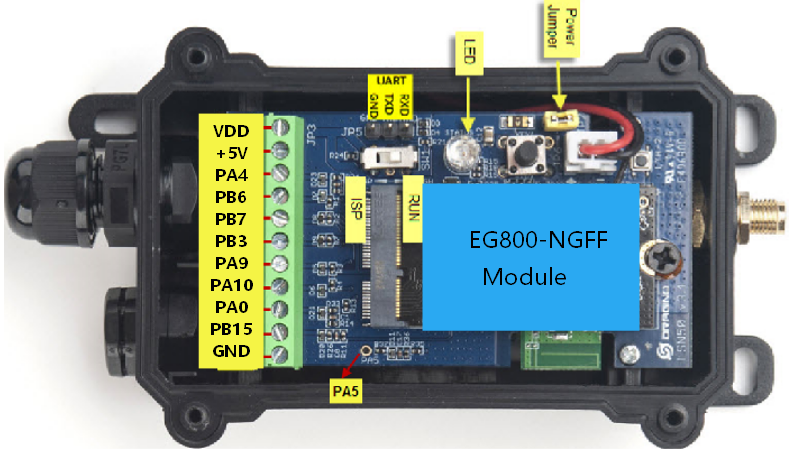
Note: In this manual, all descriptions of left-side pin functions and sensor wiring examples refer to the silkscreen labels (Figure 1.8-1), not the underlying microcontroller pin names. The mapping above is provided for developers who require direct STM32 GPIO access.
1.8.1 Jumper JP2
Power on Device when put this jumper.
1.8.2 BOOT MODE / SW1
1)ISP: upgrade mode, device won't have any signal in this mode. but ready for upgrade firmware. LED won't work. Firmware won't run.
2)Flash: work mode, device starts to work and send out console output for further debug
1.8.3 Reset Button
Press to reboot the device.
1.8.4 SIM Card Direction
See this link. How to insert SIM Card.
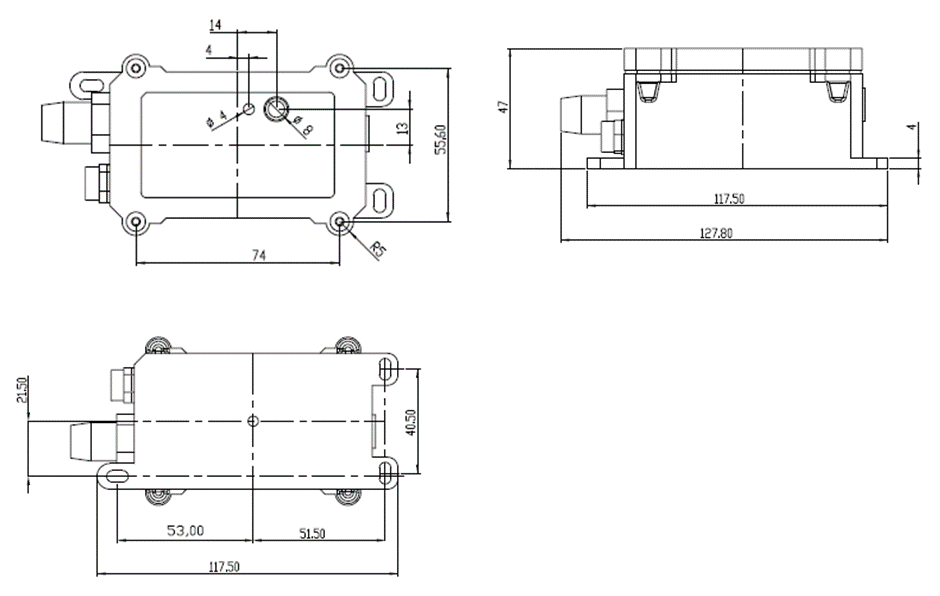
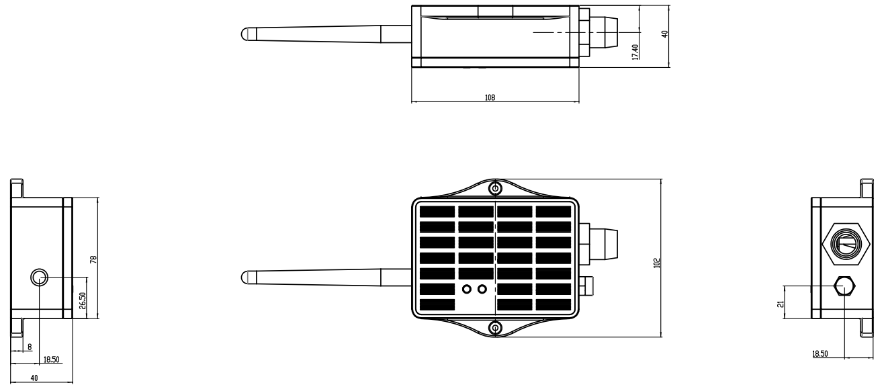
1.9 Mechanical
1.9.1 For KN version
1.9.2 For KS version
2. Use SN50V3-KN/KS to communicate with IoT Server
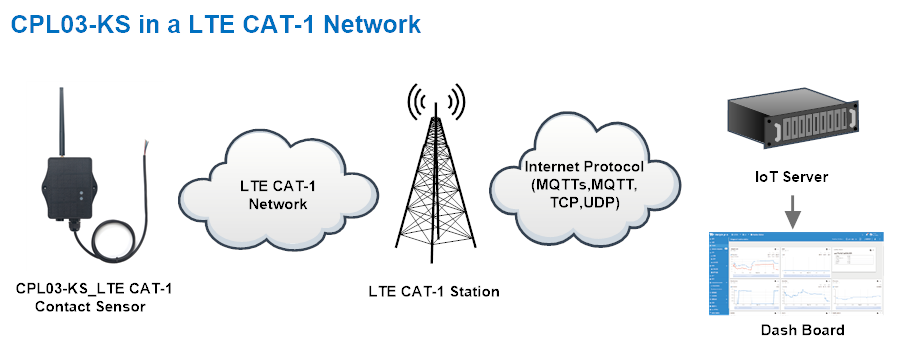
2.1 Send data to IoT server via CAT-1 network
The SN50V3-KN/KS is equipped with a CAT-1 module, the pre-loaded firmware in SN50V3-KN/KS will get environment data from sensors and send the value to local CAT-1 network via the CAT-1 module. The CAT-1 network will forward this value to IoT server via the protocol defined by SN50V3-KN/KS.
Below shows the network structure:
There are two version: -GE and -1T version of SN50V3-KN/KS.
GE Version: This version doesn't include SIM card or point to any IoT server. User needs to use AT Commands to configure below two steps to set SN50V3-KN/KS send data to IoT server.
- Install CAT-1 SIM card and configure APN. See instruction of Attach Network.
- Set up sensor to point to IoT Server. See instruction of Configure to Connect Different Servers.
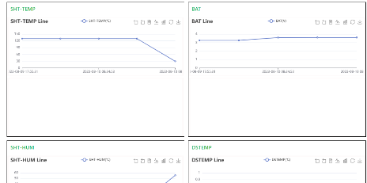
Below shows result of different server as a glance.
| Servers | Dash Board | Comments |
| Node-Red |
| |
| DataCake |
| |
| Tago.IO | ||
| General UDP | Raw Payload. Need Developer to design Dash Board | |
| General MQTT | Raw Payload. Need Developer to design Dash Board | |
| ThingSpeak |
| |
| ThingsBoard |
|
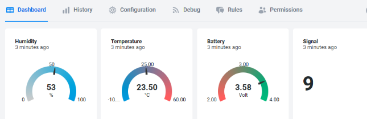
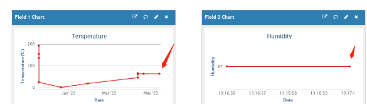
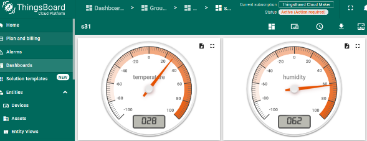
1T Version: This version has 1NCE SIM card pre-installed and configure to send value to ThingsEye. User Just need to select the sensor type in ThingsEyeand Activate SN50V3-KN/KS and user will be able to see data in ThingsEye. See here for ThingsEye Config Instruction.
3. Configure SN50V3-KN/KS
3.1 Configure Methods
SN50V3-KN/KS supports below configure method:
-
AT Command via Bluetooth Connection (Recommended): BLE Configure Instruction.
-
AT Command via UART Connection : See UART Connection.
3.2 Serial Access Password
After the Bluetooth or UART connection is successful, use the Serial Access Password to enter the AT command window.
The label on the box of the node will print the initial password: AT+PIN=xxxxxx, and directly use the six-digit password to access the AT instruction window.

If you need to change the password, use AT+PWORD=xxxxxx (6 characters), KN/KS nodes only support lowercase letters.

Note: After entering the command, you need to add a line break, and you can also set automatic line breaks in the Bluetooth tool or UART connection tool.

3.3 AT Commands Set
AT+<CMD>? : Help on <CMD>
AT+<CMD> : Run <CMD>
AT+<CMD>=<value> : Set the value
AT+<CMD>=? : Get the value
AT : Attention
AT? : Short Help
AT+MODEL : Get module information
ATZ : Trig a reset of the MCU
AT+CFGMOD : Working mode selection
AT+DEUI : Get or set the Device ID
AT+CFG : Print all settings
AT+TDC : Get or set the application data transmission interval in s
AT+SERVADDR : Get or Set the Server address
AT+INTMOD : Get or Set the trigger interrupt mode (0:input,1:falling or rising,2:falling,3:rising)
AT+APN : Get or set the APN
AT+5VT : Get or Set extend the time of 5V power
AT+PRO : Get or Set usage agreement (2:UDP,3:MQTT,4:TCP)
AT+RXDL : Get or Set the receiving time
AT+EXT : Get or Set Count value
AT+GETSENSORVALUE : Returns the current sensor measurement
AT+DNSCFG : Get or Set DNS Server
AT+CSQTIME : Get or Set the time to join the network
AT+GDNS : Get or Set the DNS
AT+TLSMOD : Get or Set the TLS mode
AT+SLEEP : Get or Set the sleep mode
AT+IPTYPE : Set the IPv4 or IPv6
AT+QSW : Power on and power off EG800-NGFF module
AT+GETLOG : Print serial port logs
AT+CLOCKLOG: Get or set SHT record time
AT+QBAND: Get or set Frequency Band
AT+SCANMOD: Configure the network category for search
MQTT Management
AT+CLIENT : Get or Set the MQTT clientID
AT+UNAME : Get or Set the MQTT Username
AT+PWD : Get or Set the MQTT password
AT+PUBTOPIC : Get or set MQTT publishing topic
AT+SUBTOPIC : Get or set MQTT subscription topic
AT+MQOS : Set the QoS level of MQTT
Information
AT+LDATA : Get the last upload data
AT+CDP : Read or Clear cached data
AT+PWORD : Get or set the System password
AT+FDR1 : Reset parameters to factory default values except for passwords
AT+FDR : Reset Parameters to Factory Default
Print or clear historical data
AT+PDTA : Print the sector data from start page to stop page
AT+PLDTA : Print the last few sets of data
AT+CLRDTA : Clear the storage, record position back to 1st
3.4 Test Uplink and Change Update Interval
By default, Sensor will send uplinks every 2 hours.
User can use below commands to change the uplink interval.
AT Command: AT+TDC
Example: AT+TDC=7200 // Set Update Interval to 7200 seconds
Downlink Commands: 0x01
Format: Command Code (0x01) followed by 3 bytes.
Example: 12 hours= 43200 seconds 43200(D)=0xA8C0(H)
Downlink Payload: `01 00 A8 C0` // AT+TDC=43200, Set Update Interval to 12 hours.
Note: User can also push the button for more than 1 seconds to activate an uplink.
3.5 Set the working mode
Feature: Working mode selection
AT Command: AT+CFGMOD
Example: AT+CFGMOD=2 // Set the working mode to 2(Distance Mode).
Downlink Commands: 0x02
Format: Command Code (0x02) followed by 1 byte.
Example: Downlink Payload: 02 02// AT+CFGMOD=2
3.6 Set the receiving time
Feature: Extend the receiving time
AT Command: AT+RXDL
Example: AT+RXDL=1000 // Set the receiving time delay to 1000ms
Downlink Commands: 0x03
Format: Command Code (0x03) followed by 3 bytes.
Example: Downlink Payload: 03 00 03 E8// AT+RXDL=1000
3.7 Reset
Feature: Trig a reset of the MCU.
AT Command: ATZ
Downlink Commands: 0x04FF
3.8 +5V
Feature: Set extend the time of 5V power.
AT Command: AT+5VT
Example: AT+5VT=2000 // Set extend the time of 5V power to 2000 ms
Downlink Commands: 0x05
Format: Command Code (0x05) followed by 3 bytes.
Example: Downlink Payload: 05 00 07 D0// AT+5VT=2000
3.9 Trggier an uplink by external interrupt
Feature, Set Interrupt mode for PB15,PA4,PA8.AT command:AT+INTMOD
| Command Example | Function | Response |
|---|---|---|
| AT+INTMOD? | Get or Set the trigger interrupt mode | 1:0,2:0,3:0(default) OK |
| AT+INTMOD=? | Get current trigger mode 0:input 1:falling or rising 2:falling 3:rising | 1:1,2:1,3:1 OK |
| AT+INTMOD=a,b,c | Parameter a sets thePB15 interrupt triggering mode, parameterb sets thePA4 interrupt triggering mode, and parameterc sets thePA8 interrupt triggering mode. | OK |
Example:
- AT+INTMOD=1,0,2 // Set the PB15 interrupt to be triggered by a rising or falling edge; set the PA4 interrupt function off and PA4 as a signal input pin; set the PA8 interrupt to be triggered by a falling edge.
- AT+INTMOD=0,1,3 // Set the PB15 interrupt function off and PB15 as a signal input pin; set the PA4 interrupt to be triggered by a rising or falling edge; set the PA8 interrupt to be triggered by a rising edge.
Downlink command: 0x06
Format: Command Code (0x06) followed by 3 byte.
Ex1: Downlink payload:0x06010002 // Equal to AT+INTMOD=1,0,2
Ex2: Downlink payload:0x06000103 // Equal to AT+INTMOD=0,1,3
3.10 Set the QoS level
This command is used to set the QoS level of MQTT.AT command:
- AT+MQOS=xx// 0~2
Downlink command: 0x07
Format: Command Code (0x07) followed by 1 byte.
Ex1: Downlink payload:0x0700 // AT+MQOS=0
Ex2: Downlink payload:0x0701 // AT+MQOS=1
3.11 Clock logging
Sometimes when we deploy lots of end nodes in field. We want all sensors sample data at the same time, and upload these data together for analyze. In such case, we can use clock loging feature.
We can use this command to set the start time of data recording and the time interval to meet the requirements of the specific collection time of data.
AT command: AT+CLOCKLOG=a,b,c,d
a: 0: Disable Clock logging.1: Enable Clock Logging
b: Specify First sampling start second: range** (0 ~ 3599, 65535)** //Note: If parameter b is set to 65535, the log period starts after the node accesses the network and sends packets.
c: Specify the sampling interval: range** (0 ~ 255 minutes)**
d: How many entries should be uplink on every TDC**(max 32)**
Note: To disable clock recording, set the following parameters: AT+CLOCKLOG=1,65535,0,0

Example:
AT+CLOCKLOG=1,65535,1,5
After the node sends the first packet, data is recorded to the memory at intervals of 1 minute. For each TDC uplink, the uplink load will include: battery information + the last 5 memory records (payload + timestamp).

Note: Users need to synchronize the server time before configuring this command. If the server time is not synchronized before this command is configured, the command takes effect only after the node is reset.
Downlink command: 0x08
Format: Command Code (0x08) followed by 5 bytes.
- Example 1: Downlink Payload:08 01 FFFF 0F 08 // Set SHT record time: AT+CLOCKLOG=1,65535,15,8
- Example 2: Downlink Payload:08 01 04B0 0F 08 // Set SHT record time: AT+CLOCKLOG=1,1200,15,8
Note: When entering the downlink payload, there must be no Spaces between bytes.
3.12 Set the TLS mode
Refer to this link (MQTT Connection to send data to Tago.io)to use the TLS mode.
AT Command: AT+TLSMOD
Example 1: AT+TLSMOD=0,0 // Disable TLS Mode.
Example 2: AT+TLSMOD=1,0 // No authentication
                 AT+TLSMOD=1,1   // Perform server authentication

                 AT+TLSMOD=1,2   //  Perform server and client authentication if requested by the remote server
Downlink command: 0x09
Format: Command Code (0x09) followed by 2 bytes.
Example1: Downlink Payload: 09 00 00// AT+TLSMOD=0,0
Example2: Downlink Payload: 09 01 02// AT+TLSMOD=1,2
3.16 Set the search network time
Feature: Get or Set the time to join the network(unit: minutes).
AT Command: AT+CSQTIME
Example: AT+CSQTIME=10 // Set the search time to 10 minutes.
Downlink command: 0x13
Format: Command Code (0x13) followed by 1 byte.
Example: Downlink Payload: 13 0A// AT+CSQTIME=10
3.17 Set the IPv4 or IPv6
This command is used to set IP version.
AT command:
- AT+IPTYPE=1// IPv4
- AT+IPTYPE=2// IPv6
3.18 Factory data reset
Two different restore factory Settings configurations.
AT command:
- AT+FDR// Reset Parameters to Factory Default.
- AT+FDR1// Reset parameters to factory default valuesexcept for passwords.
3.19 Power on / power off EG800-NGFF module
This command is used to power on and power off EG800-NGFF module.
- AT command: AT+QSW
The module is powered on after the command is sent for the first time, and powered off after the command is sent again.

3.20 Example Query saved historical records
- AT command: AT+CDP
This command can be used to search the saved history, recording up to 32 groups of data, each group of historical data contains a maximum of 100 bytes.

3.21 Uplink log query
- AT command: AT+GETLOG
This command can be used to query upstream logs of data packets.

3.22 Get or Set Count value
Feature,Get or set the count value and set the interrupt mode or count mode.(Note: Added since firmware version v1.0.2)AT command:AT+EXT
| Command Example | Function | Response |
|---|---|---|
| AT+EXT? | Get or Set Count value | OK |
| AT+EXT=? | Get count value and current mode The last parameter: 0: interrupt trigger mode; 1: count mode. | 1:108,2:92,3:78,1 OK |
| AT+EXT=a,b,c,1 | Set to count mode, parametera sets the count forPB15, parameterb sets the count forPA4, and parameterc sets the count forPA8. | OK |
Example:
- AT+EXT=0,0,0, 0 // Set to interrupt trigger mode, invalid count value recommended fixed setting of 0.
- AT+EXT=0,0,0, 1// Set to counting mode, PB15,PA4,PA8 start counting from 0.
- AT+EXT=50,100,200,1 // Set to count mode, set PB15 count value to 50, set PA4 count value to 100, set PA8 count value to 200.
Note:
- There is no down command for this instruction, it can only be set through the serial port.
- The last parameter of the current instruction sets the pin's operating mode to interrupt-triggered or count mode.(can only be set to 0 or1)
- This command only works in modes where the payload contains counts or interrupts, such as mode 6 and mode 8. For mode 9, the count pin is PA8, so users can use this command to set the count value of PA8, for example: AT+EXT=0,0,50,1 // Set the count value of PA8 to 50.
3.23 Set the downlink debugging mode(Since firmware v1.1.0)
Feature: Enable or disable downlink debugging mode. (Since TE platform update, the platform version selection is no longer needed; only downlink debugging can be toggled.)
AT command: AT+DOWNTE
| Command Example | Function/Parameters | Response/Explanation |
|---|---|---|
| AT+DOWNTE=? | Get current Settings | 0,0 (default) OK |
| AT+DOWNTE=0,a | a: Enable/Disable downlink debugging | 0: Disable downlink debugging mode. 1: Enable downlink debugging mode (users can view original downlink messages). |
(Note: The first parameter is fixed to 0 and only the second parameter is configurable.)
Example:
- AT+DOWNTE=0,1 → Enable downlink debugging mode.
- AT+DOWNTE=0,0 → Disable downlink debugging mode.
Downlink Command:
No downlink commands for feature
3.24 Domain name resolution settings(Since firmware v1.1.1)
Feature: Set static DNS resolution IP address.
AT command: AT+BKDNS
| Command Example | Function/Parameters | Response/Explanation |
|---|---|---|
| AT+BKDNS=? | Get current Settings | 1,0,NULL (default) OK |
| AT+BKDNS=a,b,c | a: Enable/Disable static DNS resolution. | 0: Disable static DNS resolution 1: Enable static DNS resolution. The ip address will be saved after the domain name is resolved, if the next domain name resolution fails, the last saved ip address will be used. |
| b: Meaningless. | Set to 0. | |
| c: Set the IP address manually. | The format is the same as AT+SERVADDR. If domain name resolution fails, this ip address will be used directly, if domain name resolution succeeds, parameter c will be updated to the successfully resolved IP address. |
Example:
- AT+BKDNS=0,0,NULL //Disable static DNS resolution.
- AT+BKDNS=1,0,NULL // Enable static DNS resolution.
- AT+BKDNS=1,0,3.69.98.183,1883 //Enable static DNS resolution, if domain name resolution succeeds, the node uses the ip address successfully resolved and saves it to parameter c. If the domain name resolution fails, use the manually set ip address: 3.69.98.183 for communication.
Downlink Command:
No downlink commands for feature.
4. Analogue Digital Converter (ADC)
The ADC pins in SN50V3-KN/KS can measure range from 0~Vbat, it use reference voltage from STM32. If user need to measure a voltage > VBat, please use resistors to divide this voltage to lower than VBat, otherwise, it may destroy the ADC pin.
Note: minimum VBat is 2.5v, when batrrey lower than this value. Device won't be able to send CAT-1 Uplink.
The ADC monitors the voltage on the PA0 line, in mV.
Ex: 0x021F = 543mv,

Note: If the ADC type sensor needs to be powered by SN50_v3, it is recommended to use +5V to control its switch.Only sensors with low power consumption can be powered with VDD.
The position of PA5 on the hardware after SN50 v3.3 is changed to the position shown in the figure below, and the collected voltage becomes one-sixth of the original.

5. Battery & Power Consumption
SN50V3-KN uses a charging pad and a 1000mAh Li-ion battery. SN50V3-KS uses a solar panel and a 3000mAh Li-ion battery. For battery information and details on how to replace the battery, see the following links.
Battery Info & Power Consumption Analyze .
6. Firmware update
User can change device firmware to:
-
Update with new features.
-
Fix bugs.
For SN50V3-KN/KS firmware and changelog, please contact Support@dragino.cc.
Methods to Update Firmware:
-
(Recommended way) OTA firmware update via BLE: Instruction.
-
Update through UART TTL interface : Instruction.
7. Get and compile Software
SN50V3-KN/KS is an open-source product. For the software source code and project files for this model, please contact Support@dragino.cc.
Compile instruction: Firmware Compile Instruction -- STM32.
8. FAQ
8.1 How can I access the EG800-NGFF AT Commands?
User can access to EG800-NGFF directly and send AT Commands.
8.2 General Manual for -KN , -KS models
Users can follow the instructions in this link to see how to configure to connect to different servers.
8.3 Why is there no LED response when I press the button on the solar panel model?
If the LED does not light up when you press the button, it may be because the battery has entered protection mode.
Solution: To reactivate the battery, simply expose the solar panel to direct sunlight. For more details, please refer to: Battery Protection State (Apply to Solar Panel + Li-ion battery)
9. Order Info
Part Number: SN50V3-KN/KS-XX
XX:
-
GE: General version ( Exclude SIM card)
-
1T: with 1NCE* 10 years 500MB SIM card Pre-confgure to ThingsEye server
YY: The grand connector hole size
-
M12: M12 hole
-
M16: M16 hole
-
M20: M20 hole
10. Packing Info
Package Includes:
- SN50V3-KN/KS LTE CAT-1 Sensor Node x 1
- External antenna x 1
Dimension and weight:
For package dimensions and weight of the SN50V3-KN and SN50V3-KS, please refer to the supplied product packing information.
11. Support
-
Support is provided Monday to Friday, from 09:00 to 18:00 GMT+8. Due to different timezones we cannot offer live support. However, your questions will be answered as soon as possible in the before-mentioned schedule.
-
Provide as much information as possible regarding your enquiry (product models, accurately describe your problem and steps to replicate it etc) and send a mail to Support@dragino.cc.